
To let listing owners accept bookings, you need to add the Booking field to your listing submission form using the Classified Listing Form Builder. Once added, listing owners will see the booking options when they create or edit a listing.
Step 1: Open the Form Builder #
- In your WordPress dashboard, go to Classified Listing → Form Builder.
- On the Form List tab, find the form you want to add booking to.
- Click the Edit icon (pencil icon) in the Actions column.
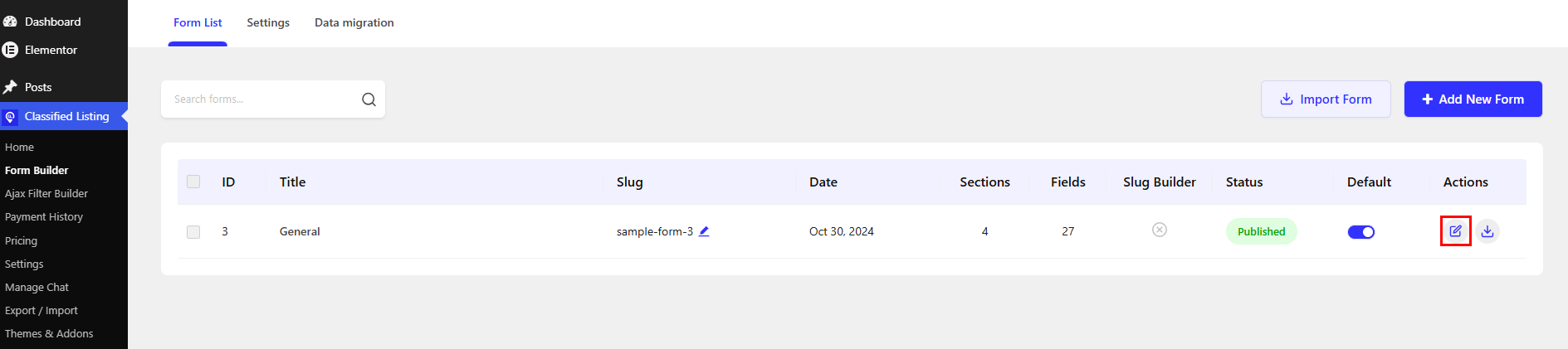
Tip: If you have more than one form, edit the form that’s used for the listing categories where you want to offer booking.
Step 2: Add a New Container (Optional) #
It’s a good idea to place the Booking field in its own container so it stays separate from other listing fields.
- Scroll to the bottom of the form.
- Click Add Container.
A new, empty container will appear with the message “Drag & Drop your field.”
Step 3: Drag the Booking Field into the Container #
- In the right panel, make sure the Input Fields tab is selected.
- Open the Preset Fields section.
- Find the Booking field.
- Drag the Booking field and drop it into the new container.
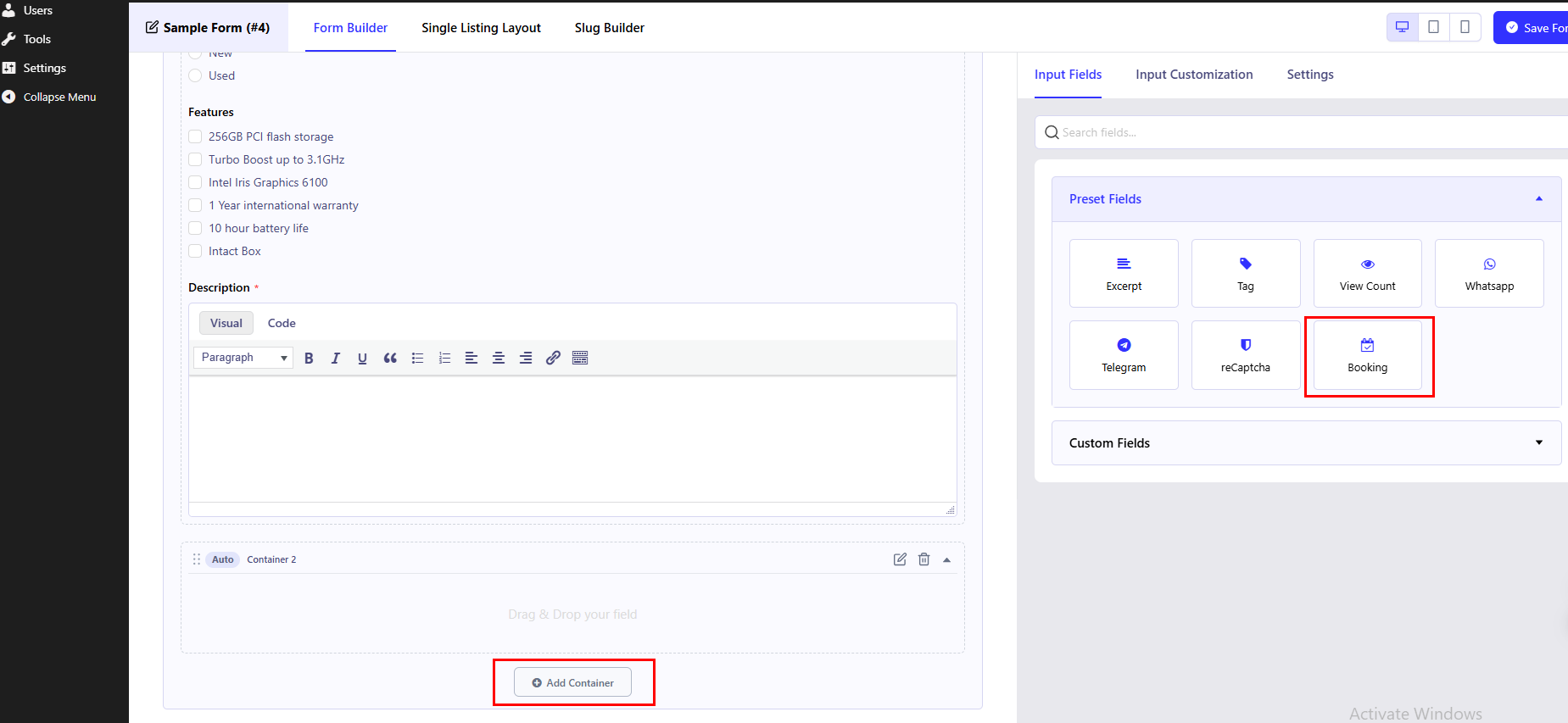
Tip: You can quickly find the field by typing “Booking” in the Search fields box.
Step 4: Check the Booking Field #
After you drop the field, the container shows a Booking section with all the booking options. The Booking field also disappears from the Preset Fields list, because it can only be added to a form once.
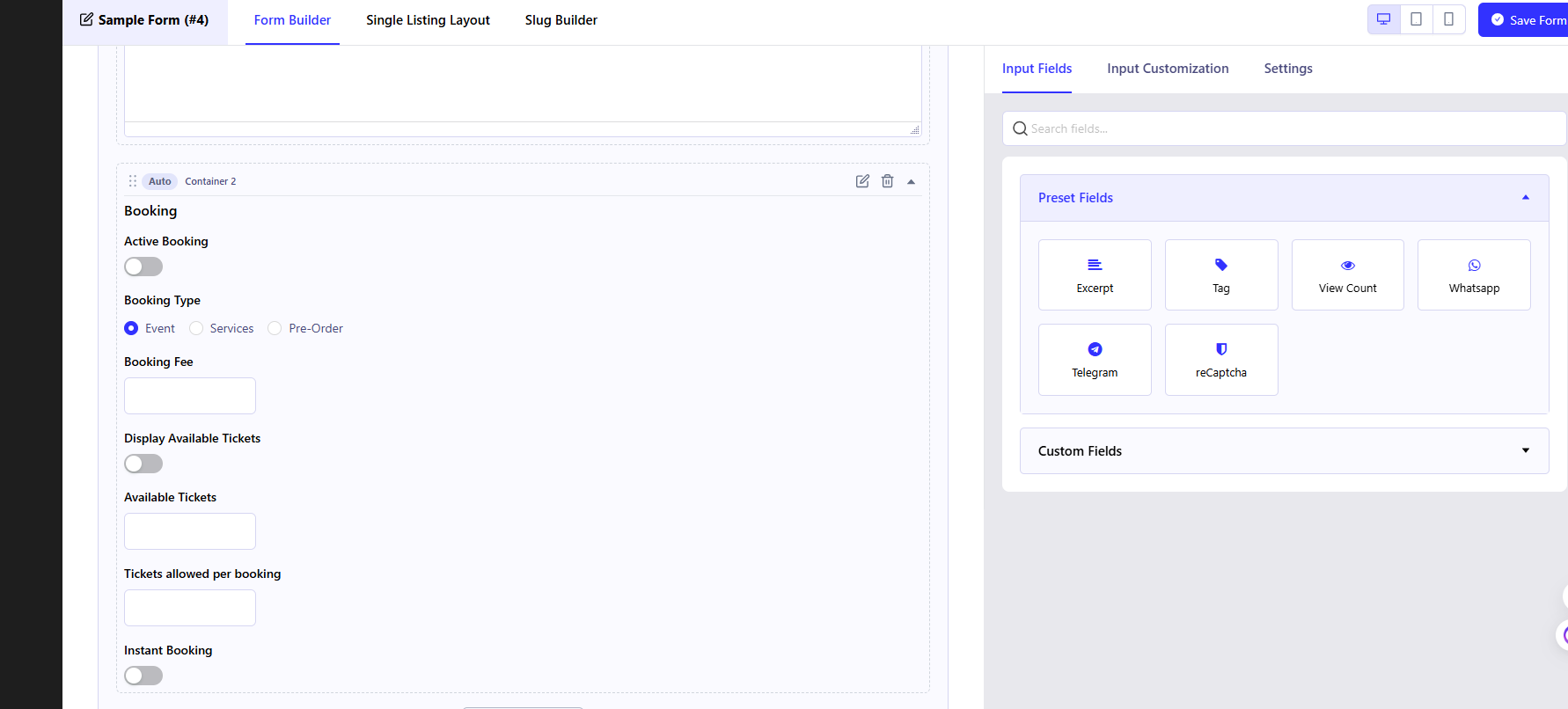
The Booking section includes these fields, which listing owners will fill in when they submit a listing:
| Field | Description |
| Active Booking | Turns booking on or off for the listing. |
| Booking Type | Lets the listing owner choose the type of booking, such as Event, Services, or Pre-Order. |
| Booking Fee | The amount charged for each booking. |
| Display Available Tickets | Shows or hides the number of available tickets on the listing page. |
| Available Tickets | The total number of tickets available. |
| Tickets allowed per booking | The highest number of tickets a customer can book at one time. |
| Instant Booking | When on, bookings are confirmed automatically without the listing owner’s approval. |
Note: The fields shown change depending on the selected Booking Type. The fields in the table above appear when Event is selected. The booking types listed here also depend on which types are available in Classified Listing → Settings → Addon Settings → Booking.
Click Save Form at the top right of the page to save your changes.
Listing owners using this form can now enable booking on their listings.


