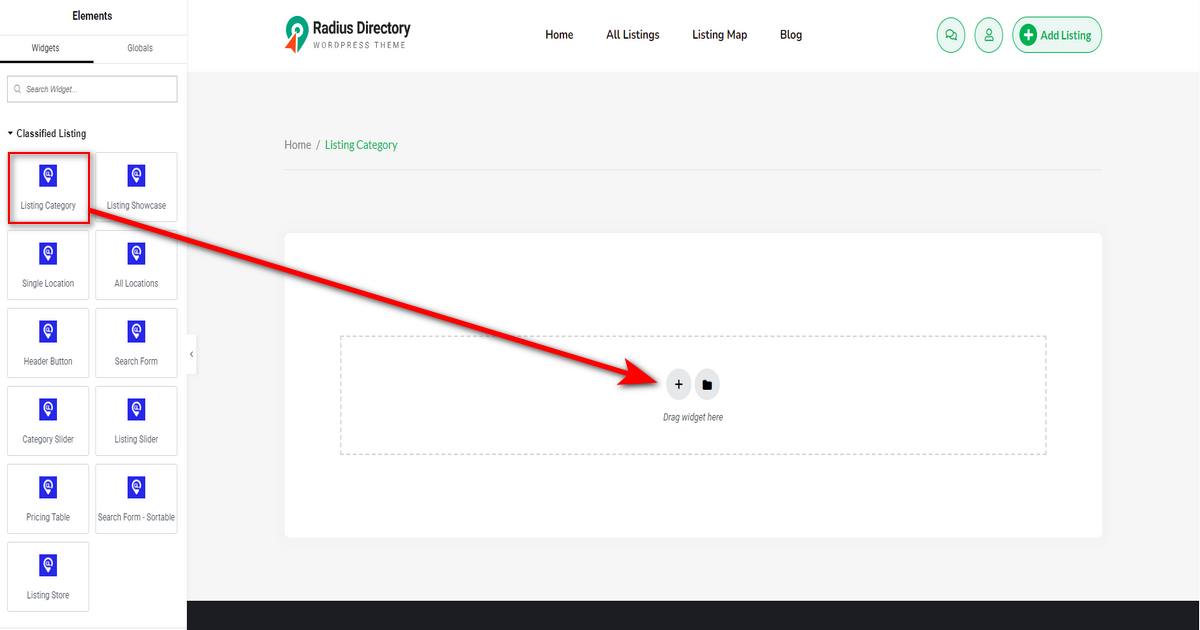
Once you open a page in Elementor, you’ll find “Listing Category” in the widget area. Just drag and drop it into your preferred section in the Elementor editor.
Settings #
After inserting the “Listing Category” widget, you’ll see ‘General’ setting under ‘Content’ tab on the left-hand side. Details about major settings are below.
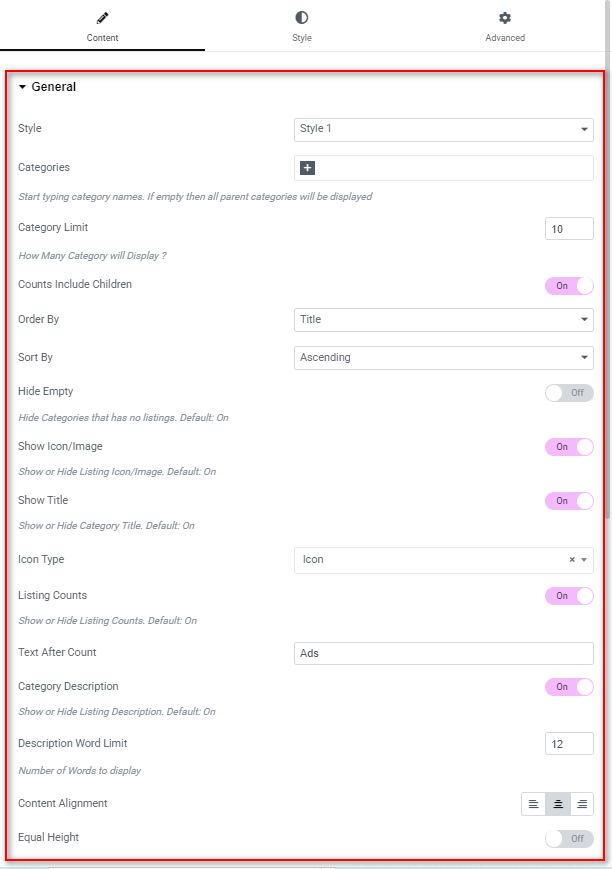
1) Style: You’ll get several styles in this setting. Use it to display listing categories in an attractive way.
2) Categories: Use this setting to display listings by categories. Leave empty to showcase all listings.
3) Category Limit: Determine how many categories you want to display.
4) Order By: Reorder listing categories by Title, Date, ID, and Count.
5) Sort By: Sort listing categories in either ‘Ascending’ or ‘Descending’ order.
6) Hide Empty: Turn it on to hide listing categories without ads.
7) Show Icon/Image: It lets you show or hide the listing icon/image.
8) Show Title: Use it to display or hide category titles.
9) Icon Type: This option lets you choose ‘Icon’ or ‘Image’ as an icon type.
10) Listing Counts: Utilize it to display or hide listing counts.
11) Text After Count: Input your preferred text in this field to display beside the ad count.
12) Category Description: Turn it on or off to show or hide category description.
13) Description Word Limit: Determine how many words you want to display on the listing category description.
14) Content alignment: This option helps you set the position of categories with their containers.
15) Equal Height: Turn it on to maintain equal height for each listing category.
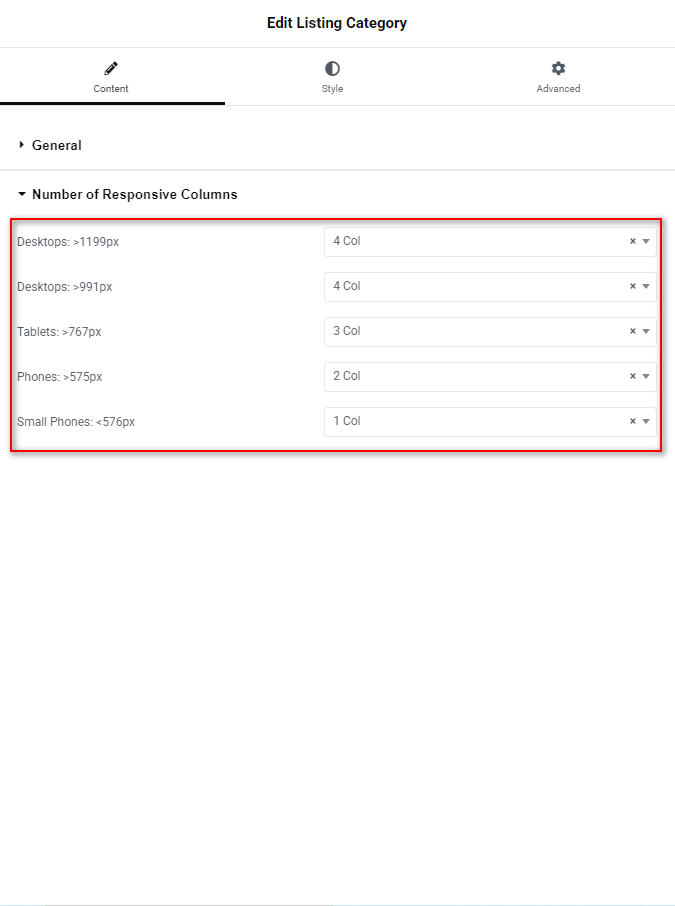
Number of Responsive Columns #
This setting features several options to help you set column numbers based on devices. For example, you can display 6 columns on large desktop screens and 1 column on small phones.
Style #
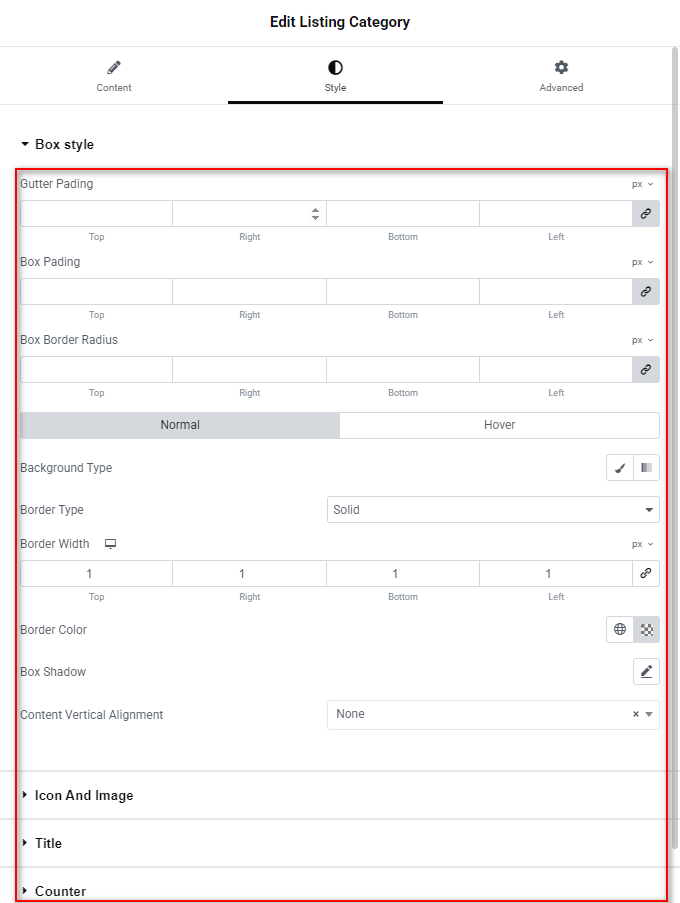
This tab helps you design listing categories. Using this tab, you can work on the ‘Gutter,’ ‘Box,’ and’ Box Border Radius’ positions. You can also select the normal and hover background type, border color, and box shadow, change the icon size, position, and color, and much more.
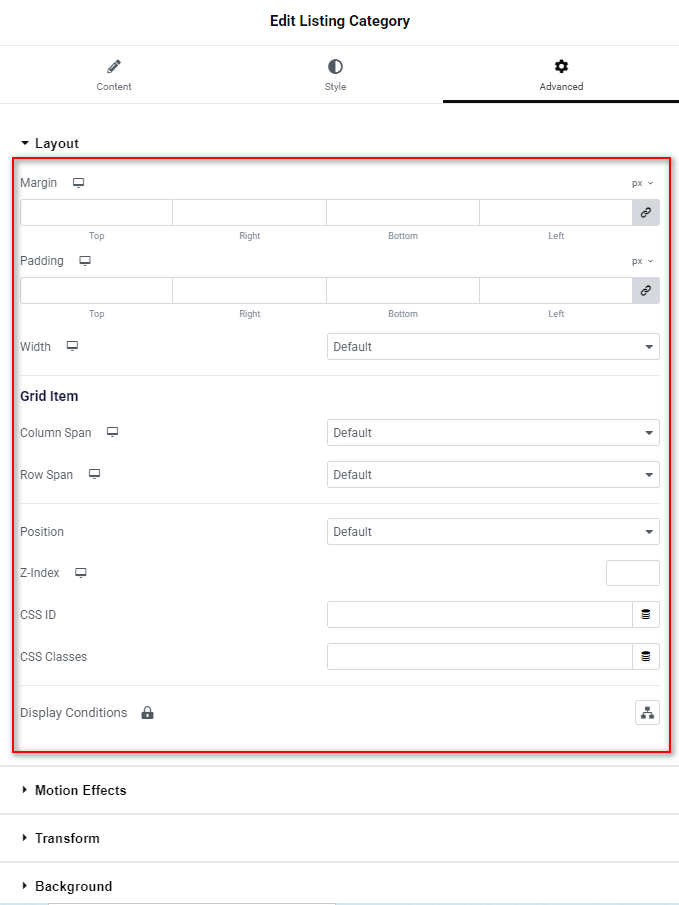
Advanced #
This tab allows you to change the layout’s margin, padding, and width, as well as the column and row span, and many other things.