
Part 1 — The Front End: How Buyers Bid #
The auction panel #
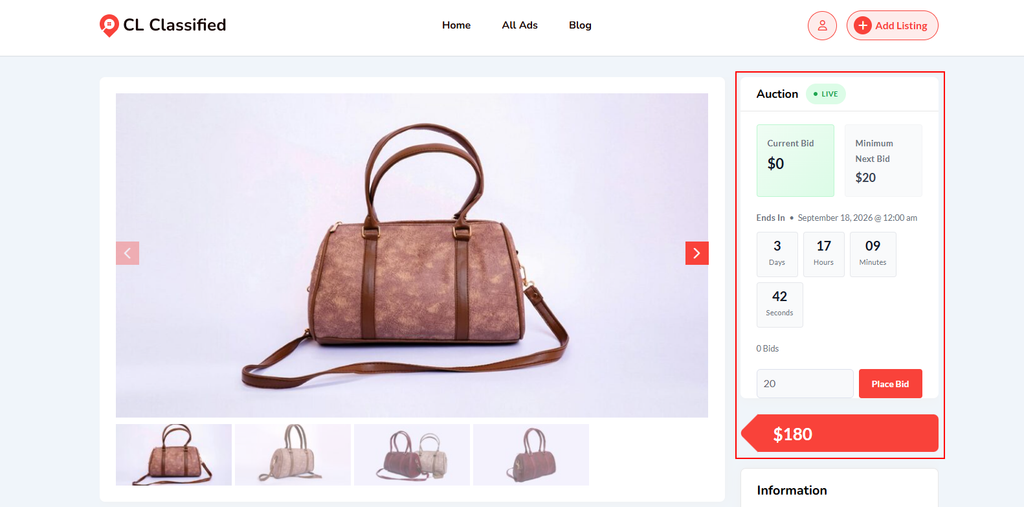
When a listing has auctions enabled, an Auction panel appears on its detail page. Its position is controlled by Auction Panel Position in the addon settings — by default it sits after the content area, shown here in the sidebar alongside the image gallery.
A green LIVE badge next to the heading tells visitors bidding is currently open.
What the panel shows #
Current Bid
The highest bid placed so far, highlighted in green. Before anyone bids, this reads $0.
Minimum Next Bid
The lowest amount the next bidder can enter — the current bid plus the listing’s Bid Increment. In the example the seller set a starting price of $20 with an increment of $1, so the first valid bid is $20, and once someone bids $25 the minimum becomes $26. Buyers can’t accidentally submit a bid that’s too low; the figure is calculated for them.
Ends In
The exact closing date and time, followed by a live countdown broken into Days / Hours / Minutes / Seconds. The countdown ticks down in real time, which creates urgency as the deadline approaches.
Bid count
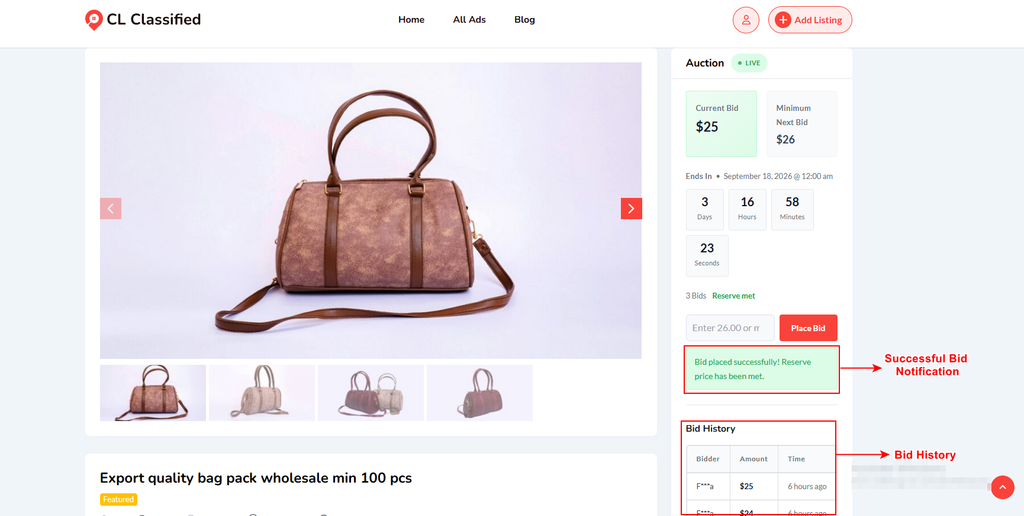
A running total, e.g. 0 Bids before any activity, 3 Bids once bidding is underway.
Reserve met
A green label appears beside the bid count the moment the highest bid clears the seller’s hidden reserve price. Until then, bidders know the item hasn’t yet reached its minimum — without ever seeing the actual figure. This label only shows when Reserve Price Status is enabled in the addon settings.
Bid input & Place Bid button
The input is pre-filled with the minimum acceptable amount and shows a prompt such as Enter 26.00 or more. Buyers can bid the minimum or enter any higher amount.
The large price bar below the panel (e.g. $180) is the listing’s own price display from your theme layout, not part of the auction panel.
Placing a bid — step by step #
1. Enter an amount
Type a figure equal to or greater than the Minimum Next Bid. Anything lower is rejected.
2. Click Place Bid
3. Confirm in the dialog
A confirmation window appears: “Are you sure you want to place this bid? This action cannot be undone.” — with Cancel and Confirm buttons.
This step is deliberate. Bids are binding commitments, so the dialog gives buyers one last chance to catch a typo (such as an extra zero) before it’s locked in. Clicking Confirm submits the bid; Cancel closes the dialog and leaves the auction untouched.

4. See your confirmation
A green notification appears directly beneath the bid form:
Bid placed successfully! Reserve price has been met.
The message adapts to the situation — it confirms the bid went through and, where relevant, tells the bidder whether the reserve has now been cleared. The panel refreshes at the same time: Current Bid rises, Minimum Next Bid recalculates, and the bid count increases.
Bid History on the listing page #
Below the auction panel, a Bid History table shows activity on the listing with three columns:
| Column | What it shows |
| Bidder | The bidder’s name, partially masked for privacy |
| Amount | The bid amount |
| Time | How long ago the bid was placed |
Masking names protects bidder identity while still proving the auction is genuine and competitive. Who can see this table at all is governed by Bid History Visibility in the addon settings — set it to Public to show it to every visitor, or restrict it if you’d rather keep bidding activity private.
Part 2 — The Auctions Dashboard (Admin) #
Everything happening across your site’s auctions is tracked in one place.
Go to: Classified Listing → Auctions
Overview statistics #
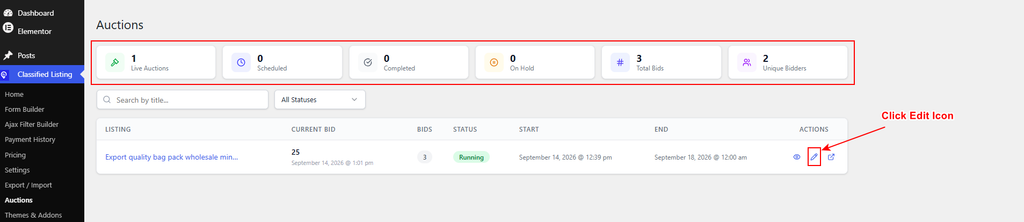
Six cards across the top give you an instant read on auction activity:
| Card | Meaning |
| Live Auctions | Auctions currently accepting bids |
| Scheduled | Auctions created but not yet started |
| Completed | Auctions finished with a successful outcome |
| On Hold | Auctions you’ve paused |
| Total Bids | Every bid placed across all auctions |
| Unique Bidders | The number of distinct users who have bid |
Together these tell you whether your auction section is healthy — plenty of live auctions with few unique bidders, for example, signals a traffic problem rather than a listing problem.
Finding an auction #
Search by title… filters the list by listing name, and the All Statuses dropdown narrows it to a single status (Running, Scheduled, Completed, and so on). Both are useful once you have more than a handful of auctions running.
The auctions table #
| Column | What it shows |
| Listing | The listing title — click to open it |
| Current Bid | The highest bid, with the date and time it was placed |
| Bids | Total bids on that auction |
| Status | The auction’s current state (e.g. a green Running badge) |
| Start | When bidding opened |
| End | When bidding closes |
| Actions | Three icons: view (eye), edit (pencil), and open on front end (external link) |
To manage a specific auction, click the edit (pencil) icon in the Actions column.
Part 3 — Managing a Single Auction #
The edit screen is the control centre for one auction. The listing title sits at the top, with an external-link icon to preview it live and an All Auctions → link to go back.
Summary cards #
Four cards give you the key numbers at a glance: Current Bid, Total Bids, Unique Bidders, and the Ends date and time.
Auction Details #
A read-only summary of the auction’s configuration, with a status badge in the corner:
- Starting Price — the opening bid the seller set
- Bid Increment — the minimum step between bids on this listing
- Current Bidder — the user holding the winning bid (clickable to view the user)
- Starts — when bidding opened
Bid History (full admin view) #
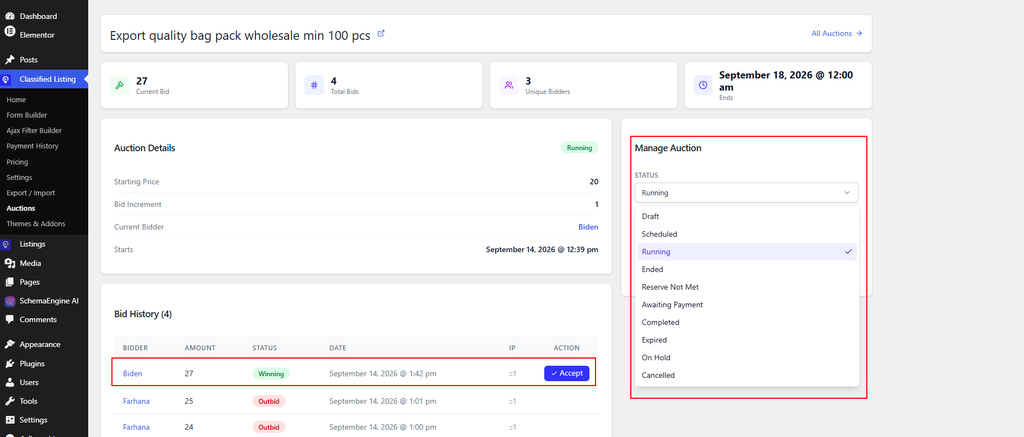
Unlike the front-end table, the admin version shows complete, unmasked detail for every bid:
| Column | What it shows |
| Bidder | Full username, linked to their profile |
| Amount | The bid amount |
| Status | Winning (green) for the current leader, Outbid (red) for superseded bids |
| Date | Exact date and time of the bid |
| IP | The bidder’s IP address |
| Action | An Accept button on the winning bid |
The IP column is your main tool against shill bidding and fake accounts — several bids from one IP under different usernames is a clear red flag worth investigating.
The Accept button #
Accept on the winning row lets you close the auction in that bidder’s favour immediately, without waiting for the countdown to finish. Use it when:
- The seller is happy with the current bid and wants to close early
- The reserve wasn’t met but the seller will accept the highest bid anyway
- You’re resolving a dispute manually
This is the admin-side counterpart to the Accept Highest Bid option in the addon settings.
Accepting a bid ends the bidding and commits the item to that bidder. Confirm with the seller before using it on an auction that still has time left.
Manage Auction — changing the status #
The Manage Auction panel on the right holds a Status dropdown, letting you move an auction to any state manually. The current status is ticked.
| Status | What it means / when to use it |
| Draft | Not published; no bidding possible. Useful while an auction is still being prepared. |
| Scheduled | Published and waiting for its start time. Bidding opens automatically when that time arrives. |
| Running | Live and accepting bids. |
| Ended | Bidding is closed. The countdown reaching zero produces this state. |
| Reserve Not Met | Bidding closed below the seller’s reserve, so there’s no sale. The seller can relist or accept the highest bid. |
| Awaiting Payment | A winner has been determined and is inside their Payment Deadline window. |
| Completed | Paid and finished — a successful sale. |
| Expired | Ended without a result, typically with no bids, or a winner who never paid within the deadline. |
| On Hold | Paused by an admin. Use this to freeze an auction while you investigate suspicious bidding or a listing dispute. |
| Cancelled | Called off entirely. Use for prohibited items, seller withdrawal, or confirmed fraud. |
Most transitions happen automatically as the countdown and payment deadline elapse. The dropdown exists for the exceptions — pausing a questionable auction, cancelling a policy violation, or manually marking a sale complete after an off-site payment.


