
• Classified Listing Docs
    • Classified Listing Plugin
    • Classified Listing All Addons
    • Classified Listing Mobile App
    • Classima Mobile APP
    • Listygo Mobile App
    • Homlisti Mobile App
  • Woocommerce Plugins Docs
    • ShopBuilder Elementor Addon
    • Woo Variation Swatches
    • Woo Variation Gallery
    • Zilly Mobile App
  • General Plugins Docs
    • The Post Grid
    • Testimonial Slider
    • Team Members
    • Food Menu
    • Review & Schema
    • Portfolio
    • Business Review
  • Our Plugins
    • The Post Grid
    • Classified Listing
    • ShopBuilder
    • Food Menu
    • Team
    • Portfolio
    • Testimonial Slider
    • Review & Schema
    • See All Plugins
  • Get Addons
×
  • Classified Listing Docs
    • Classified Listing Plugin
    • Classified Listing All Addons
    • Classified Listing Mobile App
    • Classima Mobile APP
    • Listygo Mobile App
    • Homlisti Mobile App
  • Woocommerce Plugins Docs
    • ShopBuilder Elementor Addon
    • Woo Variation Swatches
    • Woo Variation Gallery
    • Zilly Mobile App
  • General Plugins Docs
    • The Post Grid
    • Testimonial Slider
    • Team Members
    • Food Menu
    • Review & Schema
    • Portfolio
    • Business Review
  • Our Plugins
    • The Post Grid
    • Classified Listing
    • ShopBuilder
    • Food Menu
    • Team
    • Portfolio
    • Testimonial Slider
    • Review & Schema
    • See All Plugins

Booking Addon

9
  • Overview
  • Requirements
  • Booking Addon Settings
  • Booking Field in Form Builder
  • Event Booking
  • Services Booking
  • Rent Booking
  • Pre-Order Booking
  • Payment via WC

Claim Listing Addon

7
  • Requirements
  • Settings
  • Email Notification
  • Badge
  • Manage Claim Listings
  • Submission
  • Video (How to Use)

Mobile Number Verification Addon

8
  • OTP Protection
  • OTP Login
  • Requirements
  • How to setup Firebase
  • OTP Verification Field
  • Other Settings
  • Add Twilio Information
  • Add Firebase Information

Bookings List

2
  • My Bookings
  • All Bookings

Marketplace Addon

7
  • Requirements
  • Installation
  • Settings
  • Email Notification
  • Commission & Payout
  • Screenshots
  • Video (How to Use)

Seller Verification Addon

6
  • Requirements
  • Documents Submission
  • Manage Request
  • Seller Badge/Status
  • Badge Color
  • Video (How to Use)

Settings

3
  • End-point
  • Email Settings
  • Badge Color

Multi Currency Addon

8
  • Requirements
  • Installation
  • General Settings
  • Location Settings
  • Design Settings
  • Update Settings
  • Front End Look
  • How to use Multi-Currency Addon (Video)

PDF Invoices Addon

5
  • Requirements
  • Installation
  • Settings
  • Download PDF
  • Video (How to Use)

BuddyBoss Integration

6
  • Requirements
  • Installation
  • Addon Settings
  • Activity Feeds
  • Profile page
  • Video (How to Use)

BuddyPress Integration

5
  • Requirements
  • Installation
  • Addon Settings
  • Activity Feeds
  • Profile page

Coupon Addon

5
  • Requirements
  • Installation
  • Coupon Uses
  • Coupon Settings
  • Video (How to Use)

FAQ Addon

4
  • Requirements
  • Settings
  • Add And View FAQ
  • FAQ Addon

Job Manager Addon

11
  • Overview
  • Requirements
  • Job Manager Addon Settings
  • Job Submit Form in Form Builder
  • Job Archive Page
  • Job Details Page
  • Job Submission
  • My Account Dasboard
  • Job Manager Dasboard
  • Job Applications Form Builder
  • Video (How to Use)

TranslatePress Multilingual

4
  • Translation for User Dashboard Side
  • Translation for Admin Side
  • Installation
  • Requirements

Real Estate Agent

5
  • Add Agent
  • Agent List
  • Agent Additional Info
  • Override Agent Archive Page
  • Override Agent Single Page

Elementor Archive & Single Page Builder

2
  • Requirements
  • Installation

Build Archive Page

3
  • General
  • Archive Listing Widget
  • Page Header Widget

Build Store Single Page

8
  • General
  • Store Listings Widget
  • Store Contact Info Widget
  • Store Opening Hours Widget
  • Store Slogan Widget
  • Store Description Widget
  • Store Banner Widget
  • Store Name Widget

Build Single Page

17
  • General
  • Listing Review Widget
  • Related Listing Widget
  • Social Profile Widget
  • Listing Video Widget
  • Business Hours Widget
  • Saller Information Widget
  • Listing Map Widget
  • Actions & Social Share Widget
  • Custom Fields Widget
  • Listing Price Widget
  • Listing Badge Widget
  • Listing Meta Widget
  • Listing Description Widget
  • Listing Image Widget
  • Listing Title Widget
  • Page Header Widget

Classified Listing Toolkits

1
  • Classified Listing Toolkits

Divi Addons

13
  • Divi Modules
  • Classified General Module
  • Listing Categories
  • Listing Location
  • Listing Search Form
  • Listing Single Location
  • Listing Store
  • Listing Grid
  • Listings List
  • Listings Slider
  • Classified Archive Modules
  • Classified Single Page Modules
  • Classified Store Single Page Module

Elementor Addons

13
  • Elementor Addon
  • Listing Category
  • Listing Showcase
  • Single Location
  • All Locations
  • Header Button
  • Search Form
  • Search Form—Sortable
  • Category Slider
  • Listing Slider
  • Pricing Table
  • Listing Store
  • Archive Listing

Search Alert

8
  • Search Alert Settings
  • Overview
  • Save Searches Instantly
  • Custom Notification Preferences
  • Search Alert List Backend
  • Dashboard Search Alert List (Frontend)
  • Email Notifications for Matching Results
  • Search Alert Video Tutorial:

Offload Media Addon

3
  • Requirements
  • Introduction
  • Settings

Lead Manager Addon

5
  • Overview
  • Capturing a Lead (Visitor Side)
  • Managing Your Leads (Admin Side)
  • Allow Lead Collection per Membership Plan
  • Leads from the Seller’s Account (Front-End)

Ad Manager

5
  • Overview
  • Add New Ad
  • Analytics
  • Settings
  • What Visitors See

Account Field Manager

6
  • Overview
  • Installation
  • The Form Builder
  • Creating Your First Field
  • Field Types & Field Settings
  • Best Practices

Classified Listing Auction

5
  • Overview
  • Auction Settings
  • Auction Field in Form Builder
  • Auction Lifecycle
  • Winning, Paying & Completing an Auction
  • Home
  • Docs
  • Classified Listing Auction
  • Auction Settings
View Categories

Auction Settings

4 min read

0:00 / 3:58
  • View as Markdown Open this page as plain Markdown (opens in a new tab)
  • Open in ChatGPT Ask questions about this page (opens in a new tab)
  • Open in Claude Ask questions about this page (opens in a new tab)
  • Open in Google AI Studio Ask questions about this page (Google account required) (opens in a new tab)

From your WordPress dashboard, go to:

Classified Listing → Settings → Addon Settings → Auction

All auction options live on this single page, grouped into five sections: General Options, Duration, Payment, Seller Options, and Display. Remember to click Save Change after any edit.

1. General Options #

This is where you switch auctions on and set the core bidding rules.

Auction
The master switch. Turn this on to enable auction functionality for listings. With it off, none of the auction fields appear for sellers and no bidding is possible anywhere on your site — so this is the first thing to enable.

Default Bid Increment
The minimum amount a new bid must exceed the current highest bid. In the example above it’s set to 10, so if the current bid is 100, the next valid bid must be at least 110. This keeps auctions moving forward instead of crawling up in tiny amounts. Set it in proportion to the typical value of items on your site — a low increment suits inexpensive goods, a higher one suits vehicles or property.

Reserve Price
Enables the reserve price feature. When it’s on, sellers can set a confidential minimum price on their auction. If bidding ends below that figure, the item doesn’t sell, which protects sellers from losing a valuable item for far less than it’s worth. Turn it off if you’d rather every auction sell to the highest bidder regardless of amount.

Buy Now
Lets buyers skip the bidding and purchase the item immediately at a set price. This option needs the Marketplace addon installed and active to work — without it, the toggle has no effect.
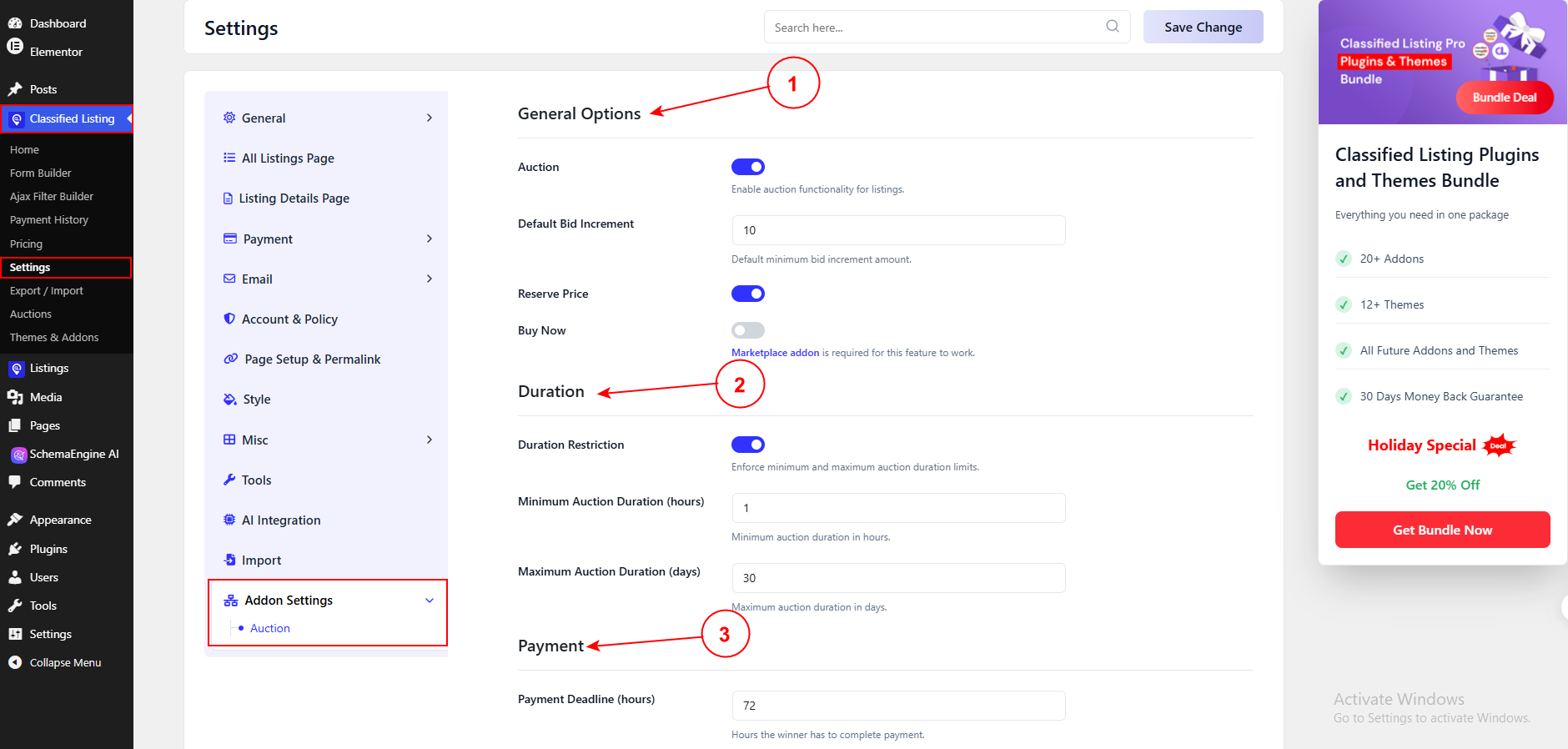
2. Duration #

Controls how long auctions are allowed to run.

Duration Restriction
Enforces the minimum and maximum limits set below. With this on, sellers must choose a duration inside your allowed range. Leave it off to let sellers pick any length they want.

Minimum Auction Duration (hours)
The shortest auction a seller can create, in hours. The default of 1 means no auction can be shorter than one hour. Raising this gives bidders more time to find and act on a listing.

Minimum Auction Duration (days) → Maximum Auction Duration (days)
The longest an auction can run, in days. The default is 30. Shorter maximums create urgency and faster turnover; longer ones give rare or high-value items more exposure.

Note: Minimum is measured in hours, maximum in days. Keep that in mind when planning your range.

3. Payment #

Payment Deadline (hours)
How many hours the winning bidder has to complete payment after the auction ends. The default is 72 (three days). If the winner doesn’t pay within this window, the sale can be treated as incomplete — which is where the seller’s relisting and highest-bid options come into play. Give buyers enough time to arrange payment, but keep it short enough that sellers aren’t left waiting on an unresponsive winner.
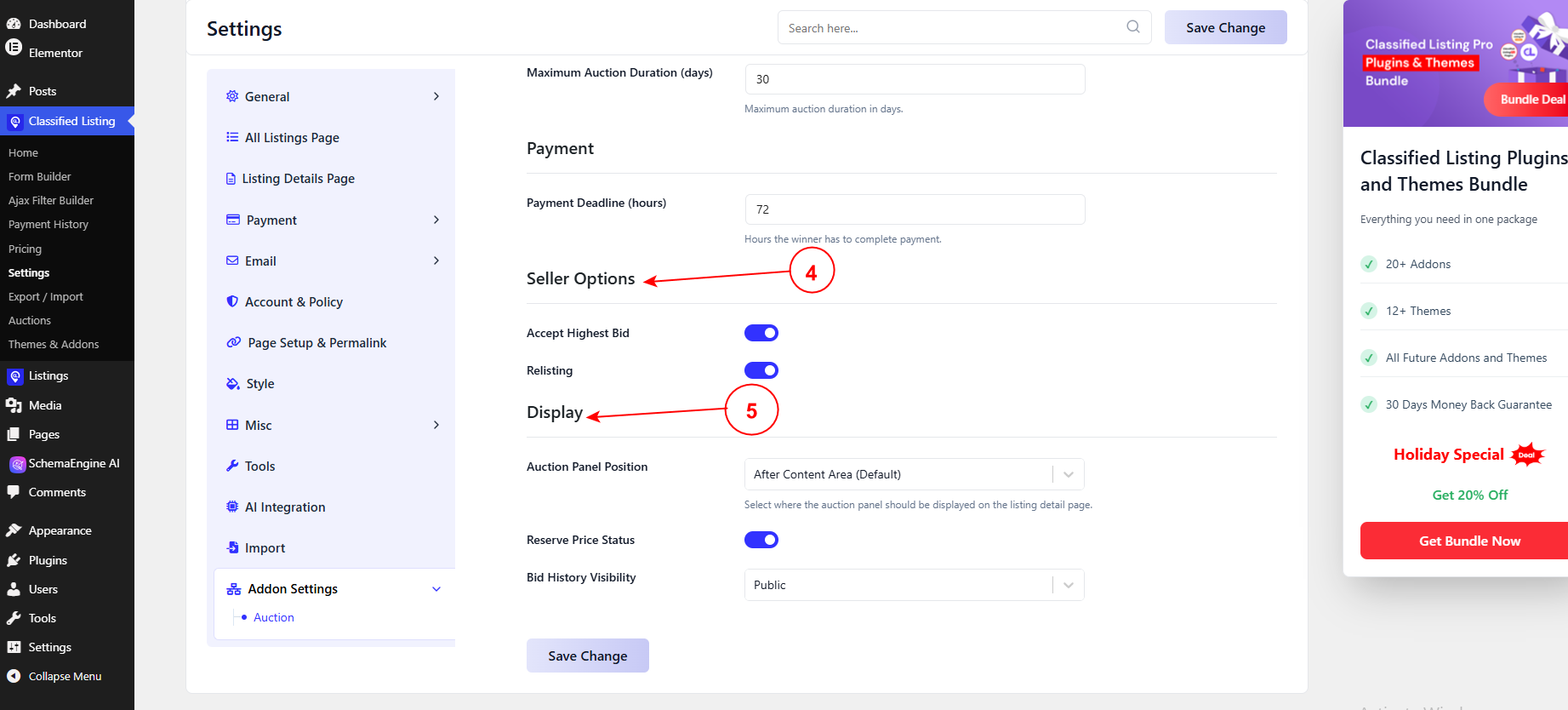
4. Seller Options #

Permissions you grant sellers over their own auctions.

Accept Highest Bid
Allows a seller to accept the highest bid even when it falls below their reserve price, or when the auction closes without a clear sale. Useful when a seller would rather close the deal than end up with no sale at all.

Relisting
Lets sellers republish an auction that ended without a sale — no bids, reserve not met, or a winner who never paid — without building the listing again from scratch.

5. Display #

Controls how the auction appears to visitors on the front end.

Auction Panel Position
Where the bidding panel (current bid, countdown, bid button) sits on the listing detail page. The default is After Content Area, placing it below the listing description. Choose the position that best fits your theme and layout.

Reserve Price Status
Shows visitors whether the reserve price has been met yet. Bidders see that the item still hasn’t reached its minimum, which can encourage higher bids — while the actual reserve figure stays hidden. Turn it off to keep reserve status completely private.

Bid History Visibility
Who can see the list of bids placed on an auction:

  • Public — anyone viewing the listing can see the bid history
  • Other options restrict visibility to logged-in users, participants, or the seller only

Public history builds trust and competitive pressure. More restrictive settings suit sites where bidder privacy matters.

Don’t forget to hit Save Change at the bottom of the page.

What are your Feelings

Share This Article :

  • Facebook
  • X
  • LinkedIn
  • Pinterest
Still stuck? How can we help?

How can we help?

Updated on September 15, 2026
OverviewAuction Field in Form Builder
Table of Contents
  • 1. General Options
  • 2. Duration
  • 3. Payment
  • 4. Seller Options
  • 5. Display
Copyright© 2026 RadiusDocs by RadiusTheme