
Let’s build a simple “Company Name” text field from scratch.
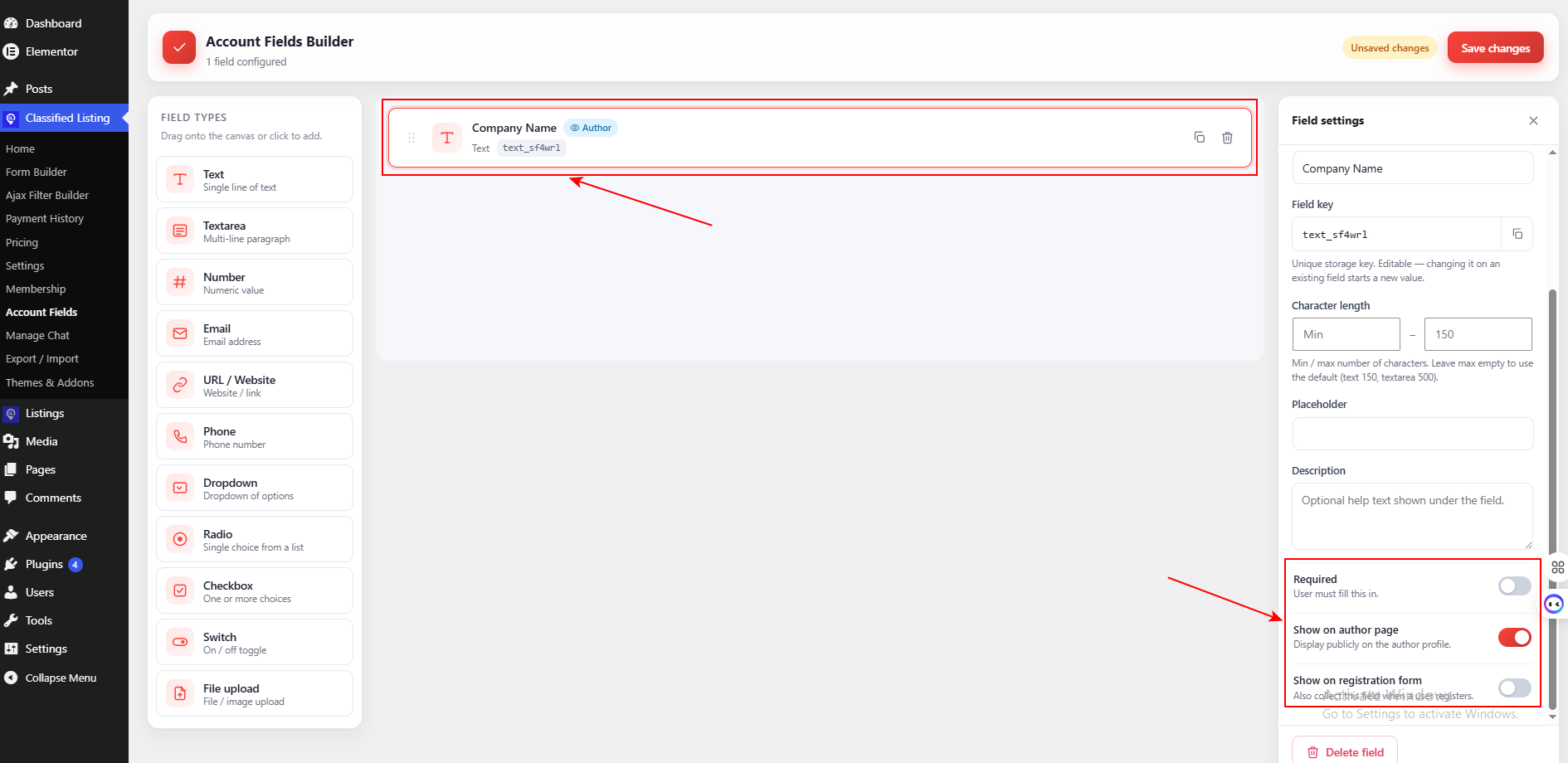
- Add the field- From the palette on the left, drag Text onto the canvas (or just click it). A new blank field card appears.
- Give it a label- With the card selected, look at the settings panel on the right. In Label, type Company Name. This is the text your users will see above the input.
- Add a hint (optional)- In Description you can add helper text like “The registered name of your business.” and in Placeholder a faint in-field example like “e.g. Acme Ltd”.
- Decide if it’s required- Turn on Required if the user must fill it in before they can save.
- Choose where it shows- Leave Show on author page on if you want the company name to appear on the user’s public profile. Turn on Show on registration form if you want to collect it when people sign up.
- Save- Click Save in the toolbar.
Done — the field is now live on every user’s Account Details page.
Reordering & deleting: Drag a card by its handle to change the order fields appear in. To remove a field, select it and use the delete (trash) control on the card.


