
To setup Authorize.net Payment gateway, go to Classified Listing=> Settings => Payment=> Authorize.net Cards Settings
If you want to use Authorize.net payment, you first need to enable it by checking the box, and then fill the necessary fields as shown in the window below.
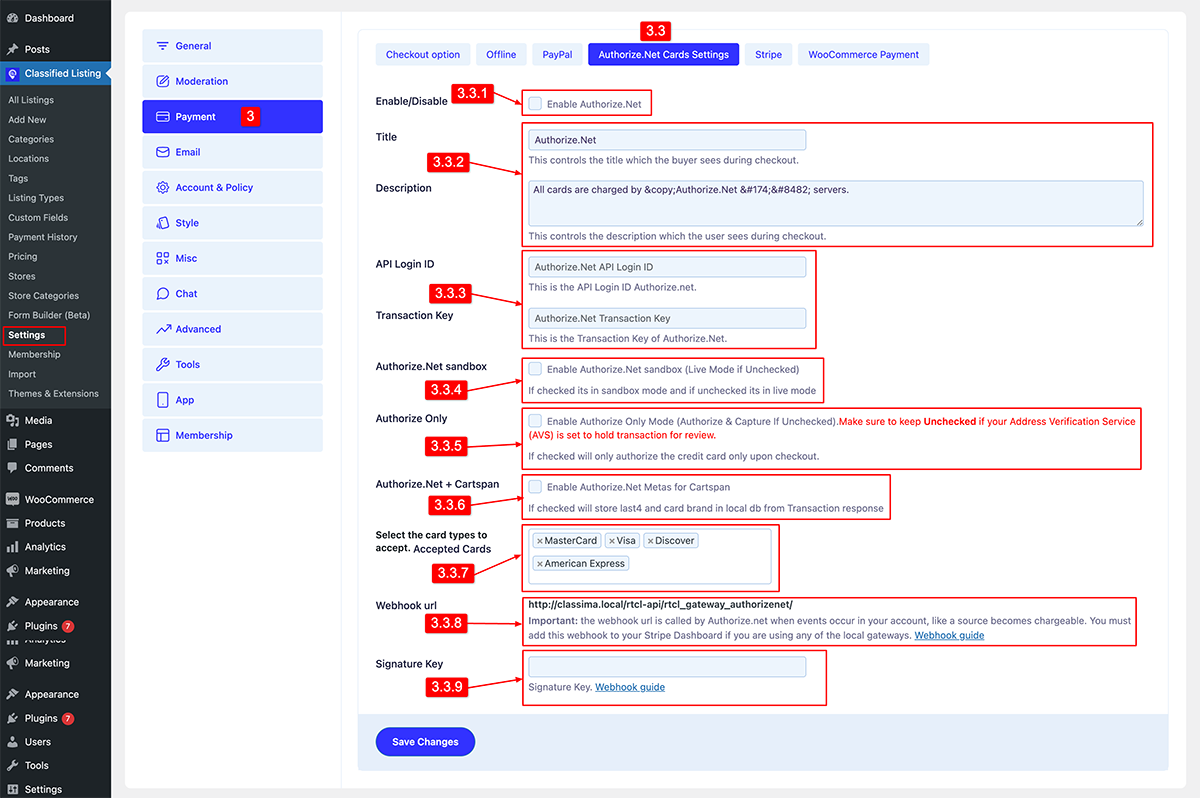
3.3.1) Enable: To enable Authorize.net payment check the “Enable Authorize.net” box.
3.3.2) Title: Give the title that will show as the payment name during the checkout process.
Description: Write the description that will be displayed during the checkout process.
3.3.3) API Login ID & Transaction Key: Enter the Authorize.net API login ID & Transaction key to complete the payment setup.
3.3.4) Sandbox: Enable Sandbox mode to test whether the payment gateway is successfully activated.
3.3.5) Authorize Only: To enable the authorize-only mode, check this option. If left unchecked, it will both authorize and captcha.
3.3.6) Authorize.net + Cartspan: Enable this option to store the last 4 digits of the cart in the local database for transaction response.
3.3.7) Select Card Type Accept: Select the cards that you want to accept.
3.3.8) Webhook URL: Leave it as default, and you can find detailed instructions in the guide URL.
3.3.9) Signature Key: Enter the signature key you can find the detailed instructions in the guided URL.


