
Step 1: How To Add Listing Search Form Block #
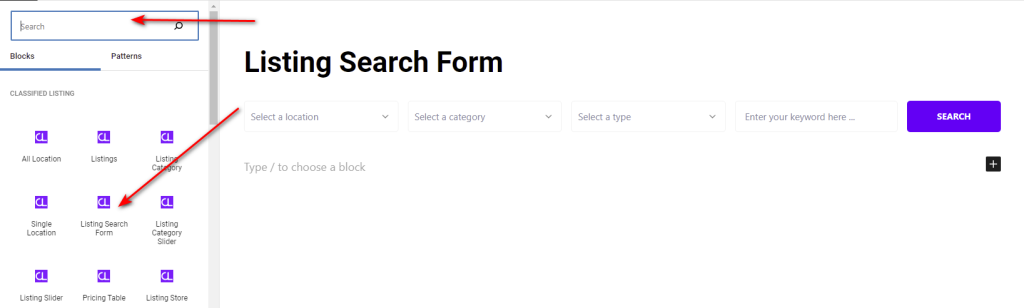
To add or edit listing search form block at first click on the Gutenberg editor block inserter then search or the scroll find listing search form block.
Step 2: General Tab #
Listing search from settings are more customizable. Description added for each settings below.
Filter Settings: #
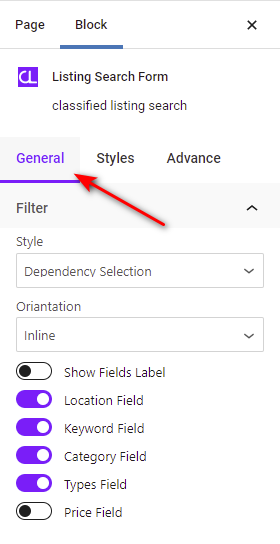
- Style: This select field has four form style options dependency, popup, auto-suggestions, and standard.
- Orientation: This select field has two options for viewing inline and vertical form style.
- Show fields label: This field is used for input field label show or hide.
- Keyword field: This field is used for keyword field show or hide.
- Category field: This field is used for category field show or hide.
- Type field: This field is used for type field show or hide.
- Price field: This field is used for type field show or hide.
Step 3: Style Tab #
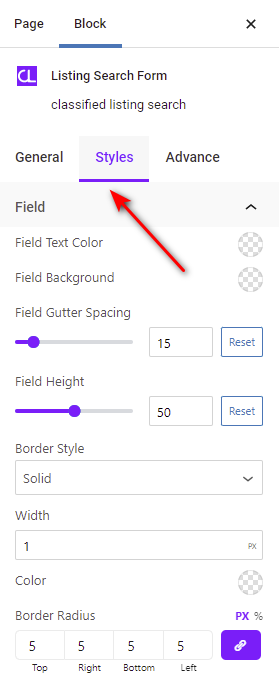
Field style section has input field style options field text color, field background, field gutter spicing, field height, border style, border color, border radius.
Button style: #
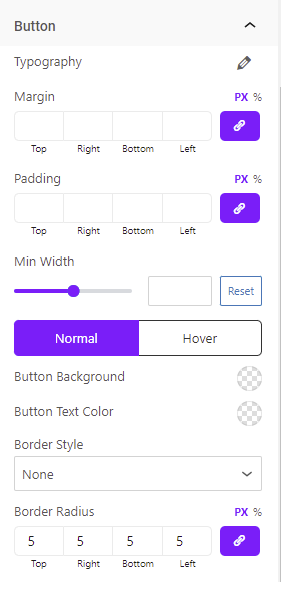
Button style section has button style options. There are button typography, margin, padding, button width, button normal, hover color, background, border style, border radius change options.


