
1. Frond End Overview #
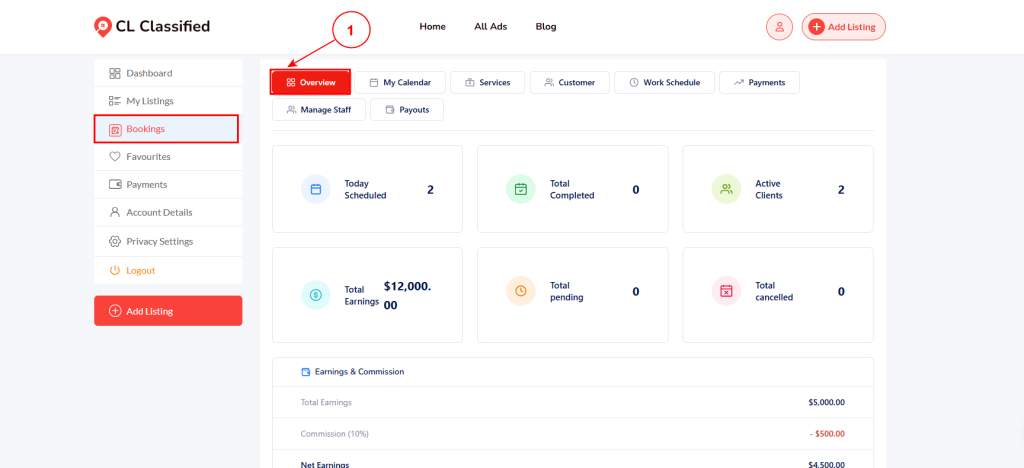
Sellers/Users/Staff can manage all their booking activity from the frontend My Account dashboard by navigating to Bookings → Overview.
Booking Dashboard Tabs
The Bookings section is organized into the following tabs:
Overview · My Calendar · Services · Customer · Work Schedule · Payments · Manage Staff · Payouts
Booking Summary Cards
The Overview tab provides a quick snapshot of the seller’s booking activity:
- Today Scheduled — Number of appointments scheduled for today.
- Total Completed — Total appointments successfully completed.
- Active Clients — Number of clients with active bookings.
- Total Earnings — Gross revenue earned from all bookings (e.g., $12,000.00).
- Total Pending — Appointments awaiting confirmation or completion.
- Total Cancelled — Number of cancelled appointments.
Earnings & Commission
Below the summary cards, the Earnings & Commission section breaks down the seller’s financials earnings, commissions, and available balance.
2. My Calendar #
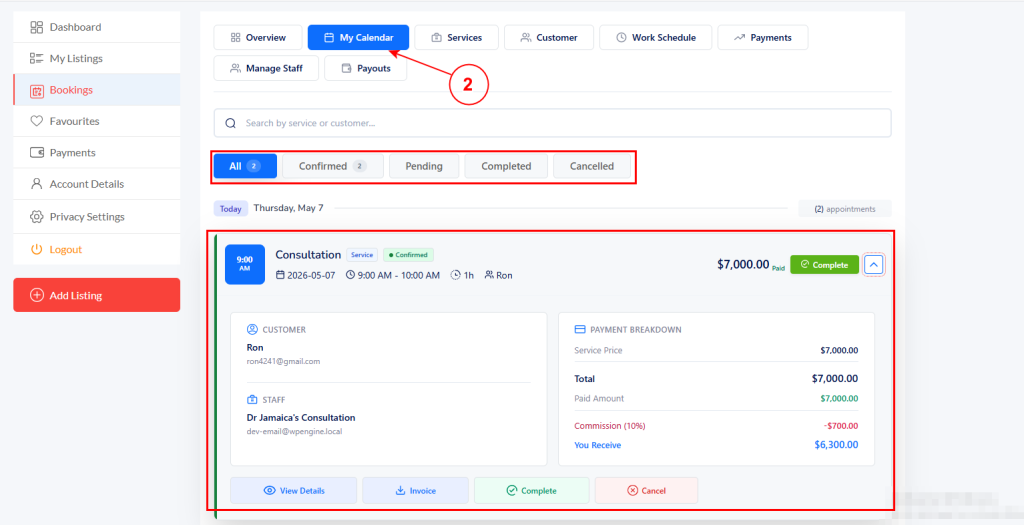
The My Calendar tab displays all appointments in a chronological list view. Users can search by service or customer name, and filter appointments by status: All, Confirmed, Pending, Completed, and Cancelled.
Each appointment card shows the customer’s name, date, time slot, duration, assigned staff, payment amount, and payment status. Sellers can view details, make invoice, mark confirmed appointments as Complete, or cancel it directly from this view.
3. Services #
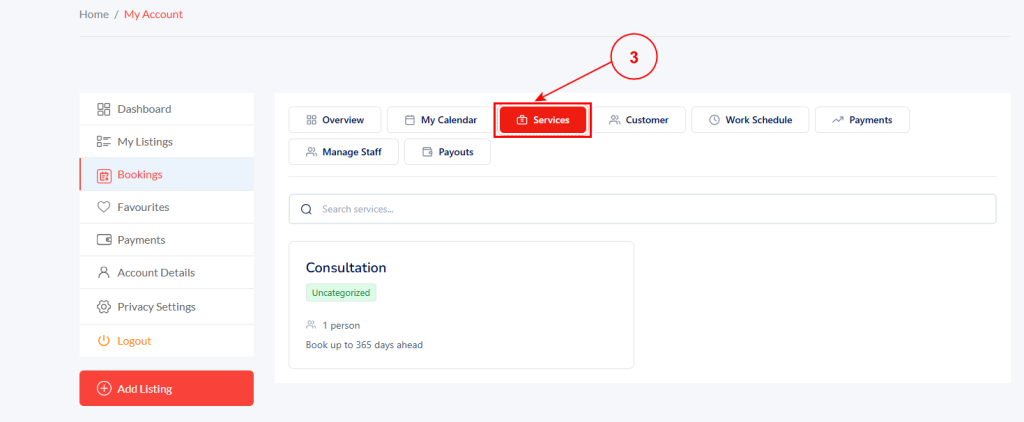
The Services tab lists all bookable services linked to the seller’s listings. Each service card displays the service name, category, capacity (e.g., 1 person), and how far ahead customers can book (e.g., up to 365 days ahead).
Sellers can search through their services using the search bar.
4. Customer #
The Customer tab gives sellers an overview of their client base with three summary metrics at the top:
- Total Clients — Number of unique customers who have booked.
- Total Bookings — Combined number of bookings across all clients.
- Total Spent — Cumulative revenue from all client bookings.
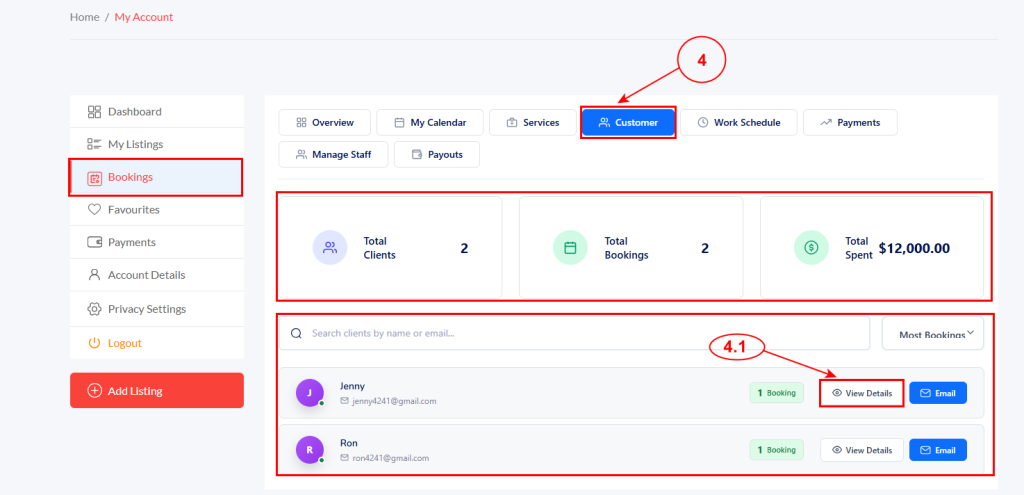
Each client is listed with their name, email, and booking count. Sellers can View Details or send an Email directly from the list.
4.1 Individual Client Details
Clicking View Details opens a popup.
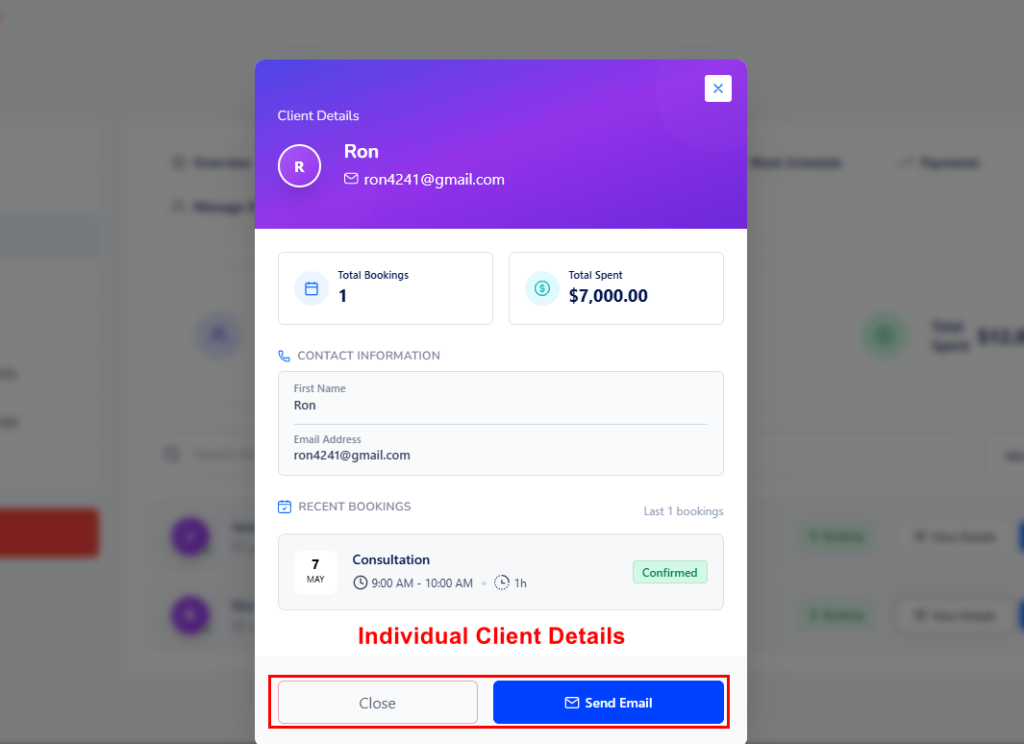
This pop-up shows the client’s full profile including contact information, total bookings, total amount spent, and a list of recent bookings with date, time, duration, and confirmation status.
Sellers can also send an email to the client directly from this popup.
5. Work Schedule #
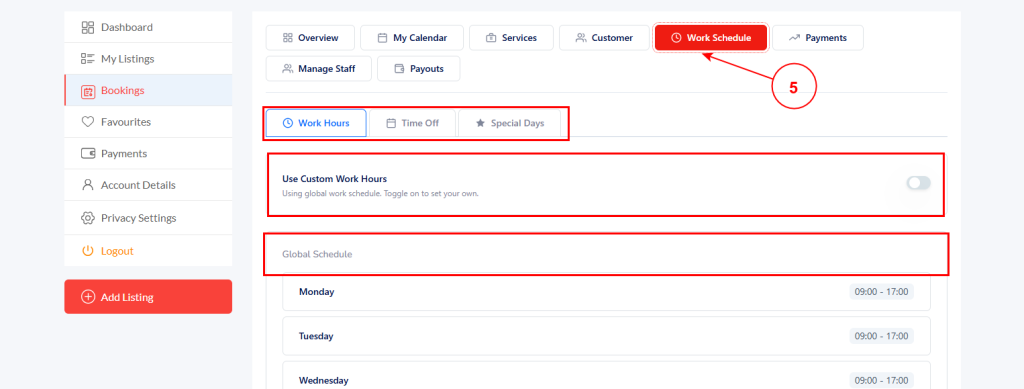
The Work Schedule tab lets sellers manage their availability across three sub-tabs: Work Hours, Time Off, and Special Days.
By default, the global work schedule set by the admin is applied. Sellers can enable Use Custom Work Hours to override the global schedule and set their own availability independently.
6. Payments #
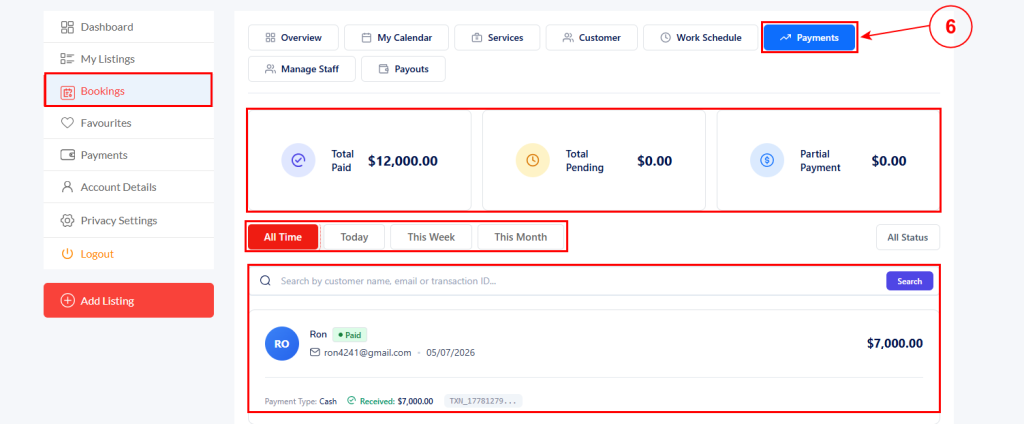
The Payments tab provides a full payment history with three summary metrics:
- Total Paid — Total amount successfully received from customers.
- Total Pending — Payments awaiting completion.
- Partial Payment — Payments that have only been partially received.
Transactions can be filtered by time period — All Time, Today, This Week, or This Month — and by payment status. Each transaction entry shows the customer name, email, date, payment type, amount received, and transaction ID.
7. Manage Staff #
The Manage Staff tab allows sellers to view and manage their team members. The staff list displays each member’s name, email, assigned services, and active status.
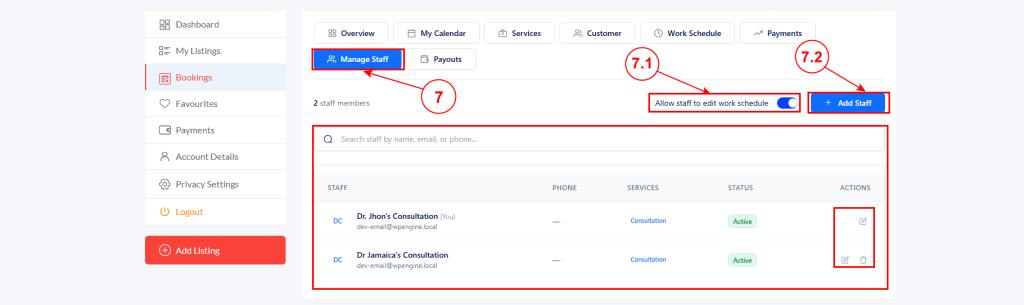
7.1 Allow Staff to Edit Work Schedule — A toggle that grants staff members permission to update their own availability from their accounts.
7.2 Add Staff — Sellers can add new staff members directly from this tab. Existing staff can be edited or removed using the action icons in the list.
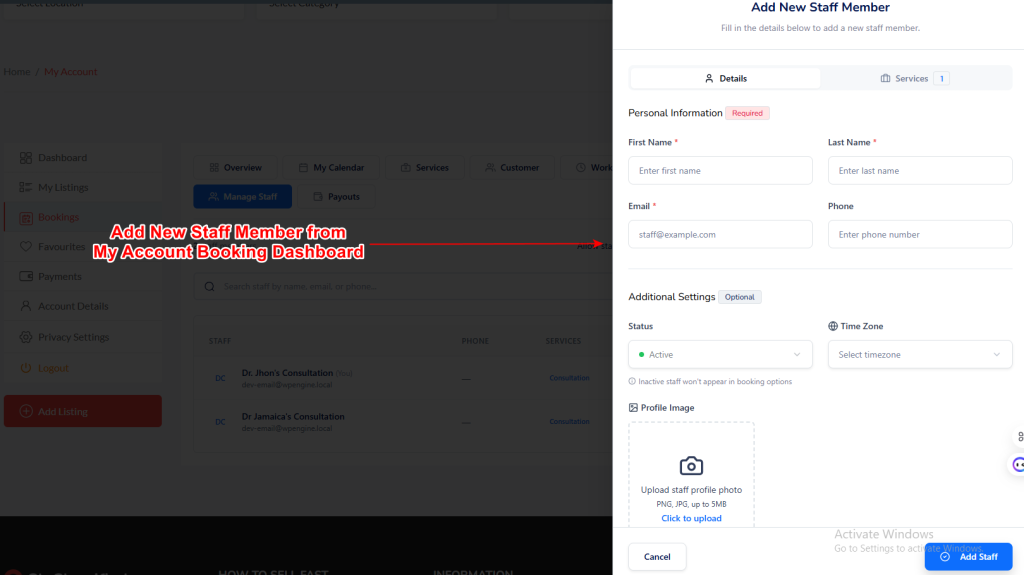
Sellers can add new staff members directly from Bookings → Manage Staff → Add Staff. A side panel opens with two tabs: Details and Services.
Personal Information (Required)
First Name, Last Name, Email, and Phone number of the new staff member.
Additional Settings (Optional)
- Status — Set the staff member as Active or Inactive. Inactive staff will not appear in booking options.
- Time Zone — Assign the staff member’s local timezone.
- Profile Image — Upload a profile photo (PNG or JPG, up to 5MB).
Once all details are filled in, click Add Staff to save the new member, or Cancel to discard.
8. Payouts #
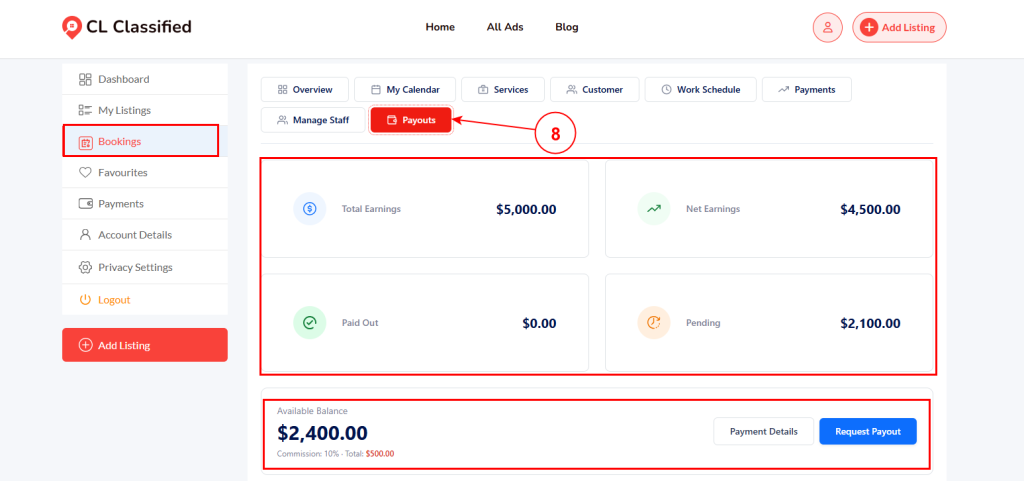
The Payouts tab gives sellers a complete summary of their earnings and withdrawal status, along with the ability to request a payout directly from their dashboard.
Earnings Summary
- Total Earnings — Gross revenue earned from all bookings.
- Net Earnings — Earnings after admin commission deduction.
- Paid Out — Amount already successfully paid out.
- Pending — Amount in payout requests awaiting admin approval.
Available Balance
At the bottom, the Available Balance shows the current withdrawable amount along with the commission breakdown. From here sellers can:
- Click Payment Details to view or update their preferred payment information.
- Click Request Payout to submit a new withdrawal request to the admin.


