
Note: Pricing Table is Pro Block
Step 1: How To Add Pricing Table Block #
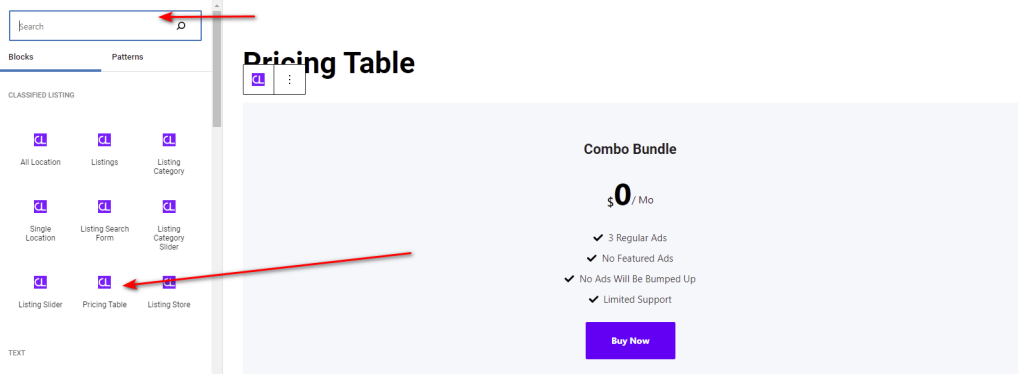
To add or edit Pricing Table block at first click on the Gutenberg editor block inserter then search or the scroll find Pricing Table block.
Step 2: General Tab #
Pricing Table settings are more customizable. Description added for each settings below.
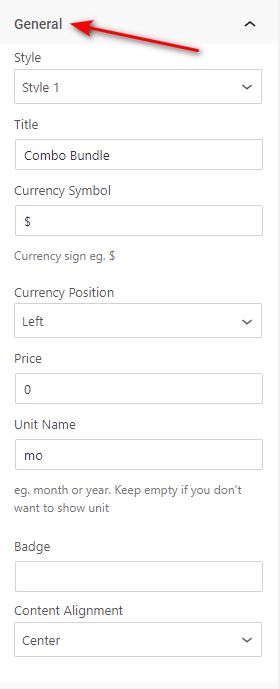
- Style: Pricing table has three preset style
- Title: Title field is used for change the title text,
- Currency: Currency field is used for currency symbol change.
- Currency position: This field is used currency symbol for showing left or right position
- Price: This field is used for set the price
- Unit Name: This field is used for unit name change.
- Badge: This field is used for badge text change default value empty
- Content Alignment: This field is used for showing the content left, right, center.
Feature Settings: #
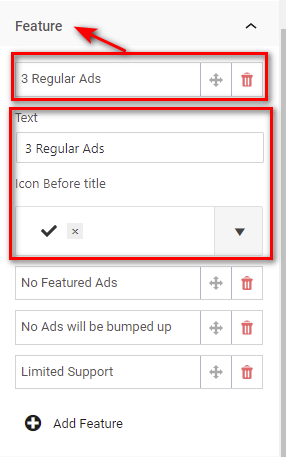
Feature Settings has add feature, delete, draggable option and every feature has icon and title change options.
Button Settings: #
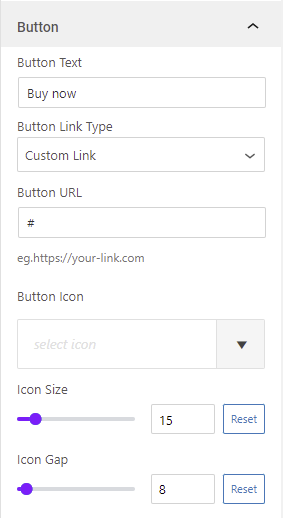
Button setting has button text, link, icon change option.
Step 2: Style Tab #
Title style: #
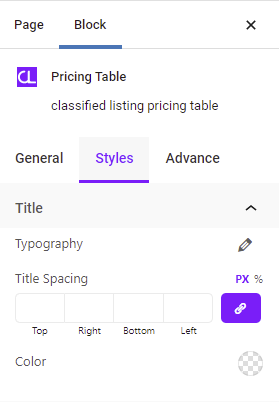
Title style section has pricing table tile typography, title spacing and color change option.
Price Style: #
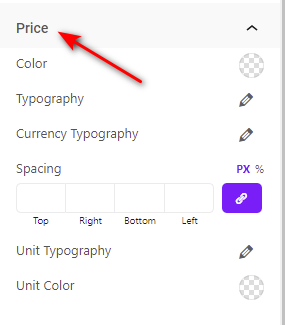
Price style section has color, typography, currency typography, price spacing, unit color change options.
Feature style: #
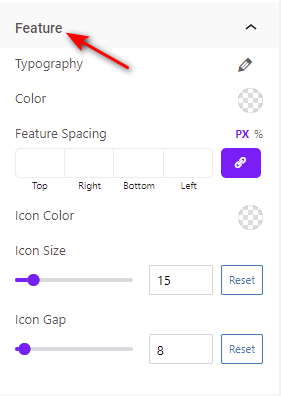
Feature style section has typography, color, feature spacing, icon color, icon size, icon gap options
Button Style: #
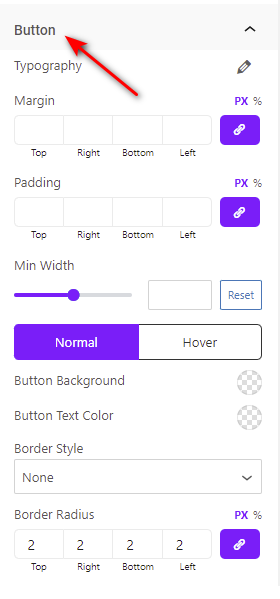
Button style section has button text typography, margin, padding, button min-width, background, text color, border, border-radius change options


