
Configuration Reference • Main Settings
WordPress Dashboard → Classified Listing → Settings → General
The General Settings panel is the starting point for configuring how listings behave, how locations are resolved, how prices are displayed, and which social platforms visitors can use to share listings. Work through each section below in order — later sections (such as Payment and Email) depend on choices you make here.
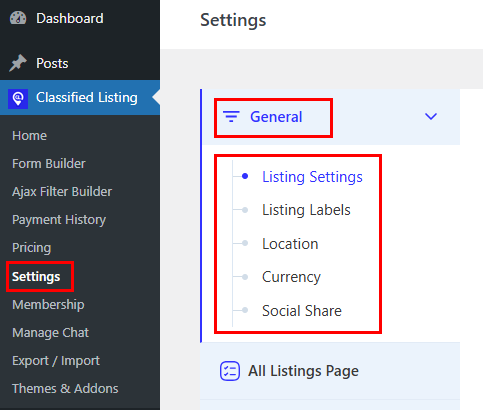
3. Location
4. Currency
5. Social Share
1. Listing Settings #
These options control the core behaviour of every listing on your site: how long listings stay active, what happens after a user submits or edits one, and what administrative tools are available.
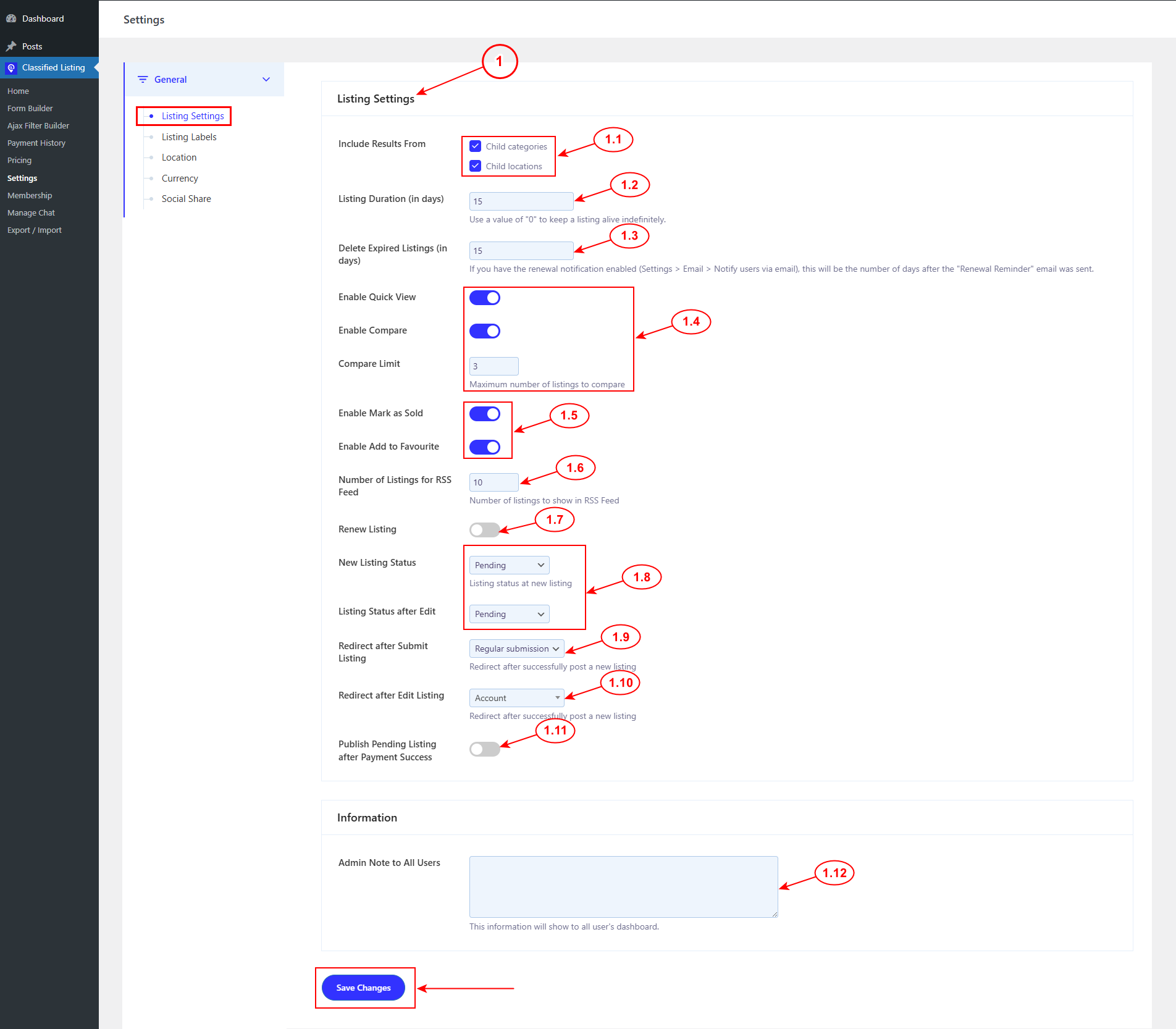
1.1 Include Result from Child Categories / Locations #
When enabled, a search for a parent category (e.g., “Vehicles”) also returns listings filed under its child categories (e.g., “Cars”, “Motorcycles”). Enable this if your taxonomy is deeply nested and you want broader search results by default.
1.2 Listing Duration (days) #
Sets how many days a listing remains active before it expires. Enter 0 to keep listings active indefinitely — useful for marketplaces that don’t enforce expiry or for testing purposes.
1.3 Delete Expired Listings After (days) #
Permanently removes expired listings this many days after the Renewal Reminder email is sent. This field only takes effect when renewal notifications are turned on under Settings → Email → Notify users via email. Set a generous value (e.g., 30) to give sellers time to renew before their content is deleted.
💡 Tip If you set this to 0, expired listings are deleted immediately after the reminder — sellers will have no grace period.
1.4 Quick View & Compare (Pro) #
• Quick View — opens a lightbox preview of a listing without leaving the archive page.
• Compare — lets visitors select multiple listings and view them side-by-side.
• Comparison Limit — the maximum number of listings a visitor can compare at once (recommended: 3–4).
To enable Compare you must also assign a dedicated page under Settings → Advanced.
1.5 Mark as Sold & Add to Favourite #
| Option | Effect when enabled |
| Mark as Sold | Sellers can flag a listing as sold; a Sold badge appears on the card and detail page. |
| Add to Favourite | Logged-in visitors can save listings to a personal favourites list accessible from My Account. |
1.6 Number of Listings for RSS Feed #
Controls how many of the most recent listings appear in your site’s RSS feed. Increase this value if you want aggregators or feed readers to pull a larger snapshot of your inventory.
1.7 Renew Listing #
Enables the listing renewal workflow. When active, sellers are emailed before expiry and can extend their listing from the front-end dashboard. This setting must be on before Delete Expired Listings After (1.3) will function correctly.
1.8 New Listing Status & Listing After Edit Status #
Choose the default WordPress post status for each scenario:
| Scenario | Available Statuses |
| New Listing | Published, Pending, Draft, Reviewed, Expired |
| Listing After Edit | Published, Pending, Draft, Reviewed, Expired |
Common configuration: Set New Listing to Pending so every submission goes through admin review before going live, then set Listing After Edit to Pending as well to catch post-approval changes.
1.9 Redirect After Submit Listing #
Determines where a seller lands after successfully submitting a new listing:
• Account — redirects to the seller’s My Account dashboard.
• Regular Submission — stays on the submission confirmation page.
• Custom — enter any URL (e.g., a thank-you page or upsell landing page).
1.10 Redirect After Edit Listing #
Same options as 1.9, but applied when a seller saves edits to an existing listing.
1.11 Publish Pending Listing After Payment Success #
When enabled, a listing in Pending status is automatically set to Published once a payment for that listing is confirmed. Enable this if you collect payment at submission and want instant publication on successful checkout.
1.12 Admin Note to All Users #
Write a short message here and it will appear on every logged-in seller’s dashboard. Use this for maintenance announcements, policy reminders, or promotional messages. Leave blank to show nothing.
2. Listing Labels #
Labels are the small badge overlays (e.g., “New”, “Featured”, “Popular”) that appear on listing cards. You can customise the text and the thresholds that trigger each badge.
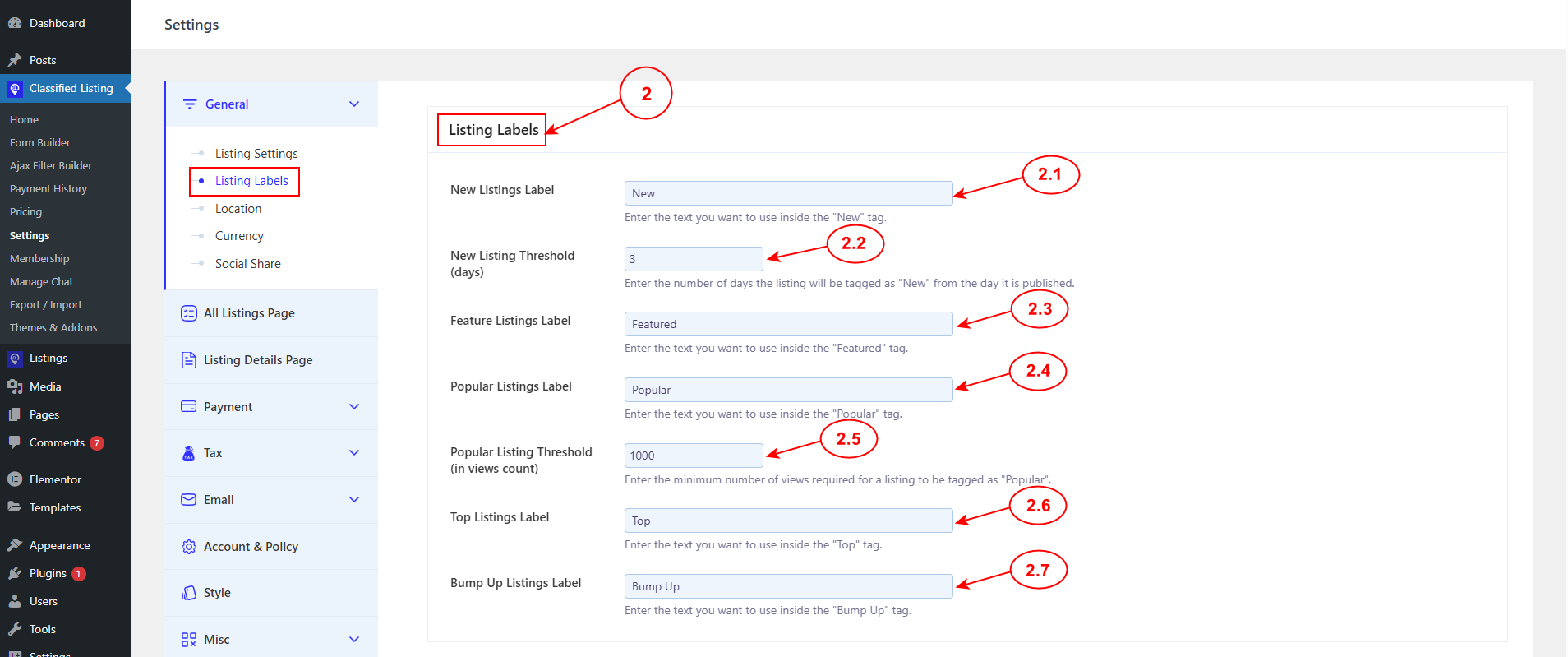
2.1 New Listing Label Text #
The string displayed inside the “New” badge. Default is New. Change it to match your site’s tone — for example, Just Added or Fresh.
2.2 New Listing Threshold (days) #
A listing published within this many days of the current date receives the New badge. For example, a threshold of 7 tags every listing submitted in the last week.
2.3 Featured Listings Label Text #
The text shown on the “Featured” badge. Sellers are typically assigned Featured status through a paid pricing plan. Default: Featured.
2.4 Popular Listings Label Text (Pro) #
The text shown on the “Popular” badge. Default: Popular.
2.5 Popular Listing Threshold (view count) (Pro) #
The minimum cumulative view count a listing must reach before it is badged as Popular. Set this to a realistic number based on your site’s traffic — a threshold of 50 on a low-traffic site may mean no listings ever qualify; 10 may be more appropriate when starting out.
2.6 Top Listings Label Text (Pro) #
Text shown on the “Top” badge, typically reserved for editorially promoted or highest-rated listings. Default: Top.
2.7 Bump Up Listings Label Text (Pro) #
Text shown when a seller has used a Bump Up action to push their listing back to the top of the archive. Default: Bump Up.
3. Location #
Classified Listing supports two mutually exclusive location systems. Choose one — they cannot run simultaneously.
Option A: Local Database (WordPress Taxonomy) #
Locations are created manually by the admin under Classified Listing → Locations. The plugin supports three hierarchical levels:
• State (top level)
• City (second level)
• Town (third level)
Sellers choose their location from these predefined options when submitting a listing. Best for sites with a fixed geographic scope (e.g., a single country or region).
Option B: GEO Location (Address Autocomplete) #
Sellers type a freeform address into an autocomplete field powered by a mapping API. Supports two map providers:
| Provider | Setup Required |
| Google Maps | Google Maps JavaScript API key with Places and Geocoding APIs enabled. Enter the key under Settings → MISC → Google Map. |
| OpenStreetMap (Nominatim) | No API key required. Free to use but subject to Nominatim’s usage policy for high-traffic sites. |
GEO Location is the better choice for sites with international listings or when sellers should enter precise addresses rather than selecting from a list.
💡 Tip See also: MISC Settings – Map API Configuration at Settings → MISC → Google Map.
4. Currency #
The Currency tab controls how prices appear across your entire site. Whenever a price is shown — on listing cards, single listing pages, pricing plans, or checkout — it is formatted using the rules you define here. These settings are display-only: they change how a number is presented to visitors, not the actual amount stored in your database or charged by your payment gateway.
A quick example of how the four settings work together:
$1,299.00 → currency symbol $, positioned Left, thousands separated by ,, decimals separated by .
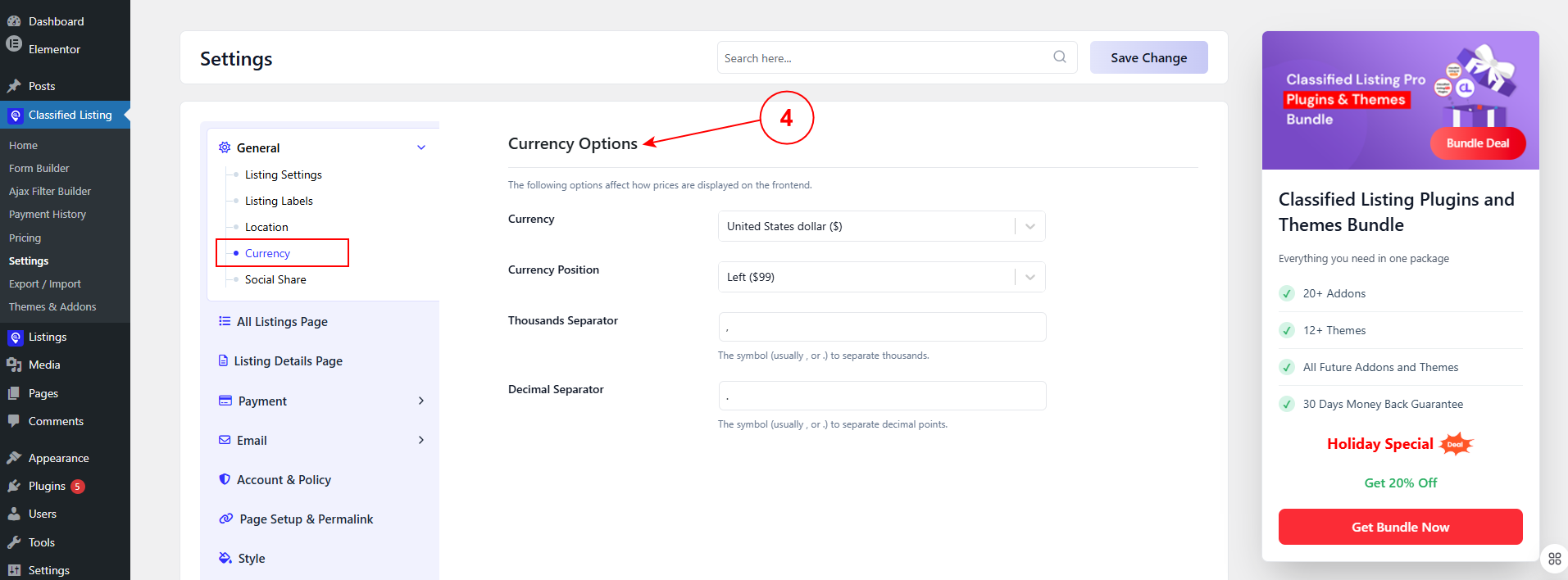
4.1 Currency #
Choose the currency your site does business in from the dropdown list. It includes all major world currencies (United States dollar, Euro, British pound, Indian rupee, Bangladeshi taka, and many more), each shown with its symbol.
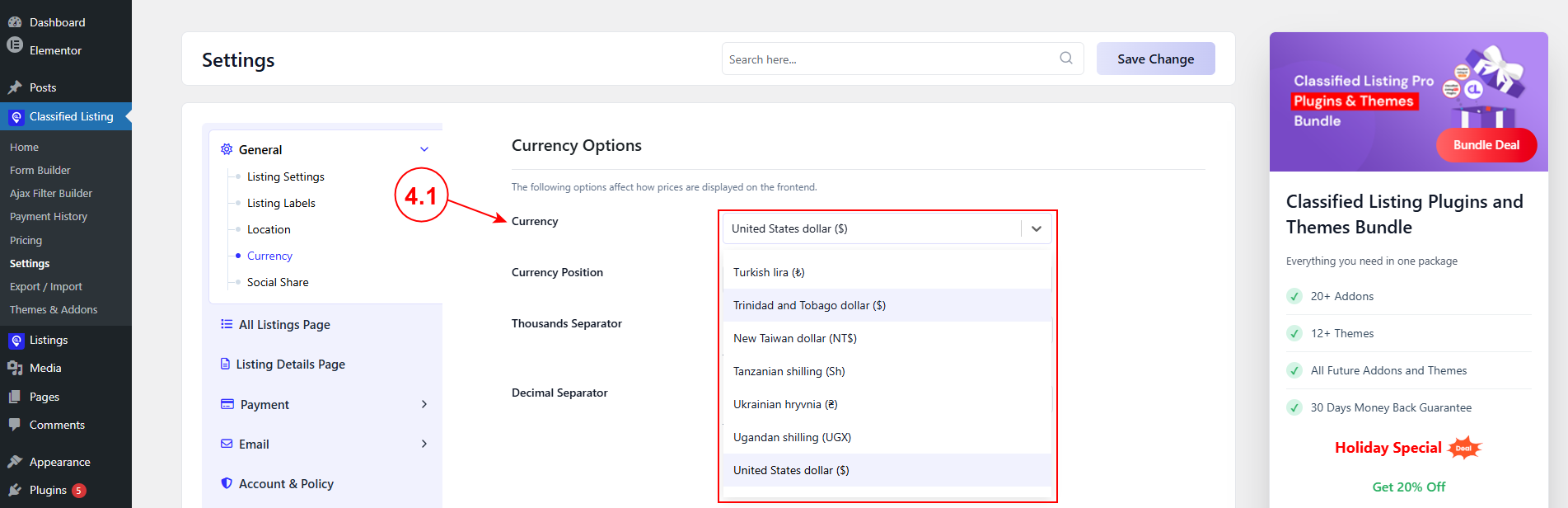
Once selected, the matching symbol is applied automatically everywhere prices appear — you don’t need to type it manually into your listings.
Tip: If you accept online payments, make sure this matches the currency configured in your payment gateway (PayPal, Stripe, etc.). A mismatch can cause failed transactions or unexpected conversion fees.
4.2 Currency Position #
Controls where the symbol sits relative to the number. Four options are available:
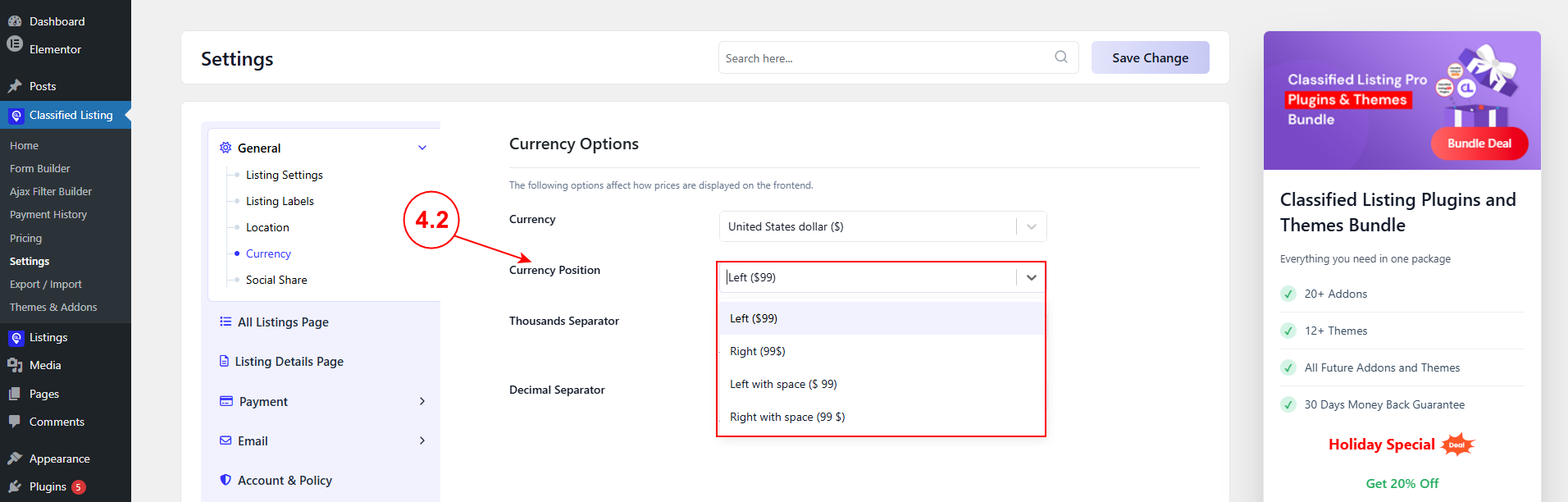
Different regions follow different conventions — English-speaking countries typically place the symbol on the left, while much of Europe places it on the right with a space. Pick whichever feels natural to your audience.
4.3 Thousands Separator #
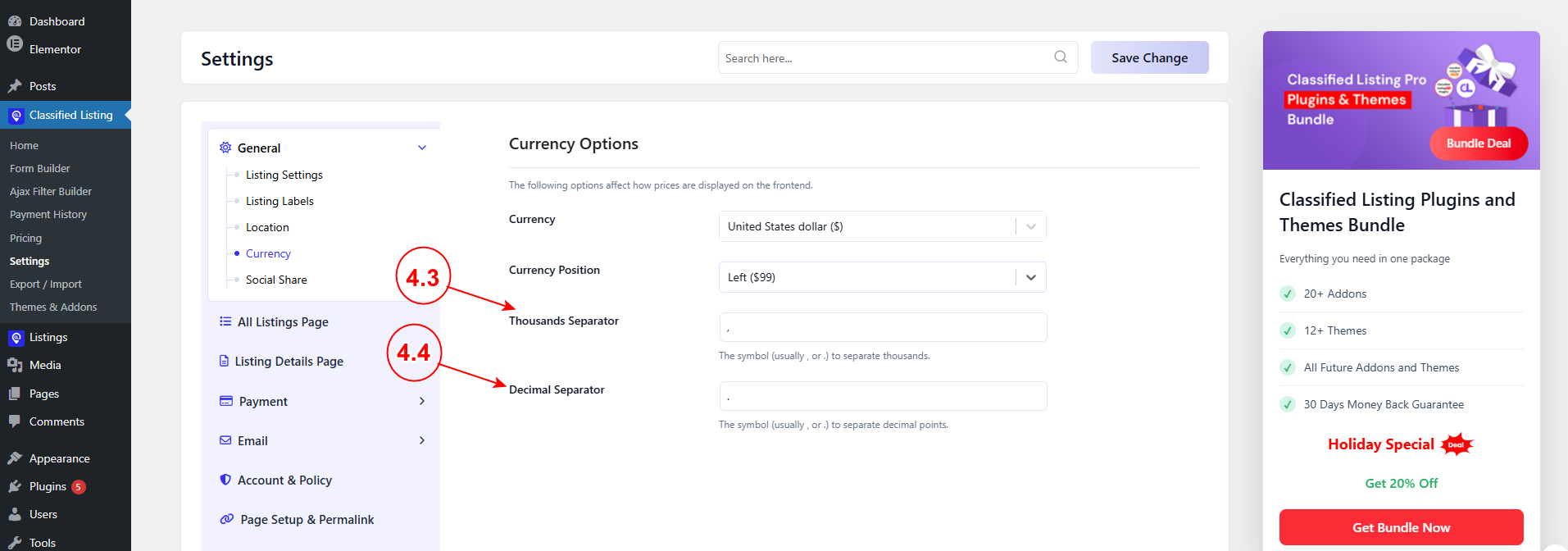
The character used to break up large numbers into readable groups of three digits.
- Enter , → 1,299,000
- Enter . → 1.299.000
- Enter a space → 1 299 000
- Leave blank → 1299000
Most English-language sites use a comma. Many European and Latin American sites use a period or space.
4.4 Decimal Separator #
The character that separates the whole number from its fractional part (cents, paise, etc.).
- Enter . → 99.50
- Enter , → 99,50
Important: Never use the same character for both the thousands and decimal separator. Doing so makes prices ambiguous and hard to read — for example, 1.299.50 gives visitors no clear indication of where the decimal begins.
5. Social Share #
Adds social sharing buttons to listing pages so visitors can share listings directly to their networks.
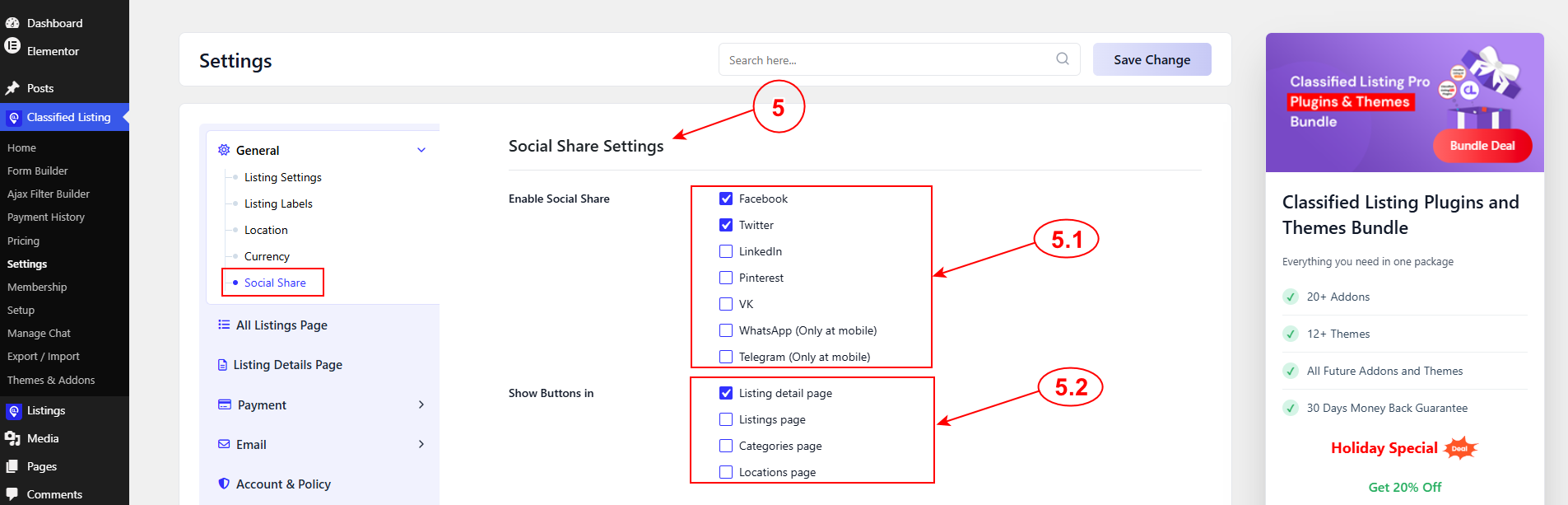
5.1 Enable Social Share #
Choose which social platforms you want to offer as sharing options. Simply check the box next to each platform you’d like to enable. Available platforms typically include Facebook, X (Twitter), WhatsApp, LinkedIn, Pinterest, VK, WhatsApp, Telegram, and more. Only the platforms you check here will display buttons.
5.2 Show Buttons On #
Control where the social share buttons appear across your site. Enable any combination of the following:
Listing detail page – Displays share buttons on individual listing pages.
Listings page – Shows share buttons on the main listings archive.
Categories page – Shows share buttons on category archive pages.
Locations page – Shows share buttons on location archive pages.


