
The Slug Builder is a feature in Classified Listing that lets you design the URL structure (the “slug”) of your listings instead of relying on the default one. You choose which pieces of listing data appear in the URL, the order they appear in, and how they are separated — all through a simple drag-and-drop interface.
A well-structured, keyword-rich URL helps with SEO and makes your listings easier to index and monitor in tools like Google Search Console.
Enabling the Slug Builder #
In the WordPress admin menu, go to Classified Listing → Form Builder.
Open the Slug Builder tab at the top of the page (next to General, Form Builder, and Single Listing Layout).
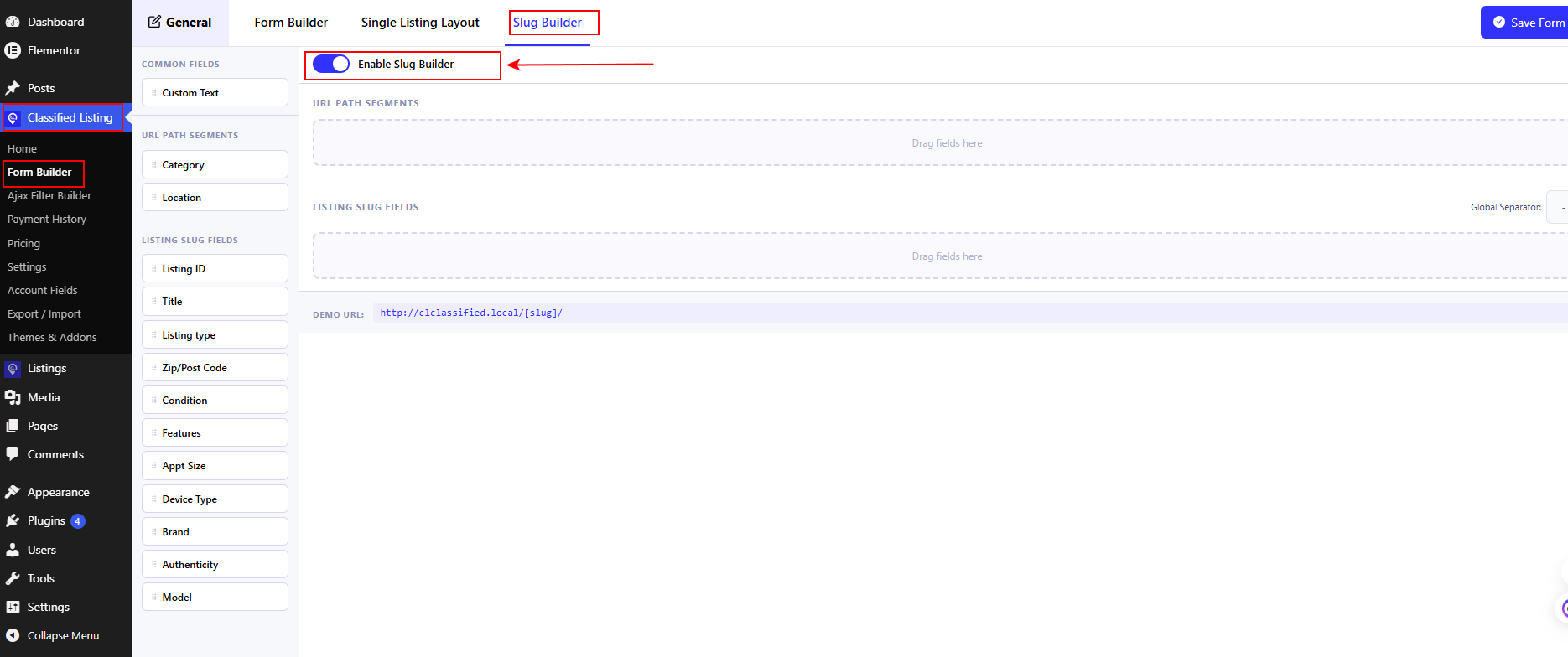
At the top of the Slug Builder tab there is an Enable Slug Builder toggle.
- Switch it on to activate custom slugs and reveal the builder area.
- When it is off, listings continue to use the default slug and the builder is hidden.
Turn it on before you start building your URL structure.
Understanding the Three Field Types #
The panel on the left lists all the fields you can add to a slug. They are grouped into three types, and each type behaves a little differently.
1. Common Fields #
Reusable building blocks that aren’t tied to a specific listing value.
- Custom Text — a static piece of text you define yourself (for example a fixed keyword or a category label). Useful when you want a constant word to appear in every URL.
2. URL Path Segments #
Fields that represent structural, hierarchy-style parts of the URL — the kind of values that naturally form a path.
- Category
- Location
These are meant for the URL Path Segments drop zone (see below), where they create the higher-level structure of the address.
3. Listing Slug Fields #
Fields pulled from the individual listing’s own data. These make each listing’s slug unique and descriptive.
- Listing ID
- Title
- Listing type
- Zip/Post Code
- Condition & etc
The exact fields available here depend on the fields configured for your form.
The Two Drop Zones #
The right side of the builder has two areas where you assemble the slug by dragging fields into them:
- URL Path Segments — the top area. Use it for the structural, path-style parts of the URL (Category, Location, Custom Text).
- Listing Slug Fields — the lower area. Use it for the listing-specific values that identify each individual listing (Title, Listing ID, and so on).
Together, the two zones form the complete URL, read left to right, top zone first.
Building a Slug (drag and drop) #
- Make sure Enable Slug Builder is turned on.
- From the left panel, drag a field into the drop zone where you want it.
- Drop it into either URL Path Segments or Listing Slug Fields.
- Reorder fields within a zone by dragging them up or down using the handle on the left of each field.
- Add as many fields as you need to build the structure you want.
- Remove a field by using the delete (trash) icon on the right of its row.
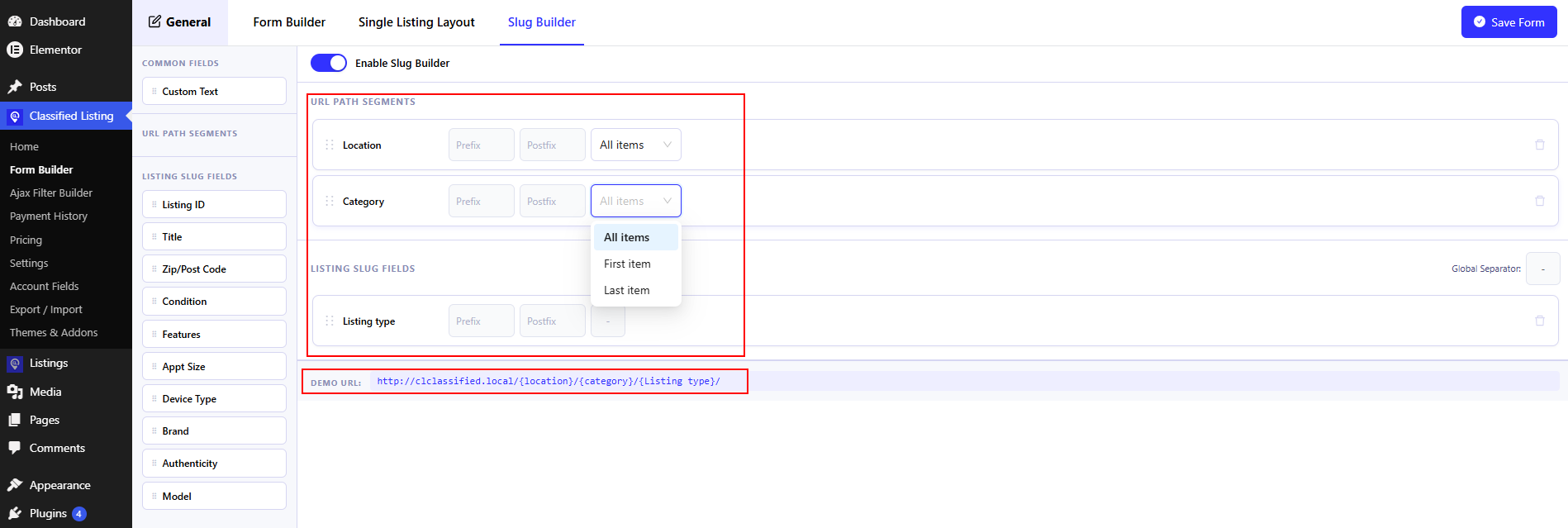
As you add and rearrange fields, the Demo URL at the bottom updates live so you can preview the result.
Configuring Each Field #
Once a field is inside a drop zone, it exposes a few options that let you fine-tune how its value appears in the URL:
Prefix #
Text added before the field’s value in the slug. For example, a prefix of cat- on the Category field would produce cat-electronics.
Postfix #
Text added after the field’s value in the slug. For example, a postfix of -listing on the Title would produce iphone-13-listing.
Item selection #
Some fields (especially taxonomy-style fields like Category or Location) can hold more than one value. The dropdown on the right of the field controls which value(s) are used:
- All items — include every selected value.
- First item — use only the first value.
- Last item — use only the last value.
This is useful when, for instance, a listing belongs to nested categories and you only want the top-level or the most specific one to appear in the URL.
The Global Separator (found on the right side of the Listing Slug Fields area) sets the character used to join fields together in the slug — for example a hyphen (-).
Choosing a consistent separator keeps your URLs clean and readable. Hyphens are generally the safest choice for SEO-friendly URLs.
Demo URL preview #
At the bottom of the builder, the Demo URL shows a live preview of what your listing URLs will look like based on the fields and settings you’ve chosen. For example:
http://clclassified.local/{location}/{category}/{Listing type}/
The { } placeholders represent the fields you dragged in and are replaced with real values when an actual listing is viewed. Use this preview to confirm the structure looks right before saving.
When your slug structure is ready, click Save Form in the top-right corner to apply it. New and updated listings will then use your custom slug.
Tips #
- Keep it short and meaningful. A few descriptive fields (such as Location, Category, and Title) usually make the strongest, most readable URLs.
- Front-load important keywords. Placing the most relevant values earlier in the URL can help both readers and search engines.
- Be consistent. Once your listings are indexed, changing the slug structure can create broken links, so settle on a structure before publishing at scale.
- Preview first. Always check the Demo URL before saving to make sure the result reads the way you expect.
Examples #
Here are a few ways you can combine fields to shape your listing URLs. In each case, the placeholders on the left are the fields you drag in, and the URL on the right shows the real result.
Example 1 — Location-based marketplace URL #
Great for local classifieds where people search by area.
- Fields: Location → Category → Title
- Structure: /{location}/{category}/{title}/
- Result: https://yoursite.com/new-york/electronics/iphone-13-pro-like-new/
Example 2 — Product-focused URL #
Useful for gadget, vehicle, or brand-heavy listings.
- Fields: Category → Brand → Model
- Structure: /{category}/{brand}/{model}/
- Result: https://yoursite.com/phones/apple/iphone-13-pro/
Example 3 — Prefix and Postfix on a field #
Wrap a value with extra text using the Prefix and Postfix options.
- Fields: Category (postfix: -listings) → Listing ID (prefix: id-)
- Structure: /{category}-listings/id-{listing-id}/
- Result: https://yoursite.com/furniture-listings/id-4821/


