
• Classified Listing Docs
    • Classified Listing Plugin
    • Classified Listing All Addons
    • Classified Listing Mobile App
    • Classima Mobile APP
    • Listygo Mobile App
    • Homlisti Mobile App
  • Woocommerce Plugins Docs
    • ShopBuilder Elementor Addon
    • Woo Variation Swatches
    • Woo Variation Gallery
    • Zilly Mobile App
  • General Plugins Docs
    • The Post Grid
    • Testimonial Slider
    • Team Members
    • Food Menu
    • Review & Schema
    • Portfolio
    • Business Review
  • Our Plugins
    • The Post Grid
    • Classified Listing
    • ShopBuilder
    • Food Menu
    • Team
    • Portfolio
    • Testimonial Slider
    • Review & Schema
    • See All Plugins
×
  • Classified Listing Docs
    • Classified Listing Plugin
    • Classified Listing All Addons
    • Classified Listing Mobile App
    • Classima Mobile APP
    • Listygo Mobile App
    • Homlisti Mobile App
  • Woocommerce Plugins Docs
    • ShopBuilder Elementor Addon
    • Woo Variation Swatches
    • Woo Variation Gallery
    • Zilly Mobile App
  • General Plugins Docs
    • The Post Grid
    • Testimonial Slider
    • Team Members
    • Food Menu
    • Review & Schema
    • Portfolio
    • Business Review
  • Our Plugins
    • The Post Grid
    • Classified Listing
    • ShopBuilder
    • Food Menu
    • Team
    • Portfolio
    • Testimonial Slider
    • Review & Schema
    • See All Plugins

Getting Started

4
  • System Requirements
  • Installation
  • Permalink Settings
  • How to use(video)

Main Settings

15
  • Overview
  • General Settings
  • All Listings Page
  • Listing Details Page
  • Payments
  • Tax
  • Email
  • Account & Policy
  • Style
  • MISC Settings
  • Chat Settings Pro
  • Page Setup & Permalink
  • Tools
  • App Settings
  • Membership [Store addon] Pro

Email Settings

3
  • General Settings
  • Email Template
  • Video (How to Use)

Developer Docs

1
  • Developer Docs

Listing Management [Admin]

9
  • Admin End Ads View
  • Category
  • Locations
  • Listing Type
  • Pricing
  • Payment History
  • Export & Import Settings
  • Default Import [XML]
  • Stores [store addon]

AI Integration

5
  • Create Form with AI
  • Frontend AI Integration
  • AI Integration Settings
  • AI Semantic Search
  • AI Image Enhancement

MCP Integration

8
  • Overview
  • Install & Enable MCP Adapter Plugin
  • MCP Adapter Settings
  • AI App Connections
  • Connect the Claude Desktop App
  • Test Your Connection
  • Example Prompts
  • Available Abilities

Radius Booking Integration

10
  • How to Use (Video)
  • Integration with Radius Booking
  • Radius Booking Field in Form Builder
  • Enable Radius Booking on Existing Listing
  • Payout Settings
  • Payout Request from Front End Dashboard
  • Payout Request on Admin Panel
  • Commission Overview — Admin Panel
  • My Account – Booking
  • Appointments – Admin Panel

Theming

4
  • Add theme support for plugin templates
  • Override Ad Submission Form
  • Override ad detail page
  • Theming

Payment

8
  • Checkout Option
  • Offline Payment
  • Paypal
  • Authorize.net [PRO]
  • Stripe [PRO]
  • WooCommerce [PRO]
  • Payfast [Addon]
  • Paystack [Addon]

REST API

54
  • Form Builder Image Sort REST API
  • Form Builder Image Delete REST API
  • Form Builder File Delete REST API
  • Form Builder File Upload REST API
  • Create Listing via Form Builder REST API
  • Email Store Owner REST API
  • Get Single Store REST API
  • Get Store Listings REST API
  • Get Stores REST API
  • Upload My Store Banner REST API
  • Upload My Store Logo REST API
  • My Store REST API
  • My Store REST API
  • Report Listing REST API
  • Update Subscription Payment Method API
  • Cancel Subscription REST API
  • Get Pricing Plans REST API
  • Get Single Payment / Order Details REST API
  • Get Payment History REST API
  • Get Checkout Data REST API
  • Create New Tag REST API
  • Change Order Status REST API
  • Manage Orders REST API
  • Mark Message as Read REST API
  • Chat Message REST API
  • Check Conversation by Listing REST API
  • Start New Conversation API
  • Get Conversation Messages API
  • My Chat List REST API
  • Toggle a favourite listing REST API
  • Get My Favourite Listings REST API
  • Upload My Profile Image REST API
  • Update My Account REST API
  • Get My Account Info REST API
  • Mark Listing as Sold REST API
  • Change Listing Status REST API
  • Renew Listing REST API
  • Delete My Listings REST API
  • Get My Listings REST API
  • Get Single Listing API
  • Create a listing API
  • User Sign Up REST API
  • Login REST API
  • Logout REST API
  • Account Delete REST API
  • Reset Password REST API
  • Contact REST API
  • Configuration API
  • Locations API
  • Categories API
  • Listing Types API
  • Email Seller API
  • Listings API
  • General

Code Snippets

18
  • Mask more digits
  • Change Business Hour Start and End Time
  • Add Price Unit
  • Trim zero from payment price
  • Show mark as sold listing in the search
  • Remove required attribute for phone field
  • Remove Price Type
  • Modify listing submission success message
  • Modify checkout form fields
  • Display listing image in media library
  • Change radius unit and distance
  • Change Price Type
  • Change Favourites to Favorites
  • Change Excerpt Limit
  • Change Currency Symbol
  • Change archive page listing column
  • Add New Price Type
  • Code Snippets

Elementor Addons

11
  • Elementor Addons
  • Listing Category
  • Listing Category Slider
  • All Location
  • Single Location
  • Listings
  • Listing Slider
  • Listing Store
  • Pricing Table
  • Search Form
  • Header Button

Filter Hooks

15
  • rtcl_countries_all_countries
  • rtcl_checkout_fields
  • Checkout
  • rtcl_my_account_endpoint
  • rtcl_account_menu_items
  • My Account
  • rtcl_listing_pricing_types
  • Listing Form
  • rtcl_social_profiles_list
  • rtcl_registration_redirect
  • rtcl_listing_seller_contact_form_data
  • rtcl_listing_query_meta_query
  • rtcl_get_base_location
  • General
  • Filter Hooks

WPML Addon

3
  • System Requirements
  • Location Translations
  • WPML Settings

Action Hooks

14
  • Email
  • rtcl_payment_receipt
  • rtcl_checkout_process_success
  • Checkout
  • rtcl_account_{$menu_key}_endpoint
  • My Account
  • rtcl_listing_form_before_category_retrieve
  • rtcl_listing_form_after_save_or_update
  • Listing Form
  • rtcl_new_user_created
  • rtcl_listing_loop_item
  • rtcl_after_author_meta
  • General
  • Action Hooks

AJAX Filter Builder

2
  • Add Filter Items
  • Filter Widget

Listing Management [Front End]

3
  • Front End View
  • Front End Submission
  • My Account Menu

Frequently Asked Questions (Faq’s)

29
  • Frequently Asked Questions(Faq’s)
  • Fix taxonomy page listing sorting issue
  • Disallow query string and specific URL [SEO]
  • Enable New Dashboard [Canvas]
  • Custom Fields for Listview
  • Custom Fields for Filter
  • Pay Per Ad
  • Admin Menu Access
  • How to change listing archive category description position
  • Category & Location Menu Link
  • Add Re-Captcha
  • Add Google Map
  • Rank Math SEO Settings
  • Enable Chat
  • Renew listing process
  • How to set Local Time for Business Hour
  • Enable WooCommerce Payment
  • Fix Custom Field Save Issue
  • Enable Mark as Sold
  • How to add Compare
  • How to clear plugin cache?
  • Change Archive Page Title
  • User don’t get Registration & Verification Email?
  • How to change custom fields order?
  • How to add Watermark
  • How to separate login and registration page?
  • How to hide contact information for non logged in users?
  • Enable Social Login
  • Enable User Registration

Shortcodes

9
  • Shortcodes
  • Categories Display
  • Checkout Page
  • Listing Submission Form
  • My Account Page
  • Store List
  • Location Wise Display
  • Category Wise Display
  • Listing Filter

Drag & Drop Form Builder (New)

14
  • How to add your own icon in the builder
  • Multi-Category Selection
  • Enable Form Builder
  • Form List
  • Add New Form
  • Preset Fields
  • Custom Fields
  • Single Listing Layout Builder New
  • Enable Multiple Forms
  • Enable Conditional Logic
  • Add Bulk Options Pro
  • Smart Dependency Pro
  • SEO-Friendly Slug Builder
  • Image Crop Feature

Gutenberg Block

10
  • Gutenberg Block
  • Listing Category
  • Listing Category Slider
  • All Location
  • Single Location
  • Listings
  • Listing Slider
  • Listing Search
  • Pricing Table
  • Stores
  • Home
  • Docs
  • Radius Booking Integration
  • My Account – Booking
View Categories

My Account – Booking

4 min read

0:00 / 4:17
  • View as Markdown Open this page as plain Markdown (opens in a new tab)
  • Open in ChatGPT Ask questions about this page (opens in a new tab)
  • Open in Claude Ask questions about this page (opens in a new tab)
  • Open in Google AI Studio Ask questions about this page (Google account required) (opens in a new tab)

1. Frond End Overview #
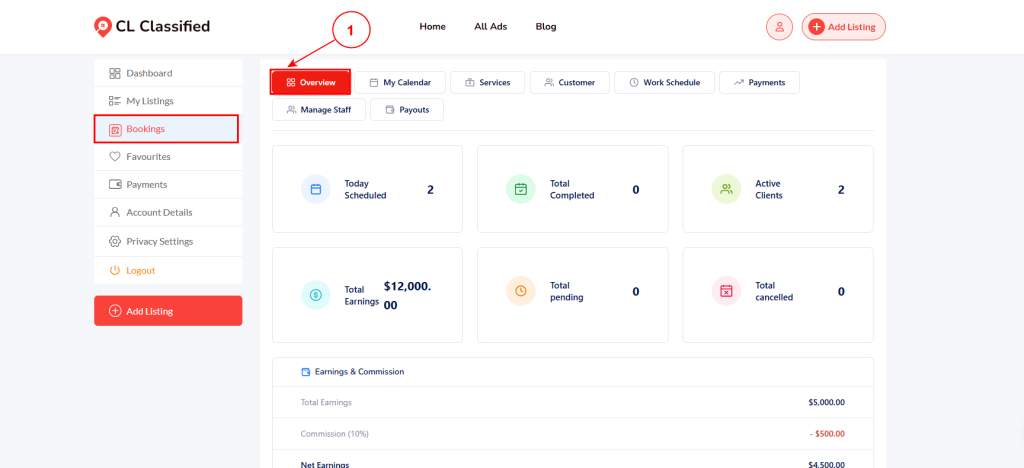
Sellers/Users/Staff can manage all their booking activity from the frontend My Account dashboard by navigating to Bookings → Overview.

Booking Dashboard Tabs

The Bookings section is organized into the following tabs:

Overview · My Calendar · Services · Customer · Work Schedule · Payments · Manage Staff · Payouts

Booking Summary Cards

The Overview tab provides a quick snapshot of the seller’s booking activity:

  • Today Scheduled — Number of appointments scheduled for today.
  • Total Completed — Total appointments successfully completed.
  • Active Clients — Number of clients with active bookings.
  • Total Earnings — Gross revenue earned from all bookings (e.g., $12,000.00).
  • Total Pending — Appointments awaiting confirmation or completion.
  • Total Cancelled — Number of cancelled appointments.

Earnings & Commission

Below the summary cards, the Earnings & Commission section breaks down the seller’s financials earnings, commissions, and available balance.

2. My Calendar #
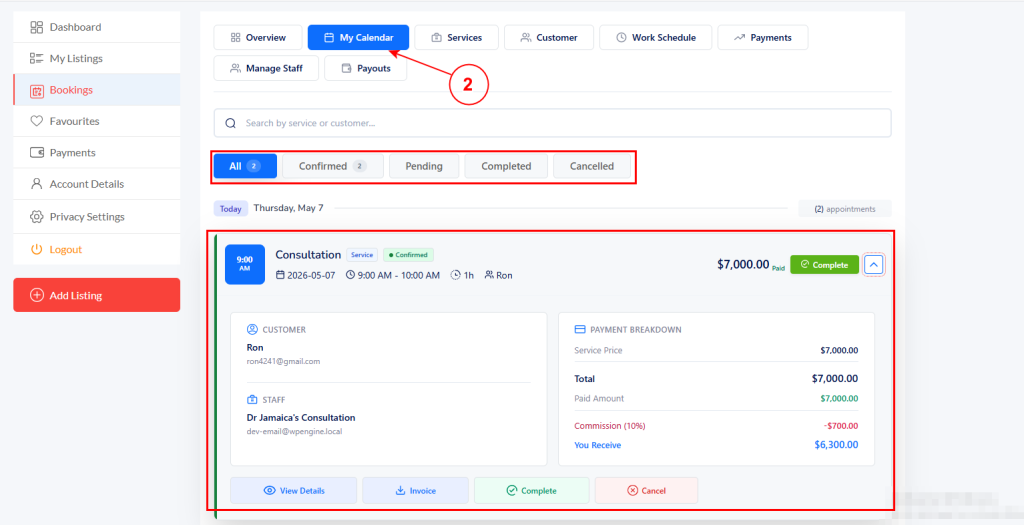
The My Calendar tab displays all appointments in a chronological list view. Users can search by service or customer name, and filter appointments by status: All, Confirmed, Pending, Completed, and Cancelled.

Each appointment card shows the customer’s name, date, time slot, duration, assigned staff, payment amount, and payment status. Sellers can view details, make invoice, mark confirmed appointments as Complete, or cancel it directly from this view.

3. Services #
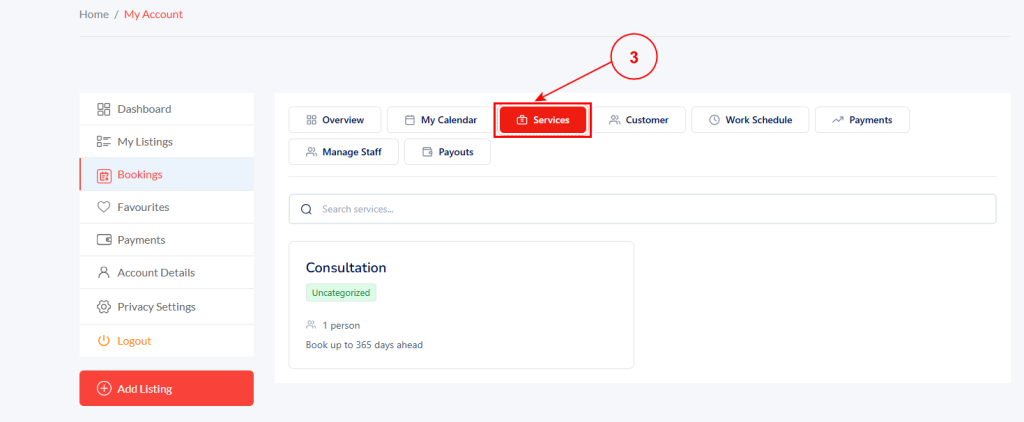
The Services tab lists all bookable services linked to the seller’s listings. Each service card displays the service name, category, capacity (e.g., 1 person), and how far ahead customers can book (e.g., up to 365 days ahead). 

Sellers can search through their services using the search bar.

4. Customer #

The Customer tab gives sellers an overview of their client base with three summary metrics at the top:

  • Total Clients — Number of unique customers who have booked.
  • Total Bookings — Combined number of bookings across all clients.
  • Total Spent — Cumulative revenue from all client bookings.
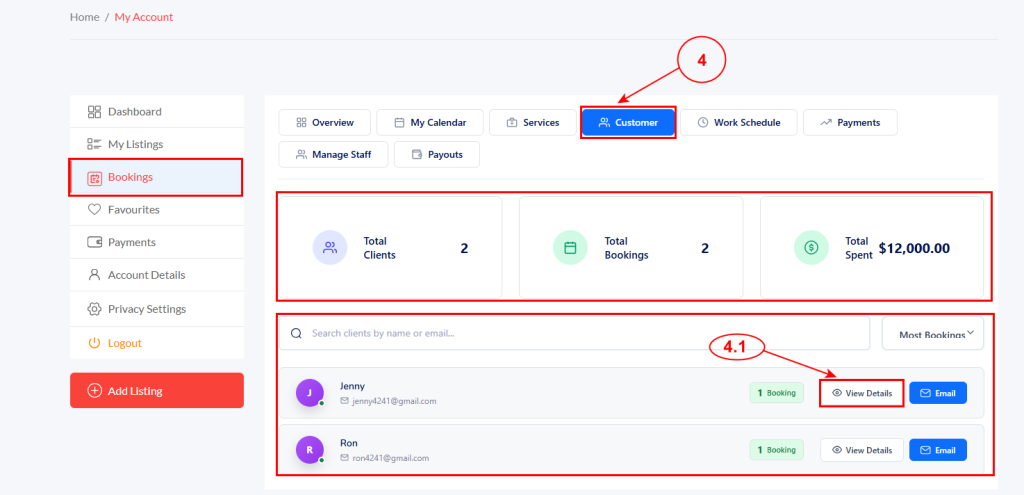
Each client is listed with their name, email, and booking count. Sellers can View Details or send an Email directly from the list.

4.1 Individual Client Details

Clicking View Details opens a popup.
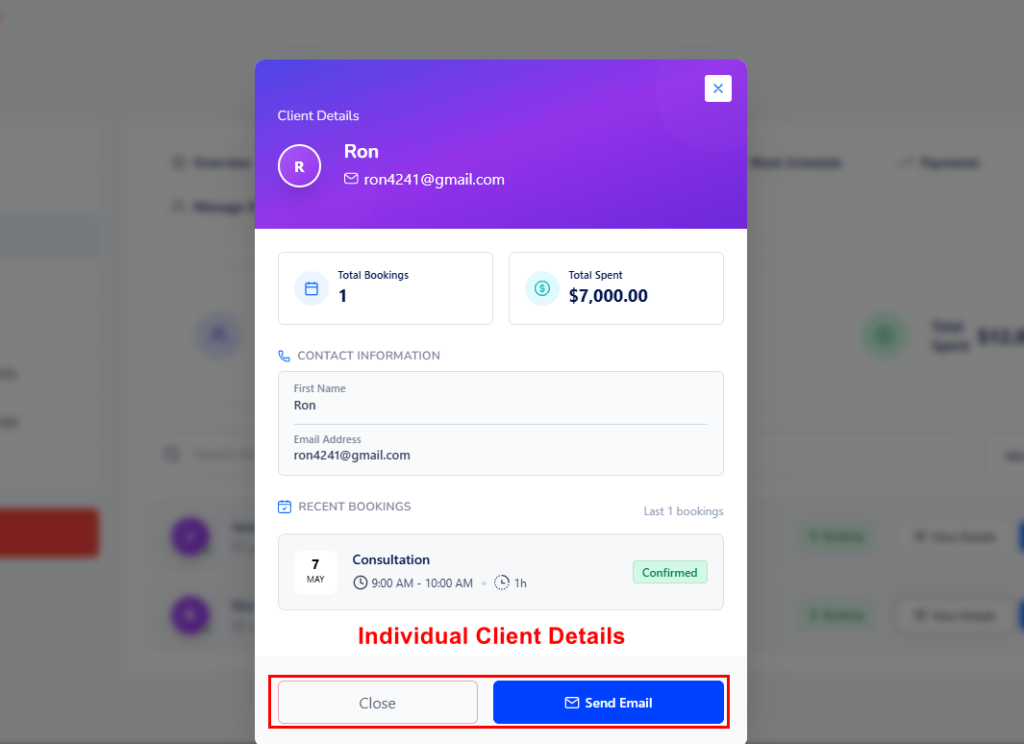
This pop-up shows the client’s full profile including contact information, total bookings, total amount spent, and a list of recent bookings with date, time, duration, and confirmation status. 

Sellers can also send an email to the client directly from this popup.

5. Work Schedule #
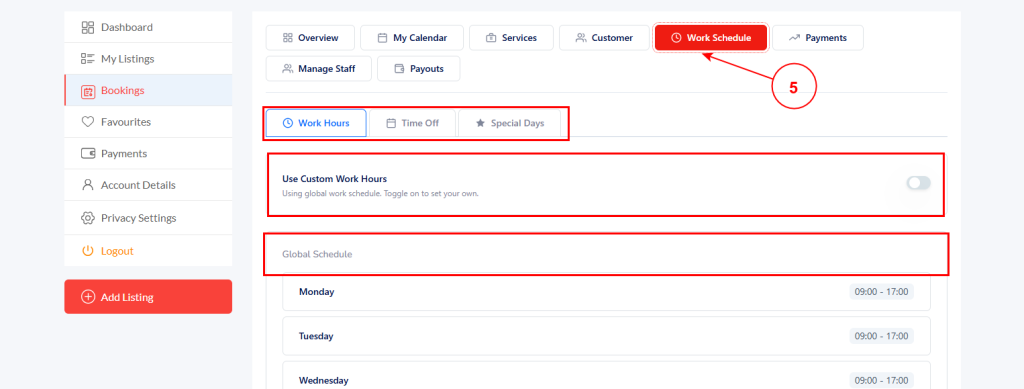
The Work Schedule tab lets sellers manage their availability across three sub-tabs: Work Hours, Time Off, and Special Days.

By default, the global work schedule set by the admin is applied. Sellers can enable Use Custom Work Hours to override the global schedule and set their own availability independently.

6. Payments #
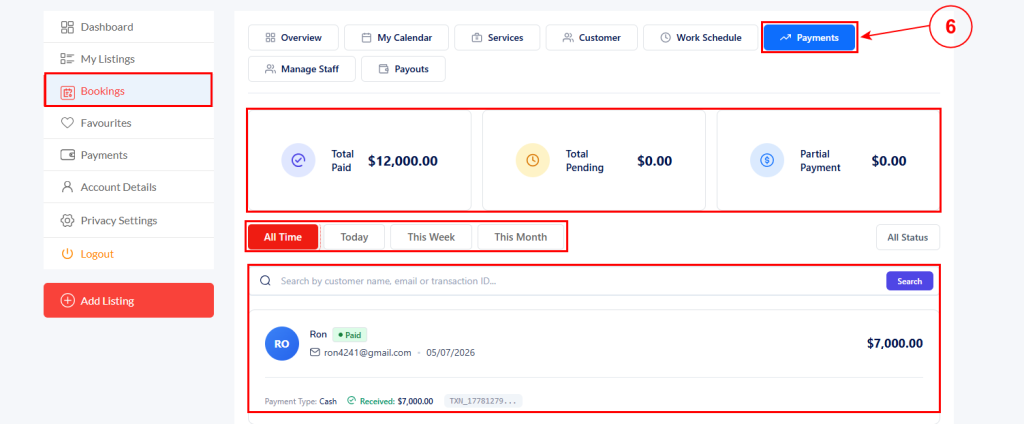
The Payments tab provides a full payment history with three summary metrics:

  • Total Paid — Total amount successfully received from customers.
  • Total Pending — Payments awaiting completion.
  • Partial Payment — Payments that have only been partially received.

Transactions can be filtered by time period — All Time, Today, This Week, or This Month — and by payment status. Each transaction entry shows the customer name, email, date, payment type, amount received, and transaction ID.

7. Manage Staff #

The Manage Staff tab allows sellers to view and manage their team members. The staff list displays each member’s name, email, assigned services, and active status.
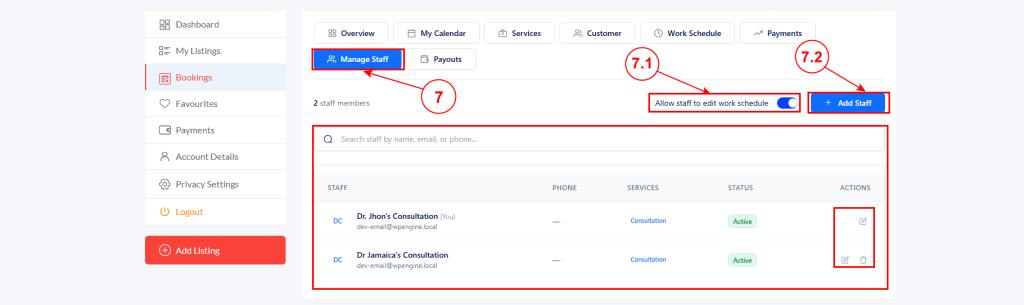
7.1 Allow Staff to Edit Work Schedule — A toggle that grants staff members permission to update their own availability from their accounts.

7.2 Add Staff — Sellers can add new staff members directly from this tab. Existing staff can be edited or removed using the action icons in the list.
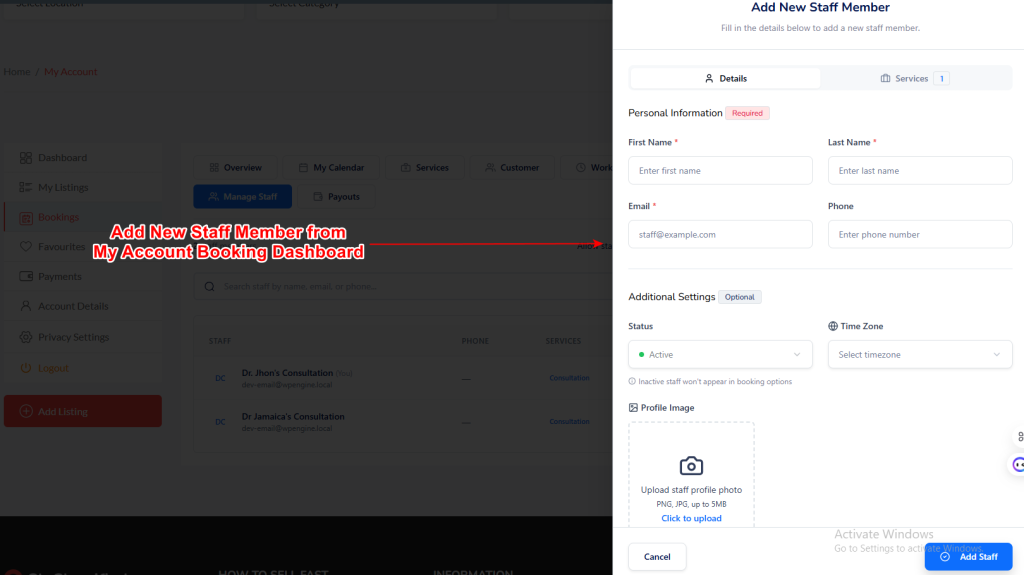
Sellers can add new staff members directly from Bookings → Manage Staff → Add Staff. A side panel opens with two tabs: Details and Services.

Personal Information (Required)

First Name, Last Name, Email, and Phone number of the new staff member.

Additional Settings (Optional)

  • Status — Set the staff member as Active or Inactive. Inactive staff will not appear in booking options.
  • Time Zone — Assign the staff member’s local timezone.
  • Profile Image — Upload a profile photo (PNG or JPG, up to 5MB).

Once all details are filled in, click Add Staff to save the new member, or Cancel to discard.

8. Payouts #
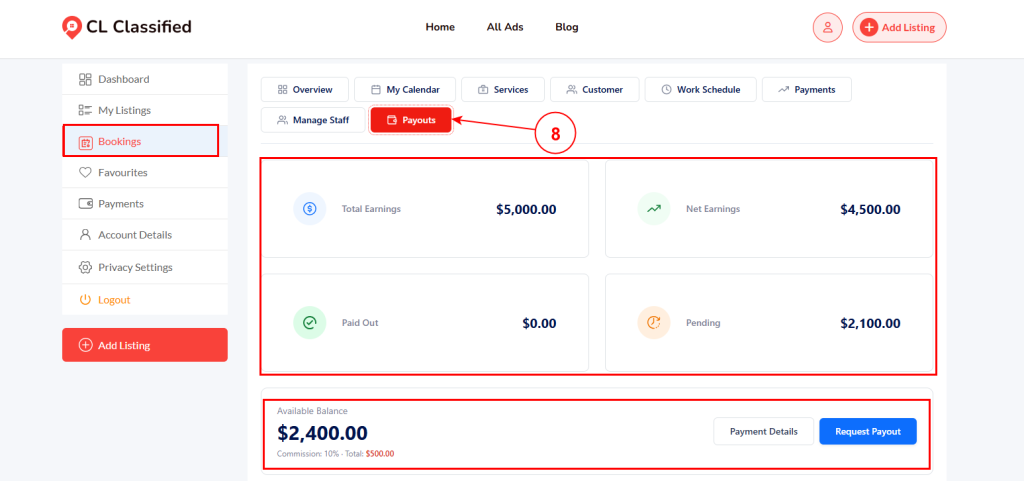
The Payouts tab gives sellers a complete summary of their earnings and withdrawal status, along with the ability to request a payout directly from their dashboard.

Earnings Summary

  • Total Earnings — Gross revenue earned from all bookings.
  • Net Earnings — Earnings after admin commission deduction.
  • Paid Out — Amount already successfully paid out.
  • Pending — Amount in payout requests awaiting admin approval.

Available Balance

At the bottom, the Available Balance shows the current withdrawable amount along with the commission breakdown. From here sellers can:

  • Click Payment Details to view or update their preferred payment information.
  • Click Request Payout to submit a new withdrawal request to the admin.
What are your Feelings

Share This Article :

  • Facebook
  • X
  • LinkedIn
  • Pinterest
Still stuck? How can we help?

How can we help?

Updated on May 7, 2026
Commission Overview — Admin PanelAppointments – Admin Panel
Table of Contents
  • 1. Frond End Overview
  • 2. My Calendar
  • 3. Services
  • 4. Customer
  • 5. Work Schedule
  • 6. Payments
  • 7. Manage Staff
  • 8. Payouts
Copyright© 2026 RadiusDocs by RadiusTheme