
The Single Listing Layout Builder allows you to create and customize listing details page through a visually interactive interface. With a simple drag-and-drop feature, you can easily modify any listings according to your preferences.

Single Listing Layout View
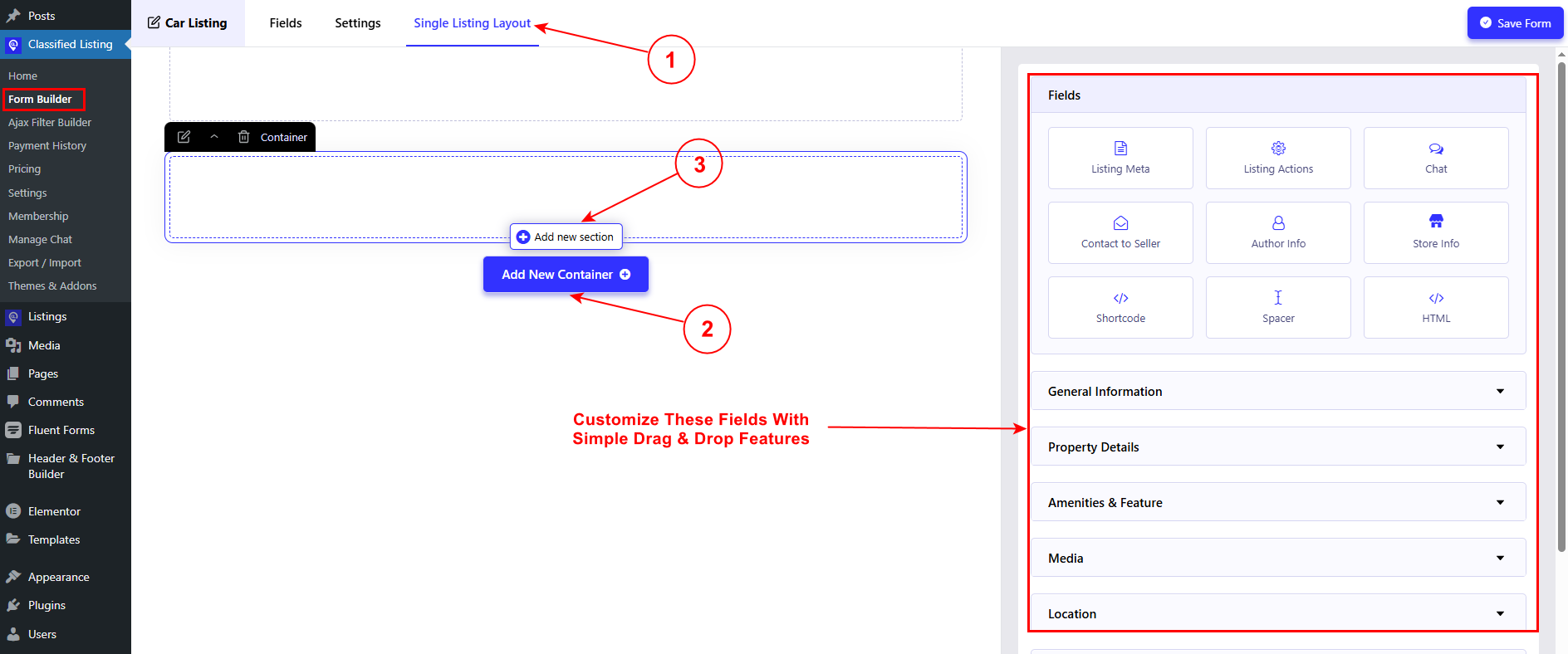
1. Navigate to the Single Listing Layout section.
2. Click on the Add New Container button, a new container will be added.
3. Hit on the ‘+’ icon to add a section in the container.
On the right side, you’ll see all the fields of the form. You can freely customize them.
Single Listing Layout Settings
Here, you can simply drag-and-drop each of the fields and separately customize them according to your choice. You can visually design the page without writing code. Add and configure fields that are relevant to your specific category.

Active Single Layout Builder
1. Now, navigate to the Settings part.
2. Enable the option for active single layout builder. If you don’t activate this option, then the customized features of single page layout won’t be visible in the front end.

Save Single Listing Layout Form
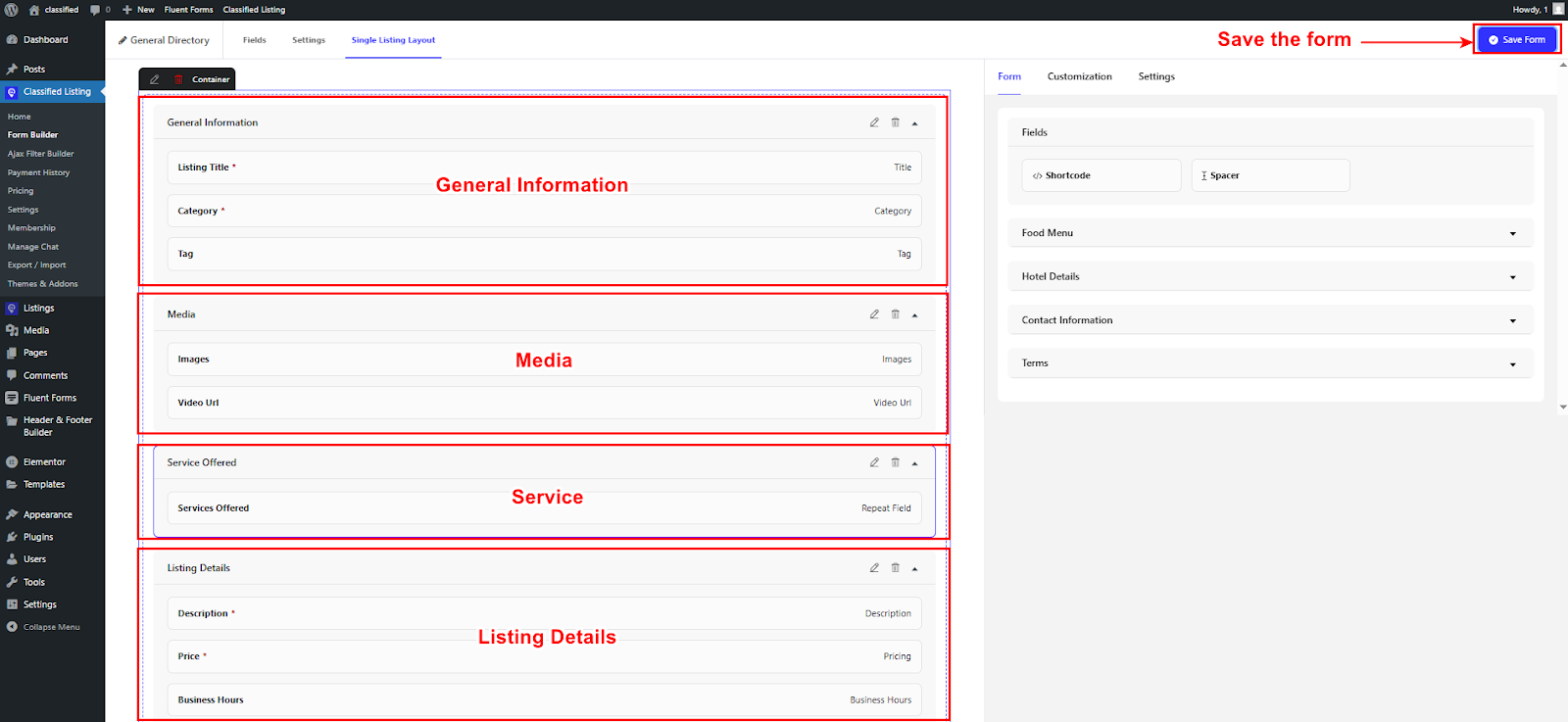
After customizing and changing the sequences of the single listing layout form, you need to click on the Save Form button.
Front End of Single Listing Layout
You will notice the same sequence in the single listing layout. This is the easiest way to customize your listing without going to the Elementor or Gutenberg.
You can directly customize the listing page from the form builder. This is a time saving process also.


