
• Classified Listing Docs
    • Classified Listing Plugin
    • Classified Listing All Addons
    • Classified Listing Mobile App
    • Classima Mobile APP
    • Listygo Mobile App
    • Homlisti Mobile App
  • Woocommerce Plugins Docs
    • ShopBuilder Elementor Addon
    • Woo Variation Swatches
    • Woo Variation Gallery
    • Zilly Mobile App
  • General Plugins Docs
    • The Post Grid
    • Testimonial Slider
    • Team Members
    • Food Menu
    • Review & Schema
    • Portfolio
    • Business Review
  • Our Plugins
    • The Post Grid
    • Classified Listing
    • ShopBuilder
    • Food Menu
    • Team
    • Portfolio
    • Testimonial Slider
    • Review & Schema
    • See All Plugins
×
  • Classified Listing Docs
    • Classified Listing Plugin
    • Classified Listing All Addons
    • Classified Listing Mobile App
    • Classima Mobile APP
    • Listygo Mobile App
    • Homlisti Mobile App
  • Woocommerce Plugins Docs
    • ShopBuilder Elementor Addon
    • Woo Variation Swatches
    • Woo Variation Gallery
    • Zilly Mobile App
  • General Plugins Docs
    • The Post Grid
    • Testimonial Slider
    • Team Members
    • Food Menu
    • Review & Schema
    • Portfolio
    • Business Review
  • Our Plugins
    • The Post Grid
    • Classified Listing
    • ShopBuilder
    • Food Menu
    • Team
    • Portfolio
    • Testimonial Slider
    • Review & Schema
    • See All Plugins

Getting Started

4
  • System Requirements
  • Installation
  • Permalink Settings
  • How to use(video)

Main Settings

15
  • Overview
  • General Settings
  • All Listings Page
  • Listing Details Page
  • Payments
  • Tax
  • Email
  • Account & Policy
  • Style
  • MISC Settings
  • Chat Settings Pro
  • Page Setup & Permalink
  • Tools
  • App Settings
  • Membership [Store addon] Pro

Email Settings

3
  • General Settings
  • Email Template
  • Video (How to Use)

Developer Docs

1
  • Developer Docs

Listing Management [Admin]

9
  • Admin End Ads View
  • Category
  • Locations
  • Listing Type
  • Pricing
  • Payment History
  • Export & Import Settings
  • Default Import [XML]
  • Stores [store addon]

AI Integration

5
  • Create Form with AI
  • Frontend AI Integration
  • AI Integration Settings
  • AI Semantic Search
  • AI Image Enhancement

Radius Booking Integration

10
  • How to Use (Video)
  • Integration with Radius Booking
  • Radius Booking Field in Form Builder
  • Enable Radius Booking on Existing Listing
  • Payout Settings
  • Payout Request from Front End Dashboard
  • Payout Request on Admin Panel
  • Commission Overview — Admin Panel
  • My Account – Booking
  • Appointments – Admin Panel

Theming

4
  • Add theme support for plugin templates
  • Override Ad Submission Form
  • Override ad detail page
  • Theming

REST API

54
  • Form Builder Image Sort REST API
  • Form Builder Image Delete REST API
  • Form Builder File Delete REST API
  • Form Builder File Upload REST API
  • Create Listing via Form Builder REST API
  • Email Store Owner REST API
  • Get Single Store REST API
  • Get Store Listings REST API
  • Get Stores REST API
  • Upload My Store Banner REST API
  • Upload My Store Logo REST API
  • My Store REST API
  • My Store REST API
  • Report Listing REST API
  • Update Subscription Payment Method API
  • Cancel Subscription REST API
  • Get Pricing Plans REST API
  • Get Single Payment / Order Details REST API
  • Get Payment History REST API
  • Get Checkout Data REST API
  • Create New Tag REST API
  • Change Order Status REST API
  • Manage Orders REST API
  • Mark Message as Read REST API
  • Chat Message REST API
  • Check Conversation by Listing REST API
  • Start New Conversation API
  • Get Conversation Messages API
  • My Chat List REST API
  • Toggle a favourite listing REST API
  • Get My Favourite Listings REST API
  • Upload My Profile Image REST API
  • Update My Account REST API
  • Get My Account Info REST API
  • Mark Listing as Sold REST API
  • Change Listing Status REST API
  • Renew Listing REST API
  • Delete My Listings REST API
  • Get My Listings REST API
  • Get Single Listing API
  • Create a listing API
  • User Sign Up REST API
  • Login REST API
  • Logout REST API
  • Account Delete REST API
  • Reset Password REST API
  • Contact REST API
  • Configuration API
  • Locations API
  • Categories API
  • Listing Types API
  • Email Seller API
  • Listings API
  • General

Code Snippets

18
  • Mask more digits
  • Change Business Hour Start and End Time
  • Add Price Unit
  • Trim zero from payment price
  • Show mark as sold listing in the search
  • Remove required attribute for phone field
  • Remove Price Type
  • Modify listing submission success message
  • Modify checkout form fields
  • Display listing image in media library
  • Change radius unit and distance
  • Change Price Type
  • Change Favourites to Favorites
  • Change Excerpt Limit
  • Change Currency Symbol
  • Change archive page listing column
  • Add New Price Type
  • Code Snippets

Filter Hooks

15
  • rtcl_countries_all_countries
  • rtcl_checkout_fields
  • Checkout
  • rtcl_my_account_endpoint
  • rtcl_account_menu_items
  • My Account
  • rtcl_listing_pricing_types
  • Listing Form
  • rtcl_social_profiles_list
  • rtcl_registration_redirect
  • rtcl_listing_seller_contact_form_data
  • rtcl_listing_query_meta_query
  • rtcl_get_base_location
  • General
  • Filter Hooks

Action Hooks

14
  • Email
  • rtcl_payment_receipt
  • rtcl_checkout_process_success
  • Checkout
  • rtcl_account_{$menu_key}_endpoint
  • My Account
  • rtcl_listing_form_before_category_retrieve
  • rtcl_listing_form_after_save_or_update
  • Listing Form
  • rtcl_new_user_created
  • rtcl_listing_loop_item
  • rtcl_after_author_meta
  • General
  • Action Hooks

Payment

8
  • Checkout Option
  • Offline Payment
  • Paypal
  • Authorize.net [PRO]
  • Stripe [PRO]
  • WooCommerce [PRO]
  • Payfast [Addon]
  • Paystack [Addon]

Elementor Addons

11
  • Elementor Addons
  • Listing Category
  • Listing Category Slider
  • All Location
  • Single Location
  • Listings
  • Listing Slider
  • Listing Store
  • Pricing Table
  • Search Form
  • Header Button

WPML Addon

3
  • System Requirements
  • Location Translations
  • WPML Settings

AJAX Filter Builder

2
  • Add Filter Items
  • Filter Widget

Frequently Asked Questions (Faq’s)

29
  • Frequently Asked Questions(Faq’s)
  • Fix taxonomy page listing sorting issue
  • Disallow query string and specific URL [SEO]
  • Enable New Dashboard [Canvas]
  • Custom Fields for Listview
  • Custom Fields for Filter
  • Pay Per Ad
  • Admin Menu Access
  • How to change listing archive category description position
  • Category & Location Menu Link
  • Add Re-Captcha
  • Add Google Map
  • Rank Math SEO Settings
  • Enable Chat
  • Renew listing process
  • How to set Local Time for Business Hour
  • Enable WooCommerce Payment
  • Fix Custom Field Save Issue
  • Enable Mark as Sold
  • How to add Compare
  • How to clear plugin cache?
  • Change Archive Page Title
  • User don’t get Registration & Verification Email?
  • How to change custom fields order?
  • How to add Watermark
  • How to separate login and registration page?
  • How to hide contact information for non logged in users?
  • Enable Social Login
  • Enable User Registration

Listing Management [Front End]

3
  • Front End View
  • Front End Submission
  • My Account Menu

Shortcodes

9
  • Shortcodes
  • Categories Display
  • Checkout Page
  • Listing Submission Form
  • My Account Page
  • Store List
  • Location Wise Display
  • Category Wise Display
  • Listing Filter

Drag & Drop Form Builder (New)

14
  • How to add your own icon in the builder
  • Multi-Category Selection
  • Enable Form Builder
  • Form List
  • Add New Form
  • Preset Fields
  • Custom Fields
  • Single Listing Layout Builder New
  • Enable Multiple Forms
  • Enable Conditional Logic
  • Add Bulk Options Pro
  • Smart Dependency Pro
  • SEO-Friendly Slug Builder
  • Image Crop Feature

Gutenberg Block

10
  • Gutenberg Block
  • Listing Category
  • Listing Category Slider
  • All Location
  • Single Location
  • Listings
  • Listing Slider
  • Listing Search
  • Pricing Table
  • Stores
  • Home
  • Docs
  • Drag & Drop Form Builder (New)
  • Smart Dependency Pro
View Categories

Smart Dependency Pro

3 min read

Smart Dependency for Select, Checkbox, and Radio Field #

During listing form creation, you need to add some options that are dependent on another section. For example, when you develop forms for cars, electronics, and phones, you need to add their brand name, model, configuration, and many other dependent fields. In this case, using conditional logic isn’t always feasible. 

So, Classified Listing comes with a revolutionary feature. You can effortlessly set up smart dependency for Select, Checkbox, and Radio Field. 

Smart Dependency for Select, Checkbox, and Radio Field

To add smart dependency for the select, checkbox, and radio fields, follow the steps below. 

1) Move to Dashboard > Classified Listing > Form Builder.


2) Select the particular form you want to edit. 
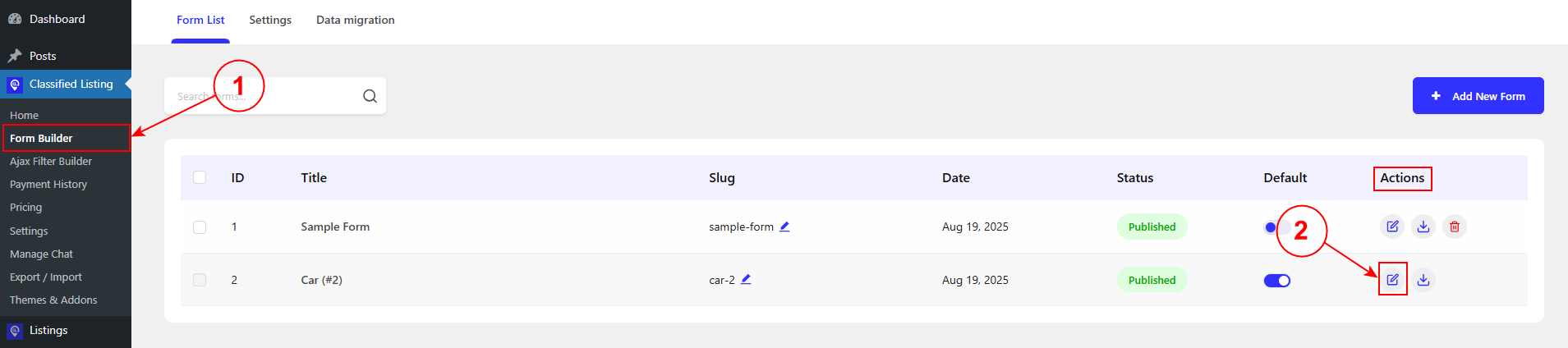
Edit Form

Click on the “Add New Section” button.
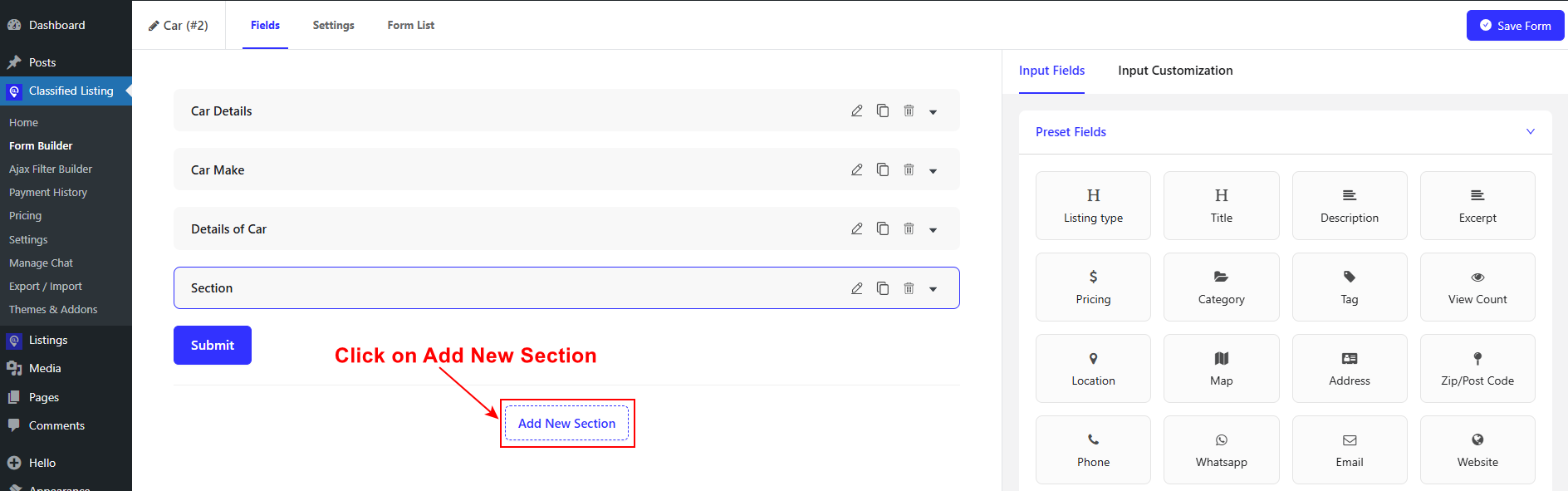
Click on Add New Section

1) To edit the newly created section, click on the ‘Edit’ icon. This will take you to the “Input Customization” field. 


2) Now, write the section title. For example, we put the section title name as Car Brand with Model. 

3) Here, you can add columns for the dependency field. For example, if you want to add two columns, insert the value 50. The minimum column width is 10%, the Maximum column number is 4.
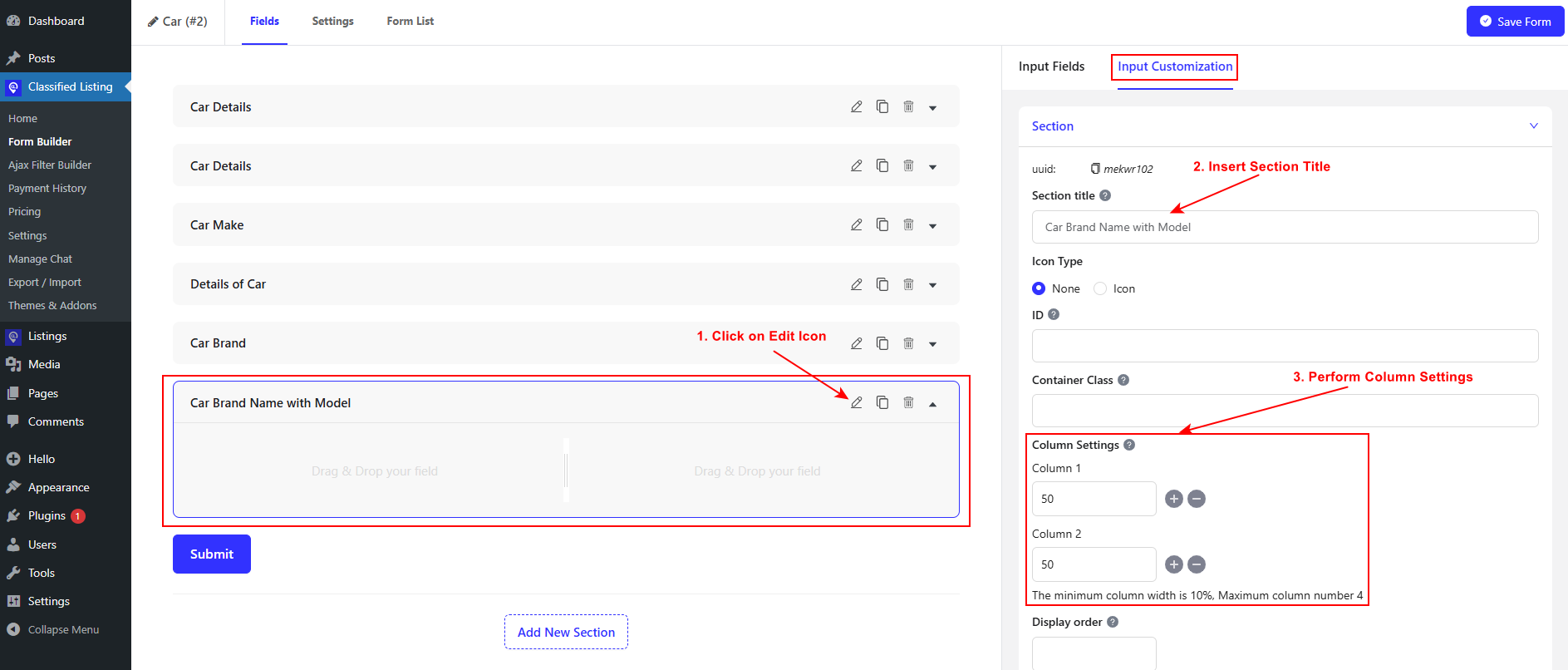
Edit Newly Created Section with Columns Setup

Add Smart Dependency Options for Select Field #

1) Now, move to Input Fields> Custom Fields.

2) Add the dropdown fields in the newly created section. 
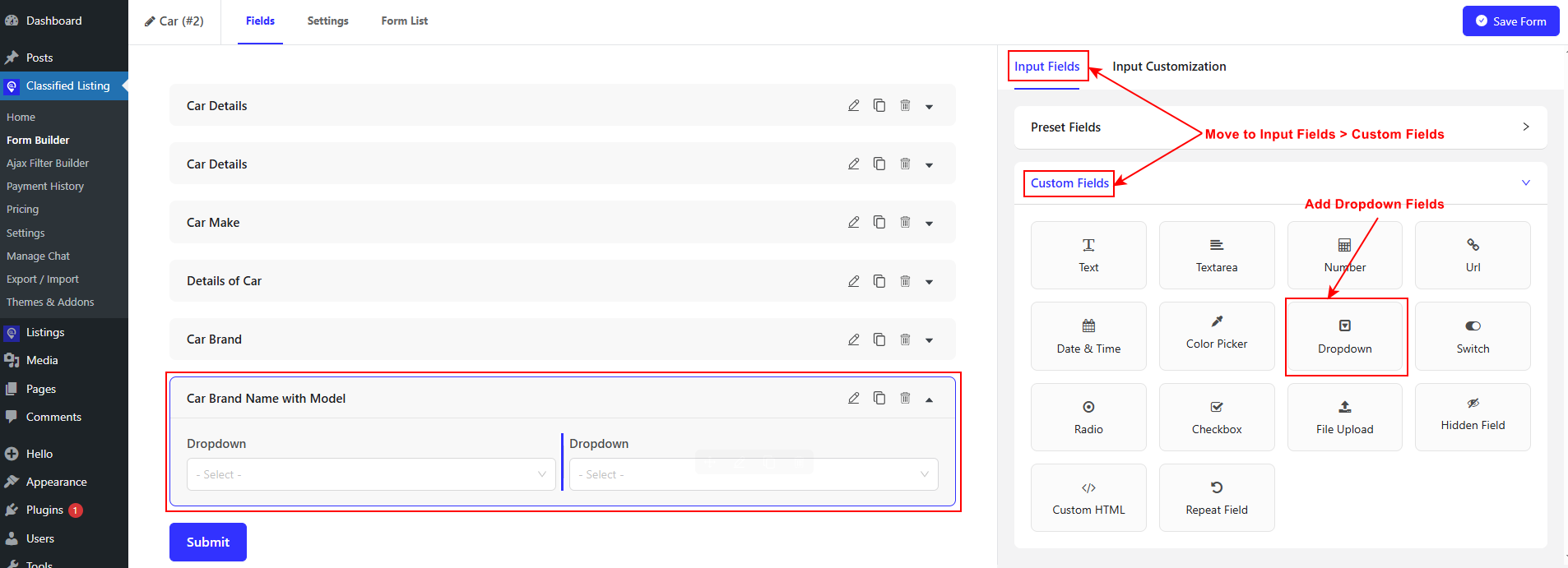
Add the drop down fields

1) Here, you need to edit the newly created dropdown fields. To perform this action, click on the ‘Edit’ icon. This will take you to the “Input Customization” setup of that particular field.

2) Determine the ‘Label’ name. As an example, we put the label as Brand Name and Model.  
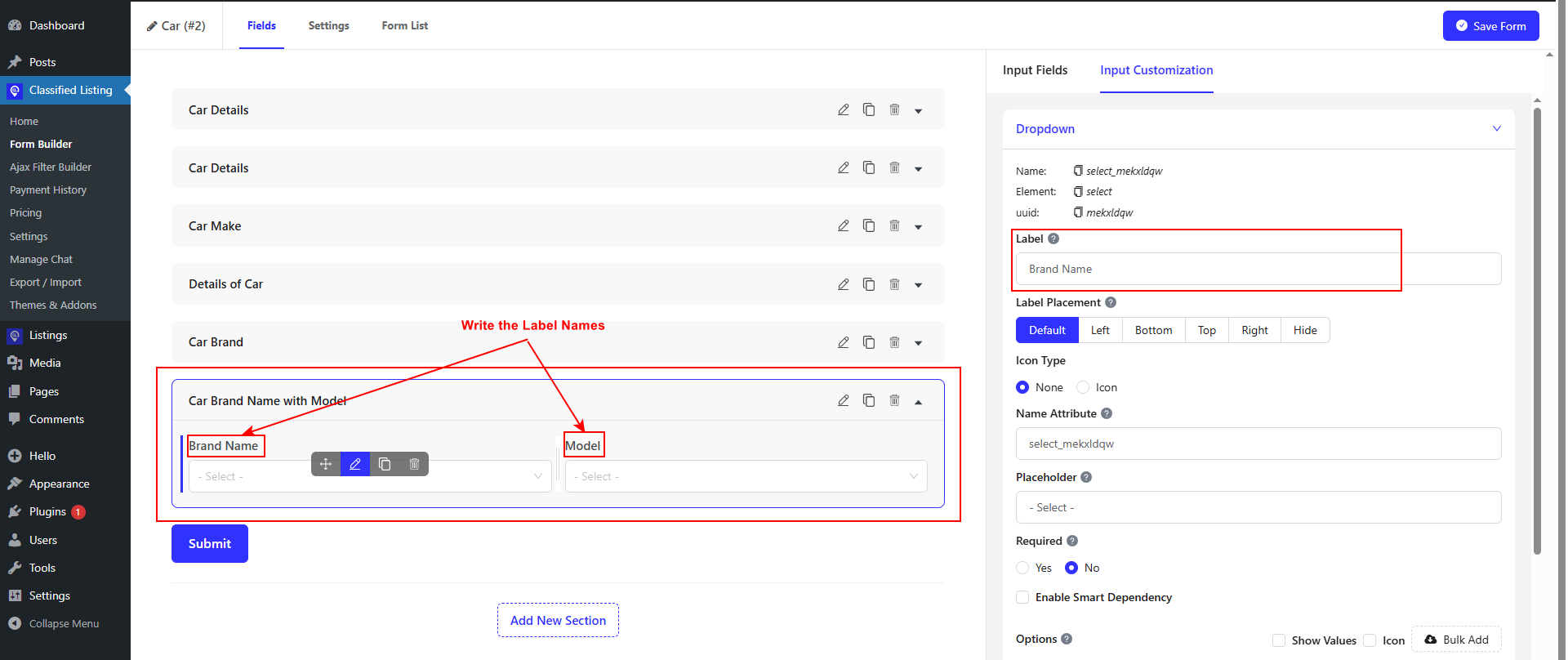
Write the Label Names

Now, follow the exact same steps for adding the bulk options for the select field. Below, you can see the newly added bulk options in the select field. 
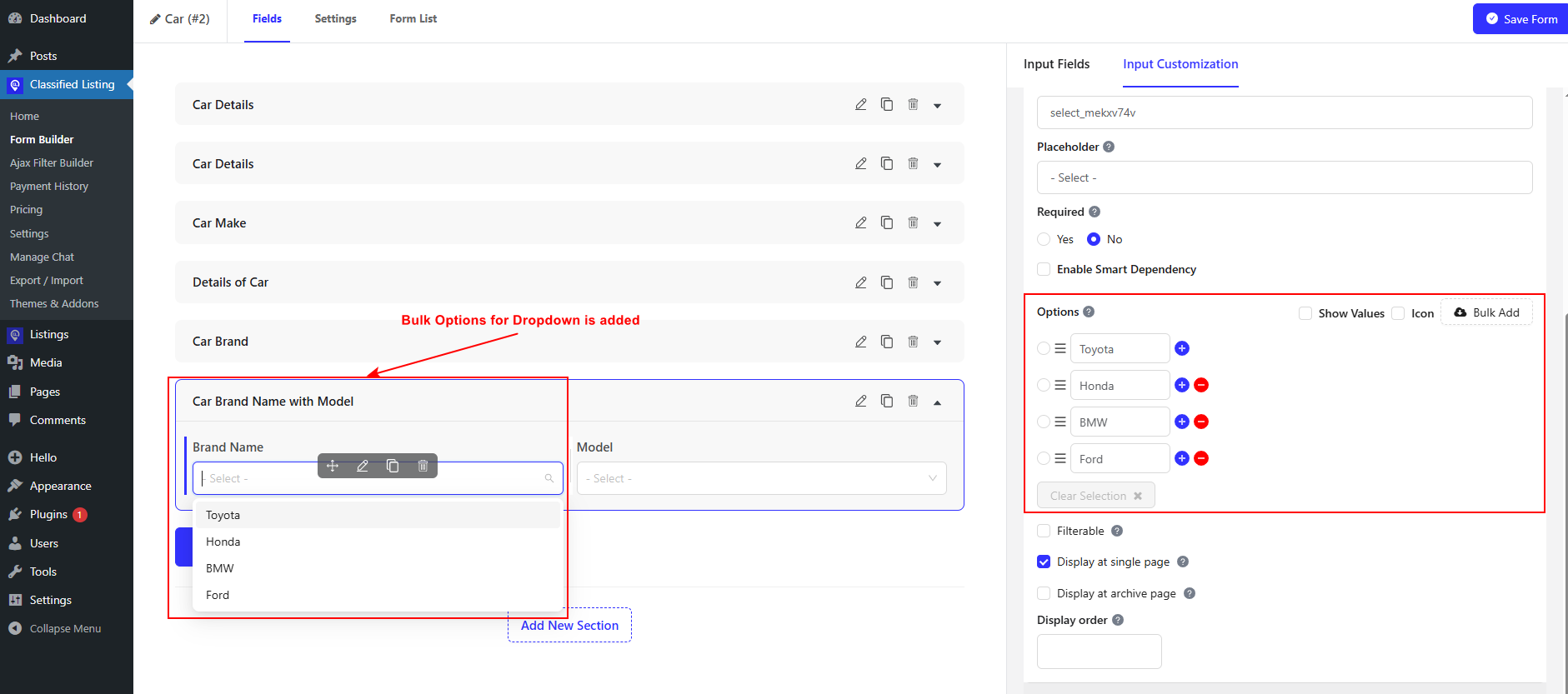
Bulk Options for Dropdown is added

1) Now, move to the second field and click on the ‘Edit’ icon. 

2) Here, you need to switch on the smart dependency option. After activating, you need to select the preferred dependency field from the dropdown.

3) Lastly, click on the “Bulk Add” option.
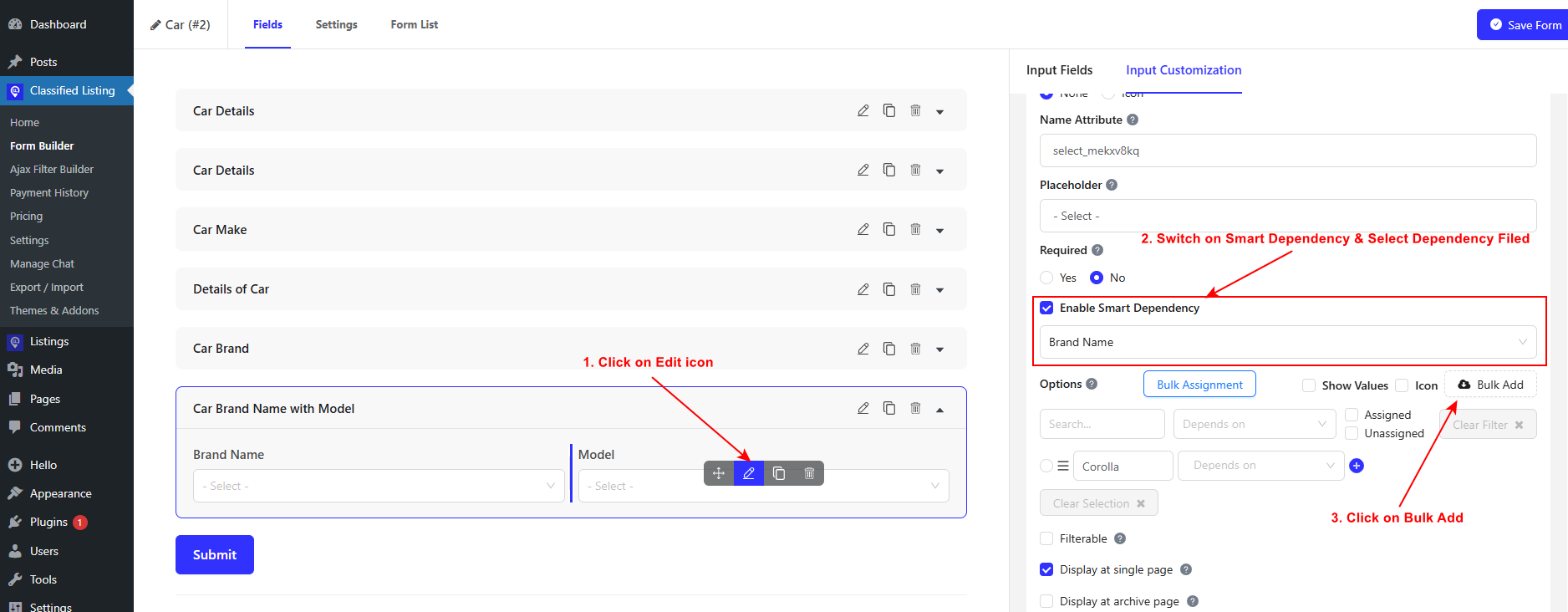
Smart Dependency Setup

1) You can add unlimited options for smart dependency.

2) Click on the “Bulk Assignment” button to allocate the options to their dependency field.
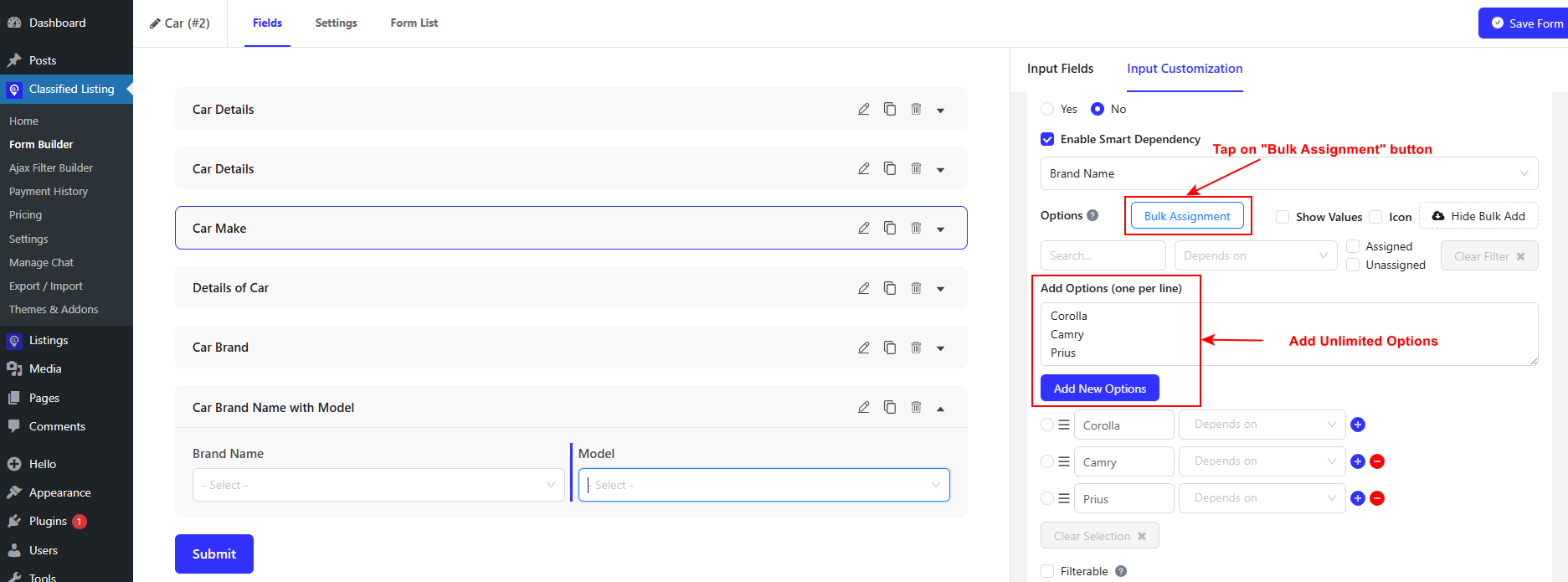
Perform Bulk Assignment

In the given GIF below, you can clearly observe the process.

First, select the options that are dependent on the other field’s option. 

Then, move to the “Depend on” section. Select the respective option from the dropdown. 

Click on the “Assign” button. 

Now, all the newly assigned dependency options will be visible. 

Lastly, you can easily view the ‘Assigned’ and ‘Unassigned’ options.

Bulk Dependency Assignment Setup

Add Smart Dependency Options for Checkbox #

By moving to Input Fields> Custom Fields. You can add the checkbox field to the section.
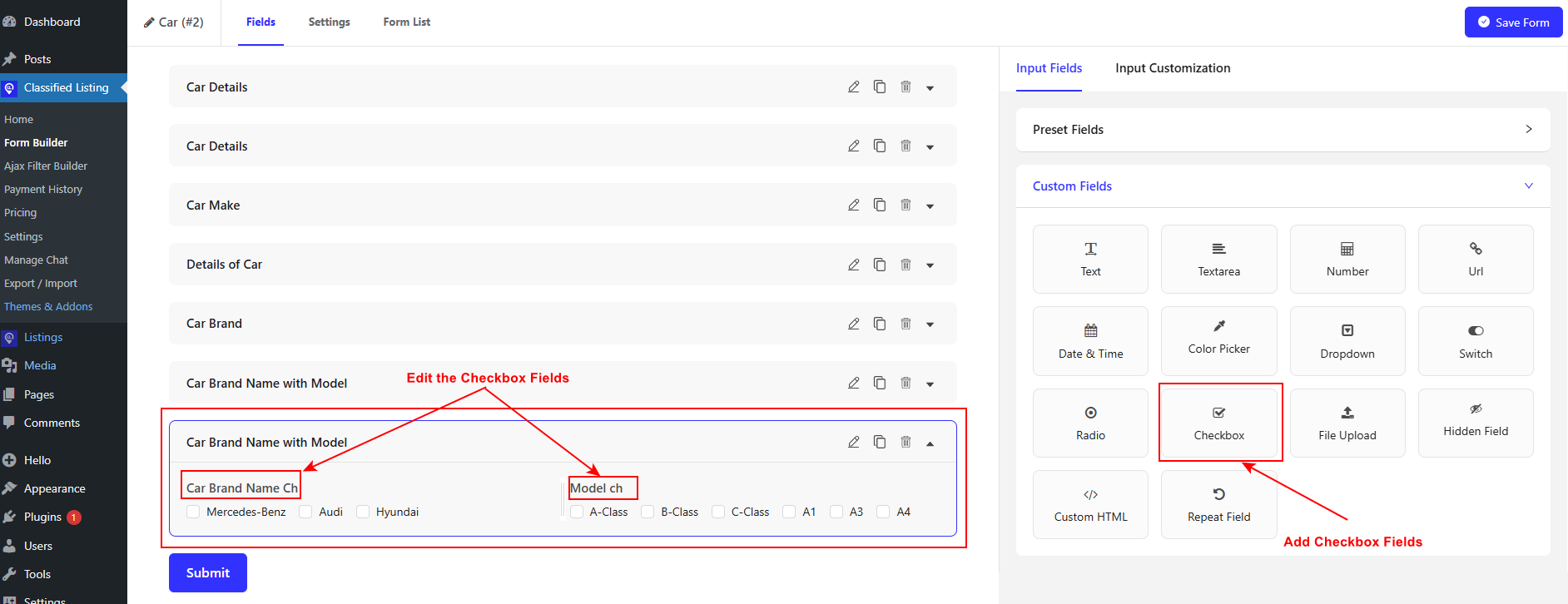
Add & Edit Checkbox Fields

Now, follow the same steps as adding a smart dependency for the select field. The interface will look like below.
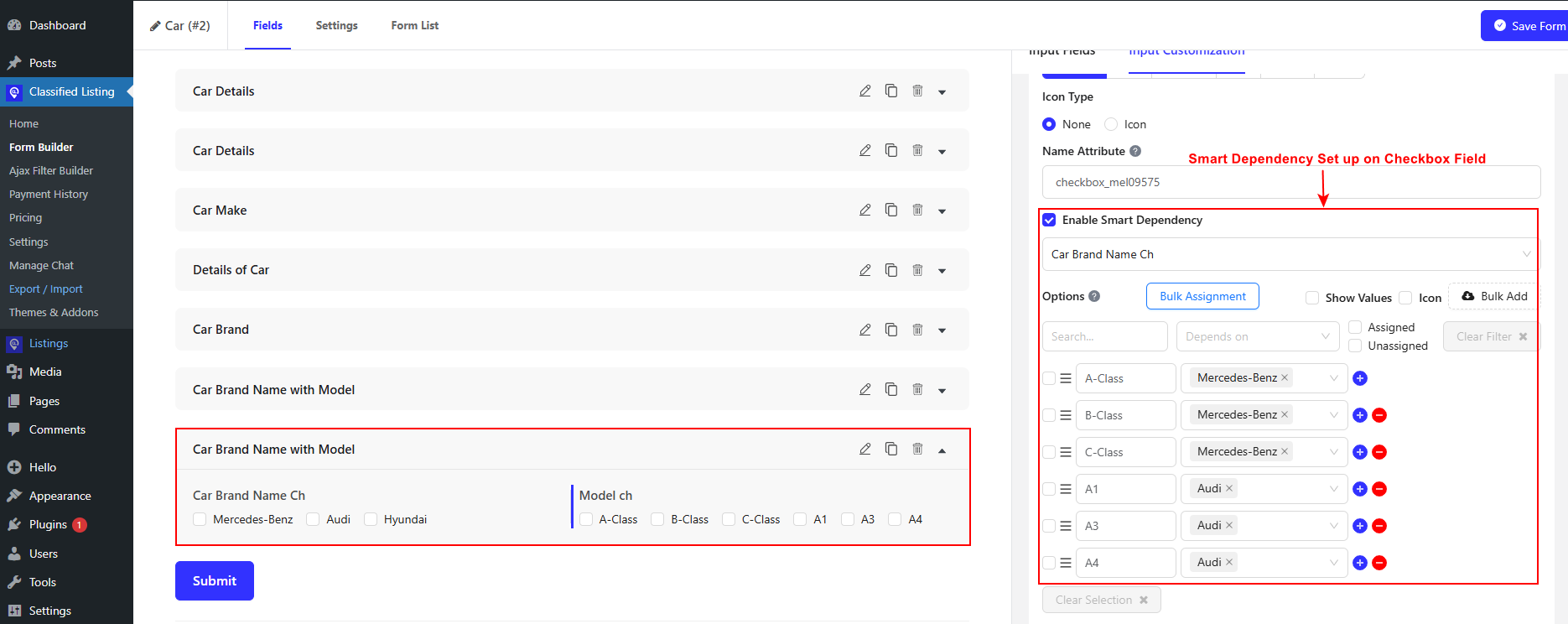
Smart Dependency Set up on Checkbox Field

Add Smart Dependency for Radio Field #

By moving to Input Fields> Custom Fields. You can add the radio field to your preferred section. 
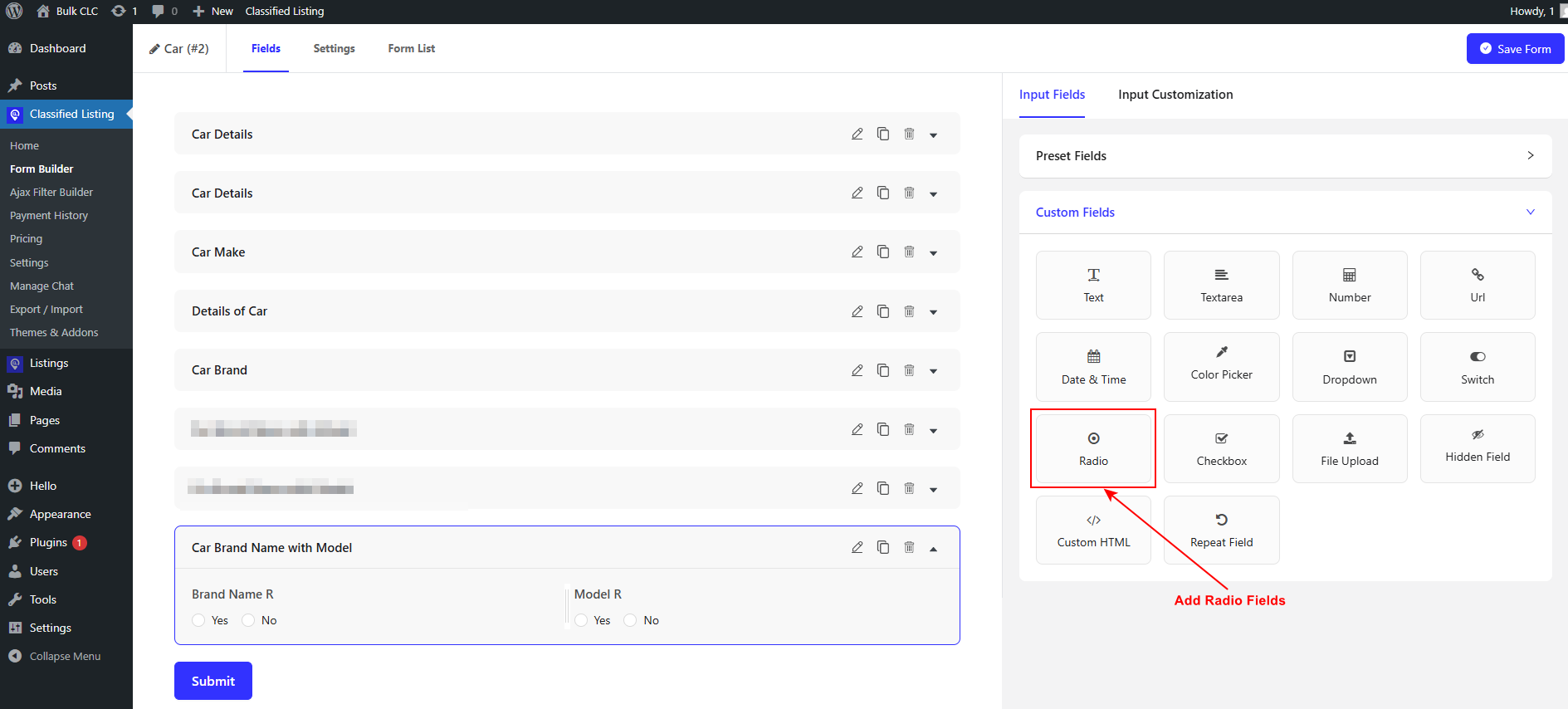
Add Radio Fields in Smart Dependency

Now, follow the same steps as adding bulk options for the select field and the checkbox. The interface will look like below.
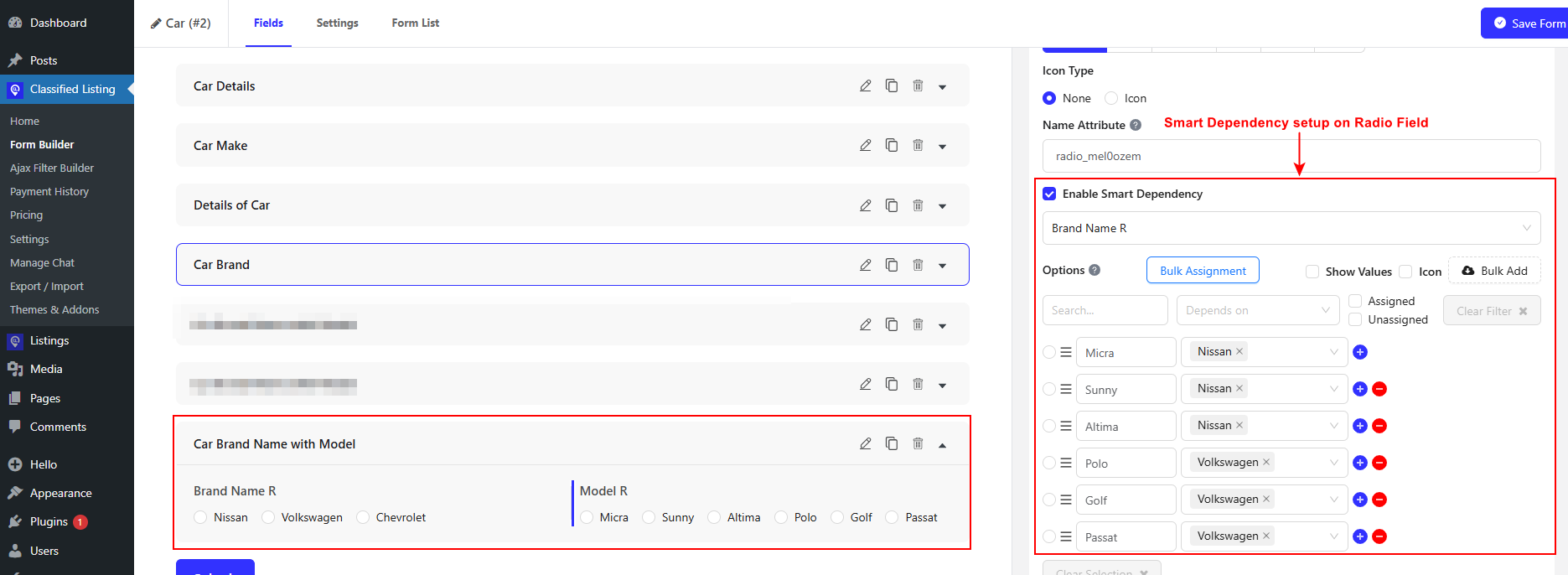
Smart Dependency setup on Radio Field

Front-End View After Adding Smart Dependency for Select, Checkbox, and Radio Field #

When Users insert listing information during form submission, they can select their preferred options among the bulk lists.
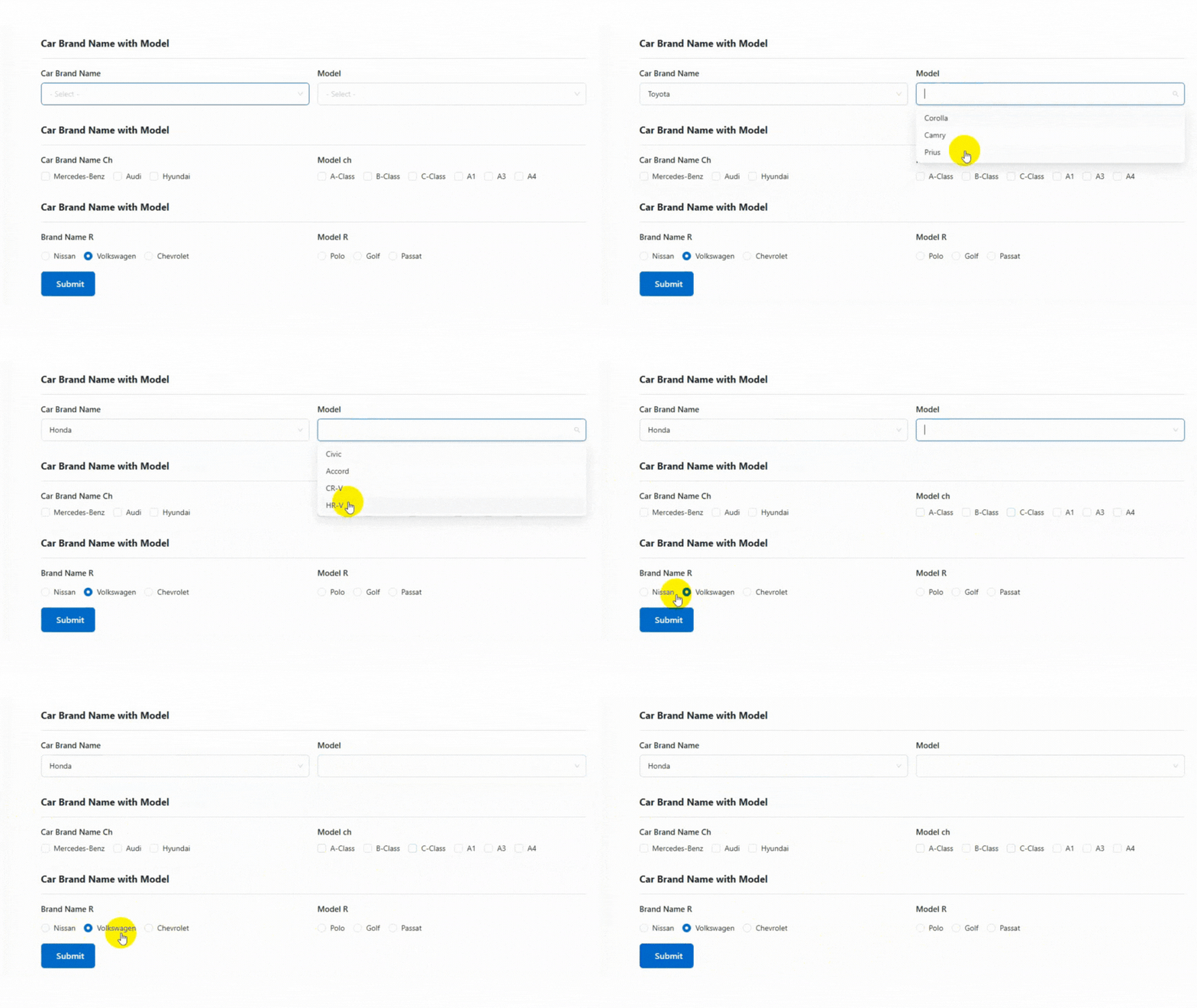
Smart Dependency Front End

Video Tutorial: #

What are your Feelings

Share This Article :

  • Facebook
  • X
  • LinkedIn
  • Pinterest
Still stuck? How can we help?

How can we help?

Updated on October 14, 2025
Add Bulk Options <span class="pro">Pro</span>SEO-Friendly Slug Builder
Table of Contents
  • Smart Dependency for Select, Checkbox, and Radio Field
    • Add Smart Dependency Options for Select Field
    • Add Smart Dependency Options for Checkbox
    • Add Smart Dependency for Radio Field
    • Front-End View After Adding Smart Dependency for Select, Checkbox, and Radio Field
    • Video Tutorial:
Copyright© 2026 RadiusDocs by RadiusTheme