
Configuration Reference • Main Settings
WordPress Dashboard → Classified Listing → Settings → All Listings Page
The All Listings Page settings control everything a visitor sees on your site’s main listing archive — the page that shows all published ads. From here you set how many listings appear per page, which layout is the default, how results are sorted, and which metadata elements are visible on each listing card. Getting these settings right directly affects how quickly visitors can find relevant ads and whether they stay on your site to browse further
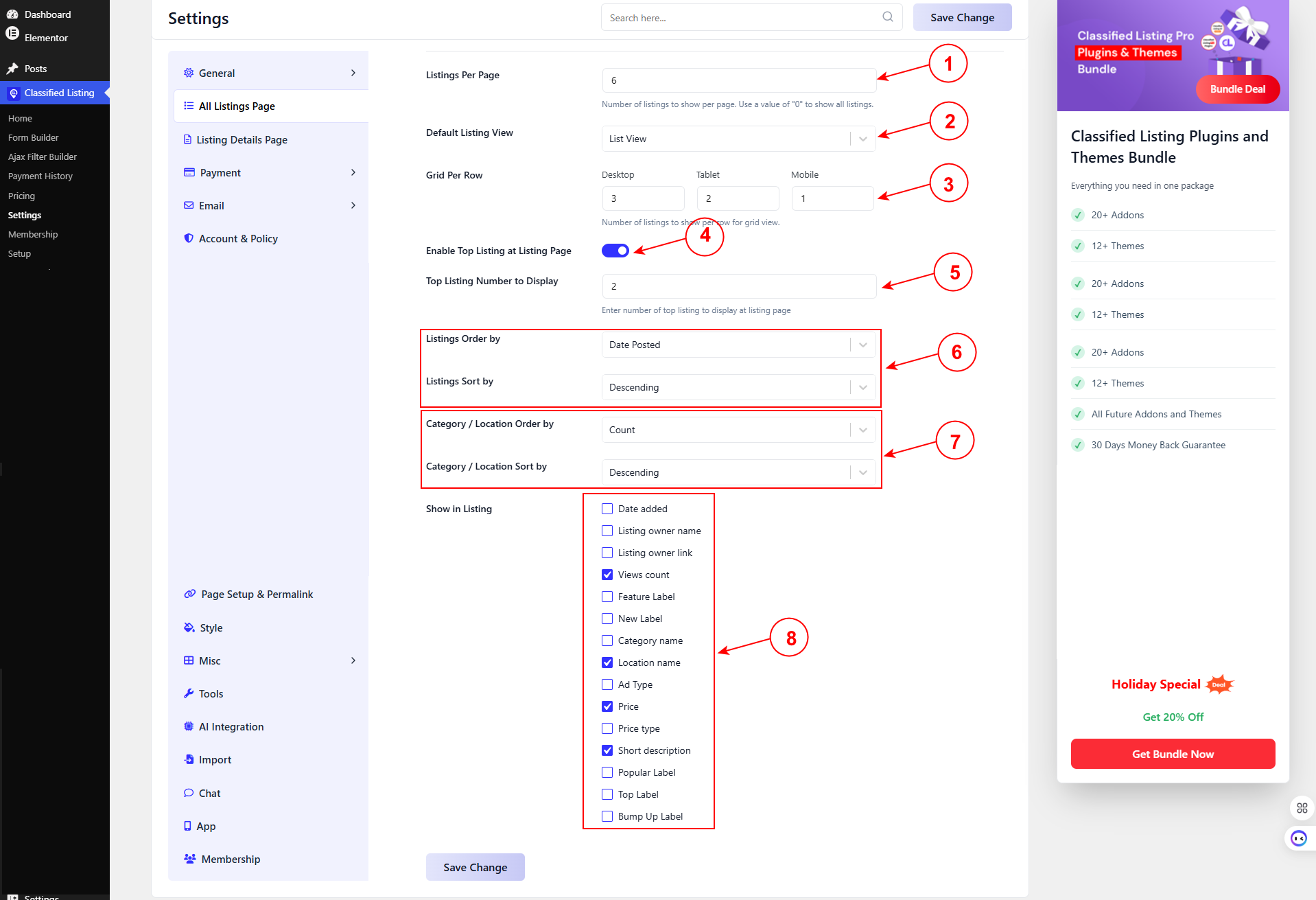
1. Listings Per Page #
Sets how many listings are displayed on a single archive page before pagination kicks in. Enter 0 to disable pagination and show every published listing on a single page.
⚠️ Important Showing all listings on one page (0) can significantly slow page load on large directories. Use this only on sites with a small, fixed inventory. For most sites, 12–24 per page strikes the right balance between content density and load speed.
2. Default Listing View #
Sets the layout visitors see when they first arrive at the archive page. Two options are available:
• List View — single-column rows with a thumbnail on the left and listing details on the right. Works well for text-heavy categories (e.g., Jobs, Services) where description matters more than visuals.
• Grid View — card-based multi-column layout with a prominent image at the top. Requires the Pro version. Best for visual categories (e.g., Real Estate, Vehicles, Electronics).
3. Grid Per Row #
When Grid View is the default, you can independently set how many listing columns render on each device breakpoint:
| Device | Recommended Columns | Notes |
| Desktop | 3 – 4 | More columns = more listings above the fold. |
| Tablet | 2 | Prevents cards from becoming too narrow at mid-widths. |
| Mobile | 1 – 2 | 1 column keeps images large enough to be useful on small screens. |
4. Enable Top Listings at Listing Page #
When enabled, a dedicated “Top Listings” block appears at the top of the archive page above the regular listing grid. Listings flagged as Top — typically through a paid featured placement plan — appear in this block regardless of the standard sort order.
💡 Tip Top Listings give paid sellers maximum visibility. If you sell featured placements, enabling this creates a clear visual separation between promoted and organic listings — which improves trust and conversion for both sellers and buyers.
5. Top Listing Number to Display #
Controls how many Top Listings appear in the featured block. If fewer listings hold Top status than this number, only the available ones display — no empty slots are shown.
Set this to a number that fills one complete row in your grid layout. For a 3-column grid, use 3 or 6; for a 4-column grid, use 4 or 8.
6. Listing Order & Sort By #
Determines the default field used to rank listings in the archive. Visitors can typically override this with on-page order controls, but this is what they see on first load:
| Sort Field | Best Use Case |
|---|---|
| Date Posted | Most sites — shows freshest listings first, encouraging regular new submissions. |
| Title | Directories with stable, reference-style content (e.g., business directories). |
| Price | Marketplaces where price comparison is the primary browse behaviour. |
| View Count | Popularity-based discovery; surfaces the most-visited listings automatically. |
Sort Direction #
Applies to whichever Sort By field is selected above:
• Ascending — lowest to highest (oldest first / A→Z / cheapest first / least views first).
• Descending — highest to lowest (newest first / Z→A / most expensive first / most views first).
For Date Posted, Descending is almost always the correct choice so the newest listings appear at the top.
7. Category / Location Order & Sort By #
These settings control how category and location taxonomy terms are ordered in widgets, filter dropdowns, and the category/location archive pages — separately from how listings themselves are sorted.
Order By #
| Option | What It Does |
|---|---|
| Name | Alphabetical order by term name. Best for long category lists where users scan alphabetically. |
| ID | Order by the internal WordPress term ID (creation order by default). Rarely user-facing. |
| Count | Most-populated categories first. Useful for directing visitors to active sections of the directory. |
| Slug | Alphabetical order by URL slug. Consistent with URL structure but rarely differs from Name. |
| Custom Order | Manual drag-and-drop order set in the Category / Location admin screens. Best for curated, brand-driven navigation. |
| None | No guaranteed order; MySQL returns terms in natural table order. |
Sort Direction #
Set to Ascending for A→Z / lowest count first, or Descending for Z→A / highest count first.
💡 Tip If your taxonomy changes frequently, use Count (Descending) to surface the most active categories. For a curated directory with stable categories, Custom Order gives you full control over the navigation hierarchy.
8. Show in Listing #
This group of toggles controls which metadata elements are visible on each listing card in the archive grid or list. Showing more information helps buyers make faster decisions; showing less creates a cleaner, faster-loading layout.
| Element | Show When… | Hide When… |
|---|---|---|
| Price | Your directory involves transactional listings (marketplace, real estate, vehicles). | Listings are service-based or price is not a primary decision factor. |
| Location | Geographic proximity matters to your audience. | All listings are in one location or the site is fully digital/remote. |
| Category Badge | Listings span multiple categories and users browse cross-category. | Every listing is in one category (single-niche directory). |
| Date Posted | Recency is important (classifieds, job boards, event listings). | Content is evergreen and date would make older listings look stale. |
| View Count | Social proof helps conversion (popular listings get more clicks). | New site with low traffic — low view counts can look untrustworthy. |
| Seller / Author | Store-based or multi-vendor directory where brand matters. | Anonymous classifieds where seller identity is not relevant at the card level. |
| Phone / Contact | Direct contact is the primary conversion action. | Contact is gated behind the listing detail page to protect privacy. |
| Featured Badge | You sell featured placements and want to signal premium status. | All listings are the same tier; the badge adds no signal value. |
💡 Tip Each additional element adds visual weight to the card. Run an A/B test with 4–5 elements vs. 2–3 elements if you are unsure — leaner cards often produce higher click-through rates because each card is easier to scan.
Frequently Asked Questions #
Q: What is the best Listings Per Page value for SEO?
A: Pagination itself is not a direct ranking factor, but page speed is. A very high number of listings per page increases DOM size and server response time. Keep it between 12 and 24 and enable a fast caching plugin. Google can crawl paginated archives correctly with rel=next/prev or a single sitemap entry.
Q: Can visitors change the sort order themselves?
A: Yes — if your theme or the plugin’s archive template includes a sort control widget, visitors can override the default. The setting here only controls the initial state on page load.
Q: Grid View is selected but the page still shows List View — why?
A: Grid View requires the Pro licence. Without it, the plugin falls back to List View regardless of this setting. Verify your Pro licence is active under Classified Listing → Tools.
Q: Top Listings are enabled but nothing appears in the featured block.
A: Check that at least one listing has been assigned Top status. Go to Classified Listing → All Listings, edit a listing, and confirm the Top badge is toggled on in the listing meta panel. Also ensure the Top Listing Number to Display value is greater than 0.
Q: Category Count shows 0 for some categories even though listings exist.
A: WordPress updates term counts on save. If you imported listings via CSV or XML, counts may not have updated automatically. Go to Classified Listing → Tools and run the Recount Terms utility.


