A conditional logic field is a feature within form-building tools that allows users to create dynamic forms where certain fields or sections appear or disappear based on predefined conditions.
Conditional Logic for Field #
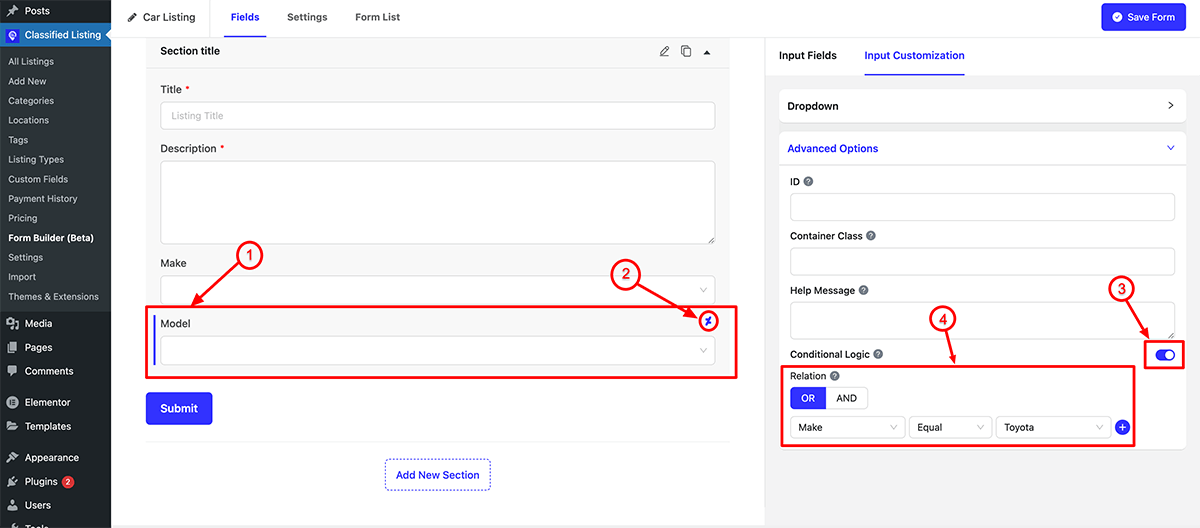
- Model Field: We aim to implement conditional logic for the “Model” field, wherein if a user selects a car make like Toyota, the “Model” field will become visible.
- Conditional logic icon: This icon indicates that this field is conditional.
- Enable Conditional Logic: You can enable conditional logic using the toggle button. This will reveal the related fields for configuring the logic.
- Relation: Choose the dependent field, specify the condition, and select the value that triggers the display of the Model field.
Conditional Logic for Section #
Depending on the specific field selection we can enable a section.
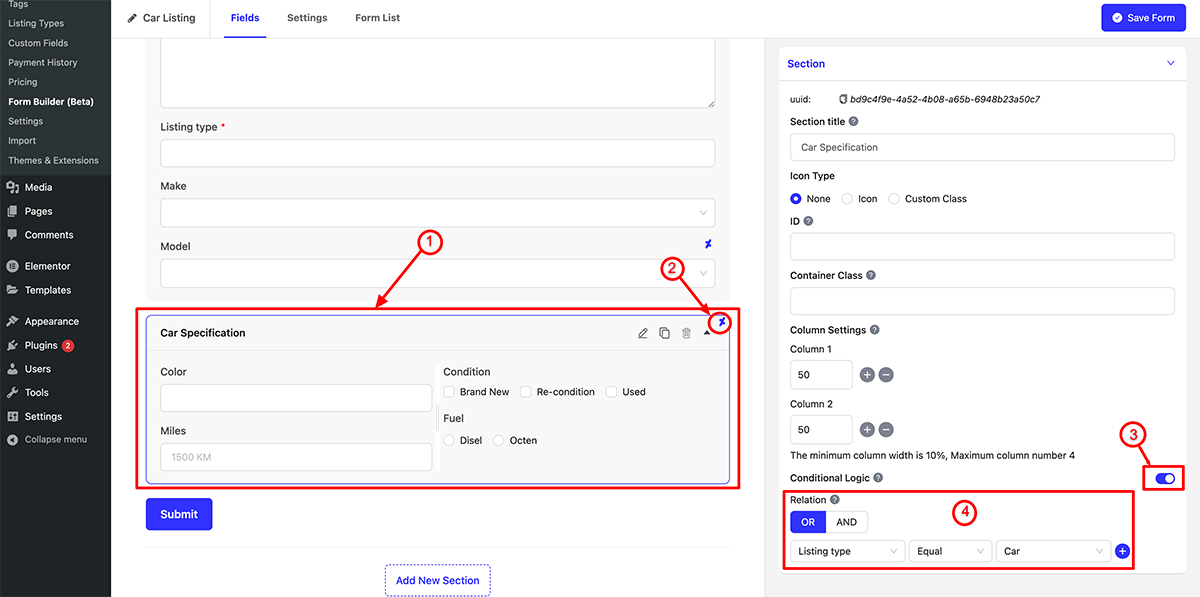
- Section Car Specification: We create a section named “Car Specification” and configure it to display in its entirety when the “Listing Type” is set to “car“.
- Conditional logic icon: This icon indicates that this field is conditional.
- Enable Conditional Logic: You can enable conditional logic using the toggle button. This will reveal the related fields for configuring the logic.
- Relation: Choose the dependent field, specify the condition, and select the value that triggers the display of the “Car Specification Section“.
Bulk Category Selection in Conditional Logic #
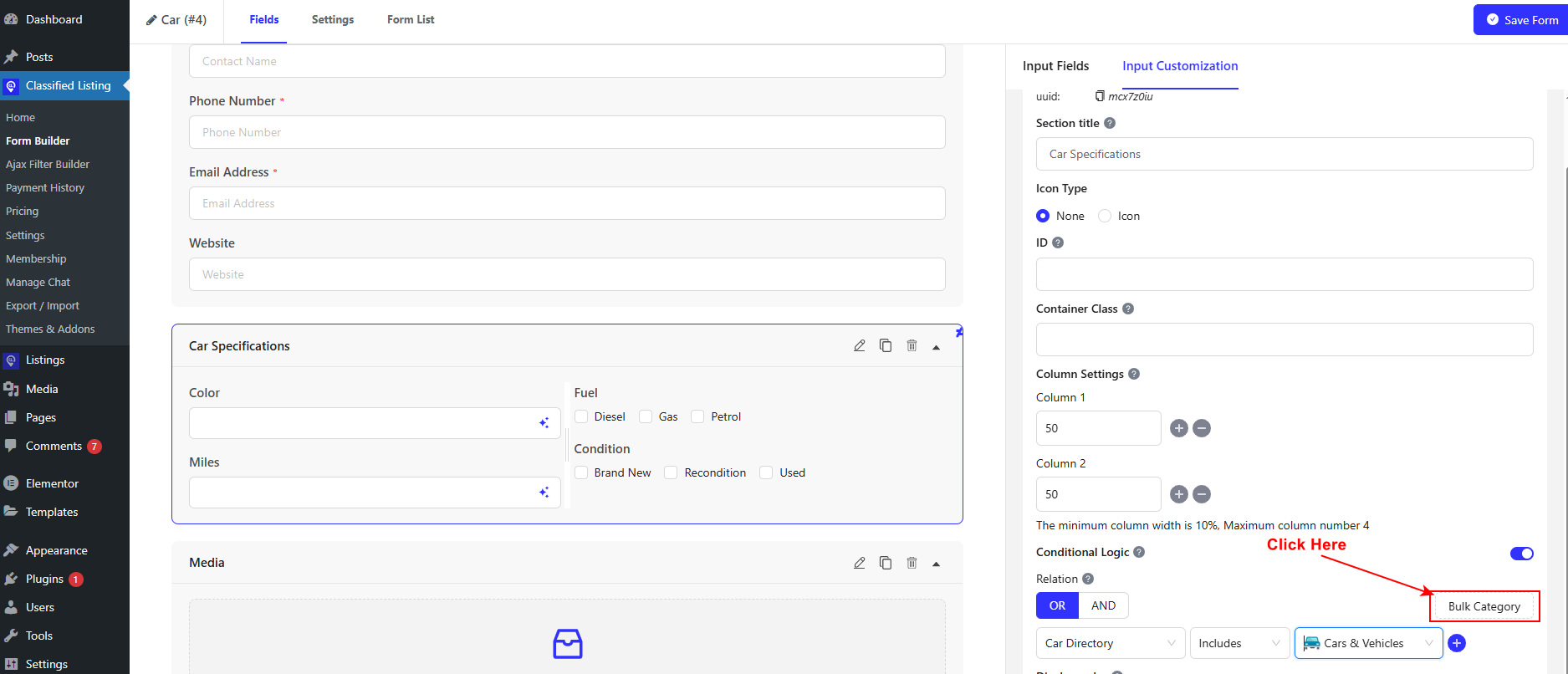
You can easily select bulk categories during conditional logic. Just click on the mentioned area in the conditional logic section.
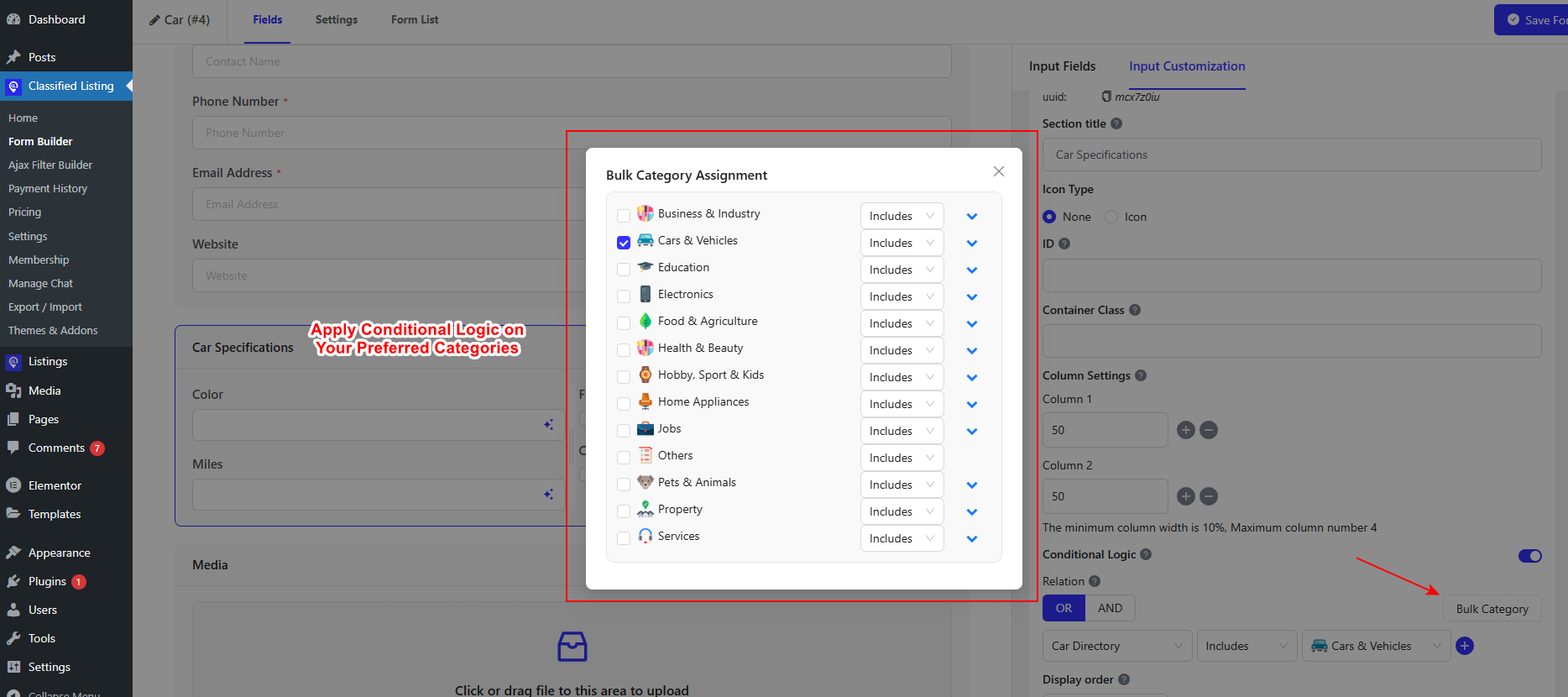
After that, a pop-up will appear. You can freely include and exclude any categories. You can save time with efficient multi-category configuration.