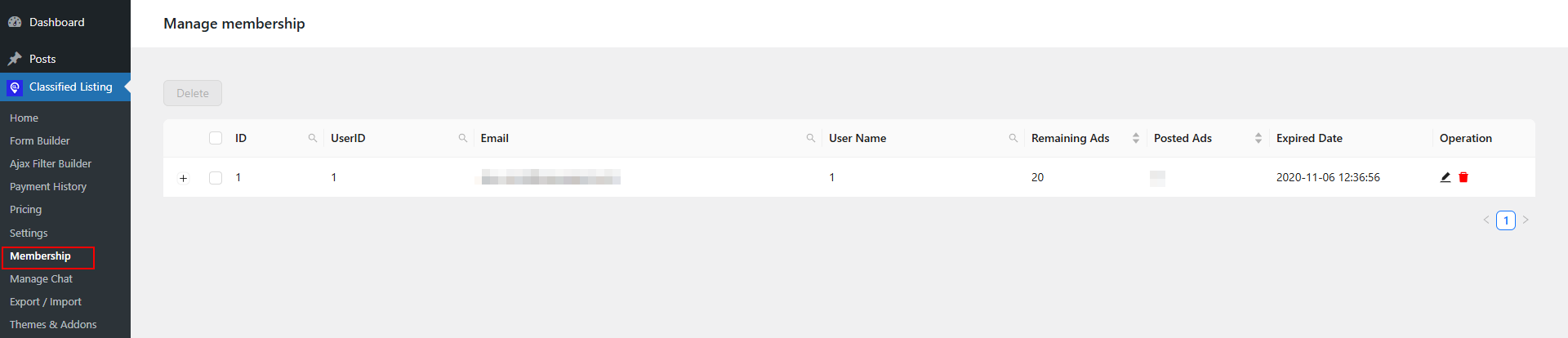
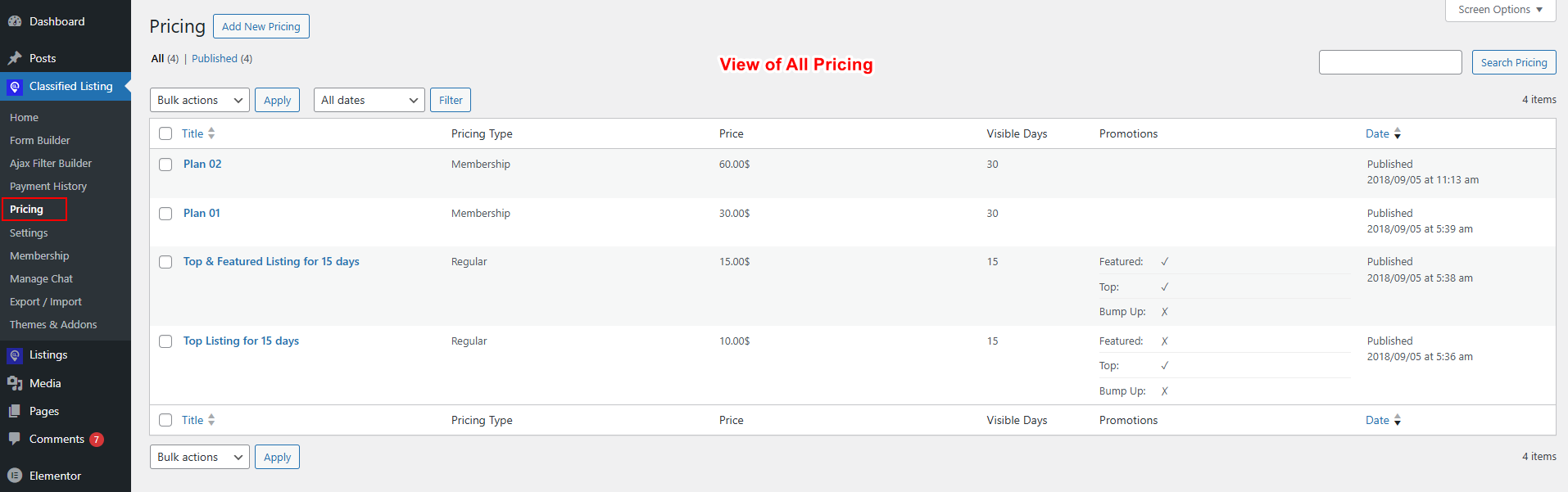
There are two types of pricing. To set pricing, navigate from the WordPress admin end to Classified Listing > Pricing.
2) Pay Per Ads
Pricing List displays something like what’s shown below
Regular Pricing: #
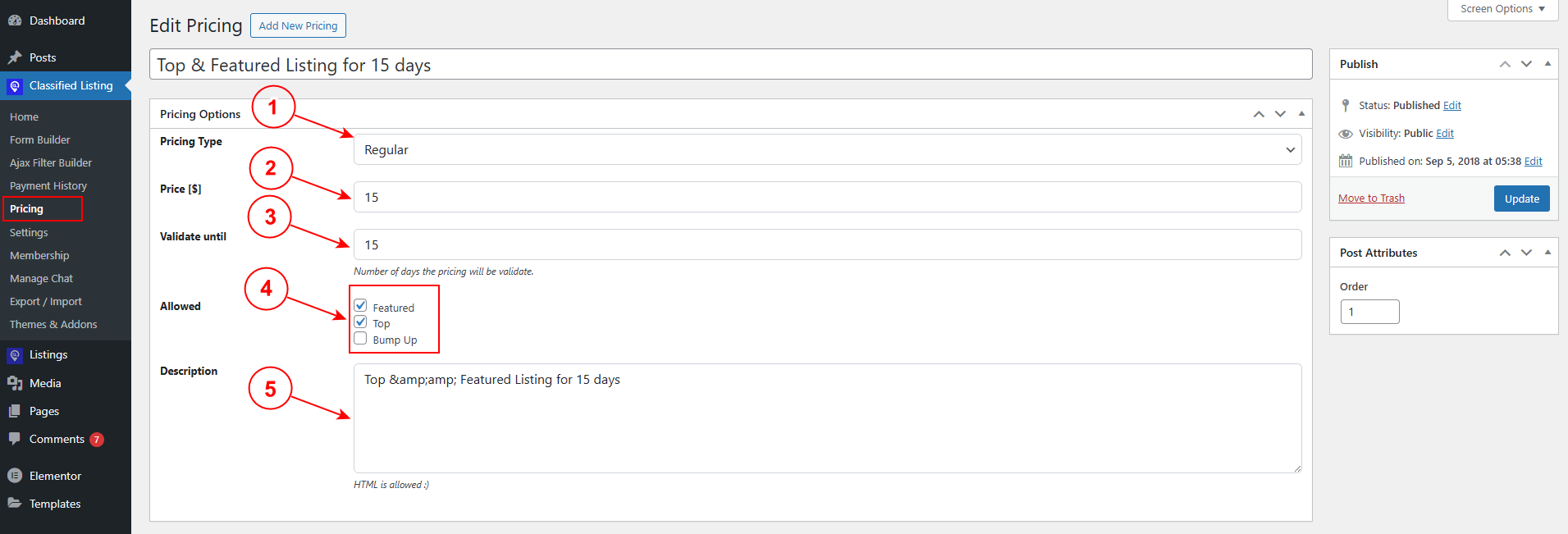
You can set the regular pricing for ad promotion, such as Top, Featured & Bump up.
For promotion pricing, first set:
1) Pricing Type: Select price type as Regular.
2) Price: Set price amount.
3) Valid Until: Set the number of days for which this promotion will run.
4) Allow: Allow a promotion-type from the checkbox.
Featured Ads: In list view, these ads will be displayed with a special color background or an icon. Also, by use of a shortcode, you can show Featured ads on the Home page or any specific area.
Top Ads: These ads show at the top of the list in all ads, categories, and location pages in random order. We have control over how many top ads will show.
Bumpup: These ads will change the ad posting data daily so that a different one shows up on top of the list, particularly if you have set your ads order by post data.
5) Description: Add a Description of your promotion, such as Top ads for 15 days.
Pay Per ad #
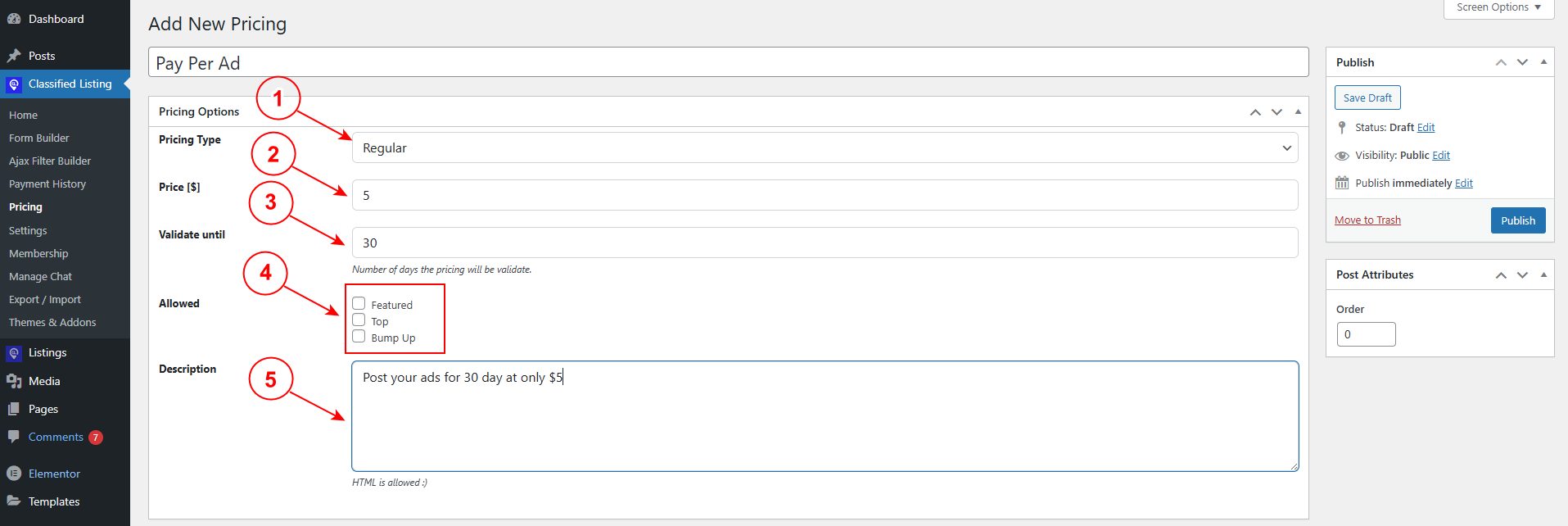
You can set pay-per-ad from the Regular pricing option. To set the pay-per-ad option, navigate the WordPress admin menu Classified Listing > Pricing.
[Important Note: Make sure membership is disabled and don’t select any promotion option.]
Make sure you don’t have the membership option enabled, or else the pay-per-ad element will not work.
1) Pricing Type: Set Pricing Type to Regular
2) Price: Set the Price and set how many days this ad will run.
3) Validate Until: Determine the number of days for which this promotion will run.
4) Allow: This is an important part, so make sure that you don’t select any promotion option.
5) Description: Set a description for your package.
Membership Pricing [Need store and membership addon] #
To set the membership price, you need to enable the membership and store addon first, then get the membership pricing option in the pricing menu.
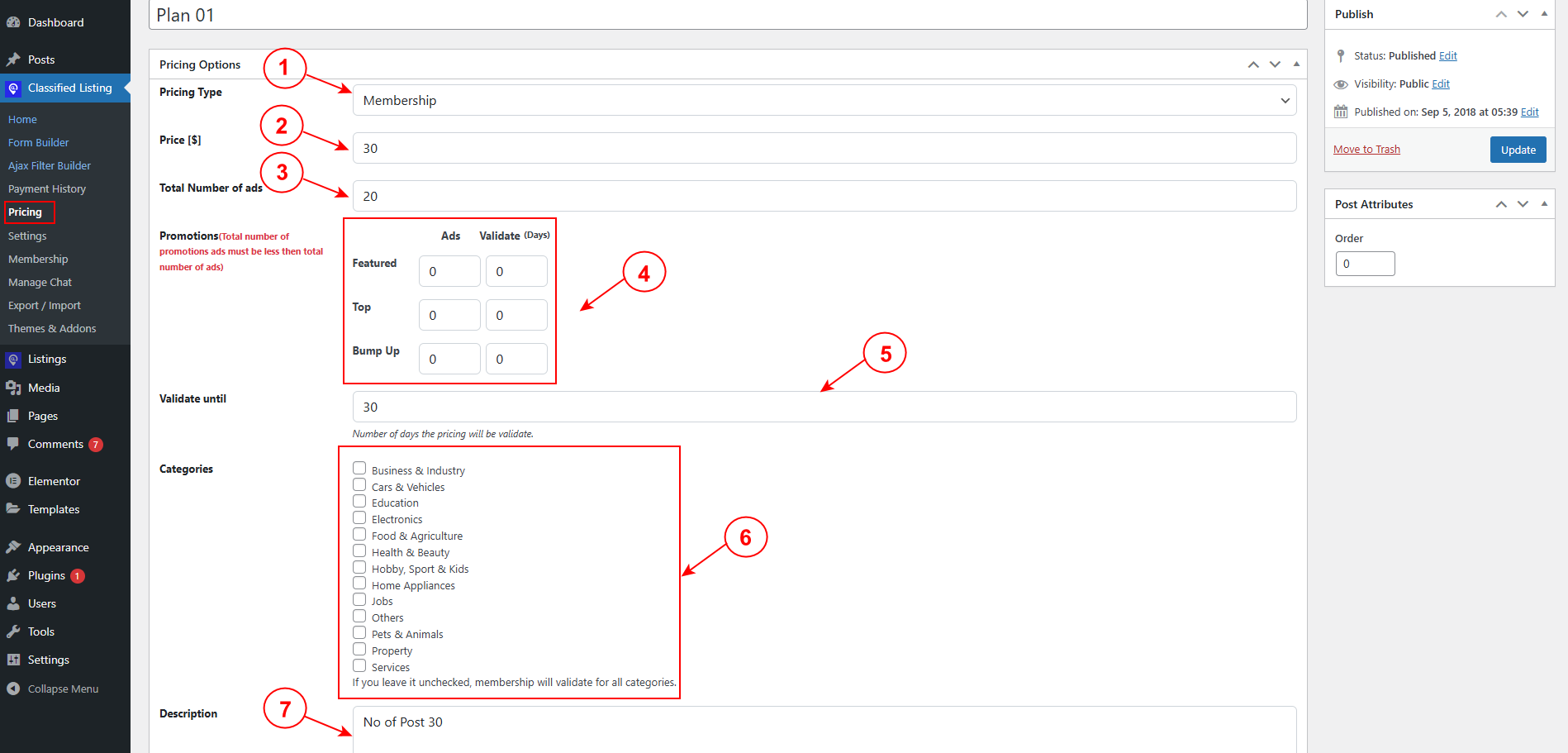
To set the Membership or Subscription plan, configure the settings below:
1) Pricing Type: Set the pricing type as Membership
2) Price: Set price amount
3) Total Number of Ads: Set the number of regular ads
4) Promotions: Set the number of featured, top, and bump-up ads and set their validity.
5) Validate Until: Fix the days for which this membership will remain valid. If you set it for 30 days, ads will stay valid for 30 days.
6) Categories: If you have some special paid category or categories, then select that category. To apply for all categories, don’t check anyone. It will allow for the sub-category also.
7) Description: Add the Description of your membership package, for instance, 30 ads for 15 days at $40.
To check which users have purchased a membership, navigate the WordPress admin menu Classified Listing > Membership
You can see which users purchased the membership plan with their number of ads remaining or their Expiry dates.