• Classified Listing Docs
    • Classified Listing Plugin
    • Classified Listing All Addons
    • Classified Listing Mobile App
    • Classima Mobile APP
    • Listygo Mobile App
    • Homlisti Mobile App
  • Woocommerce Plugins Docs
    • ShopBuilder Elementor Addon
    • Woo Variation Swatches
    • Woo Variation Gallery
    • Zilly Mobile App
  • General Plugins Docs
    • The Post Grid
    • Testimonial Slider
    • Team Members
    • Food Menu
    • Review & Schema
    • Portfolio
    • Business Review
  • Our Plugins
    • The Post Grid
    • Classified Listing
    • ShopBuilder
    • Food Menu
    • Team
    • Portfolio
    • Testimonial Slider
    • Review & Schema
    • See All Plugins
Ă—
  • Classified Listing Docs
    • Classified Listing Plugin
    • Classified Listing All Addons
    • Classified Listing Mobile App
    • Classima Mobile APP
    • Listygo Mobile App
    • Homlisti Mobile App
  • Woocommerce Plugins Docs
    • ShopBuilder Elementor Addon
    • Woo Variation Swatches
    • Woo Variation Gallery
    • Zilly Mobile App
  • General Plugins Docs
    • The Post Grid
    • Testimonial Slider
    • Team Members
    • Food Menu
    • Review & Schema
    • Portfolio
    • Business Review
  • Our Plugins
    • The Post Grid
    • Classified Listing
    • ShopBuilder
    • Food Menu
    • Team
    • Portfolio
    • Testimonial Slider
    • Review & Schema
    • See All Plugins

Getting Started

4
  • System Requirements
  • Installation
  • Permalink Settings
  • How to use(video)

Main Settings

15
  • Overview
  • General Settings
  • All Listings Page
  • Listing Details Page
  • Payments
  • Tax
  • Email
  • Account & Policy
  • Style
  • MISC Settings
  • Chat Settings Pro
  • Page Setup & Permalink
  • Tools
  • App Settings
  • Membership [Store addon] Pro

Email Settings

3
  • General Settings
  • Email Template
  • Video (How to Use)

Developer Docs

1
  • Developer Docs

Listing Management [Admin]

9
  • Admin End Ads View
  • Category
  • Locations
  • Listing Type
  • Pricing
  • Payment History
  • Export & Import Settings
  • Default Import [XML]
  • Stores [store addon]

AI Integration

5
  • Create Form with AI
  • Frontend AI Integration
  • AI Integration Settings
  • AI Semantic Search
  • AI Image Enhancement

Radius Booking Integration

10
  • How to Use (Video)
  • Integration with Radius Booking
  • Radius Booking Field in Form Builder
  • Enable Radius Booking on Existing Listing
  • Payout Settings
  • Payout Request from Front End Dashboard
  • Payout Request on Admin Panel
  • Commission Overview — Admin Panel
  • My Account – Booking
  • Appointments – Admin Panel

Theming

4
  • Add theme support for plugin templates
  • Override Ad Submission Form
  • Override ad detail page
  • Theming

REST API

54
  • Form Builder Image Sort REST API
  • Form Builder Image Delete REST API
  • Form Builder File Delete REST API
  • Form Builder File Upload REST API
  • Create Listing via Form Builder REST API
  • Email Store Owner REST API
  • Get Single Store REST API
  • Get Store Listings REST API
  • Get Stores REST API
  • Upload My Store Banner REST API
  • Upload My Store Logo REST API
  • My Store REST API
  • My Store REST API
  • Report Listing REST API
  • Update Subscription Payment Method API
  • Cancel Subscription REST API
  • Get Pricing Plans REST API
  • Get Single Payment / Order Details REST API
  • Get Payment History REST API
  • Get Checkout Data REST API
  • Create New Tag REST API
  • Change Order Status REST API
  • Manage Orders REST API
  • Mark Message as Read REST API
  • Chat Message REST API
  • Check Conversation by Listing REST API
  • Start New Conversation API
  • Get Conversation Messages API
  • My Chat List REST API
  • Toggle a favourite listing REST API
  • Get My Favourite Listings REST API
  • Upload My Profile Image REST API
  • Update My Account REST API
  • Get My Account Info REST API
  • Mark Listing as Sold REST API
  • Change Listing Status REST API
  • Renew Listing REST API
  • Delete My Listings REST API
  • Get My Listings REST API
  • Get Single Listing API
  • Create a listing API
  • User Sign Up REST API
  • Login REST API
  • Logout REST API
  • Account Delete REST API
  • Reset Password REST API
  • Contact REST API
  • Configuration API
  • Locations API
  • Categories API
  • Listing Types API
  • Email Seller API
  • Listings API
  • General

Code Snippets

18
  • Mask more digits
  • Change Business Hour Start and End Time
  • Add Price Unit
  • Trim zero from payment price
  • Show mark as sold listing in the search
  • Remove required attribute for phone field
  • Remove Price Type
  • Modify listing submission success message
  • Modify checkout form fields
  • Display listing image in media library
  • Change radius unit and distance
  • Change Price Type
  • Change Favourites to Favorites
  • Change Excerpt Limit
  • Change Currency Symbol
  • Change archive page listing column
  • Add New Price Type
  • Code Snippets

Filter Hooks

15
  • rtcl_countries_all_countries
  • rtcl_checkout_fields
  • Checkout
  • rtcl_my_account_endpoint
  • rtcl_account_menu_items
  • My Account
  • rtcl_listing_pricing_types
  • Listing Form
  • rtcl_social_profiles_list
  • rtcl_registration_redirect
  • rtcl_listing_seller_contact_form_data
  • rtcl_listing_query_meta_query
  • rtcl_get_base_location
  • General
  • Filter Hooks

Action Hooks

14
  • Email
  • rtcl_payment_receipt
  • rtcl_checkout_process_success
  • Checkout
  • rtcl_account_{$menu_key}_endpoint
  • My Account
  • rtcl_listing_form_before_category_retrieve
  • rtcl_listing_form_after_save_or_update
  • Listing Form
  • rtcl_new_user_created
  • rtcl_listing_loop_item
  • rtcl_after_author_meta
  • General
  • Action Hooks

Payment

8
  • Checkout Option
  • Offline Payment
  • Paypal
  • Authorize.net [PRO]
  • Stripe [PRO]
  • WooCommerce [PRO]
  • Payfast [Addon]
  • Paystack [Addon]

Elementor Addons

11
  • Elementor Addons
  • Listing Category
  • Listing Category Slider
  • All Location
  • Single Location
  • Listings
  • Listing Slider
  • Listing Store
  • Pricing Table
  • Search Form
  • Header Button

WPML Addon

3
  • System Requirements
  • Location Translations
  • WPML Settings

AJAX Filter Builder

2
  • Add Filter Items
  • Filter Widget

Frequently Asked Questions (Faq’s)

29
  • Frequently Asked Questions(Faq’s)
  • Fix taxonomy page listing sorting issue
  • Disallow query string and specific URL [SEO]
  • Enable New Dashboard [Canvas]
  • Custom Fields for Listview
  • Custom Fields for Filter
  • Pay Per Ad
  • Admin Menu Access
  • How to change listing archive category description position
  • Category & Location Menu Link
  • Add Re-Captcha
  • Add Google Map
  • Rank Math SEO Settings
  • Enable Chat
  • Renew listing process
  • How to set Local Time for Business Hour
  • Enable WooCommerce Payment
  • Fix Custom Field Save Issue
  • Enable Mark as Sold
  • How to add Compare
  • How to clear plugin cache?
  • Change Archive Page Title
  • User don’t get Registration & Verification Email?
  • How to change custom fields order?
  • How to add Watermark
  • How to separate login and registration page?
  • How to hide contact information for non logged in users?
  • Enable Social Login
  • Enable User Registration

Listing Management [Front End]

3
  • Front End View
  • Front End Submission
  • My Account Menu

Shortcodes

9
  • Shortcodes
  • Categories Display
  • Checkout Page
  • Listing Submission Form
  • My Account Page
  • Store List
  • Location Wise Display
  • Category Wise Display
  • Listing Filter

Drag & Drop Form Builder (New)

14
  • How to add your own icon in the builder
  • Multi-Category Selection
  • Enable Form Builder
  • Form List
  • Add New Form
  • Preset Fields
  • Custom Fields
  • Single Listing Layout Builder New
  • Enable Multiple Forms
  • Enable Conditional Logic
  • Add Bulk Options Pro
  • Smart Dependency Pro
  • SEO-Friendly Slug Builder
  • Image Crop Feature

Gutenberg Block

10
  • Gutenberg Block
  • Listing Category
  • Listing Category Slider
  • All Location
  • Single Location
  • Listings
  • Listing Slider
  • Listing Search
  • Pricing Table
  • Stores
  • Home
  • Docs
  • Drag & Drop Form Builder (New)
  • Custom Fields
View Categories

Custom Fields

5 min read

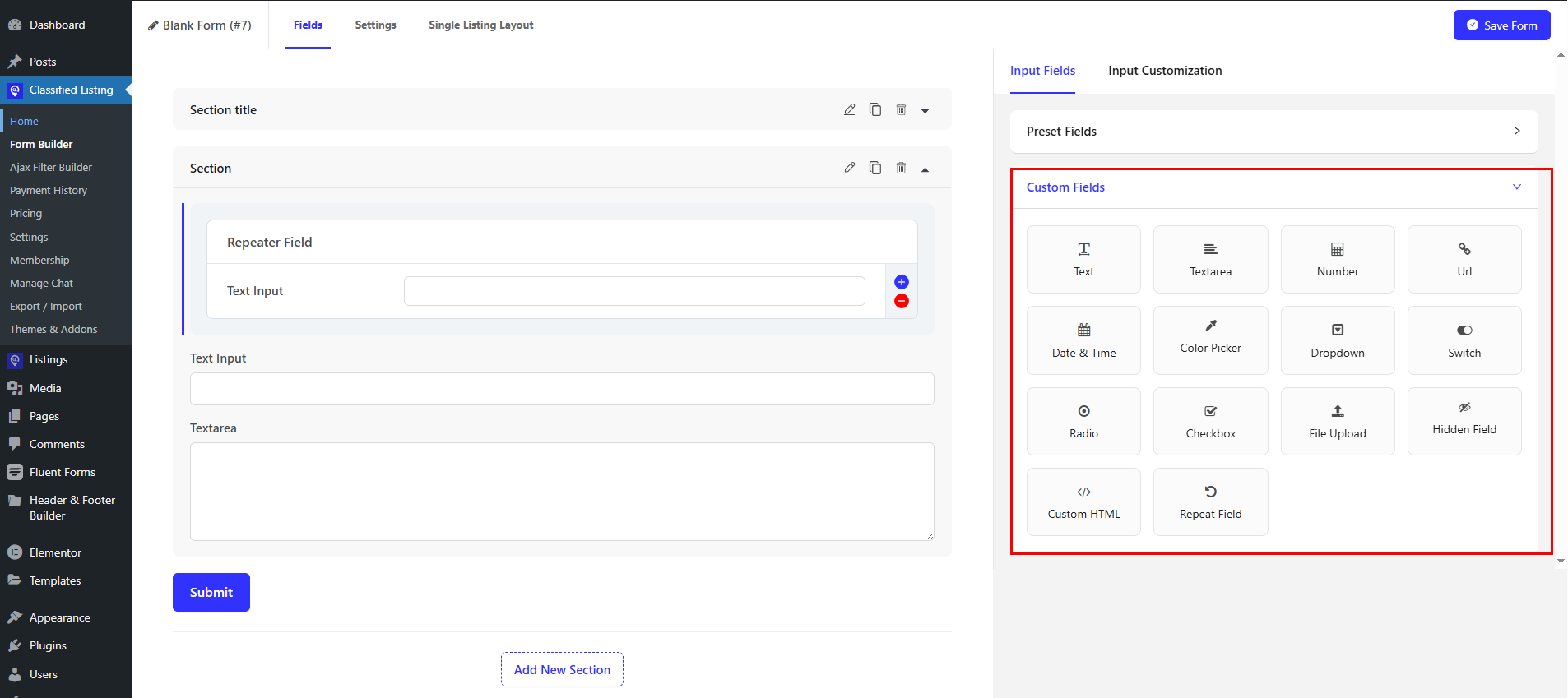
There are a total of 14 custom fields available now.

  1. Text Input Field
  2. Textarea Field
  3. Number Field
  4. URL Field
  5. Date & Time Field
  6. Color Picker Field
  7. Dropdown Field
  8. Switch Field
  9. Radio Button Field
  10. Checkbox Field
  11. File Upload Field
  12. Hidden Field
  13. Custom HTML Field
  14. Repeater Field

Text Input Field #

  1. Text Input: Drag the Text Input field into the fields container, then click the edit icon to customize its properties.
  2. Text Input Property: You can define the Label, Label Placement, Name attribute, Placeholder, and specify whether the field is Required or not.
  3. Filterable and listable: This is a Pro feature. If you enable “Filterable,” the field will be displayed in the sidebar filter. If you enable “Listable,” the field will be shown in the listing display.

Advanced Options: #

Each field has this property

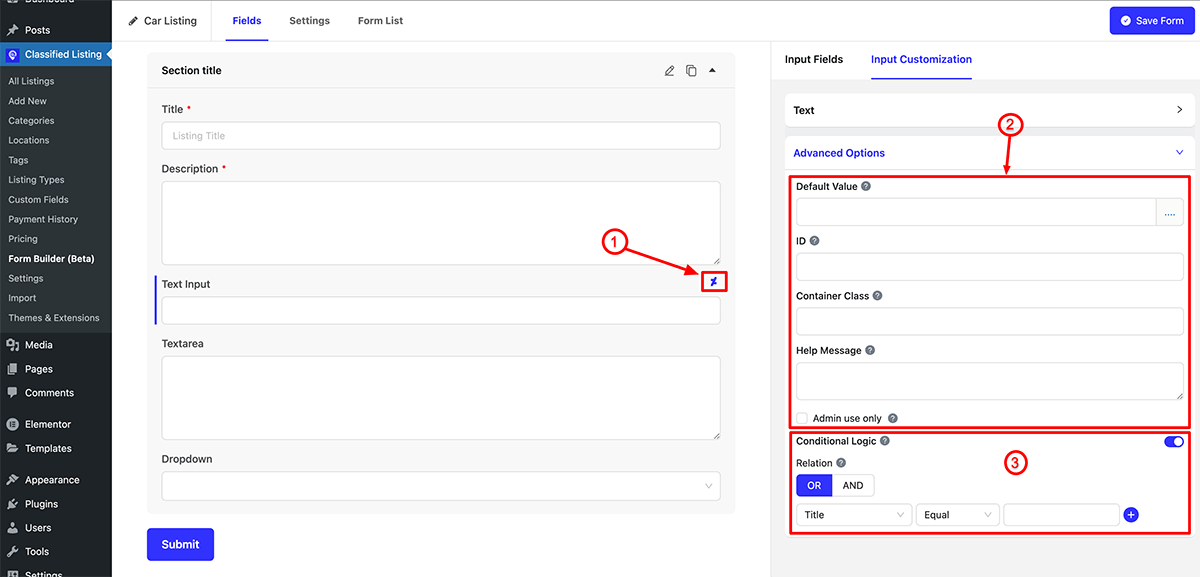
  1. Conditional Sign: This symbol indicates that the field has conditional logic enabled.
  2. Advanced Option: Clicking on the dot (….) icon allows you to add the default dynamic value for this field, set a unique ID, container class, and help message. If you check “Admin use only,” this field will not be visible on the front end but will only appear in the admin end.
  3. Conditional Logic: A crucial setting for the field is conditional logic, allowing you to display or hide the field based on specific conditions.
Textarea Field #

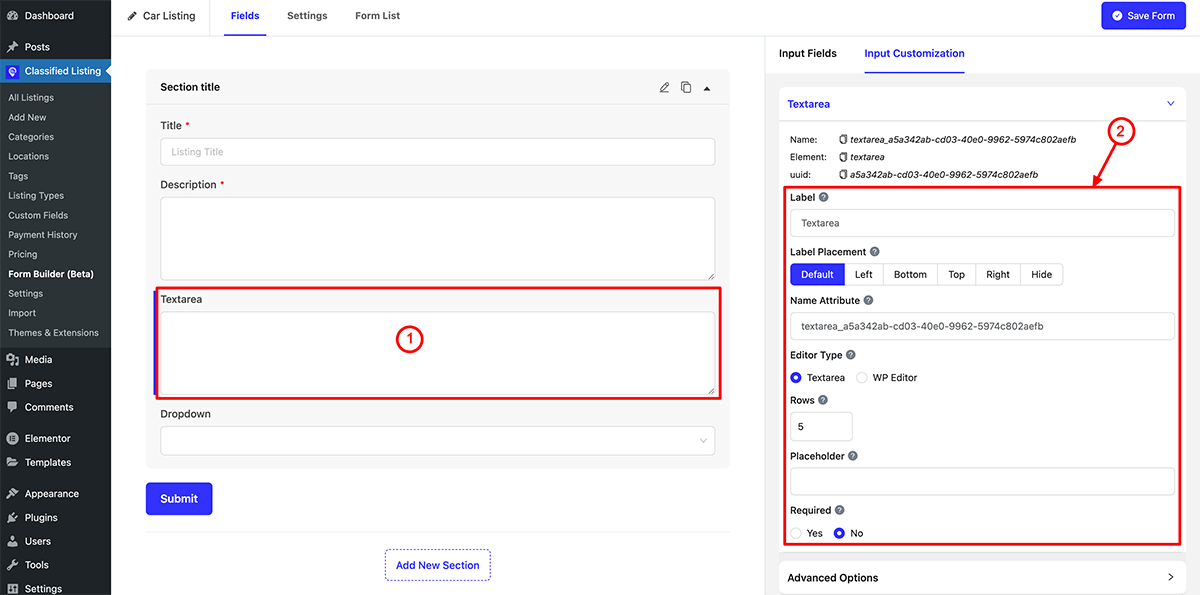
  1. Textarea: Drag the Textarea Input field into the fields container, then click the edit icon to customize its properties.
  2. Textarea Property: You can define the Label, Label Placement, Name attribute, Editor Type (Textarea or WP Editor), Rows, Placeholder, and specify whether the field is Required or not.
Number Field #

  1. Number: Drag the Number Input field into the fields container, then click the edit icon to customize its properties.
  2. Number Property: You can define the Label, Label Placement, Name attribute, Placeholder, and specify whether the field is Required or not also min and max value, digits and number format.
  3. Filterable and listable: This is a Pro feature. If you enable “Filterable,” the field will be displayed in the sidebar filter. If you enable “Listable,” the field will be shown in the listing display.

URL Field #

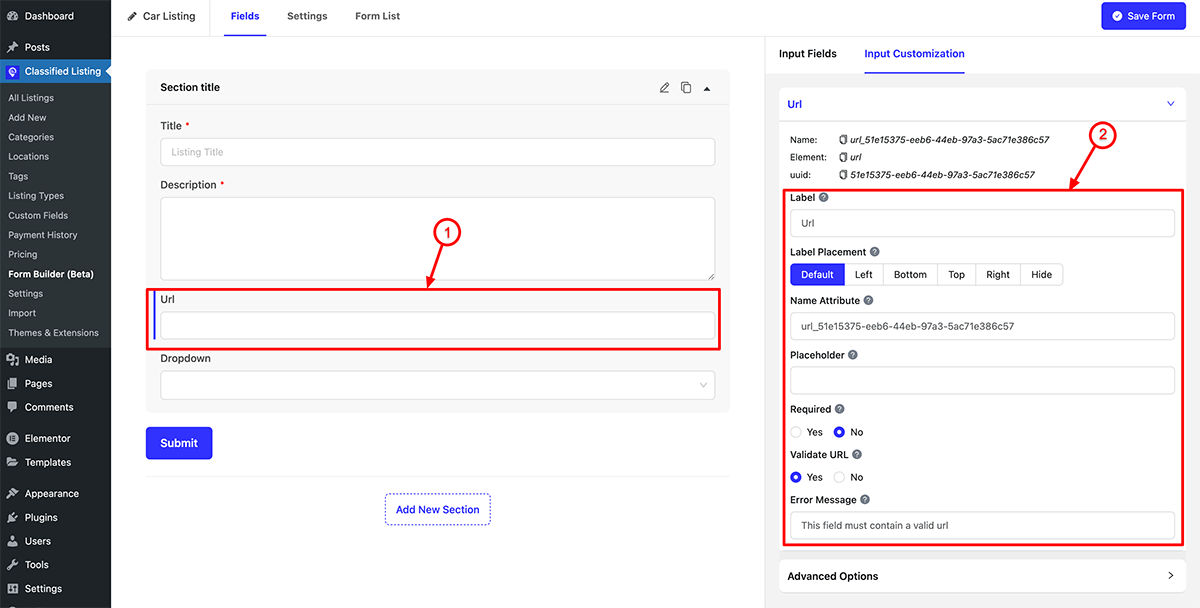
  1. URL: Drag the URL Input field into the fields container, then click the edit icon to customize its properties.
  2. URL Property: You can define the Label, Label Placement, Name attribute, Placeholder, and specify whether the field is Required or not, Validate URL yes/ not also custom error message.
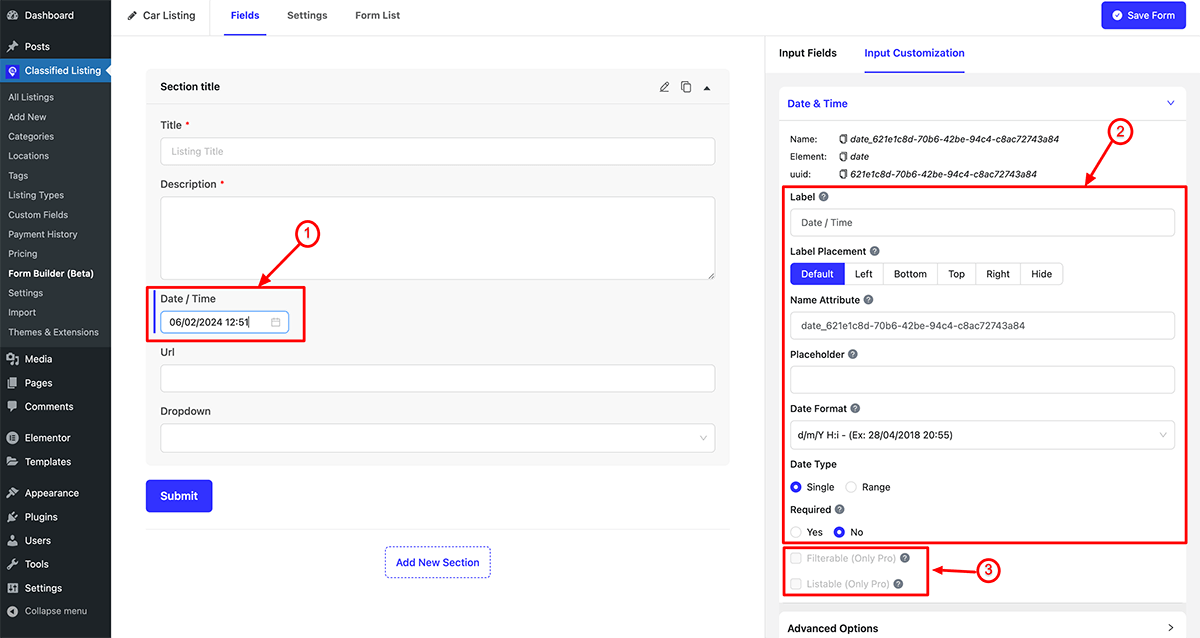
Date Field #

  1. Date: Drag the Date Input field into the fields container, then click the edit icon to customize its properties.
  2. Date Property: You can define the Label, Label Placement, Name attribute, Placeholder, Date Format, Date Type (Single/ Range) and specify whether the field is Required or not.
    Note: You can change the date to date range field by selecting Date Type Range.
  3. Filterable and listable: This is a Pro feature. If you enable “Filterable,” the field will be displayed in the sidebar filter. If you enable “Listable,” the field will be shown in the listing display.
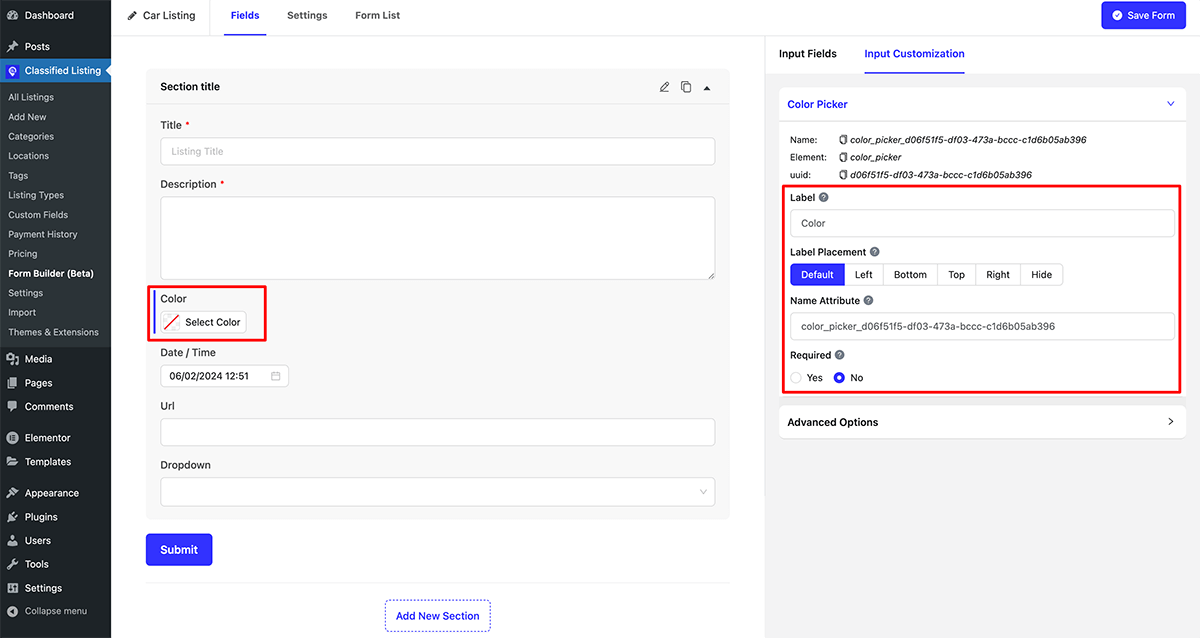
Color Picker #

  1. Color: Drag the Color field into the fields container, then click the edit icon to customize its properties.
  2. Date Property: You can define the Label, Label Placement, Name attribute, and specify whether the field is Required or not.
  3. Filterable and listable: This is a Pro feature. If you enable “Filterable,” the field will be displayed in the sidebar filter. If you enable “Listable,” the field will be shown in the listing display.
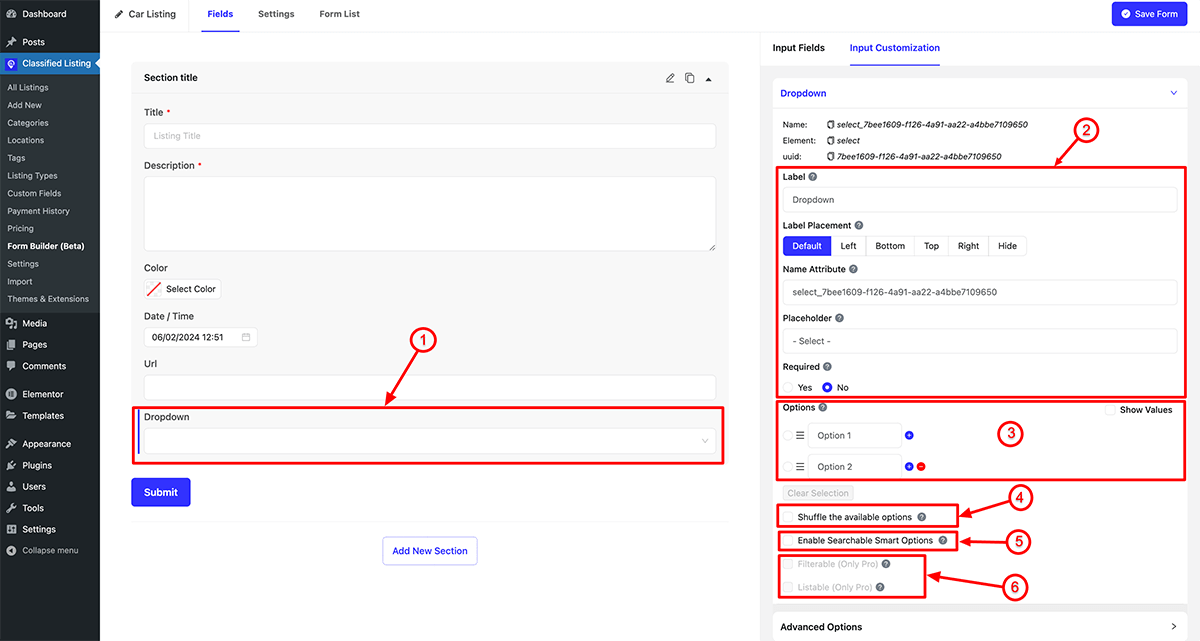
Dropdown Field #

  1. Dropdown: Drag the Color field into the fields container, then click the edit icon to customize its properties.
  2. Dropdown Property: You can define the Label, Label Placement, Name attributes, and specify whether the field is Required or not.
  3. Dropdown Options: Clicking on the (+) icon allows you to add new options while clicking on the (-) icon removes an option. Additionally, clicking on “Show value” enables you to edit the option value.
  4. Shuffle available options:
  5. Enable Searchable Smart Option:
  6. Filterable and listable: This is a Pro feature. If you enable “Filterable,” the field will be displayed in the sidebar filter. If you enable “Listable,” the field will be shown in the listing display.
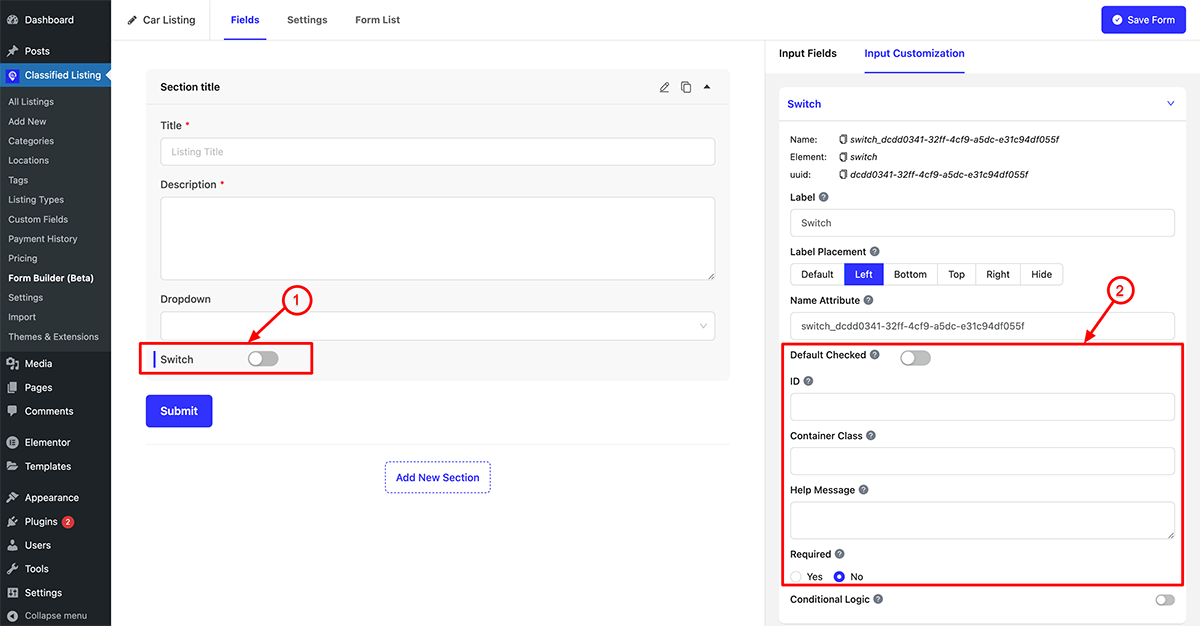
Custom Swatches #

Swatches field noted the field value Yes or No. You can checked the field also make it required or not.
Radio Button #

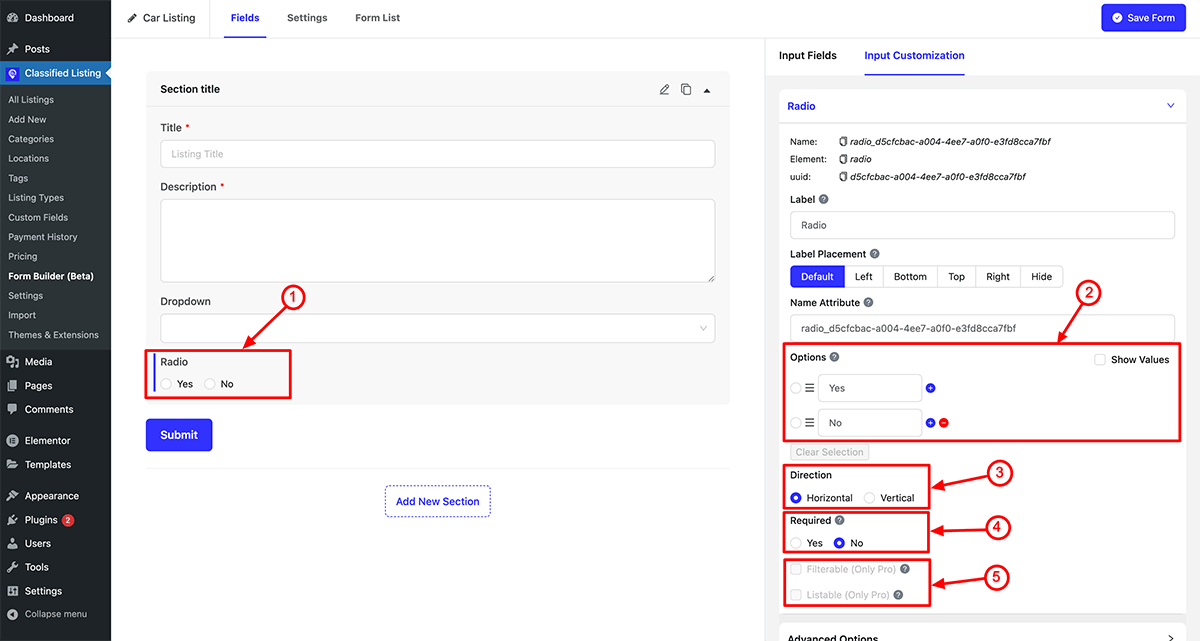
  1. Radio Button: Drag the Radio button field into the fields container, then click the edit icon to customize its properties.
  2. Radio Options: Clicking on the (+) icon allows you to add new options while clicking on the (-) icon removes an option. Additionally, clicking on “Show value” enables you to edit the option value.
  3. Direction: You can specify the option direction as either Horizontal or Vertical.
  4. Required: You have the option to make the field mandatory or optional.
  5. Filterable/ Listable Field: This is a Pro feature where this field can be displayed in the sidebar filter or in the list view.
Checkbox #

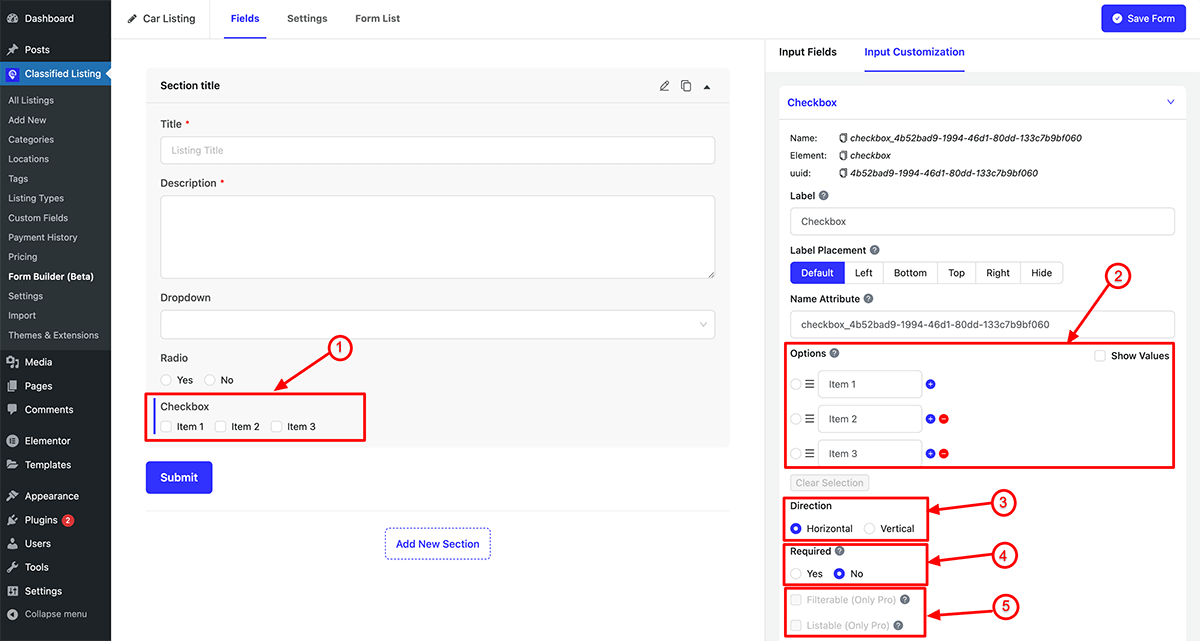
  1. Checkbox: Drag the Checkbox field into the fields container, then click the edit icon to customize its properties.
  2. Checkbox Options: Clicking on the (+) icon allows you to add new options while clicking on the (-) icon removes an option. Additionally, clicking on “Show value” enables you to edit the option value.
  3. Direction: You can specify the option direction as either Horizontal or Vertical.
  4. Required: You have the option to make the field mandatory or optional.
  5. Filterable/ Listable Field: This is a Pro feature where this field can be displayed in the sidebar filter or in the list view.
File Upload #

  1. File Uploads: Drag the Uploads field into the fields container, then click the edit icon to customize its properties.
  2. Button Text: You can specify your own custom text for the button here..
  3. Required: You have the option to make the field mandatory or optional.
  4. Max File Size: Enter an integer value in megabytes (MB) for the maximum file upload size..
  5. Error Message: Input a customized error message for file size-related errors.
  6. Max Files Count: Specify the maximum number of files that can be uploaded.
  7. Error Message: Enter custom error message of max files count.
  8. Allowed Files: You can select the field extensions that are allowed for upload.
  9. Error Message: Please input a custom error message for the file type.
  10. File Location Type: You have the option to select the file location type from either Global Settings or Custom.
  11. Save Uploads In: You can choose the file location from either the Classified Listing default or the media library.

Hidden File #

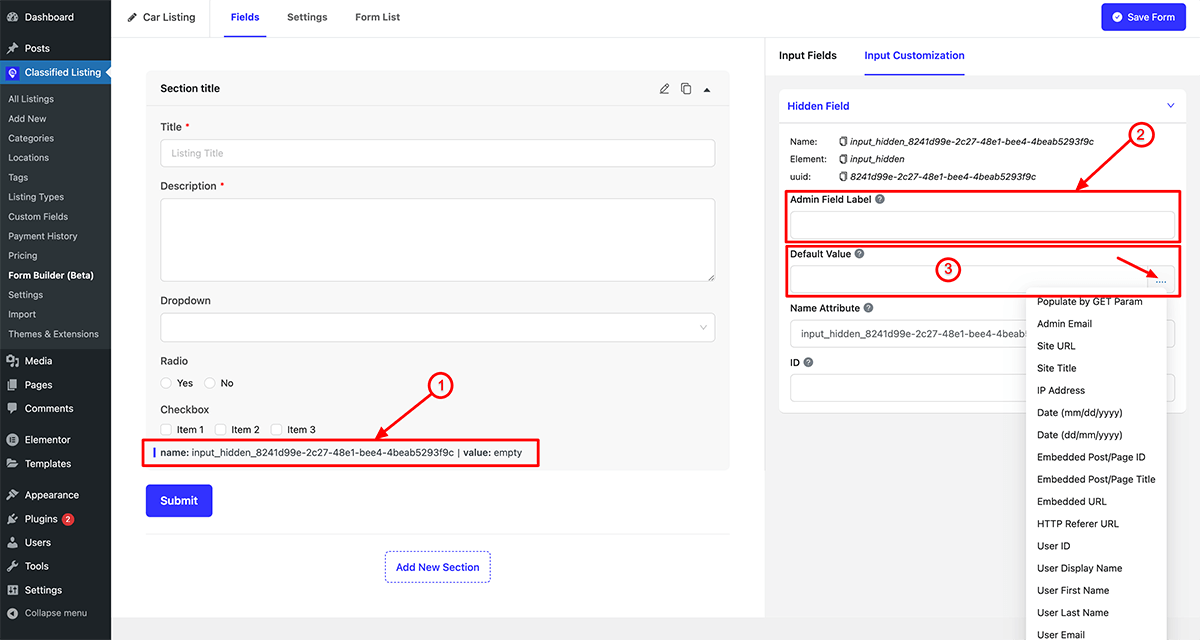
  1. Hidden File: Drag the Hidden File field into the fields container, then click the edit icon to customize its properties.
  2. Admin Label: Specify the admin label.
  3. Default Value: You have the option to designate a particular field value as a hidden field.
Custom HTML Field #

  1. Custom HTML field: Drag the Custom HTML field into the fields container, then click the edit icon to customize its properties.
  2. HTML Code: You can include custom HTML code to be displayed on the front end.

Repeater Field #

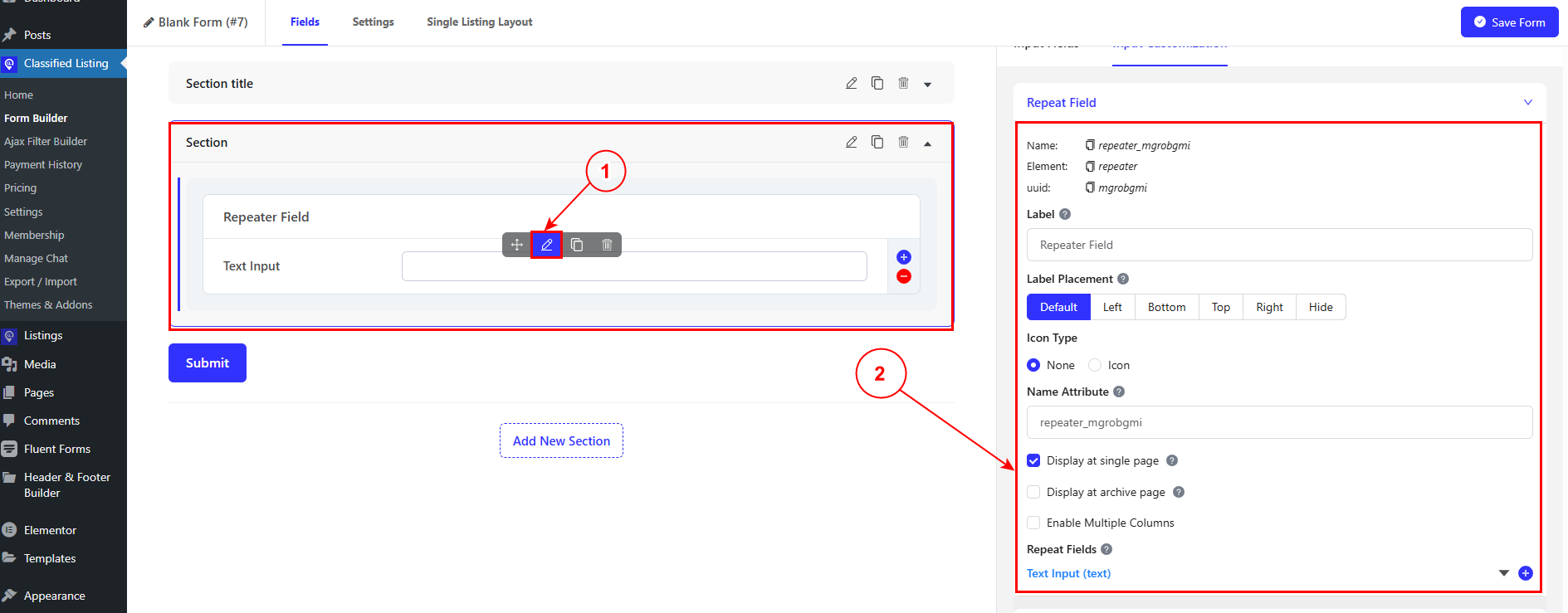
1. Drag Repeater Field: Drag the repeater field into the fields container, then click the edit icon to customize its properties.

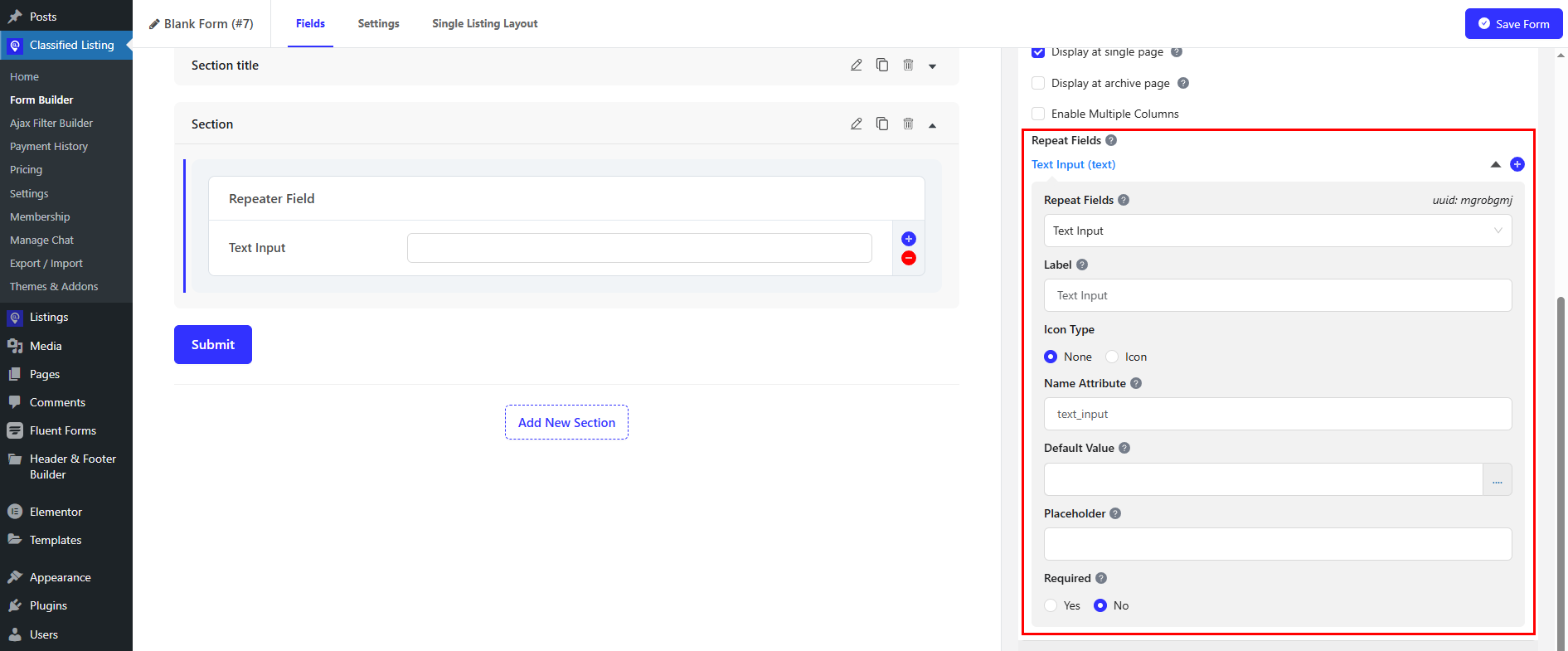
2. Listing Type Property: You can customize the Label, Label Placement, Icon Type, and Name Attribute. You can enable the options to display the repeater field in a single page and archive page. Moreover, activate the options for multiple columns. 
Text Input Fields

You can independently change the repeat fields text input, Label, Icon Type, and Name Attributes. Also customize  the default value, placeholder, and specify whether the field is Required or not.
What are your Feelings

Share This Article :

  • Facebook
  • X
  • LinkedIn
  • Pinterest
Still stuck? How can we help?

How can we help?

Updated on October 16, 2025
Preset FieldsSingle Listing Layout Builder <span class="pro">New</span>
Table of Contents
  • Text Input Field
    • Advanced Options:
  • Textarea Field
  • Number Field
  • URL Field
  • Date Field
  • Color Picker
  • Dropdown Field
  • Custom Swatches
  • Radio Button
  • Checkbox
  • File Upload
  • Hidden File
  • Custom HTML Field
  • Repeater Field
Copyright© 2026 RadiusDocs by RadiusTheme