Note: Listing Store is Pro Block #
Step 1: How To Add Listing Store Block #
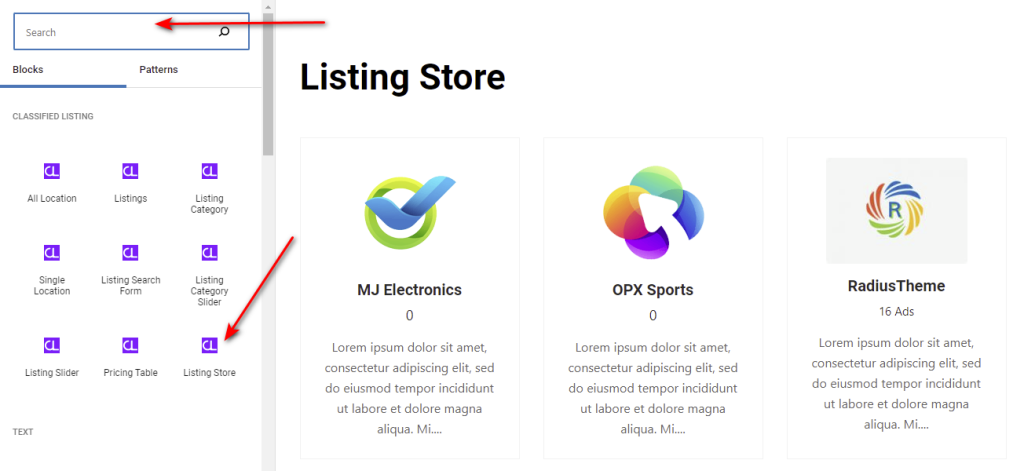
To add or edit listing store block at first click on the Gutenberg editor block inserter then search or the scroll find listing store block.
Step 2: General Tab #
Listing store settings is more customizable. Description added for each settings below.
Layout setting: #
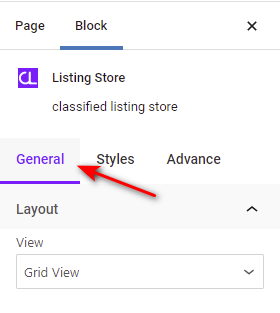
Layout View: View select field has two preset style options one list view another is grid view.
Filter Settings: #
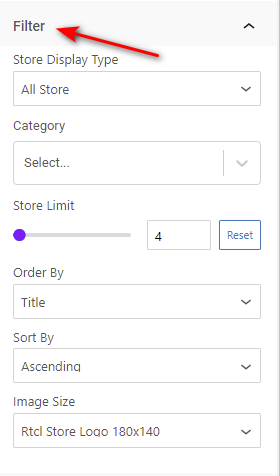
- Store Display Type: The store display type select field has two options one is All store another is Selected store.
- Store Limit: The store limit field is used to view the limited store list.
- Category: The category field is used to category by store list view.
- Order By: The order by field is used to Date, Title, Count by filter.
- Sort By: The sort by field is used to Ascending/Descending by filter.
- Image Size: The image size select field has register image size and custom store logo size options.
Content Visibility: #
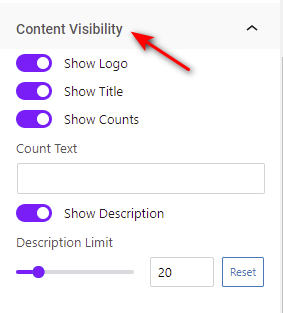
Content visibility settings has logo, title, count, description show or hide options.
Responsive : #
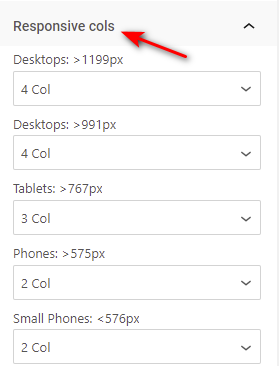
Responsive settings have different device content view options.
Box Style: #
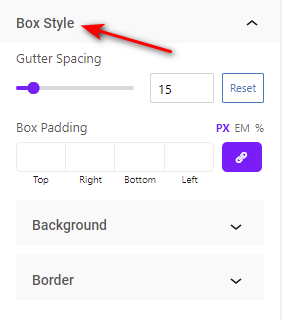
Box style sections has some control for gutter, box padding border-radius, and border style change options.
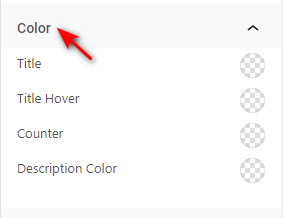
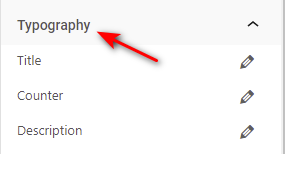
Color And Typography: #
Color and Typography has color and typography change options title, title hover, counter, description color and title, counter description typography.