On This Page
No wonder the WordPress comments system is valuable. It lets web visitors make comments and increase your dwell time. But sometimes, attackers use this system to leave spam comments on your site, hurting your reputation and site speed.
That’s when you feel the urge to disable comments. However, do you know how to disable comments on WordPress website? There are several ways to perform this job.
In this article, we’ll walk you through the easiest ways to turn off your WordPress site’s comments. Additionally, we’ll discuss why you need to disable comments. Let’s read.
Why Do You Need to Disable the WordPress Comment Feature?
Comments are a positive addition to your website, but sometimes, they can seem unnecessary. Below, you will find reasons that make comments feel inessential and get you to remove them.
I. To Block Spam
Many attackers target sites and use bad bots to include malicious links or spam scripts on targeted websites. They submit those links or scripts through comments. Therefore, many WordPress site owners who are under attack prefer to disable the comment section to combat this issue.
II. To Save Time
Some site owners respond to comments to keep the comment section engaging. They invest time in responding to comments. However, they feel less interested in replying to comments when they don’t see a return on investment.
Instead, they want to allocate their valuable time somewhere else. Thus, they opt for disabling comments on their WordPress sites.
III. Improve Site Security
Website owners disable comments as they think some comments may contain malicious links or scripts that pose security risks. Hence, they disable comments to eliminate a potential entry point for such threats.
IV. Enhance Website Performance
When your website stores a large volume of comments, it can bloat the database and slow down your site. Therefore, you need to delete stored comments and disable comments to reduce database queries and improve your site’s performance.
V. Align with Site Purpose
Not all websites benefit from comments. For example, portfolios, corporate sites, or e-commerce platforms often prioritize information delivery over user interaction.
So, these site types don’t require users to make comments on pages or particular posts. They need to disable comments on their websites.
VI. To Avoid Negative Feedback
Many WordPress website owners don’t want others to leave hate speech or toxic comments about their products or services on their sites. So, they get the urge to remove and disable comments.
How to Disable Comments WordPress Without Plugin
There are several ways to disable comments on your WordPress website. The best fact is that you don’t need any plugin to follow these methods. Let’s learn about each technique one by one.
Method 1 – Disable Comments on Future Posts
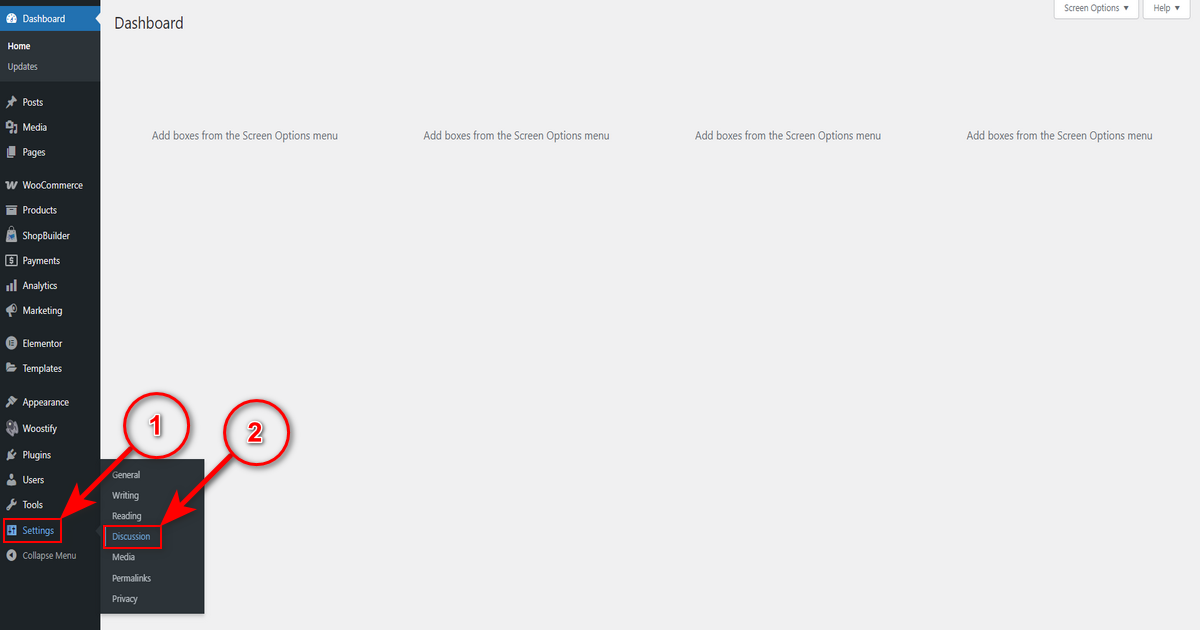
Suppose you want to restrict people from commenting on your future posts. In this case, head to WordPress Admin Dashboard > Settings > Discussion.
Then, uncheck “Allow people to submit comments on new posts” option under the “Default post settings.”
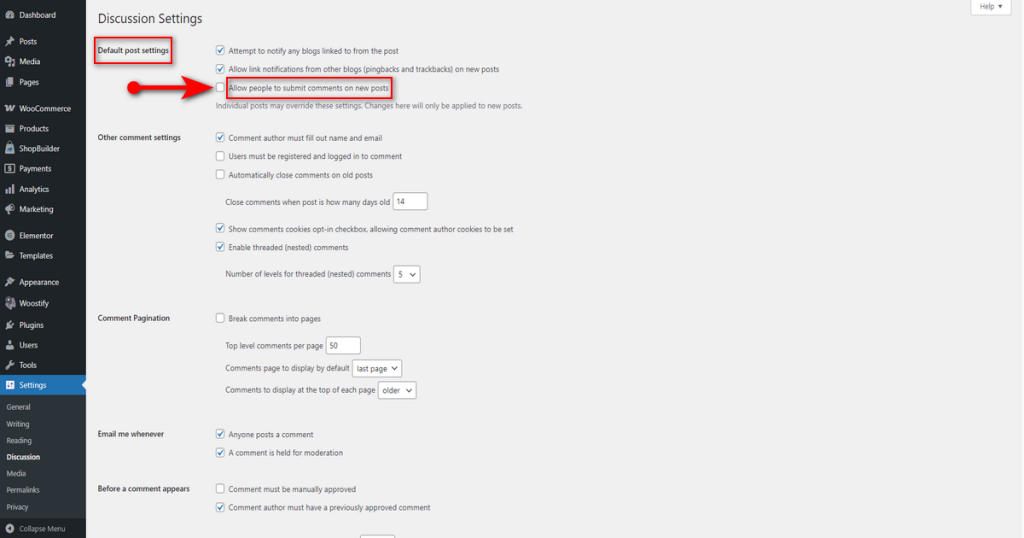
Now, scroll down and press “Save Changes” button.
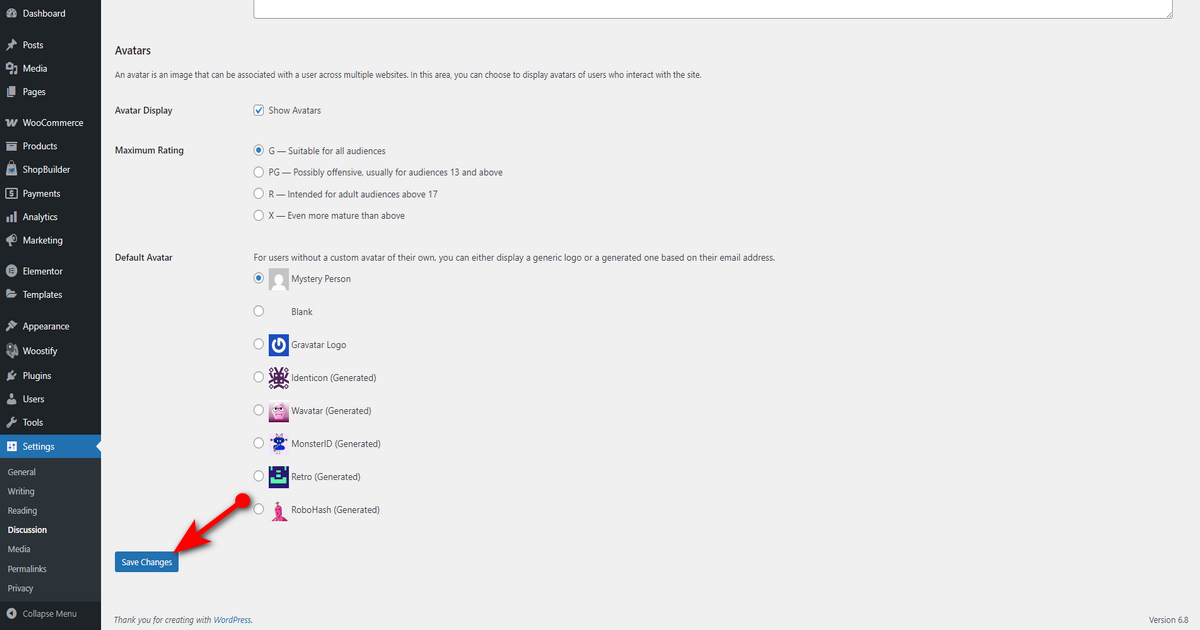
That’s what you need to do to prevent people from commenting on the posts you will publish.
Method 2 – Disable Comments on Existing Posts
We’ll now show you how to automatically disable, in essence, close comments on old posts after certain days. Let’s begin.
- Go to WP Admin Panel > Settings > Discussion.
- Head to “Other comment settings” area and check mark “Automatically close comments on old posts” box.
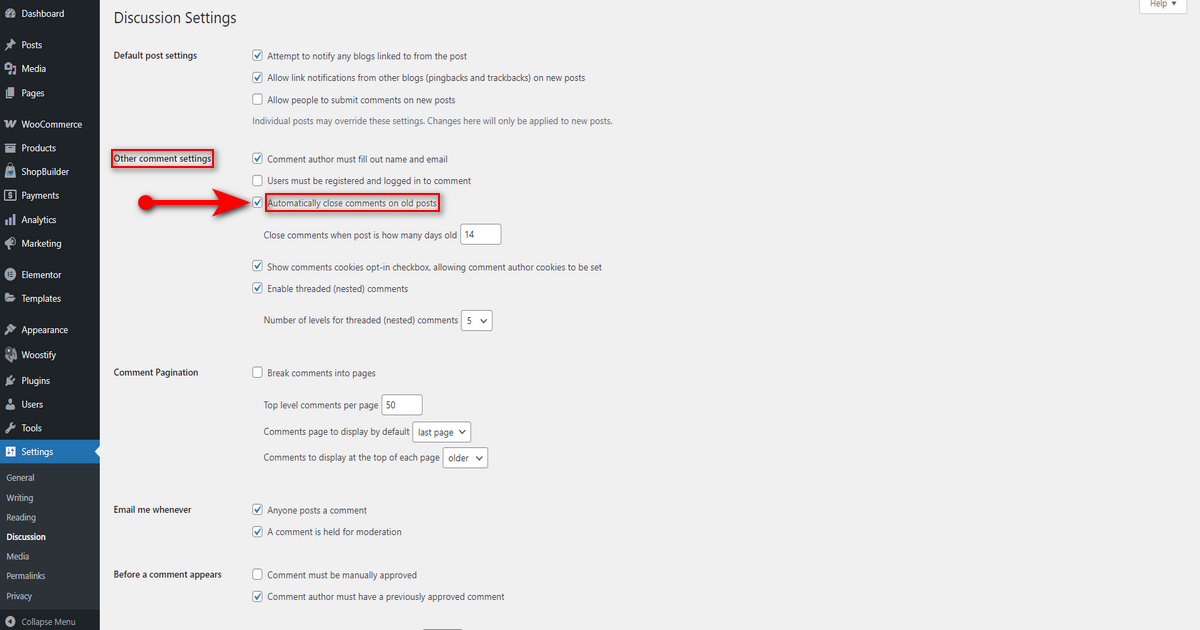
- After that, write the number of days in “Close comments when post is how many days old” box to define how many days you want to display comments on posts.

- Scroll down and click “Save Changes” button.
These are the steps to follow to close comments on old posts after specific days.
Method 3 – Turn off Comments on a Particular Page or Post
This method will teach you to disable comments on a specific page or post. We’ll show you how to turn off comments on a page. You need to follow the steps below.
- Go to WordPress Admin Dashboard > Pages > All Pages if you want to disable comments on a page.
In contrast, navigate to WordPress Admin Dashboard > Posts > All Posts to turn off comments on a post. However, we demonstrate to you how to disable comments on a page.
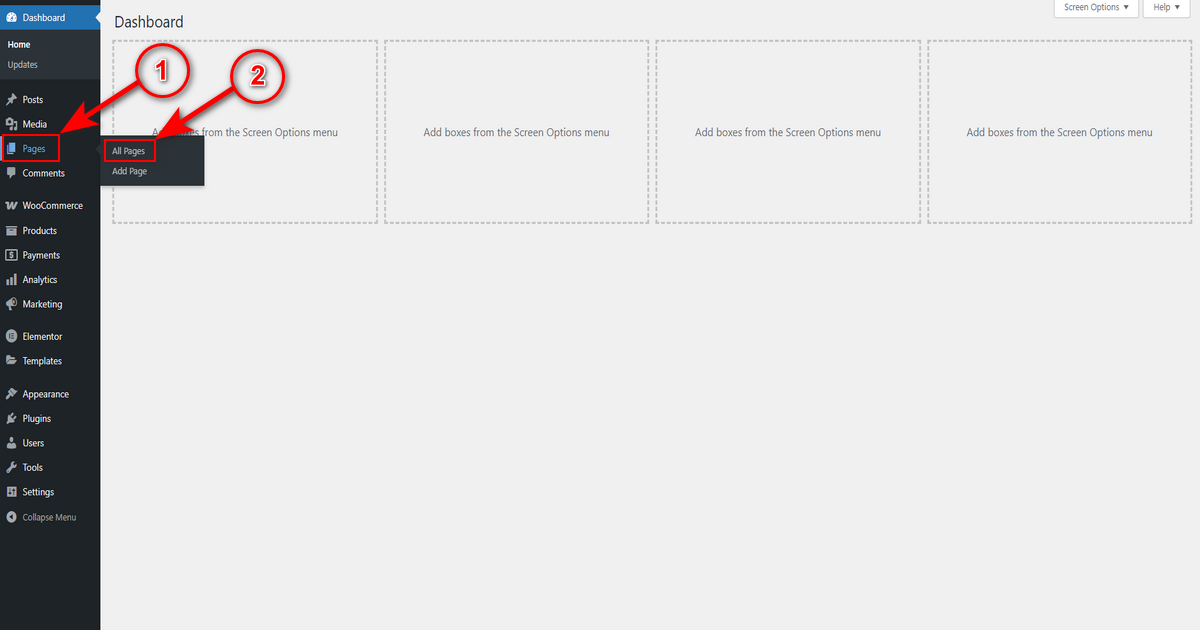
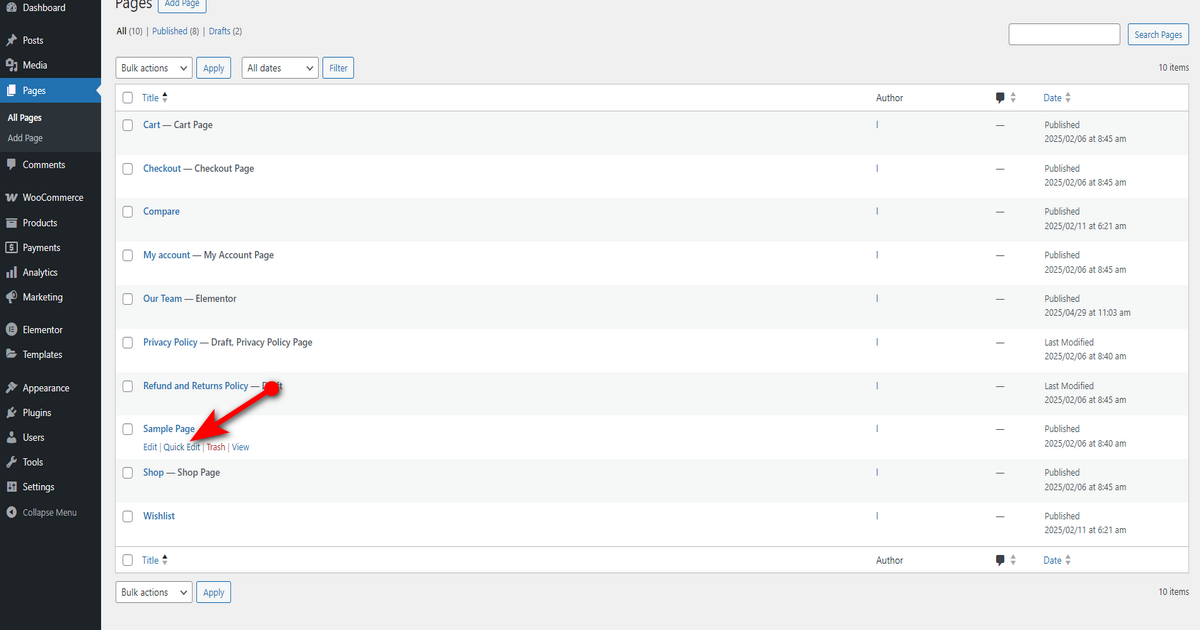
- Hover the mouse pointer over a page and press “Quick Edit” link.
- Now, go to the right-hand side and uncheck “Allow Comments” checkbox—then press “Update” button.
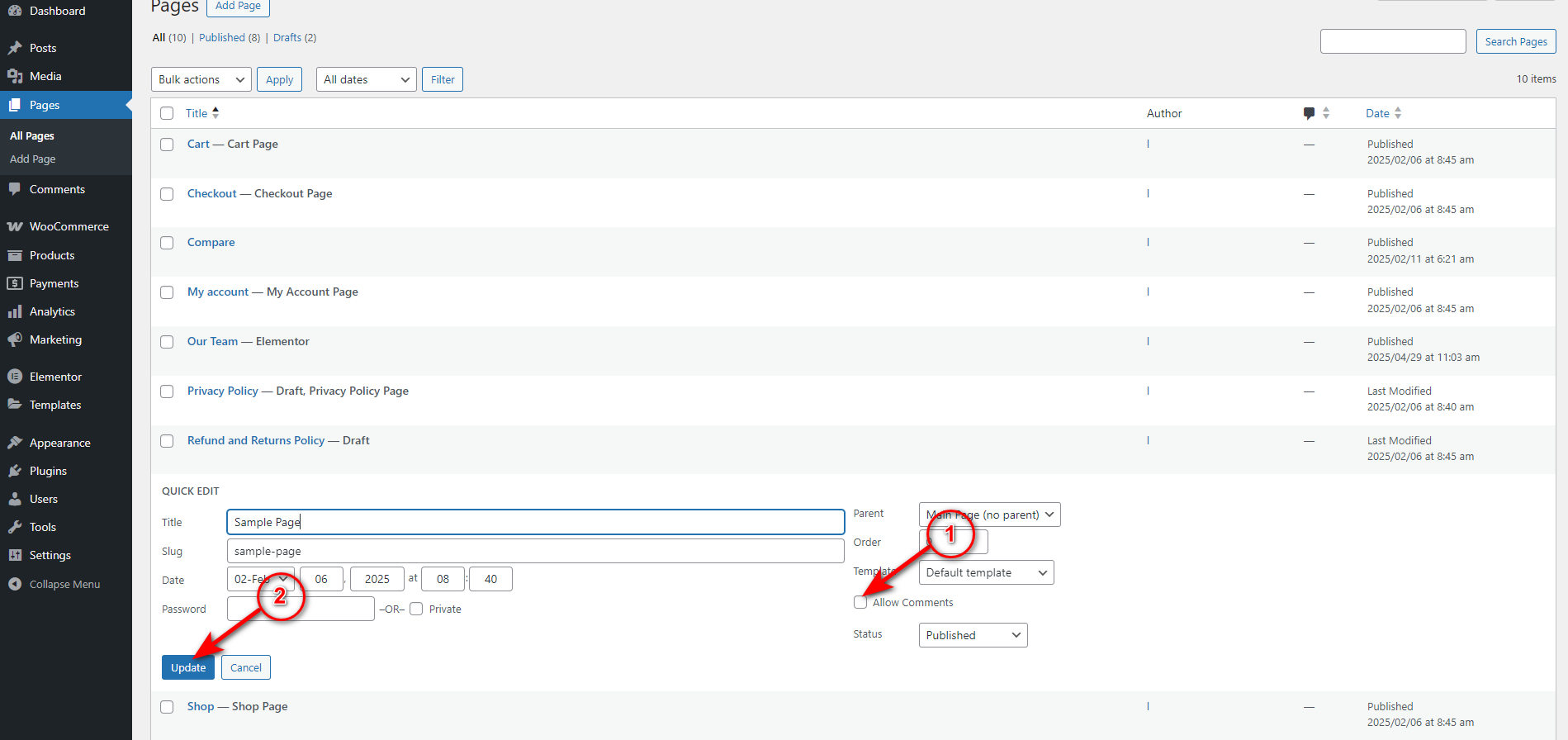
These are the steps to turn off comments on a page. You need to follow the same method to disable comments on a post.
Method 4 – Disable Comments on Pages and Posts in Bulk
We’ve seen how to disable comments on posts and particular pages. However, we’ll now learn how to turn off comments on pages and posts in bulk.
To do so, visit WP Admin Panel > Pages > All Pages to work on pages and go to WordPress Admin Dashboard > Posts > All Posts to disable comments on all posts.
Afterward, check ‘Title’ checkbox to select all pages or posts.
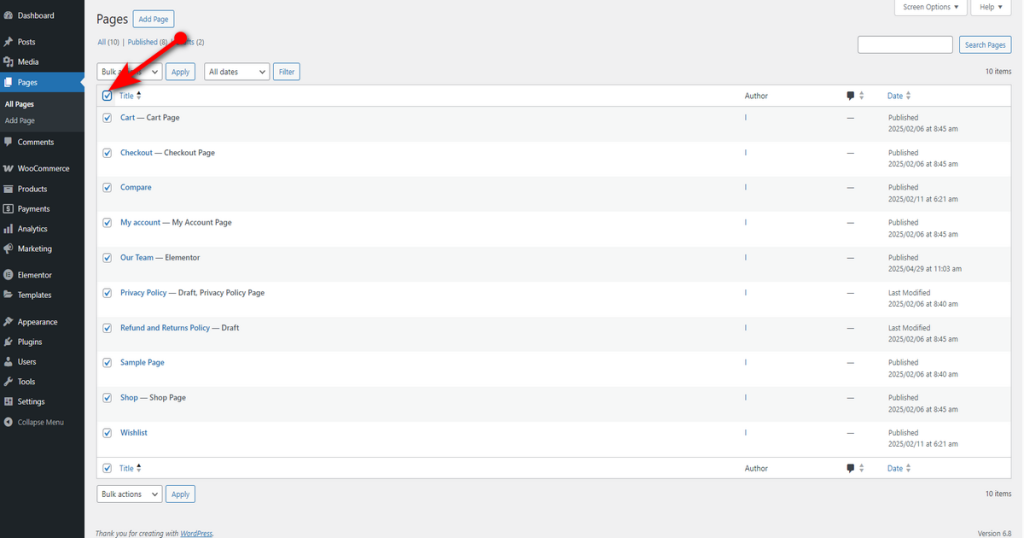
Now, select ‘Edit’ from the “Bulk actions” drop-down menu and click ‘Apply’ button next to “Bulk actions” drop-down menu.
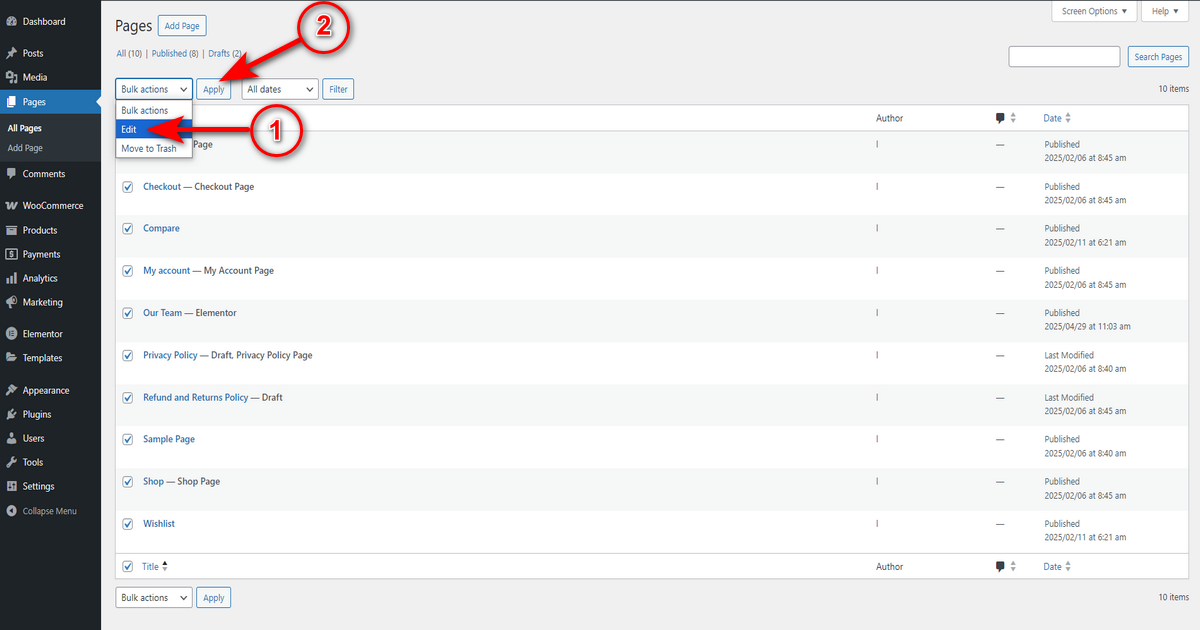
You can now perform bulk actions on all selected pages. You can change the author name and page status and turn off comments.
To disable comments, just choose “Do not allow” from the comments dropdown menu and press ‘Update’ button.
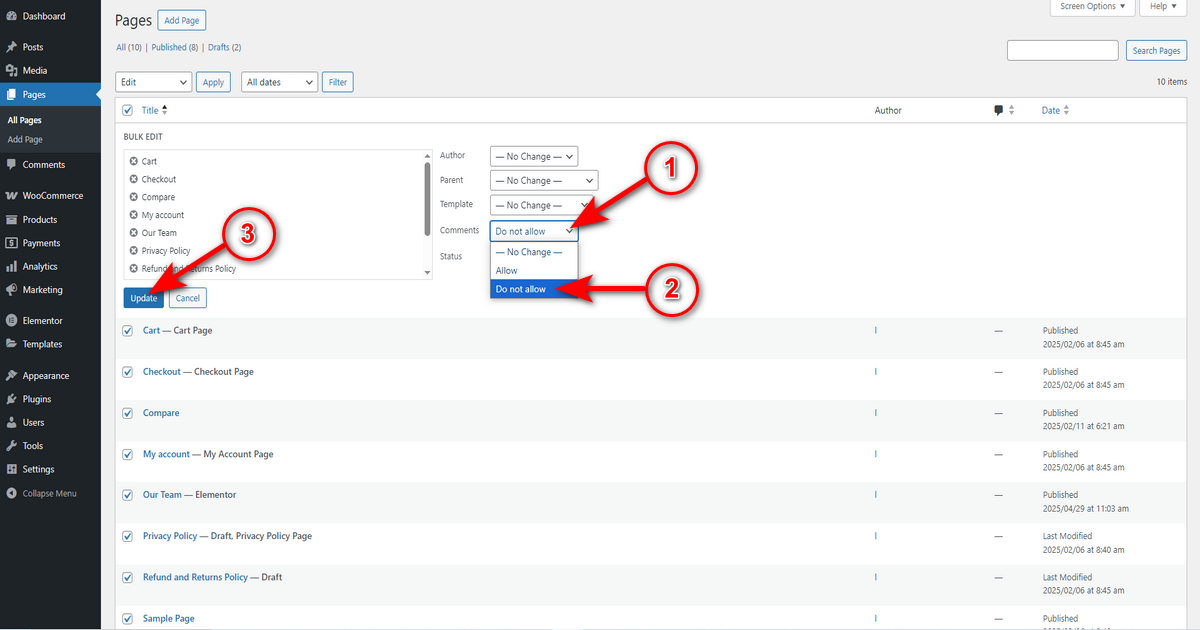
Doing so will turn off comments on all the selected pages. You need to follow the same process to disable comments on posts in bulk.
Method 5 – WordPress Disable Comments Completely
You need to utilize coding to completely disable comments on your WordPress site. So, this method is entirely technical and requires you to have technical know-how before you try this process.
Before beginning this method, we recommend you heed the caution below.
First, take a backup of your site. Next, insert code snippets into the child theme only.
Let’s begin.
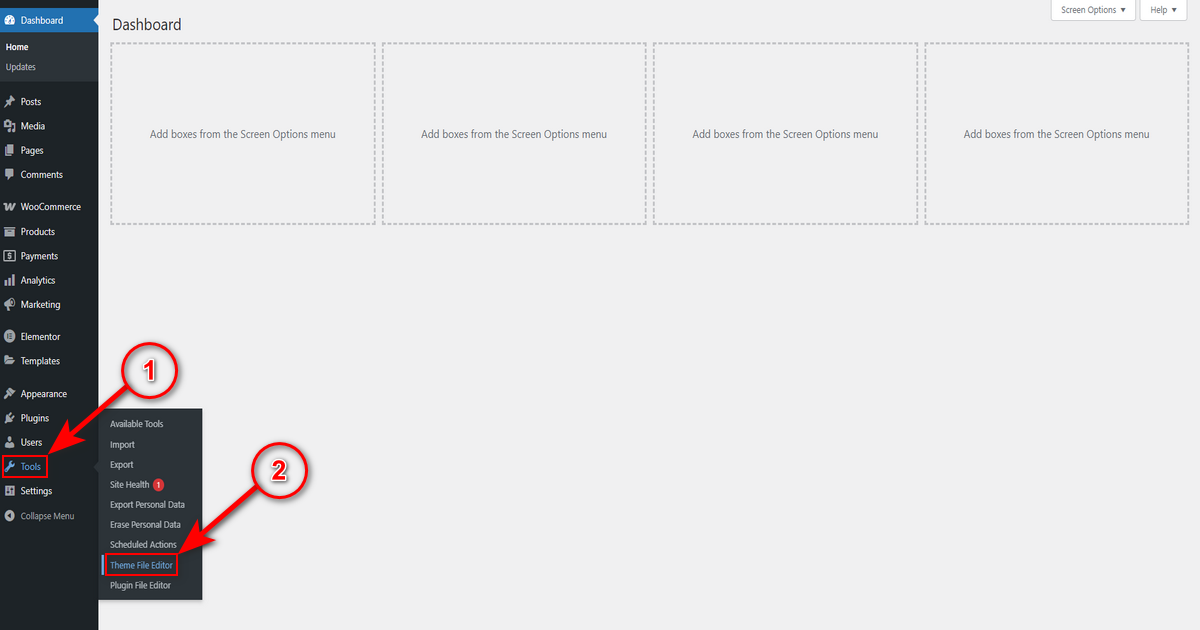
You need to access the “Theme File Editor.” You’ll see it under ‘Appearance’ menu if you use a classic theme. On the contrary, you’ll find it under the ‘Tools’ menu if you utilize a block theme.
Since we’re using a block theme, we’ll head to Tools > Theme File Editor from our admin panel.
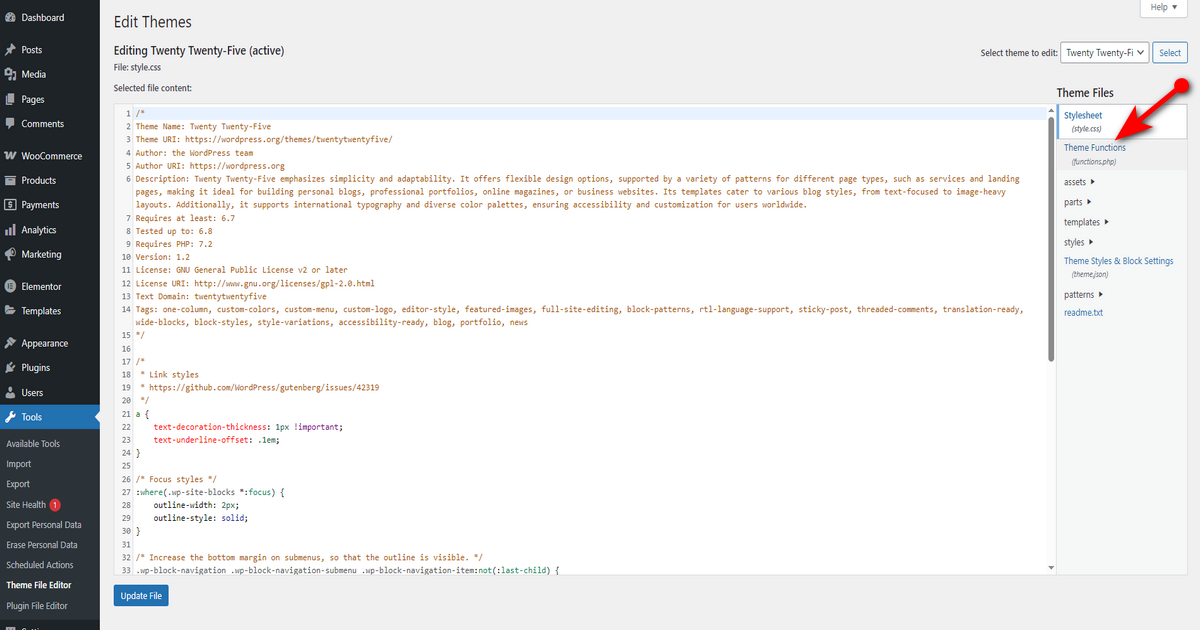
Then, press “functions.php” file on the top right side.
Scroll down and copy and paste the code below into your theme file editor. Finally, click “Update File” button.
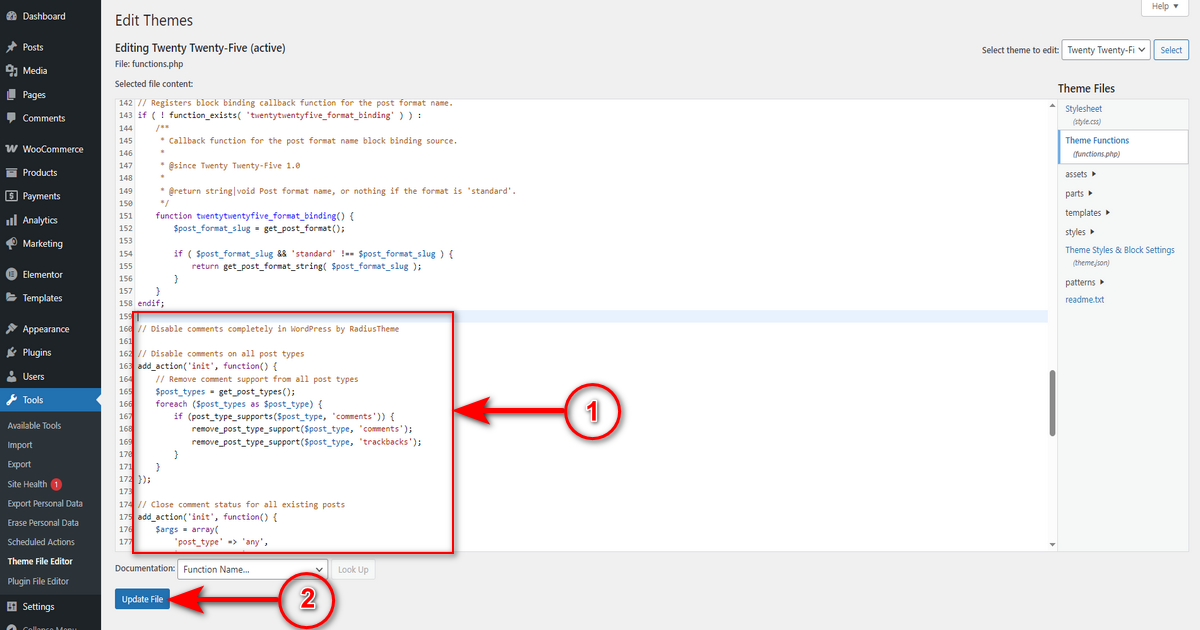
Here’s the code snippet.
// Disable comments completely in WordPress by RadiusTheme
// Disable comments on all post types
add_action('init', function() {
    // Remove comment support from all post types
    $post_types = get_post_types();
    foreach ($post_types as $post_type) {
        if (post_type_supports($post_type, 'comments')) {
            remove_post_type_support($post_type, 'comments');
            remove_post_type_support($post_type, 'trackbacks');
        }
    }
});
// Close comment status for all existing posts
add_action('init', function() {
    $args = array(
        'post_type' => 'any',
        'posts_per_page' => -1,
        'post_status' => 'any',
    );
    $posts = get_posts($args);
    foreach ($posts as $post) {
        if (get_post_meta($post->ID, 'comments_status', true) !== 'closed') {
            update_post_meta($post->ID, 'comments_status', 'closed');
        }
        wp_update_post(array(
            'ID' => $post->ID,
            'comment_status' => 'closed',
        ));
    }
});
// Disable comments in the admin menu
add_action('admin_menu', function() {
    remove_menu_page('edit-comments.php');
});
// Redirect any attempt to access the comments page
add_action('admin_init', function() {
    global $pagenow;
    if ($pagenow === 'edit-comments.php' || $pagenow === 'comment.php') {
        wp_redirect(admin_url());
        exit;
    }
});
// Remove comments metabox from admin
add_action('admin_init', function() {
    remove_meta_box('commentstatusdiv', 'post', 'normal');
    remove_meta_box('commentstatusdiv', 'page', 'normal');
    remove_meta_box('commentsdiv', 'post', 'normal');
    remove_meta_box('commentsdiv', 'page', 'normal');
});
// Disable comments in the frontend
add_filter('comments_open', '__return_false', 20, 2);
add_filter('pings_open', '__return_false', 20, 2);
// Hide existing comments
add_filter('comments_array', '__return_empty_array', 10, 2);
// Remove comment reply script
add_action('wp_enqueue_scripts', function() {
    wp_deregister_script('comment-reply');
});
// Remove comments from admin bar
add_action('wp_before_admin_bar_render', function() {
    global $wp_admin_bar;
    $wp_admin_bar->remove_menu('comments');
});
?>
These are all ways to disable comments on your WordPress site without a plugin. We’ll now discuss how to accomplish this job with a free plugin.
How to Disable Comments on WordPress Website with Plugin
Turning off comments on WordPress with a plugin is easy. You just need to install a code snippet plugin and copy and paste the code snippet we shared above (to completely disable comments on your site) into the plugin.
Let’s get started.
- Select a plugin. We recommend you choose “Code Snippets” since it allows easy insertion of code snippets.
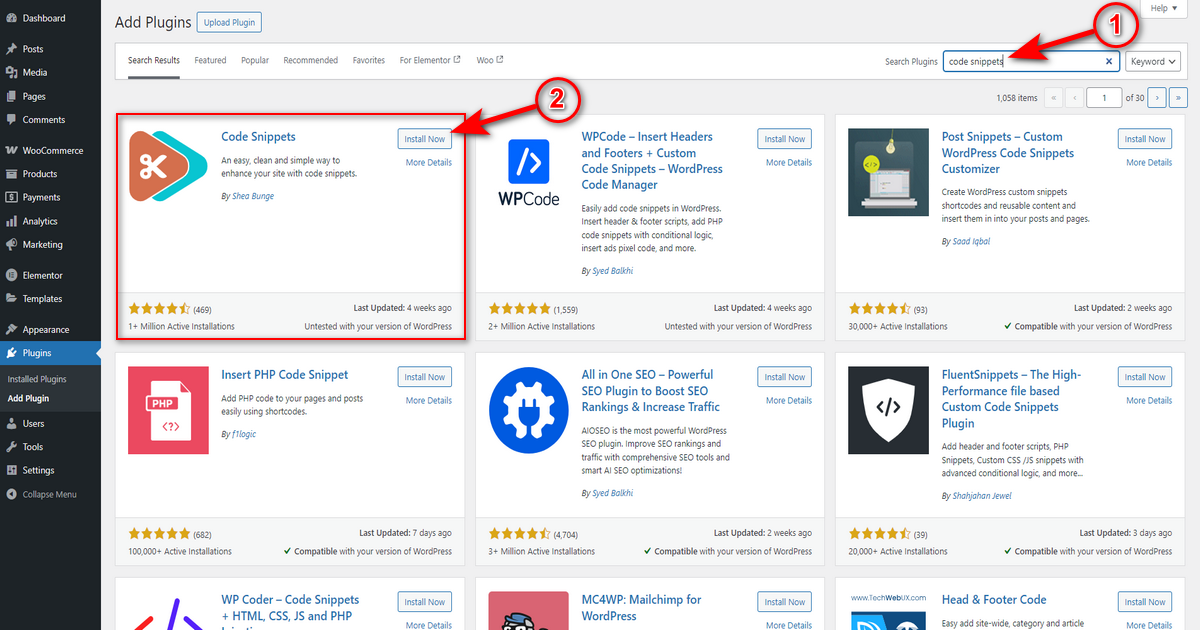
- Add it to your site. So, visit WP Admin Dashboard > Plugins > Add Plugin.
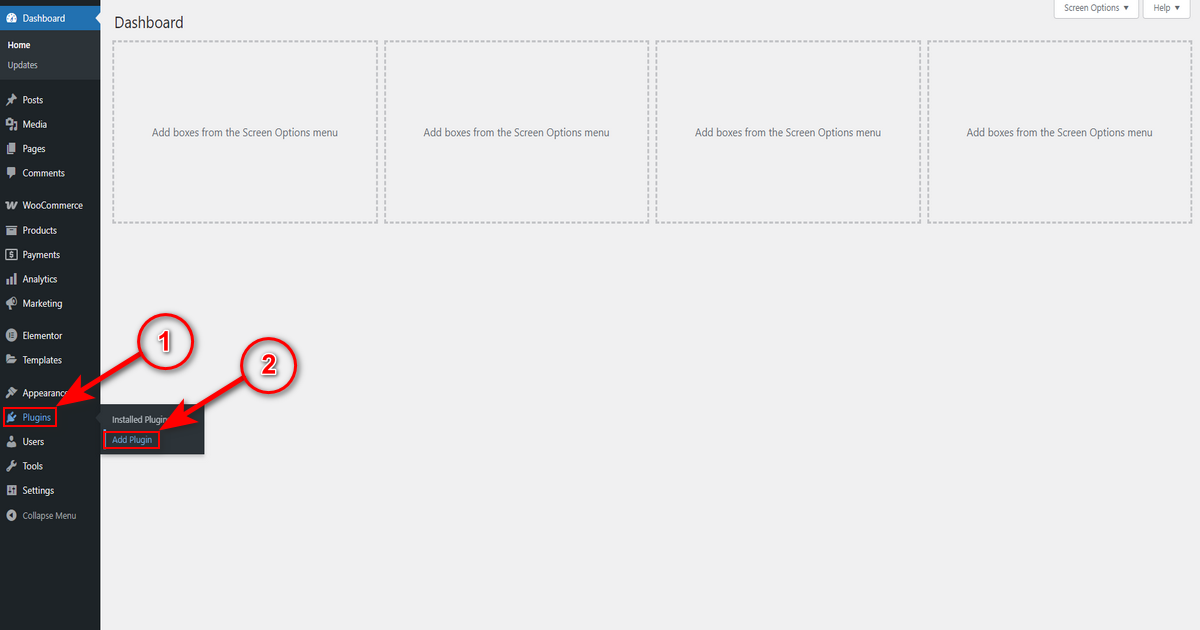
- Then, type “Code Snippets” in the top right search field and press “Install Now” button of the marked plugin in the screenshot.
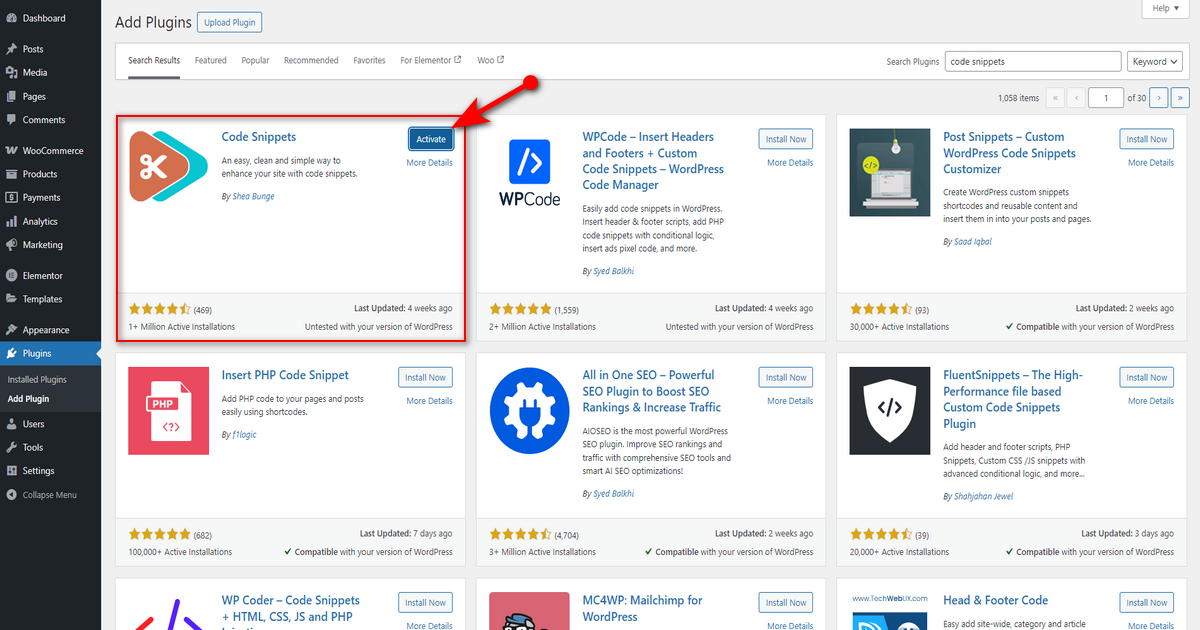
- After that, hit ‘Activate’ button.
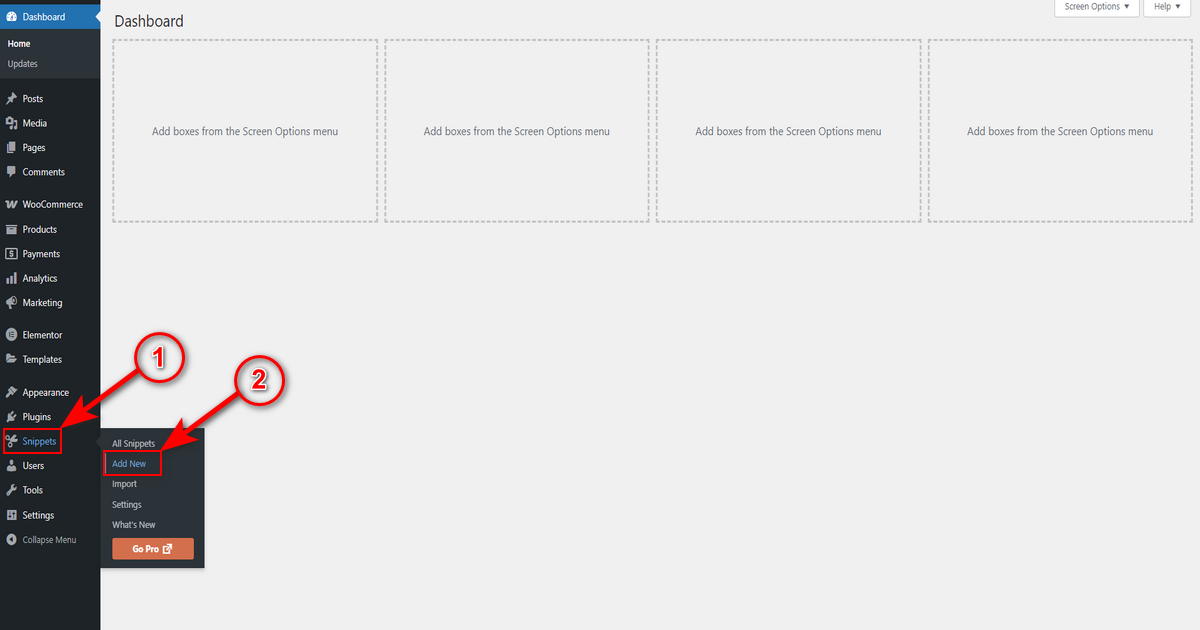
- Now, go to the ‘Snippets’ menu from your WP admin panel and click “Add New.”
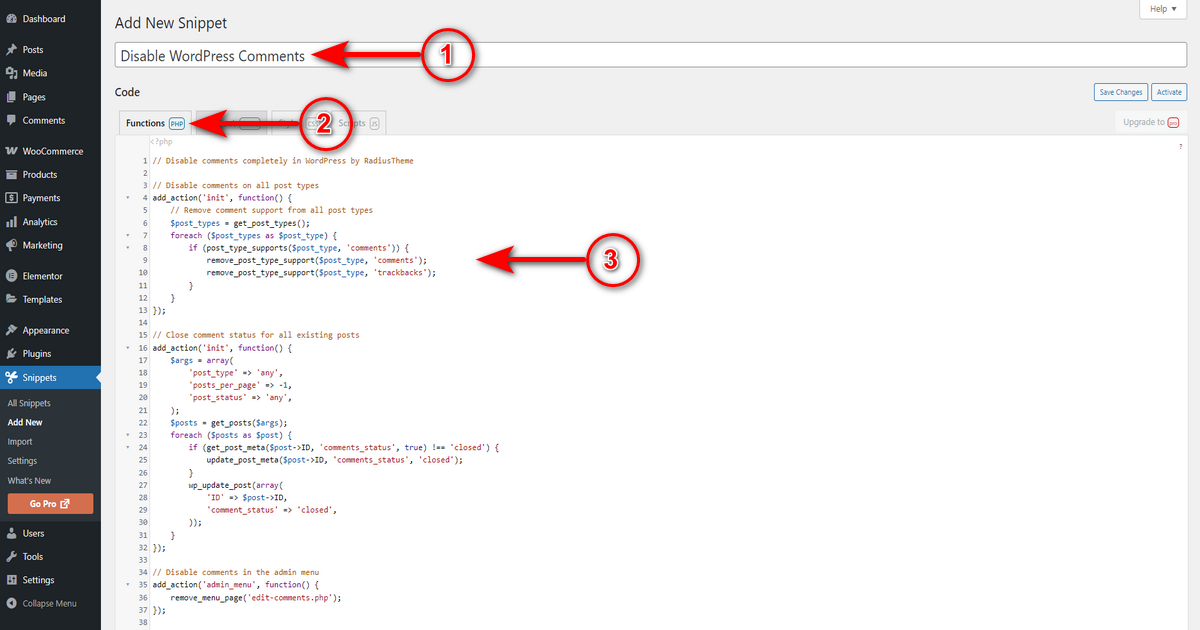
- Write a code snippet name in “Add New Snippet” field, make sure you’re on “Functions php” tab, and paste the code snippet.
- Then, scroll down and check if “Run snippet everywhere” radio button is chosen, and click “Save Changes and Activate” button.
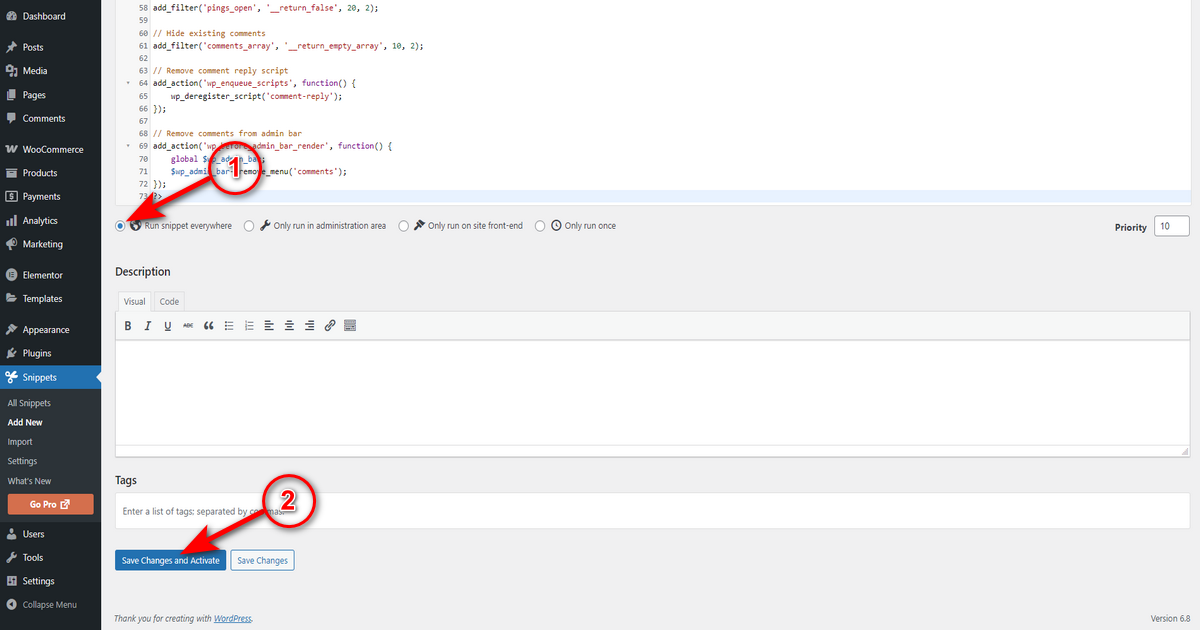
That’s it. That’s how you can turn off comments on your WordPress site using a plugin.
Frequently Asked Questions (FAQs)
How Do I Change Comment Settings on WordPress?
Go to WordPress Admin Panel > Settings > Discussion. Here, you’ll find options to adjust comment settings. Also, you may read the ‘Disable Comments on Future Posts’ section of this article to learn how to change comment settings on WordPress.
How Do I Remove Comments from WordPress Menu?
Head to WP Admin Dashboard > Comments. Now, click the checkboxes next to comments you want to remove. Choose “Move to Trash” from the “Bulk actions” dropdown menu. Lastly, click ‘Apply’ button to remove comments.
Our Concluding Thoughts
That’s all the information we wanted to deliver to help you know how to disable comments on WordPress website. We think you can now easily accomplish this task by following one of the methods we shared in this content.
If you can, our efforts will turn out well. Also, we’ll be grateful if you share this post with others in appreciation. Thus, we bid adieu today and will catch you another day with another helpful article.
For more tips and tricks, you might want to check out our guide on how to change your WordPress login URL to enhance your site’s security.