On This Page
Many popular businesses use WordPress to build websites and carefully create their team pages. They know a well-designed team page creates a positive impression among prospects.
However, some don’t know how to make a team page on WordPress that stands out and attracts clients. So they lose potential customers. And you don’t want to be in their shoes.
Instead, you want to create alluring team pages to build trust and capture attention. That’s why you are here. Keep reading further to learn how easily you can accomplish this job.
Content Highlights:
- What is the Team Page in WordPress?
- Why do you need Team Page in Website?
- What makes a Excellent ‘Meet Our Team’ page?
- How to create a free team page on WordPress?
- Top ‘Meet the Team’ examples for design inspiration
What is the Meet The Team Page in WordPress?
It’s a dedicated page that introduces the people who work at your company. This page lets you display your valuable team to people and allows them to learn about who is constantly working to help your company grow.
You can easily build this team page in WordPress. There are different ways to accomplish this job. For example, you may use the Gutenberg editor to make a “Meet the Team” page. Alternatively, use some popular team member plugins to create such a page in a snap.
So, that’s what a team page is; these are the methods to create one. Keep reading this article to learn how to build a team page.
Why Do You Need a Team Page on Your Website?

A good team page on your website brings you different benefits. These include:
- Making your brand personable: A team page adds a human touch to your brand. Displaying the people you work with makes your business or organization feel more personable and approachable.
- Building trust and credibility: When you showcase the team, your audience views you and your work as more trustworthy. You are introducing yourselves to the experts and individuals behind your success.
- Enhancing transparency: Displaying your team removes doubts about your practices’ openness and honesty. Your visitors will always appreciate knowing who they are.
- Boosting team morale: When you display your team proudly, all your members feel appreciated. Working with people who have a sense of belonging will give you better results than if they feel underappreciated.
- Displaying team culture: A team page showcases the personality and ethos of your organization. Everyone can trace your brand’s community culture and values, making it easier for them to align with your brand.
- Highlighting expertise: Since you hired each team member for a professional reason, your team page presents an opportunity to prove it. You can showcase your professionals’ unique skills, experience, and expertise.
- Attracting talent: Potential employees often go to team pages to gauge the company culture and qualification levels necessary. A professional and vibrant team page can be great for getting excellent team members.
What Should an Excellent ‘Meet Our Team’ Page Include?
If you think about the purpose of an effective WordPress team page, it helps visitors connect with your team members. When visitors visit your team page, they expect to find the following:
- Team member’s name
- Job title
- Bio
- Photo or illustration
- Email address
- Work phone number
- Relevant qualifications
- Social media links
This essential information makes a generic “Meet the Team” page excellent. So, include these pieces of information in your team page.
How to Make a Team Page on WordPress Free
This section will answer the most asked question, “How do I add teams to WordPress?” So, attentively read this section and take action accordingly to make a team page on WordPress easily.
Step 1 – Select the Best Team Builder Plugin
The first step to making a “Meet Our Team” page is to select the best team-maker plugin. You’ll find numerous plugins in the WordPress repository when you search for a team plugin.
As a result, you might get confused when deciding which one to go with. Don’t get baffled; instead, consider the criteria below.
- Make sure the plugin is mobile-friendly and works across many devices
- Check if your chosen plugin offers features like diverse layout and color customization options
- Make sure the plugin comes with social media links
- Ensure it has a shortcode generator to embed the team on any page
- Look for a plugin that lets you add information like designations, contact info, and more.
- Inspect the plugin user reviews and ratings to make an informed decision
- Ensure the plugin gets regular updates from renowned developers
- Make sure there’s an active support team to help you in difficulty
- Lastly, check if the plugin is compatible with your theme and plugins
These are the criteria to consider while seeking the best team builder plugin in WordPress. Nonetheless, you can pick Team by RadiusTheme if you need recommendations.
This plugin helps you build a team page effortlessly using the Gutenberg or Elementor editor, a famous WordPress page builder. Let’s install and utilize this plugin.
Step 2 – Install and Activate Team by RadiusTheme
Installation and activation of this plugin are SUPER Simple. Just head over to your WP Admin Panel > Plugins > Add plugin.

Afterward, type ‘Team‘ in the top-right search field, wait a moment, and you’ll see a bunch of plugins. Search for “Team – Team Members Showcase Plugin” by RadiusTheme. Once you see it, click ‘Install‘ button.

Now, press ‘Activate‘ button.

That’s all the work you need to perform to install and activate this plugin.
Step 3 – Configure Team by RadiusTheme Plugin
Now that you have the plugin installed and activated let’s configure it first. So, head to WordPress Admin Dashboard > Team > Settings.

You’ll now notice two tabs: General Settings and Detail page field selection. We’ll work on the “General Settings” tab.
Thus, ensure we are on this tab and head to “Conditional Scripts Loading” drop-down menu. Lastly, make sure “Load All Scripts (Both Elementor and Shortcode)” is selected.
If not, we need to select it to create a team page using a shortcode and the Elementor page builder.

So, basically, here, you don’t have to do anything but check if all the settings are okay to move forward.
Add Team Member Designations
Before adding team members, it’ll be better to add your team members’ designations and departments first. Doing so will benefit us while including team members using this plugin. That said, navigate to WordPress Admin Panel > Team > Designations.

Then, write the designation title in ‘Name‘ field, write a slug in the ‘Slug‘ field, add designation description in the ‘Description‘ box (It’s optional), and press “Add New Designation” button.

That’s how you add a designation using this Team plugin. Now, add as many designations as you need for your team members.
Include Team Member Departments
Once you finish adding designations for your team members, you can start including their corresponding departments. You need to follow similar steps to add departments. So navigate to WP Admin Panel > Team > Departments.

After that, you’ll see the ‘Department‘ window. Write a department title in ‘Name‘ field, give it a slug in ‘Slug‘ field, add a short description (it’s optional, however), and click “Add New Department” button.

That’s it. Now, repeat these steps every time you create a department.
Add a Team Member
After adding designations and departments, you need to add your team members. Here’s how you can accomplish this job.
- Head to WP Admin Dashboard > Team > Add New Member.
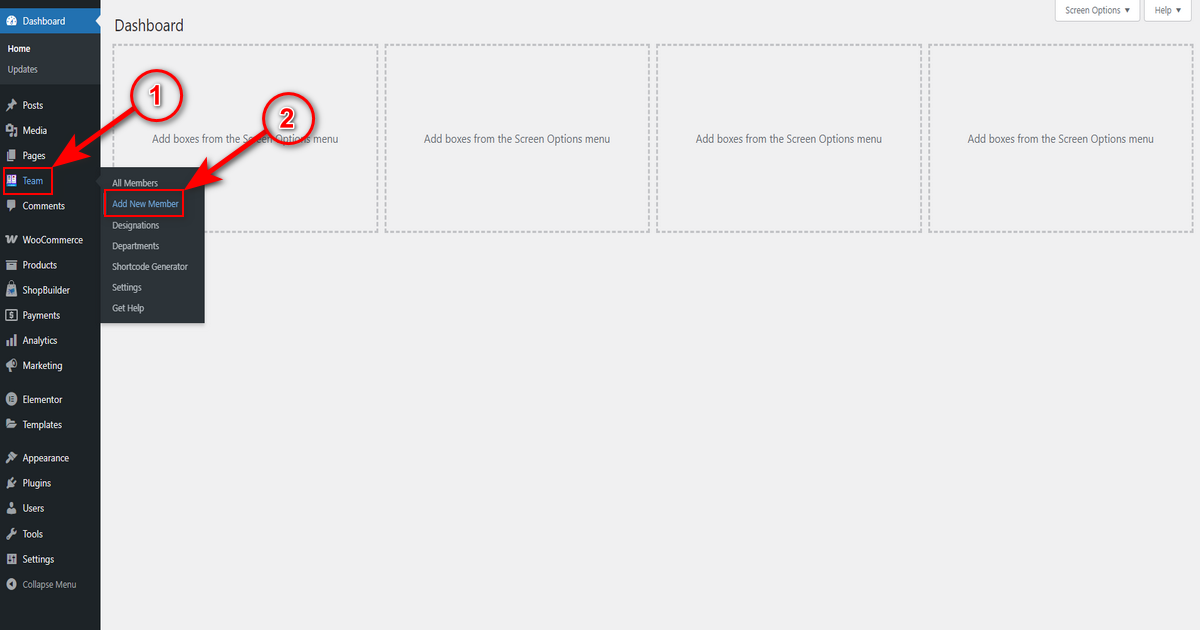
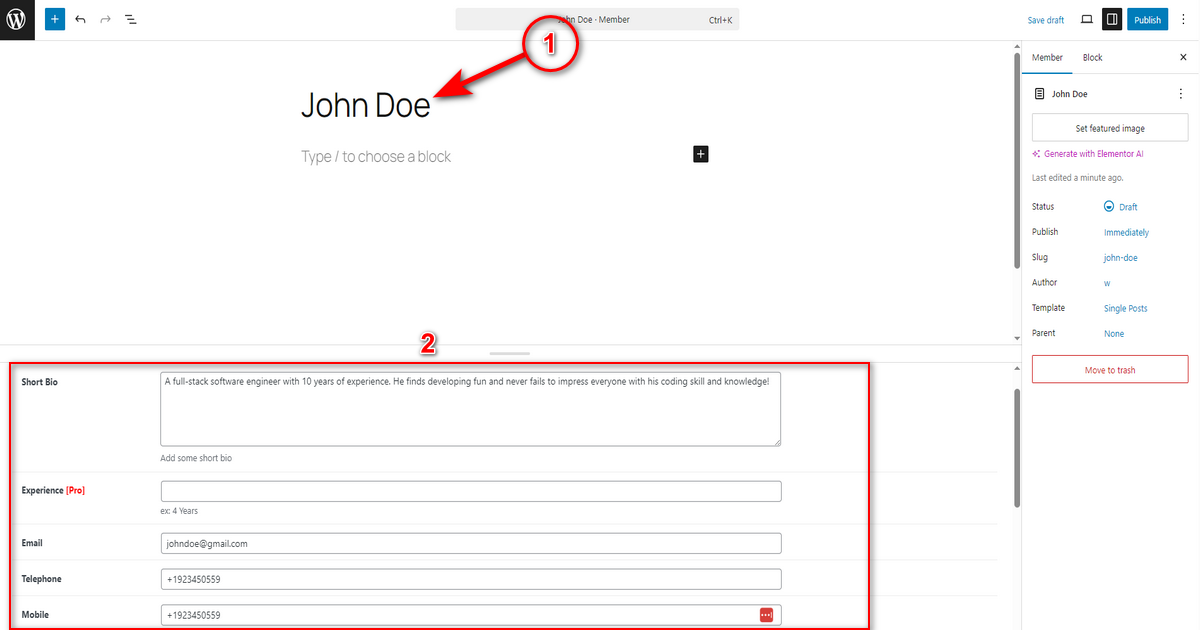
- Then, you’ll visit the Gutenberg editor. Write a team member’s name in the ‘Add title‘ block. Then, scroll down to “Member Info” area and start adding necessary information in several fields like “Short Bio,” “Email,” “Telephone,” “Mobile,” “Personal Web URL” and more.
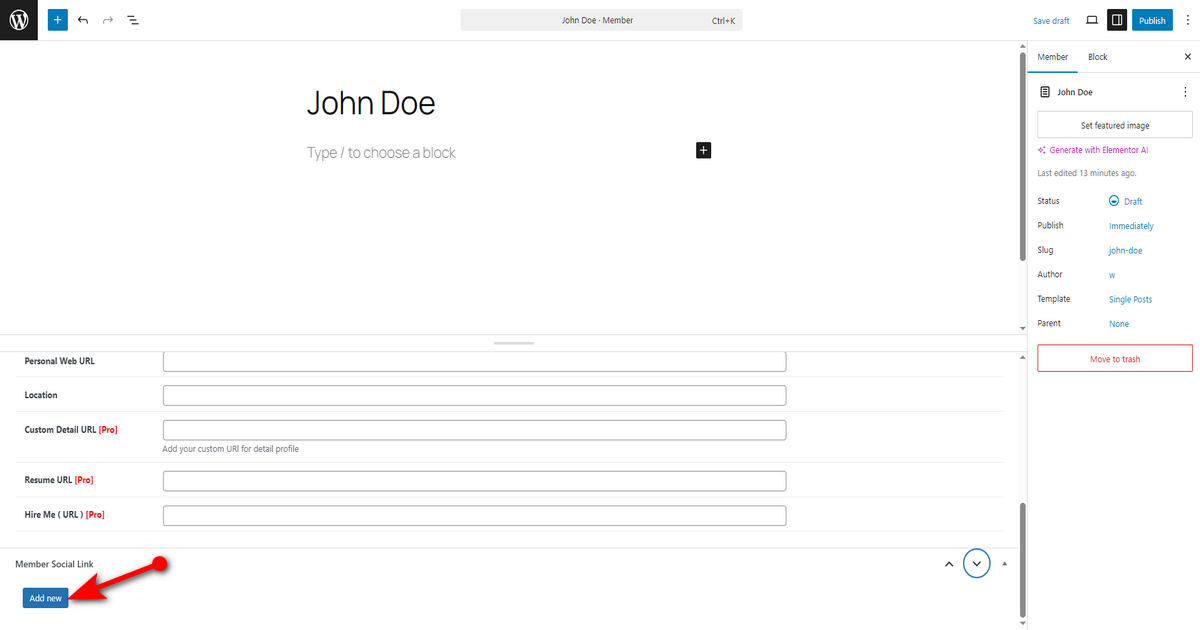
- Scroll down to “Member Social Link” area to include your team member’s social media profiles. To include, press “Add new” button.
- Then, select a social media platform and insert your team member’s social media profile URL.

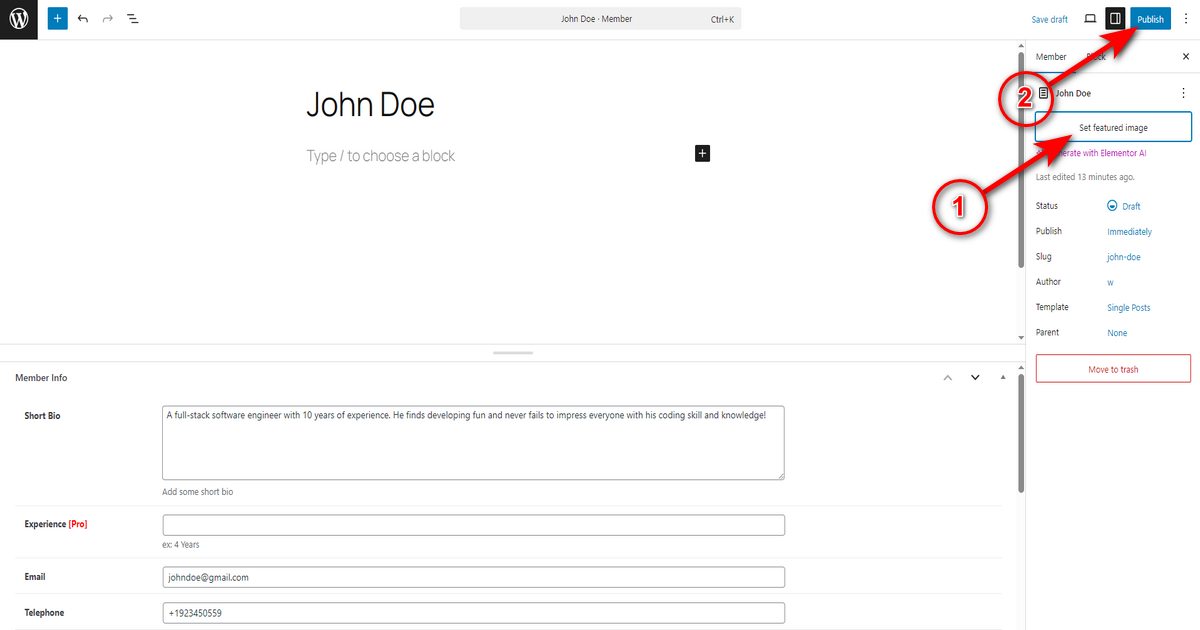
- Lastly, set a team member image by clicking “Set featured image” button on the top right and hit ‘Publish‘ button.
Follow these exact steps every time you need to add a team member. Now, include as many team members as you need.
Step 4 – Generate a Shortcode
You now need to generate a shortcode to display your team on your preferred page. Note that this plugin has a Team block and a Team widget so you can insert the shortcode on both the Gutenberg and Elementor editors without hassle.
Let’s now first create a shortcode by following the steps below:
- Navigate to WordPress Admin Panel > Team > Shortcode Generator.

- Press “Add Post” button on the top left.

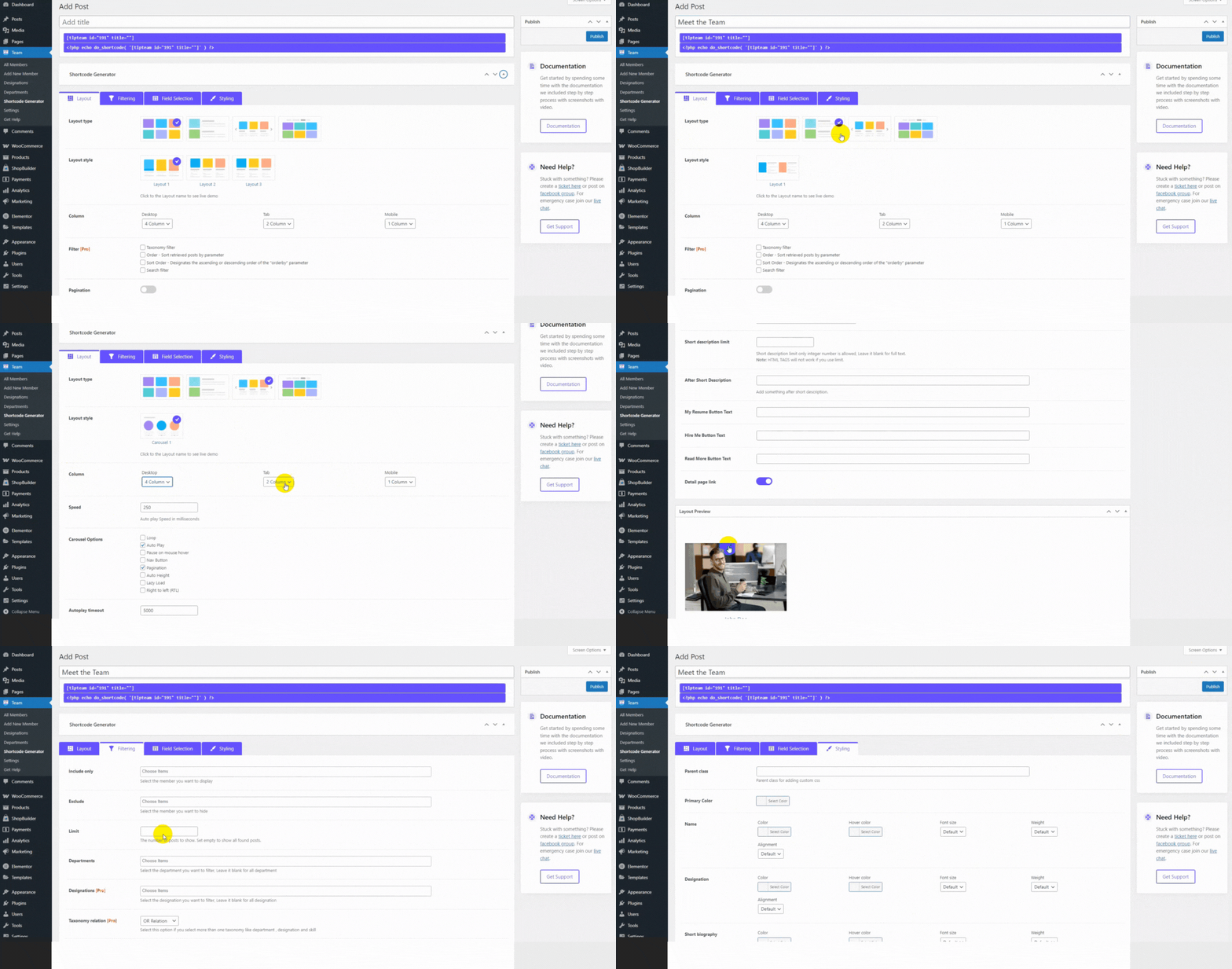
- You can now write a shortcode name in “Add Post” field, select team layout from diverse options, include or exclude fields as you wish, and do many more tasks to display your team through a shortcode professionally.
See the animation below to understand better how to generate a shortcode alongside styling the team layout.
- Once you are happy with the customization, click ‘Publish‘ button on the top right.
That’s how you generate a shortcode. It’s showtime now. Let’s embed this shortcode to display your team members attractively.
Step 5 – Embed a Shortcode into a Page
You can embed this shortcode you’ve just generated in a new or old page—it depends on you. However, we suggest you create a new team page and embed the shortcode.
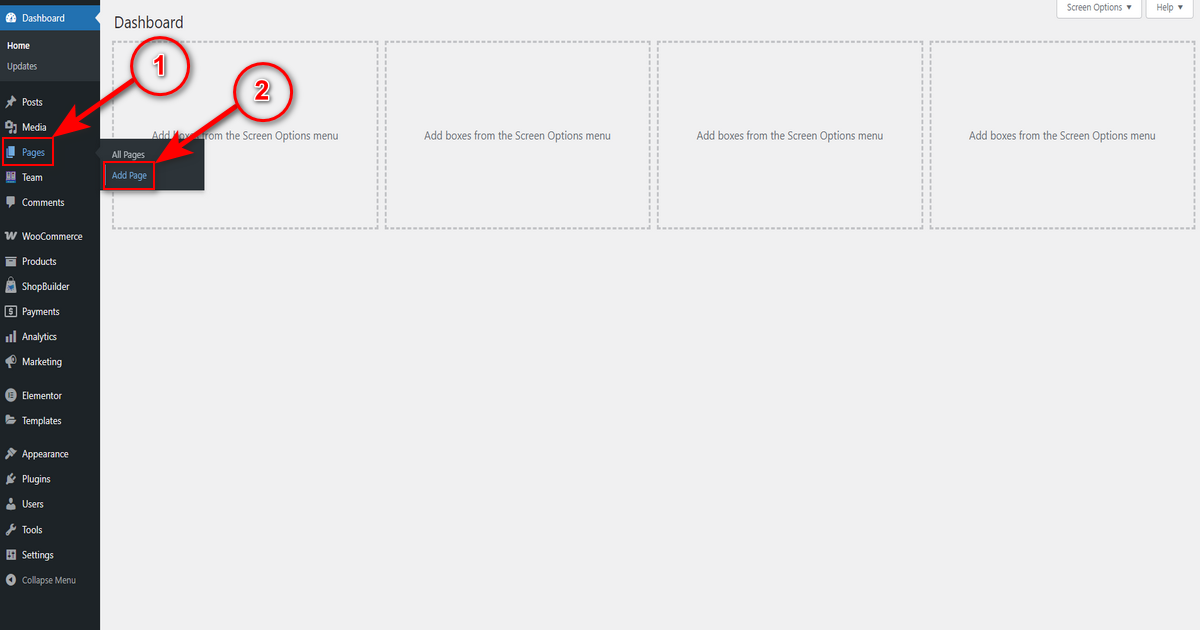
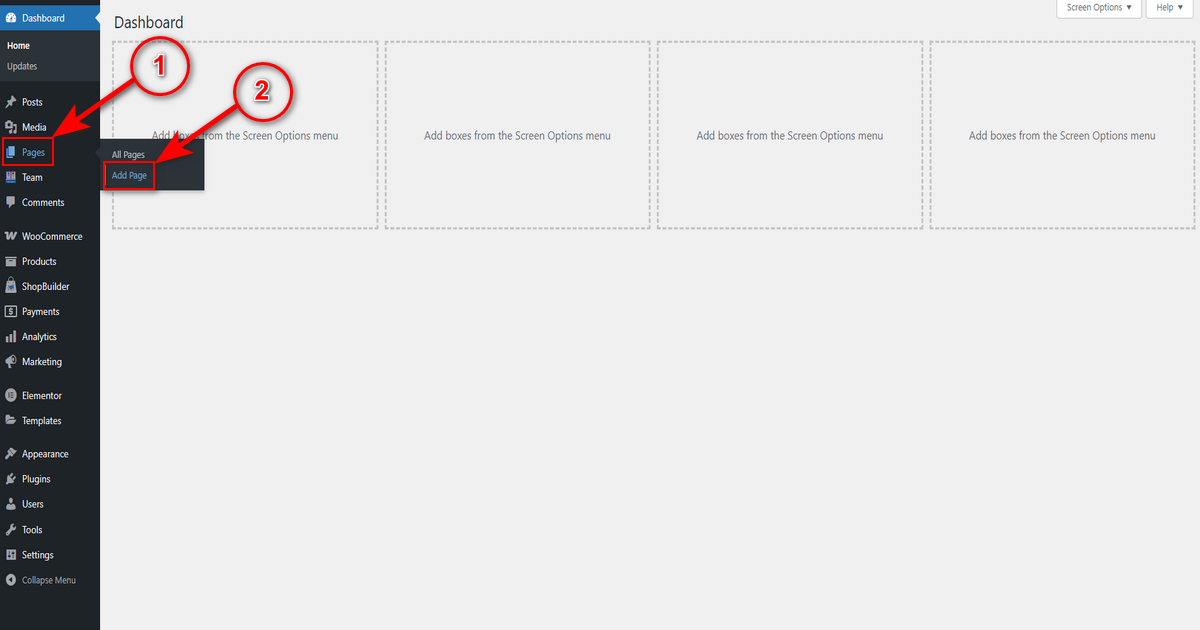
That stated, visit WP Admin Panel > Pages > Add Page.
Now, you’ll visit the Gutenberg editor. Write a page name in the “Add title” block. Then, hit ‘+‘ symbol and write ‘Team‘ in the block search field. Lastly, select ‘Team‘ block.

At this point, head to the right side and ensure you are on the ‘Block‘ bar. Navigate to “Select A Shortcode” drop-down menu and choose the shortcode you generated earlier. Finally, hit the ‘Publish‘ button.
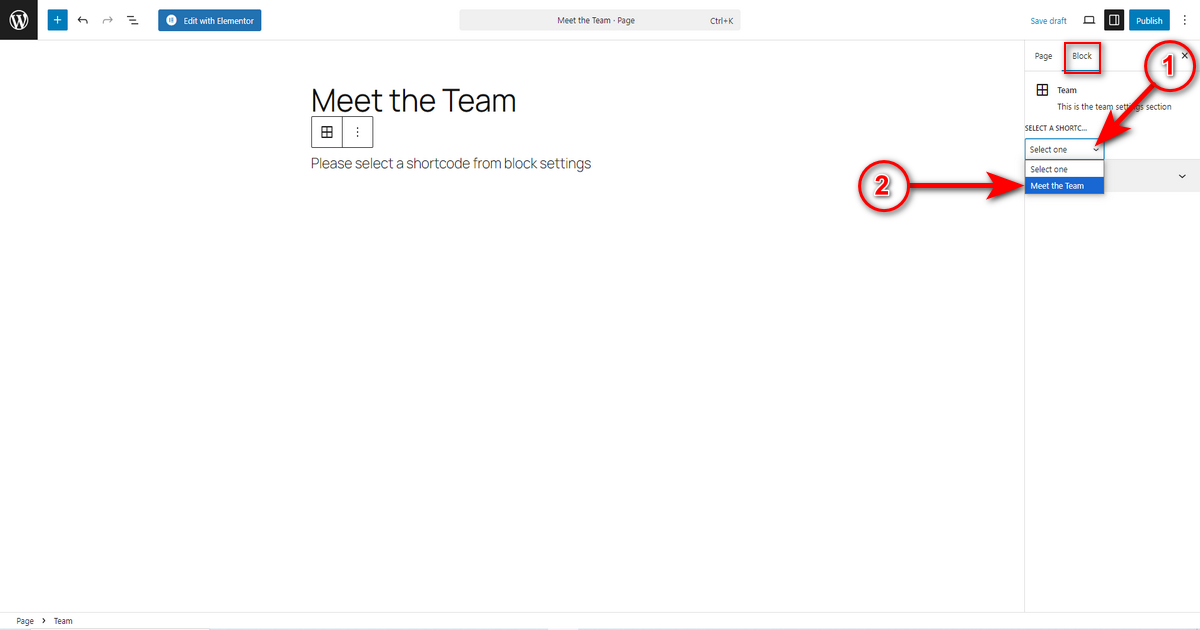
That’s it. Now visit the page and see the outcome.

👉Interested in adding a portfolio to your website? Check out: How to Create a Portfolio in WordPress.
Top ‘Meet the Team’ examples for design inspiration
Here, we’ve listed the top five “Meet the Team” page examples that seem appealing. Check these pages and take inspiration to build your team page.
1. This Crowd

This Crowd team page stands out with its interactive design. When you visit this page and hover your mouse pointer over any team member’s photo, you’ll notice a short GIF animation, giving you a glimpse into that team member’s personality.
This is a unique way to explain what a team member does, what they like, and everything else without writing a few paragraphs about them. Hence, you may adapt this approach while designing your team member page.
2. CloudHorizon

CloudHorizon is a renowned software development company. It proudly and uniquely displays its team members on its About page. Once you visit this page, you’ll see each team member and their designation.
When you hover over any team member’s image, things get interesting. That image flips from left to right while revealing what that employee wanted to be before joining this company. This is what captures our attention and makes us list this website.
3. Stink Studios

Stink Studios is a creative advertising and digital experience company. This company is SUPER creative, which you’ll notice when browsing the company pages.
Stink Studios creatively designed each web page and section. It introduces its team members through a slideshow in a grid layout. Therefore, this page stands out from other generic team pages.
This page instantly draws attention to Stink Studios’s creativity and engages visitors. You may follow this company’s footprint while developing your company team page.
4. Text
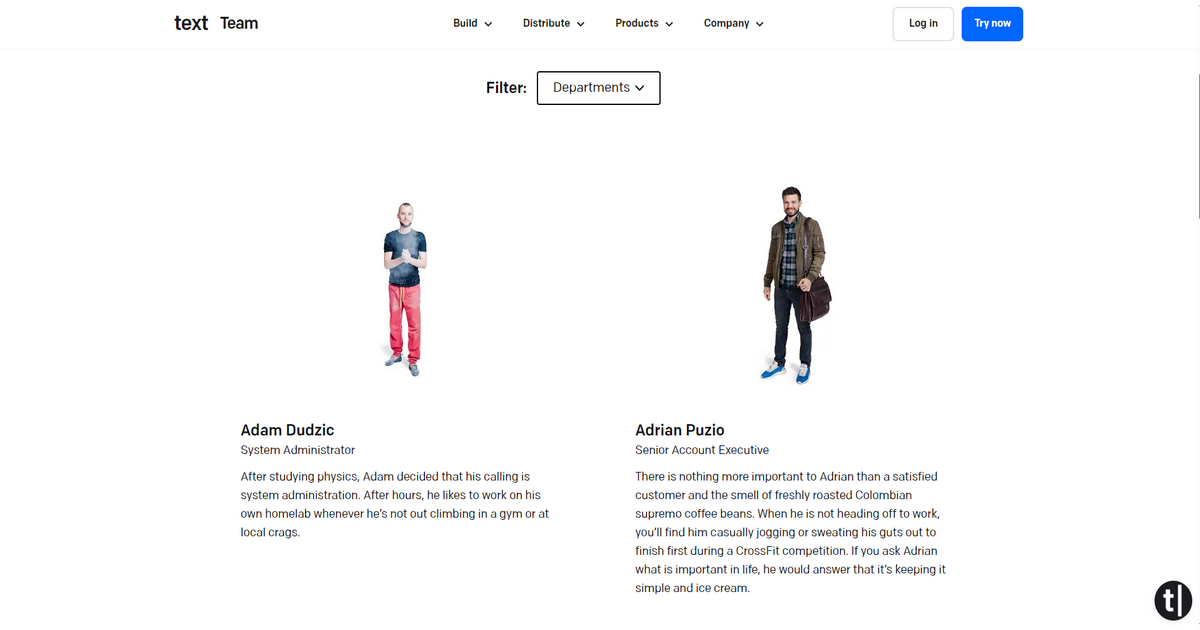
Text’s team page is clean, modern, and user-friendly, aligning well with the brand’s focus on AI-powered customer service software. The layout is grid-based, with team members displayed in a structured, card-like format.
Instead of traditional headshots, the page uses stylized avatars for each team member. This adds a playful, creative touch while maintaining a professional vibe. The avatars are uniform in style, ensuring visual consistency. Therefore, this page successfully captures attention and serves its purposes.
5. Humaan

Humaan’s team page features a grid layout, and this page is clean, minimalist, and attractive. When you visit its About page, you’ll be amazed to see how creatively Humaan designed this page.
It used an excellent color combination to match its brand style. It shows creativity when it comes to including uniquely captured team photos. It can be a great source of inspiration for you when designing your team page.
Wrapping Up
This is all the information about how to make a team page on WordPress. You can now easily build team pages by following the guidelines we shared in this article. We recommend you thoroughly research a few websites before creating your own.
Follow the website design best practices and include all the essential elements that make a team page stand out. Our best wishes will be with you along the journey.