On This Page
The popularity of takeout and delivery has grown immensely in the last few years. According to Statista’s report, this market will reach $1.40 trillion in revenue in 2025 and continue to expand.
No wonder restaurants with online ordering systems and offering these delivery options generate huge revenue. If you are into this business, you should also offer the same. But how to do so?
Provided that you are thinking about how to set up online ordering for my restaurant, read this helpful guide thoroughly.
What is Online Ordering?
Before describing online ordering, let’s discuss how restaurants handle food orders. Usually, restaurants allow customers to have food either on-premise or off-premise. An on-premise dining experience means customers eat food within the restaurant’s four walls.
In contrast, an off-premise dining experience enables customers to receive and eat food outside restaurants. Before the COVID-19 pandemic, off-premise dining was just an add-on restaurant used to offer customers to increase sales. However, the afterward scenario is entirely the opposite.
Restaurants found that off-premise dining is a huge revenue driver. So, restaurant owners transformed a bonus dining experience into a successful sales strategy. They introduced a diverse food ordering system and skyrocketed their sales.
Fast forward to today, virtually all restaurants allow customers to enjoy off-premise dining. These restaurants have online ordering systems that let customers order food using the restaurant’s website or mobile app.
That means customers no longer need to visit the restaurant to order or eat food. This story gives a clear picture of online ordering.
What is Mobile Ordering?
Mobile ordering refers to ordering food using a mobile app. This method allows customers to skip the line and order their favorite food from their preferred restaurant.
What is Third-Party Delivery?
Third-party delivery indicates that a third-party business/company handles the food delivery responsibility on behalf of a restaurant.
Several third-party delivery companies profit from different business models. For example, Uber Eats, Doordash, or Grubhub charges commissions for each order.
What is First-Party Delivery?
First-party delivery indicates that a restaurant handles food delivery without a third party. Many restaurants choose the first-party delivery system to build customer rapport and ensure on-time delivery.
What is Curbside Pickup?
Curbside pickup refers to ordering food at a restaurant, pulling up to that restaurant, and receiving food while waiting in their cars.
What is Contactless Delivery?
Contactless delivery, aka no-contact delivery, is a method of delivering food without any physical interaction between the customer and the delivery person.
How to Set up Online Ordering for My Restaurant
Follow this step-by-step guide to set up an online ordering system for your restaurant efficiently.
Step 1: Evaluate Your Options
As you know, restaurants can utilize various online ordering options, including first-party delivery, third-party delivery, contactless delivery, and more. Since there are many options, it’s essential first to determine which delivery option suits your restaurant business.
However, we’ll show you how to set up an online ordering system with your restaurant website. So, we’ll skip discussing how to build a restaurant website on WordPress. Instead, we’ll go straight into integrating an online ordering system. Let’s begin.
Step 2: Pick the Best Plugin for Integrating an Online Ordering System
We want to add such a system to our restaurant website, built on WordPress. We’ll accomplish that task using a plugin. However, the question is which plugin to choose, as the WordPress repository contains many relevant plugins.
Also, what should you consider when choosing this kind of plugin? Here are the factors to take into your account.
- Ensure the plugin allows you to easily manage the food menu
- It should have multiple payment options
- It needs to let you track orders
- It should feature delivery/pickup options
- Ensure it lets you manage customers easily
- Your chosen WordPress plugin should have strong security features
- It needs to be compatible with other plugins and themes
- Check if the plugin gets regular updates
- Inspect its reviews before choosing it
- Check whether it’s free or paid
- Compare other relevant plugins
Finally, pick one that suits your preferences. Need recommendations? Try FoodMenu by RadiusTheme. This plugin meets all the criteria we shared above and is available in both free and premium versions!
However, you need to opt for its paid version (reasonable, though) to integrate an online ordering system with your restaurant site.
Step 3: Get the Food Menu Plugin
Before showing you how to install and activate this plugin, we want you to know that your WordPress site should have WooCommerce plugin installed. Otherwise, you can’t set up online ordering on your restaurant website.
Let’s begin the installation. After purchasing, you will receive the plugin’s zipped file. Then, go to WordPress Admin Panel > Plugins > Add New Plugin.

Click the “Upload Plugin” button.
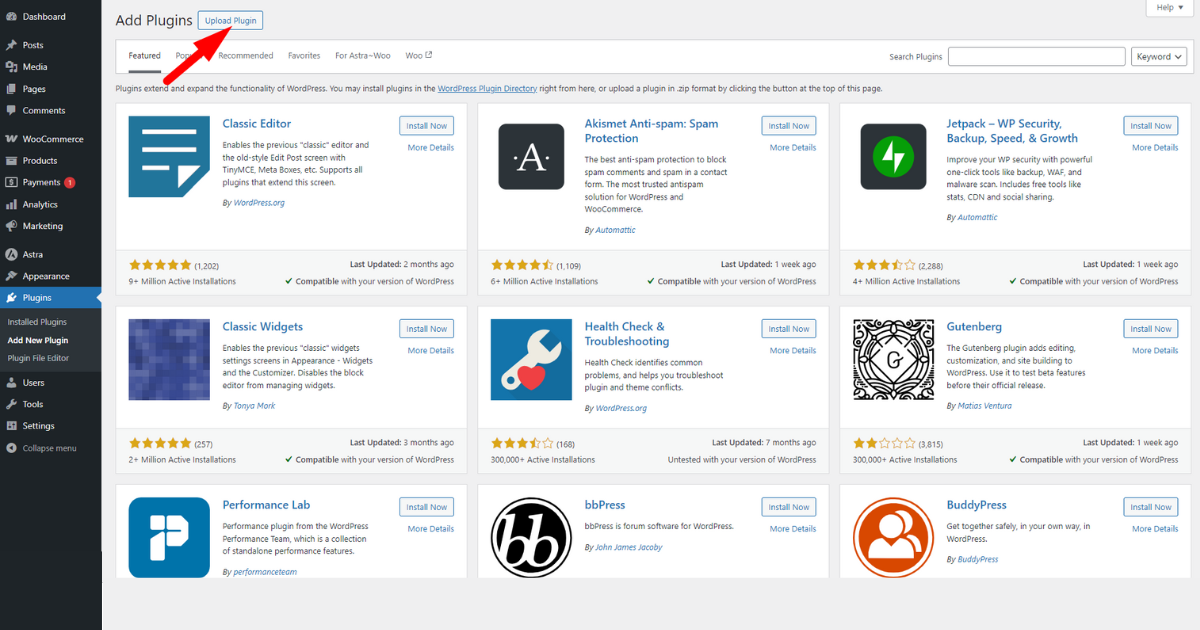
Hit the “Choose File” button to upload the plugin’s zipped file. Then, click “Install Now” button.

Finally, click “Activate Plugin” button.
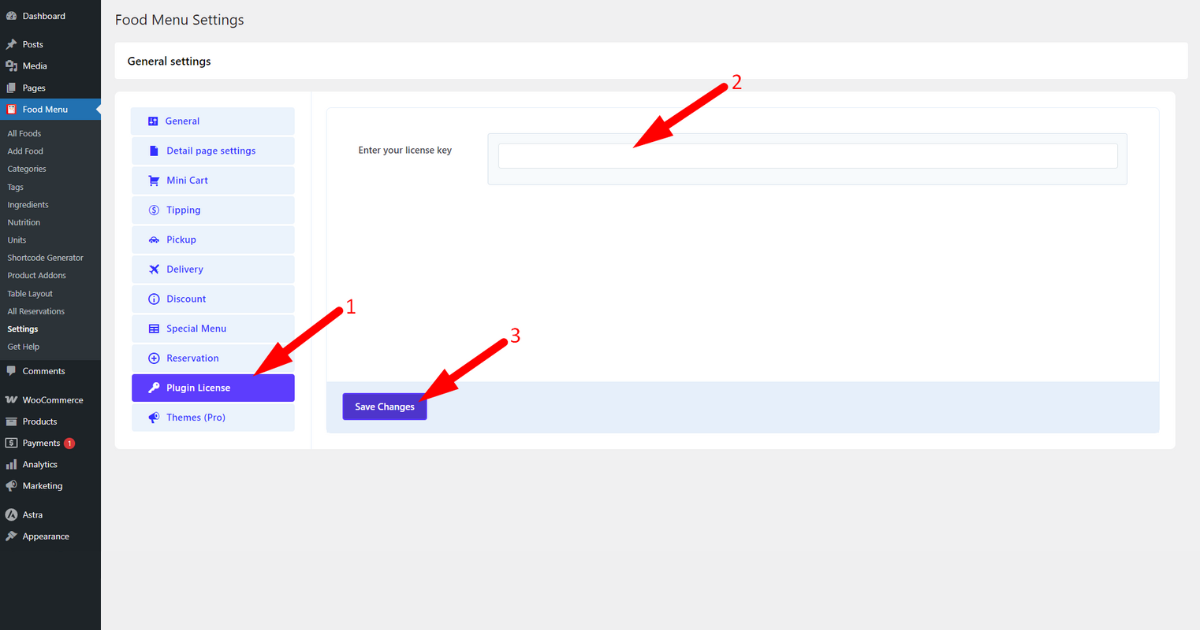
Okay, you now need to insert the plugin license. Go to the Food Menu > Settings.

Then, click “Plugin License” tab, insert the license key in the “Enter your license key” field, and hit “Save Changes” button.
You’ve just installed and activated the Food Menu plugin.
Step 4: Enable the Online Ordering System
To enable an online ordering function for your restaurant website, go to WordPress Admin Panel > Food Menu > Settings. Afterward, click ‘General’ tab.

Now, select “Online Ordering ( Woocommerce Product )” radio button under “Food Menu Type.”
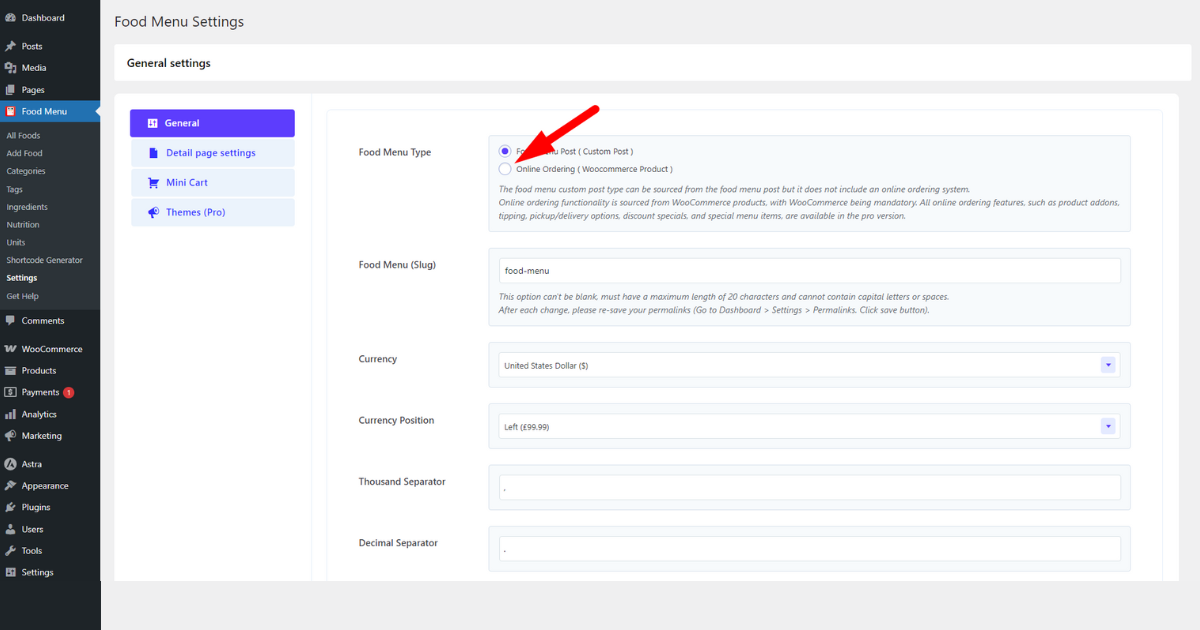
We encourage you to explore all the fields under General tab. However, you need to select the mandatory fields. For instance, choose “Order Type” and scroll down a bit to explore other options before hitting “Save Changes” button.

Set up Pickup and Delivery
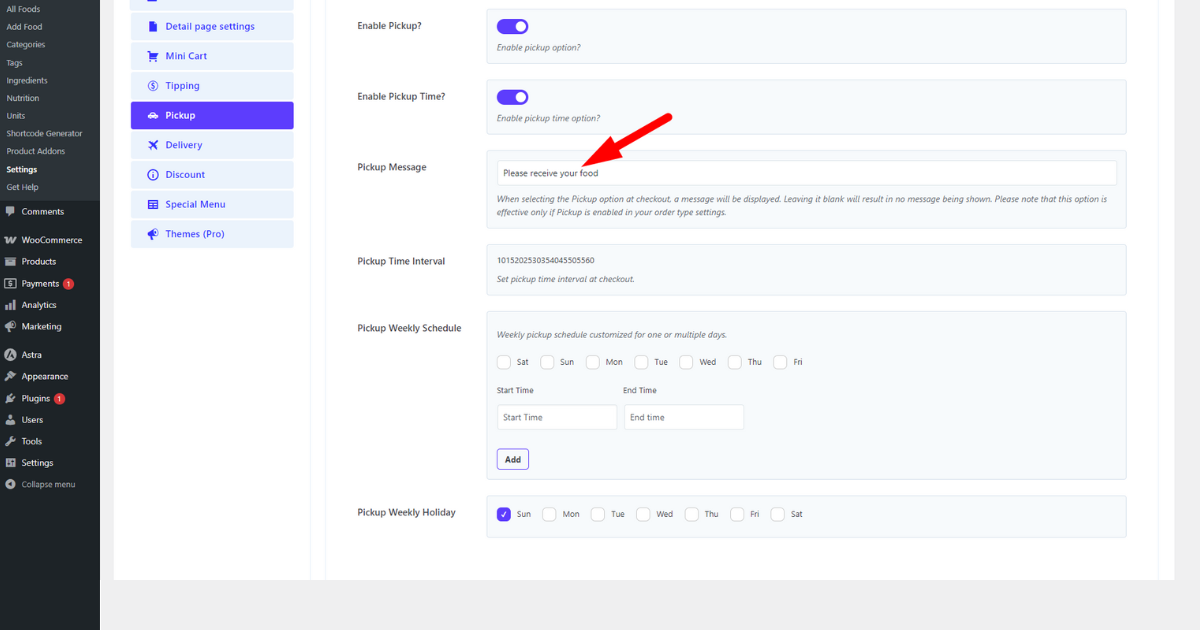
Okay, you can now set up pickup and delivery. To do so, visit WordPress Admin Dashboard > Food Menu > Settings. Then, click ‘Pickup’ tab.
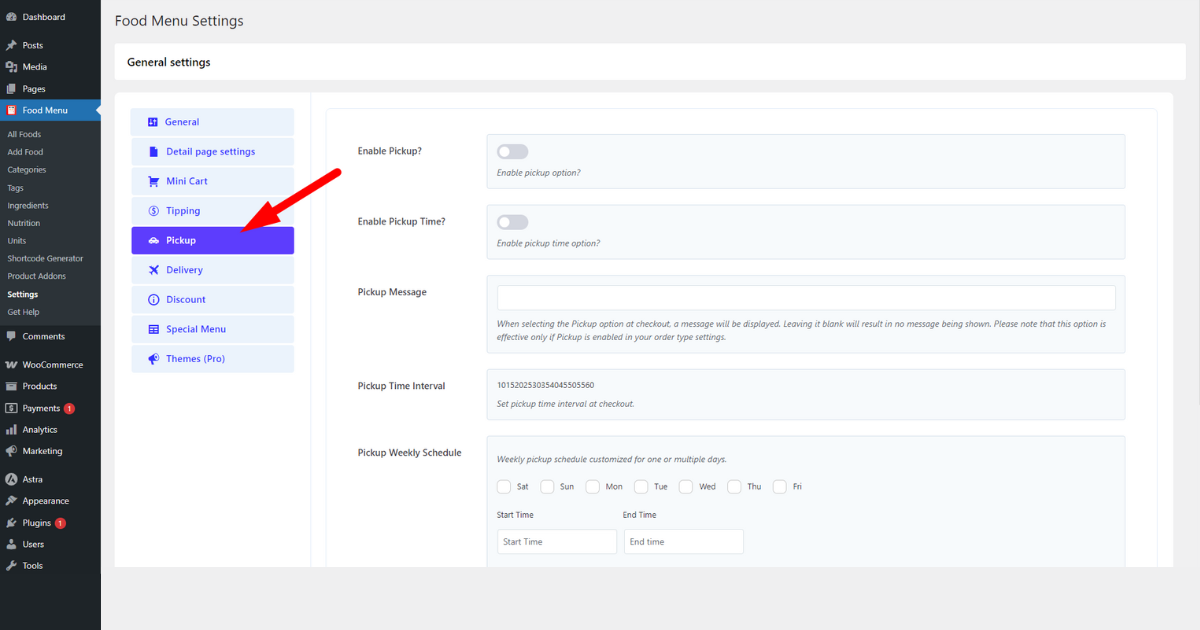
Right now, toggle on “Enable Pickup?” option and turn on “Enable Pickup Time” option.
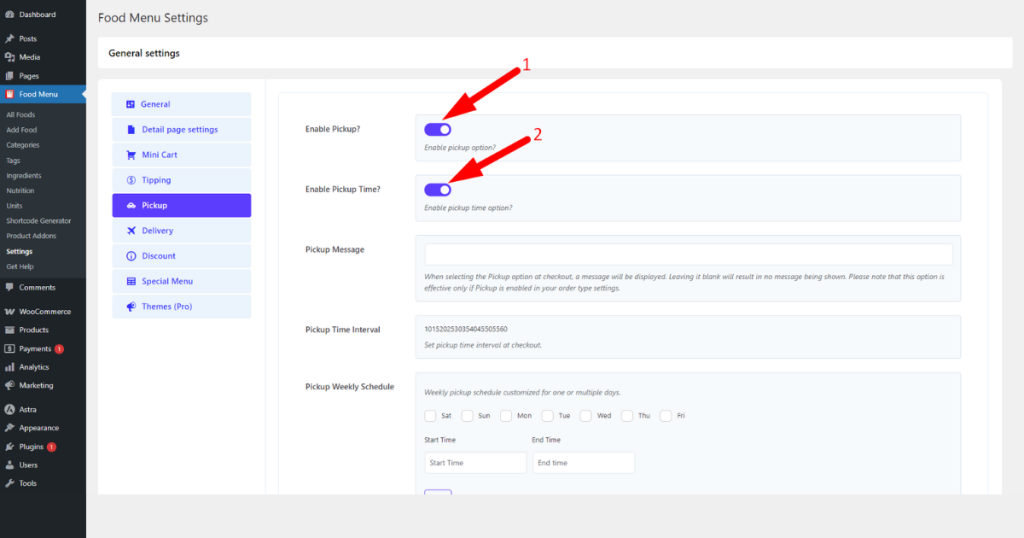
Then, write a pickup note in the “Pickup Message” field.
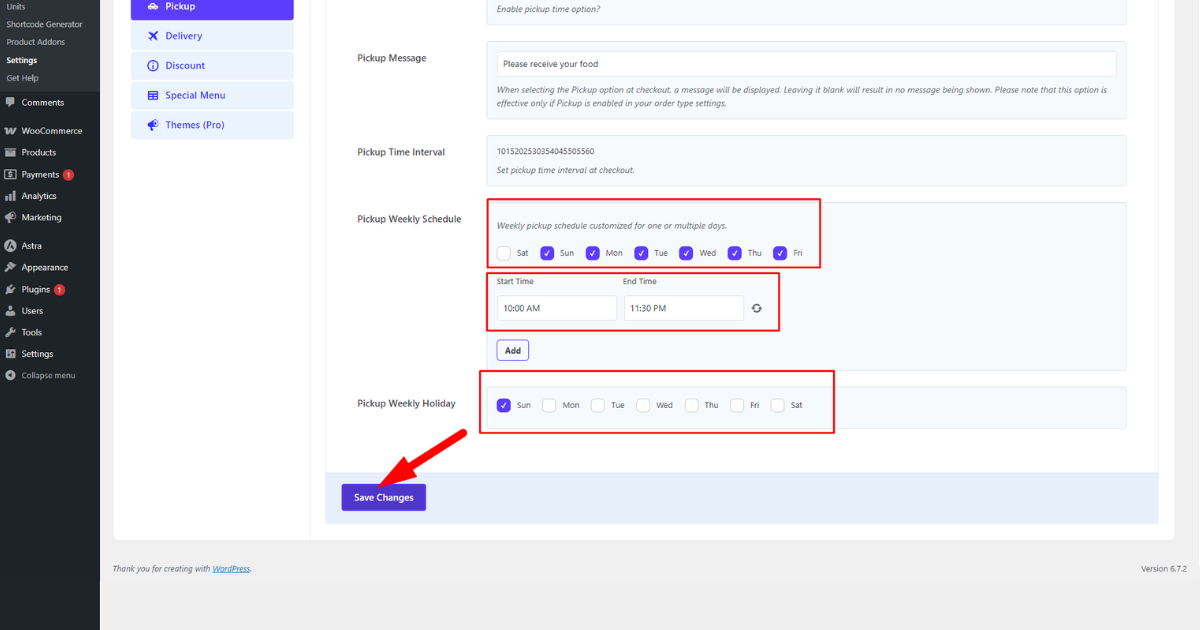
Set pickup weekly schedule and holiday and hit “Save Changes” button.
Now, click ‘Delivery’ tab and follow all your steps to enable pickup.

We motivate you to explore all the tabs of this plugin to enjoy more benefits.
Generate Shortcode
To professionally display WooCommerce products as a food menu, generate a shortcode and embed it into a page you prefer. Let’s do it.
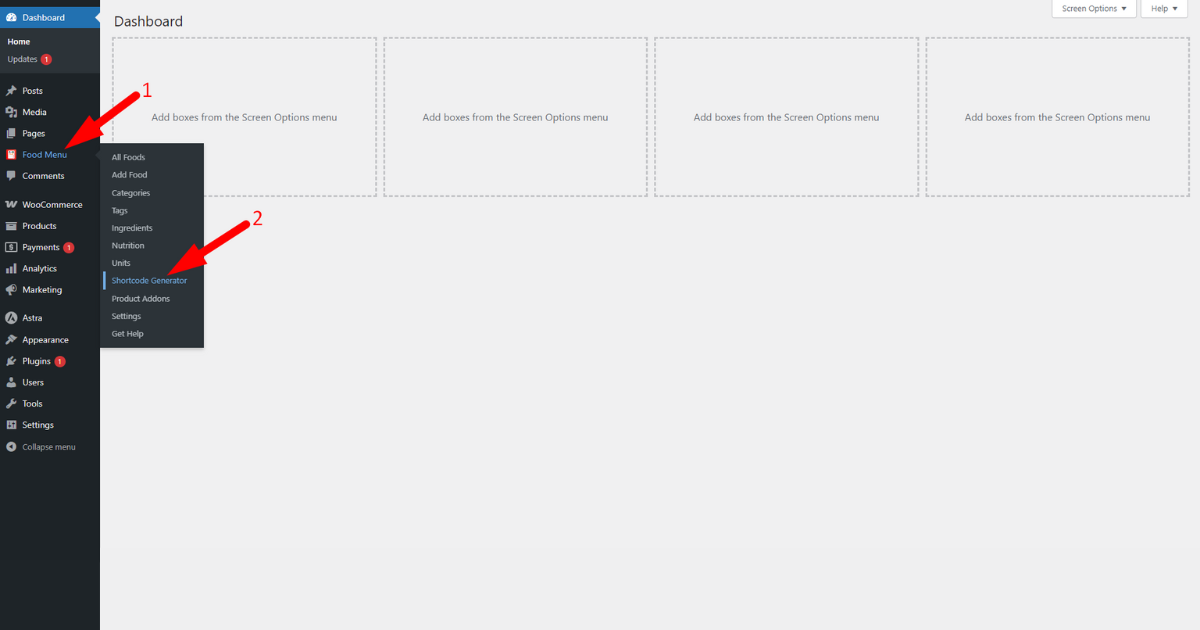
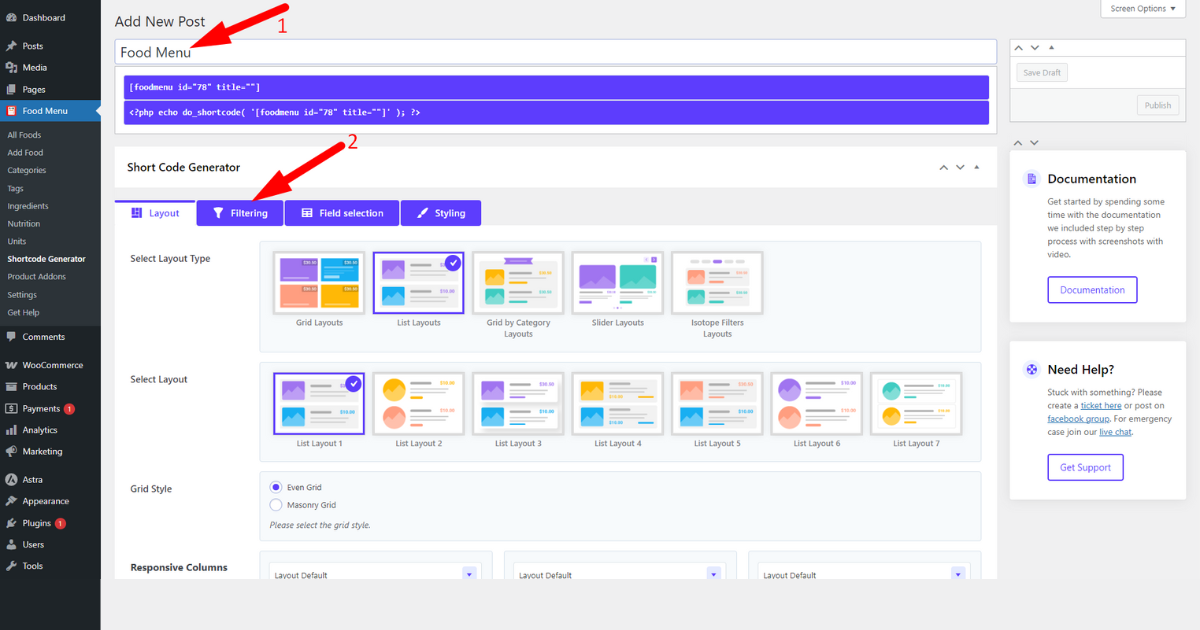
Navigate to WordPress Admin Dashboard > Food Menu > Shortcode Generator.
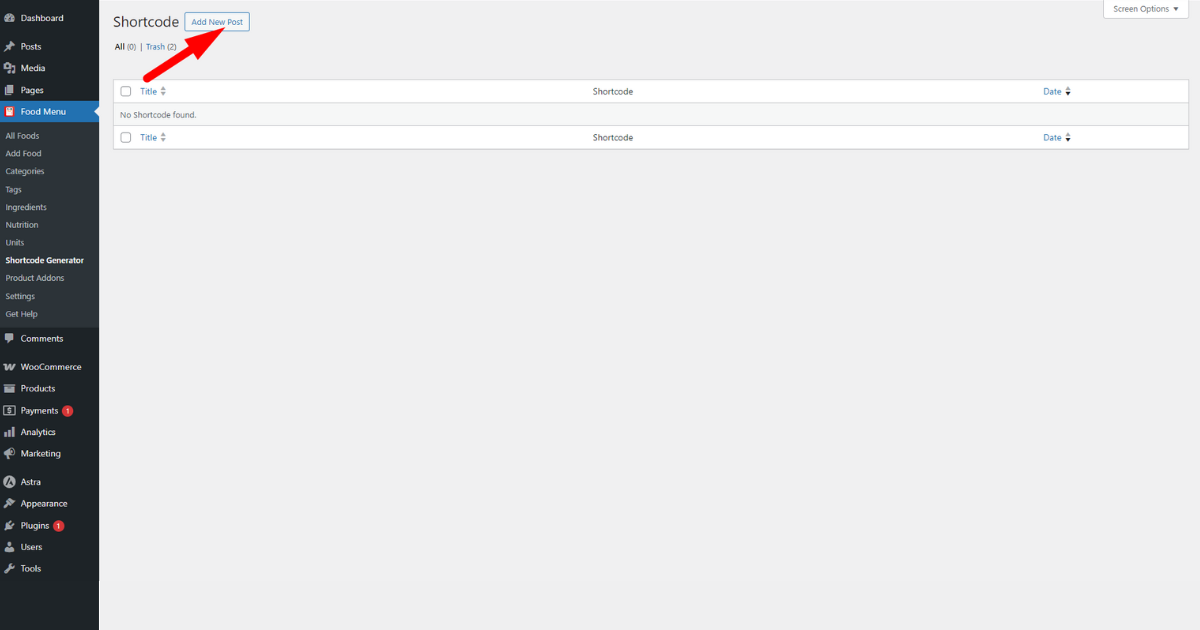
Click “Add New Post” button.
Now, write a title for your shortcode and click ‘Filtering’ tab.
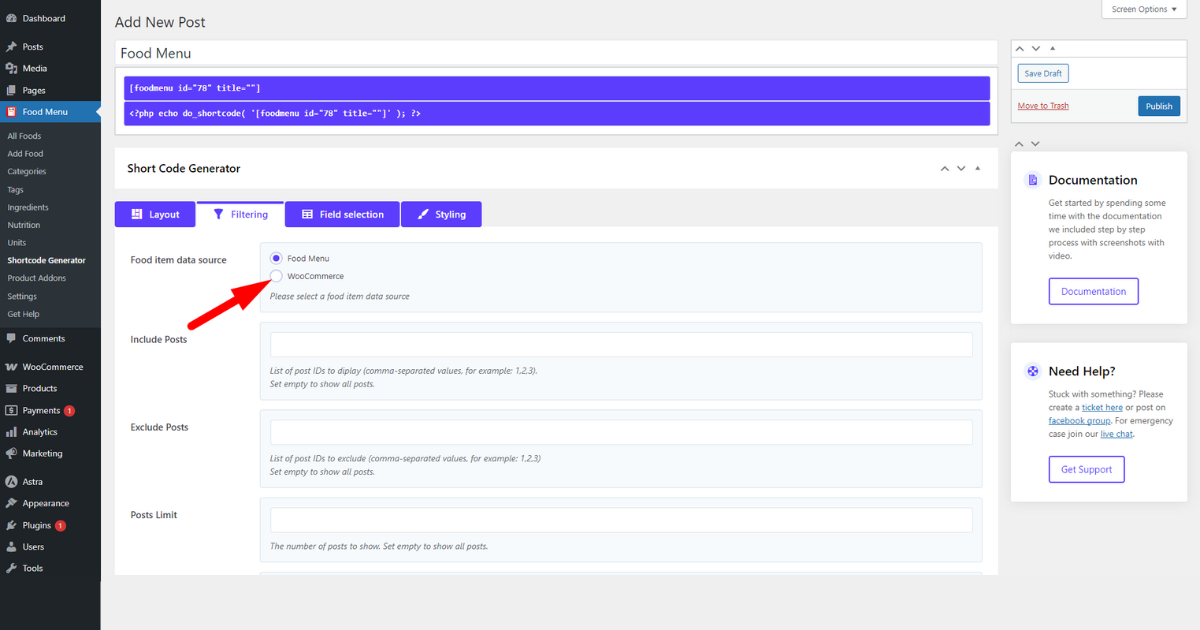
Choose ‘WooCommerce’ radio button as a Food item data source.
N:B: Customers can’t place orders if you don’t select this source. That’s why it’s a mandatory step.
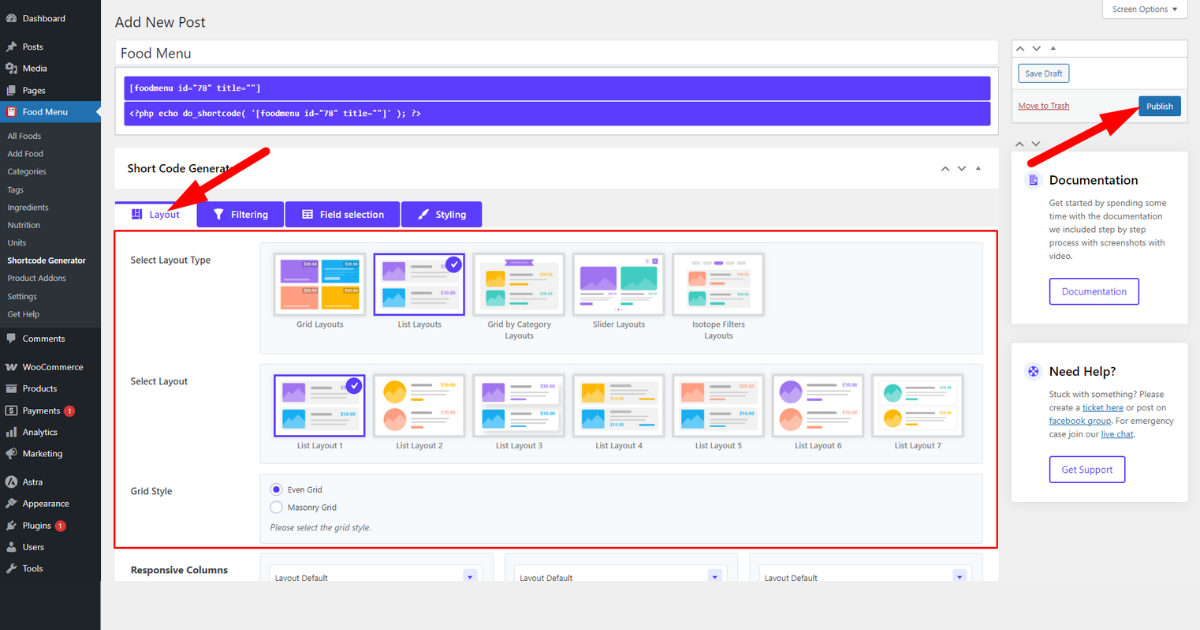
You can now click ‘Publish’ button on the top left to publish this shortcode.
However, before doing that, click ‘Layout’ tab to choose a food menu layout and select the one you like.
Then, scroll down and explore other options. Read our Food Menu layout documentation to learn more. Finally, hit ‘Publish’ button.
Insert a Shortcode
As you can see from the title, we’ll now insert the food menu shortcode. You can embed it into any page on your WordPress website or create a new page.
That said, follow these steps to place a shortcode on a page.
- Copy the newly created shortcode and save it in Notepad for later use.

- Now, you need to select a page you like. So, head to WordPress Admin Dashboard > Pages > All Pages.
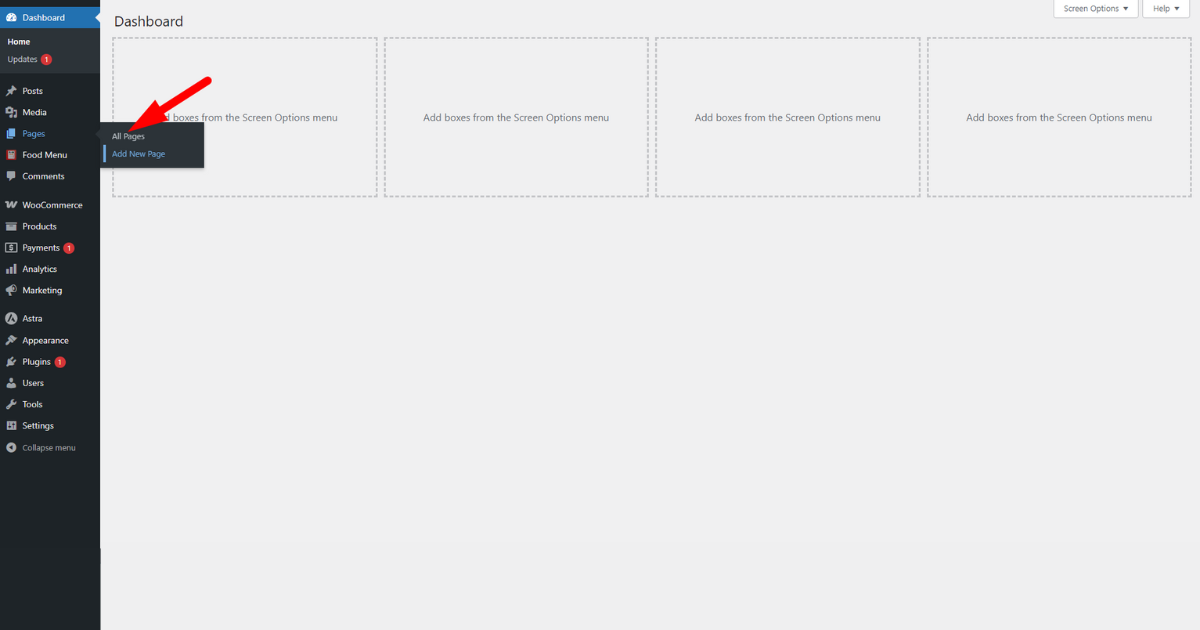
- Hover your mouse pointer over a page you want to insert the shortcode and click ‘Edit’ option.
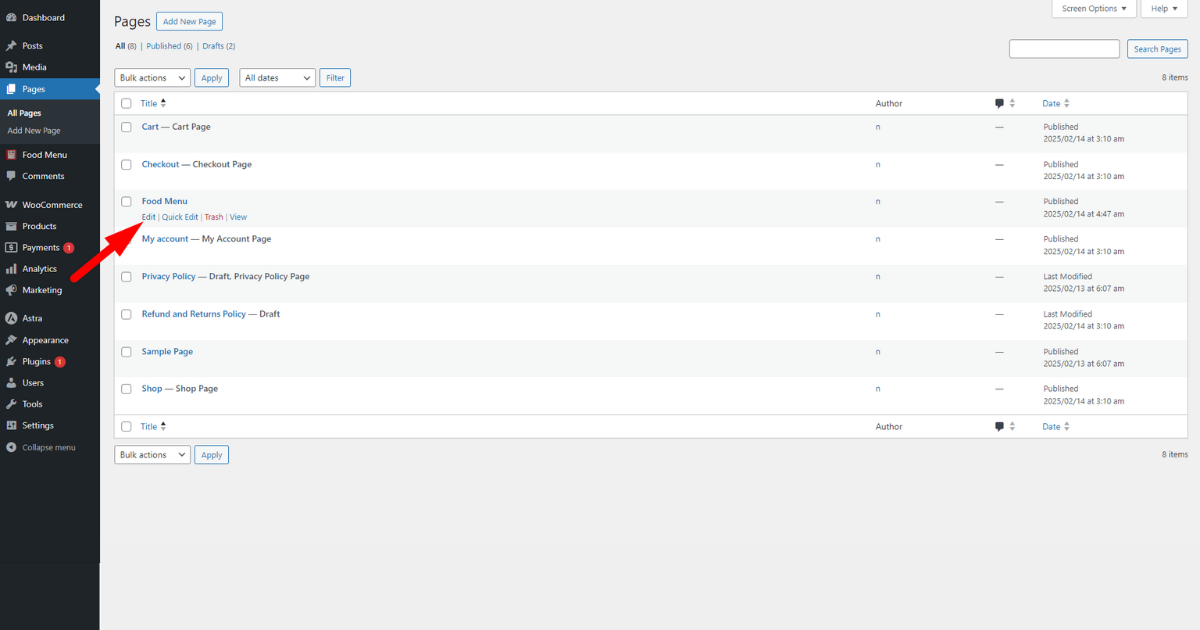
- Now, paste the shortcode you copied and saved earlier and hit ‘Save’ button.

That’s it. Your restaurant website is now ready to display food items attractively and allow prospects to order them online.
You now need to add food items as WooCommerce products. They will appear on a page where you embed the shortcode. Let’s add a food item.
Step 5: Add a Food Item as a WooCommerce Product
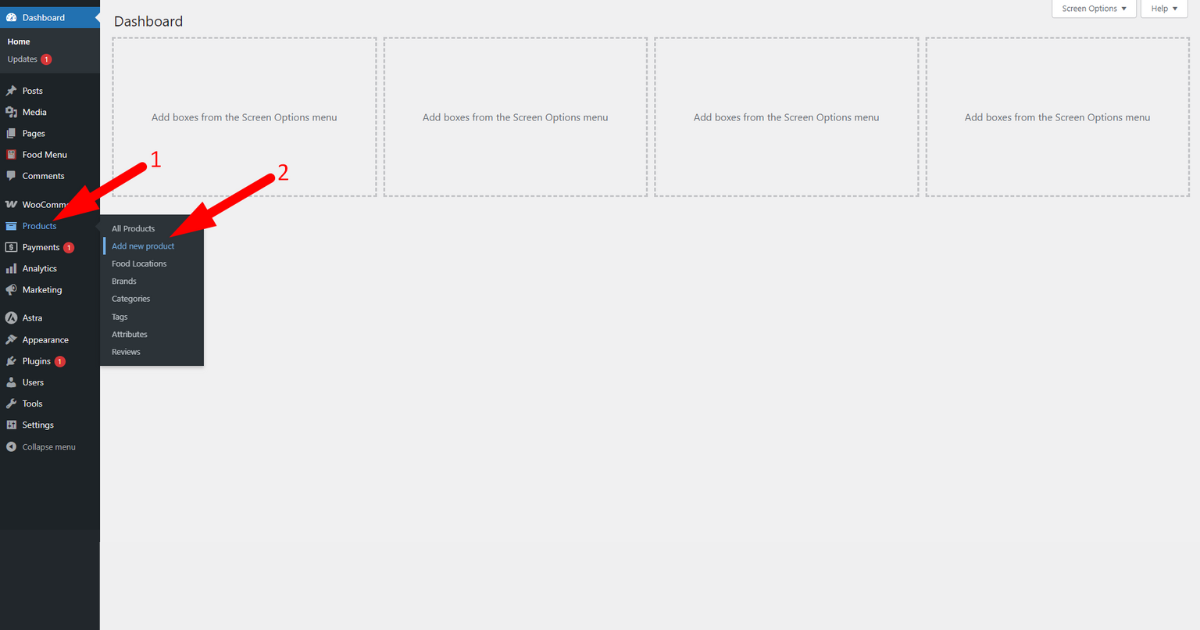
Go to WordPress Admin Panel > Add new product.
Afterward, write your food item’s name, description, and price.
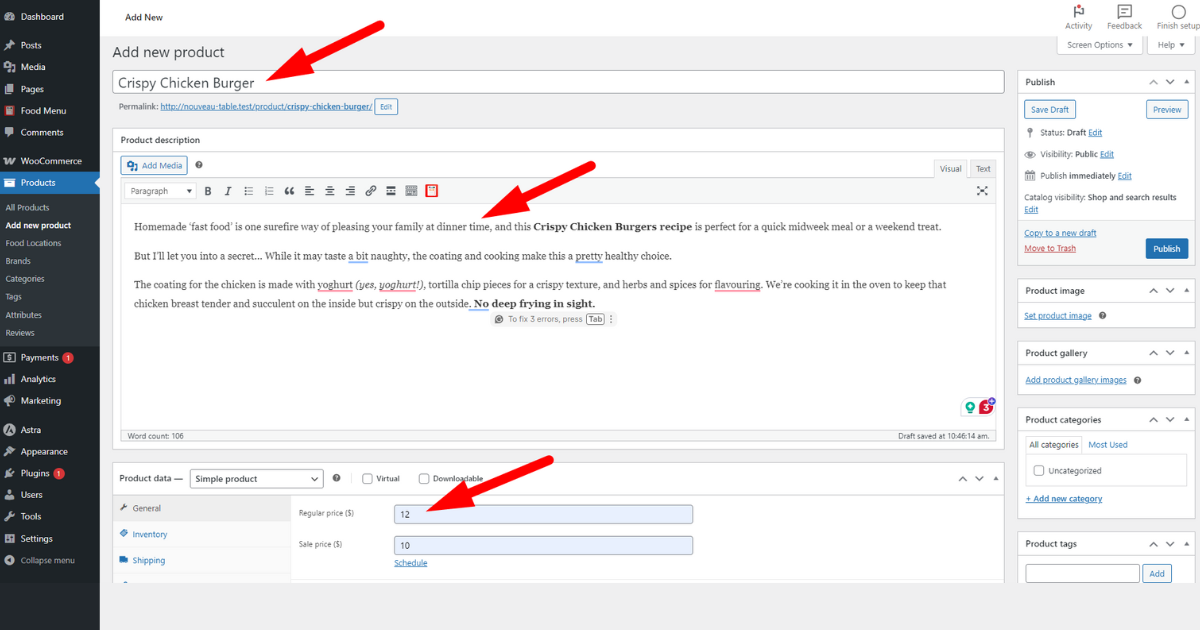
Then, click other tabs in the “Product data—” option and fill in with the necessary information.
We skipped showing you everything in detail. However, we want to show setting up one tab: Product Addons.
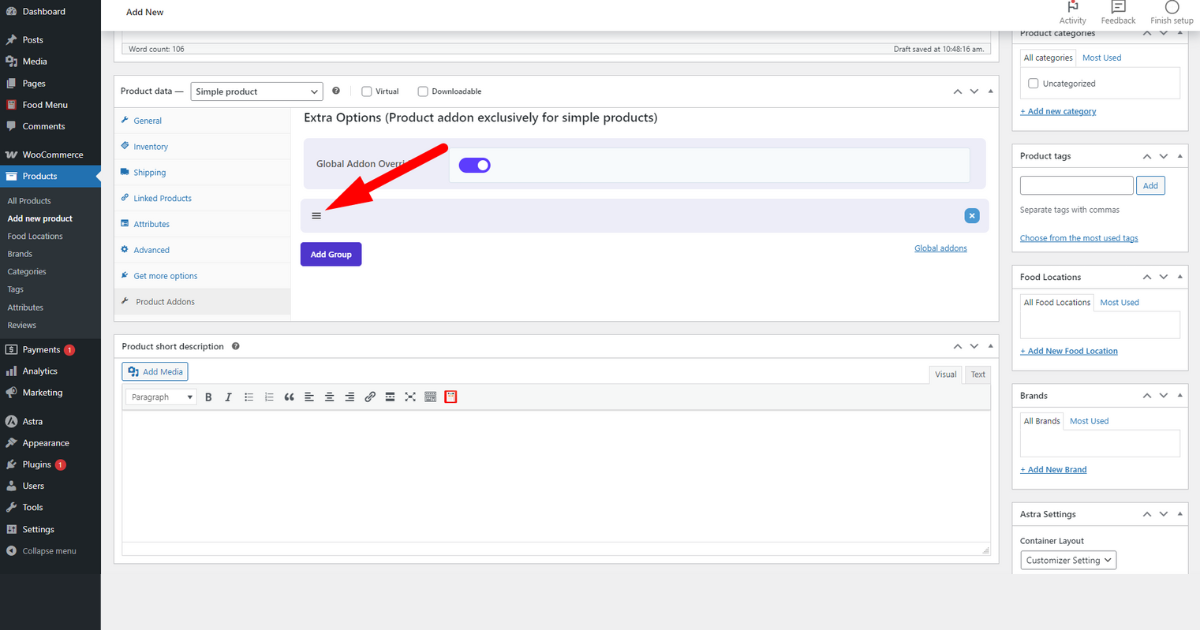
Click on it and toggle on “Global Addon Override.”
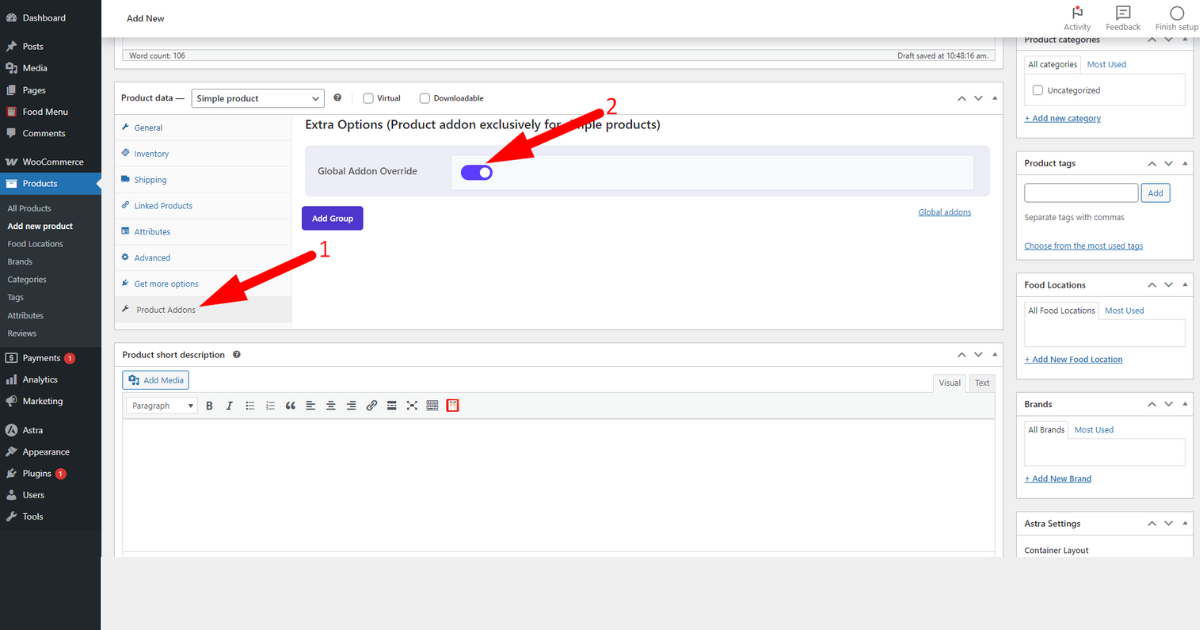
After that, hit “Add Group” button to add additional food item options.

Click the ‘hamburger icon.’
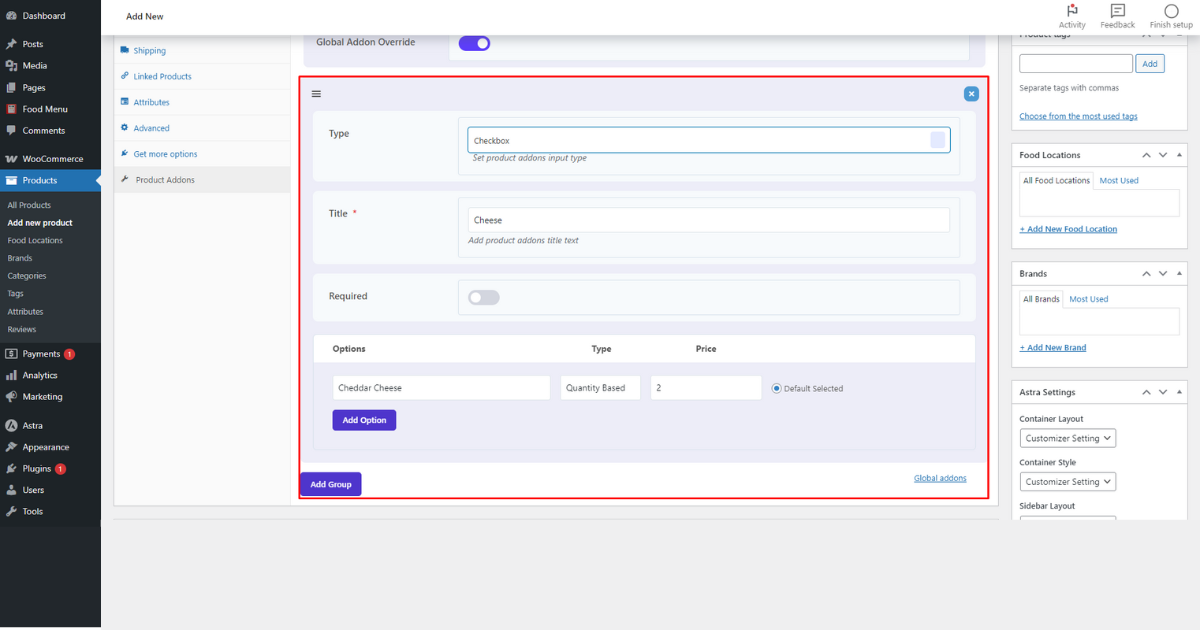
Product addon fields will populate. You can now use them to offer additional food item options.
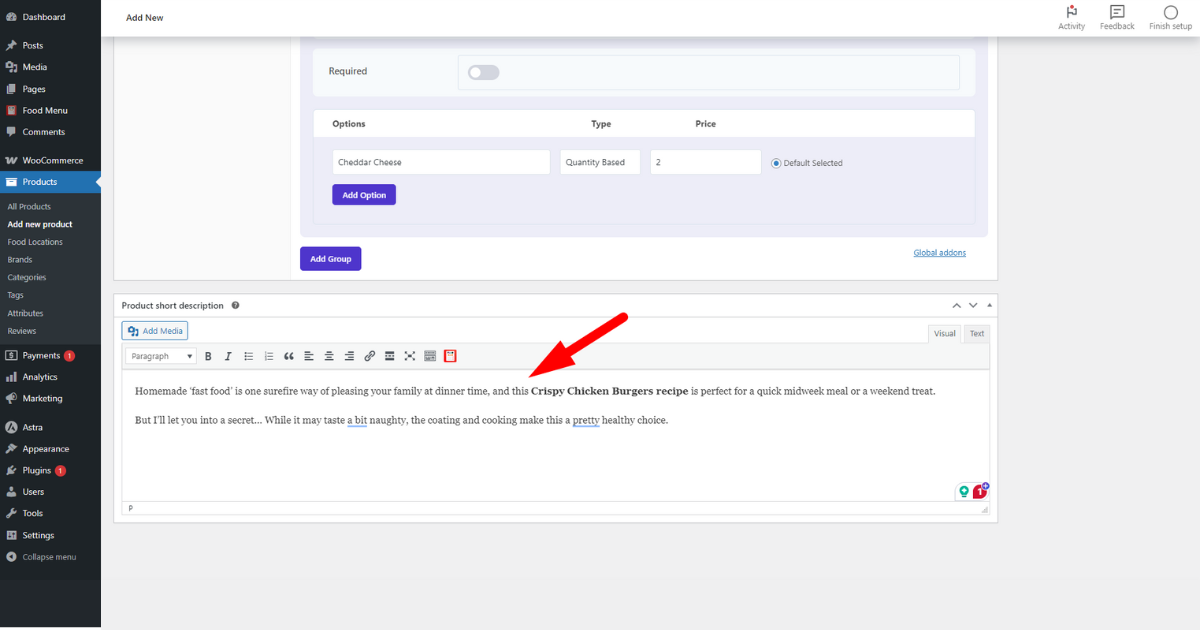
Scroll down and add a short description of the food item.
This post might help you to write food description: 15+ Product Description Generator
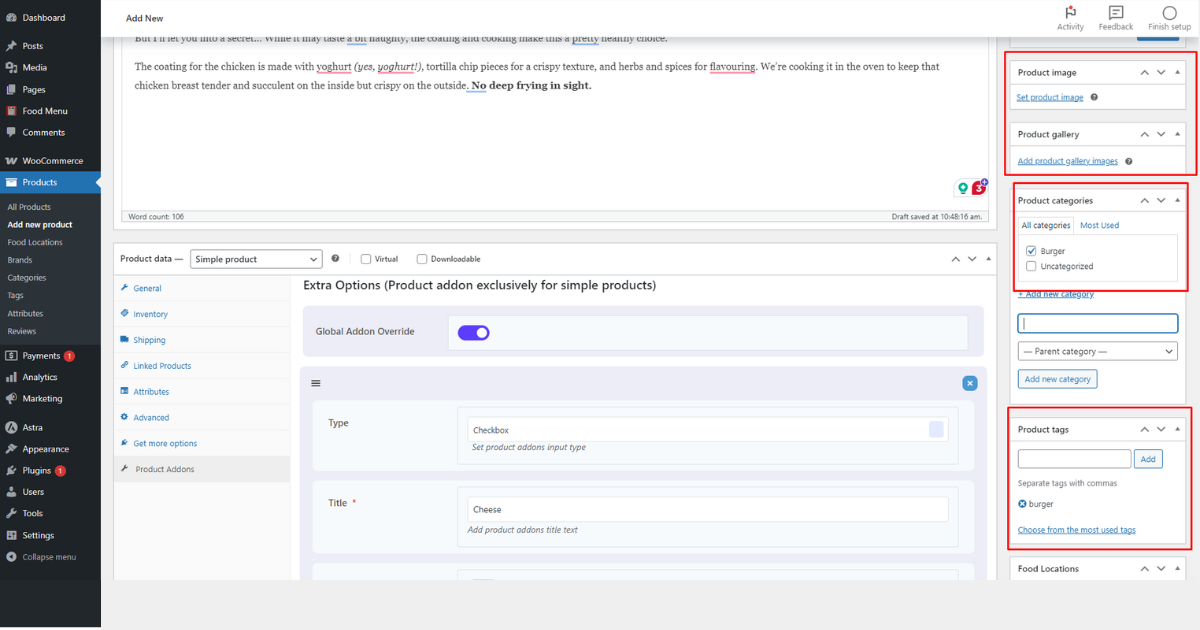
At this point, scroll up and add tags, categories, and images for your food item.
Finally, hit ‘Publish’ button.
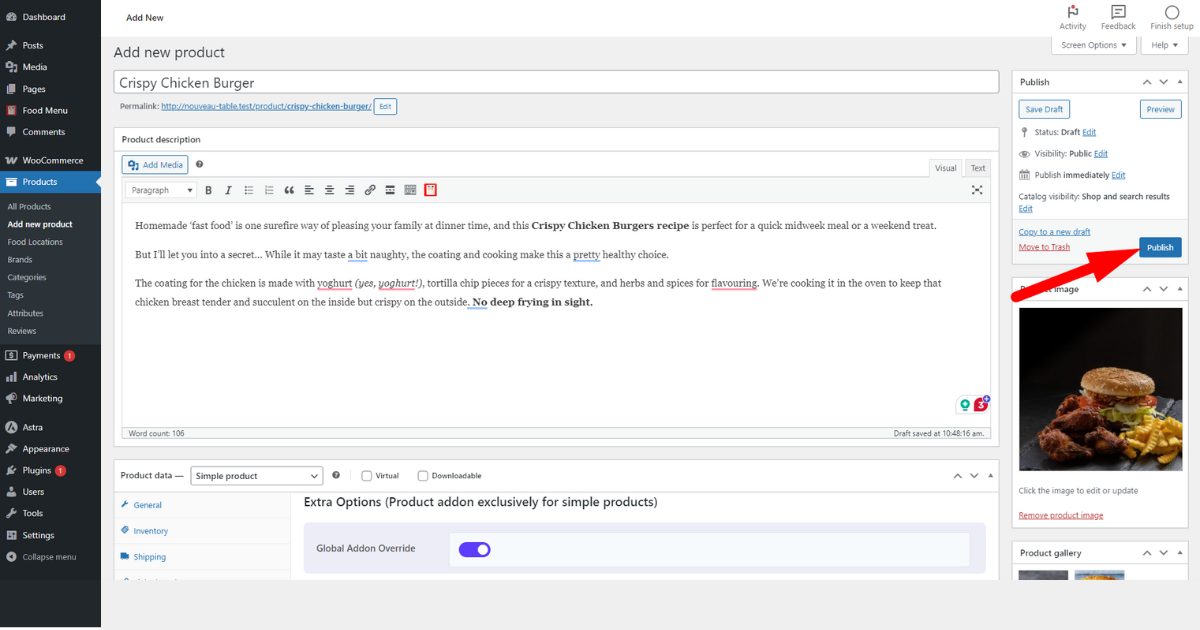
You’ve successfully uploaded one food item for ordering purposes.
Follow these exact steps to upload as many food items as you want. Lastly, visit your food menu page to check if everything works.
Watch the animation below to see how our one works.

So, that’s how you set up online ordering on your restaurant website. We’ll now discuss some marketing strategies to help you increase your online visibility and sales.
Restaurant Marketing Strategies That Work
The U.S. had approximately 749,404 restaurants in 2023, and the recent number is higher. Hence, competition is high, and you need to follow solid marketing strategies to stay in the game. That said, we recommend you stick to the methods shared below.
1. Ask for Reviews
Do you know reviews work magically when it comes to increasing sales? You need to ask for reviews from your customers to benefit from reviews. But how do you ask for reviews?
Here are some ways to do it:
- Occasionally ask for reviews on your social media posts
- Include a link on your website to help customers leave reviews hassle-free
- Ask for reviews in person when customers visit your restaurants and finish eating meals
Once a customer leaves a review about your restaurant, environment, behavior, or food menu, always reply to it. Stay polite and professional, and reply to all positive or negative reviews.
2. Regularly Send out Email Newsletters
Share customer stories, promote upcoming events, and announce new menu items and coupons through newsletters. You can send out an email newsletter to your customers monthly to stay on their minds while promoting your restaurant.
3. Utilize Your Meta Business Page
Aside from having a modern and conversion-friendly restaurant website, you must also have a Meta (formerly Facebook) business page for your restaurant. Regularly post your business-related topics on this page.
Share exciting events about your business. Engage with people who leave comments on your posts. Always try to ignite conversation and make those potential customers feel valued.
4. Loyalty Programs
A loyalty program is essential for a restaurant business as it ensures a better customer retention rate, encourages customers to do positive word-of-mouth marketing, and eventually increases revenue.
When you start a customer loyalty program, repeat customers start growing. It makes customers feel valued through rewards. So, make sure your restaurant has such a program.
5. SEO and Paid Ads
Utilize SEO and Paid Ads to increase your online visibility and revenue. You can learn these marketing strategies and start a blog to share helpful content related to your business to gain organic traffic.
Or hire professionals to perform on-page, off-page, technical, and local SEO for your restaurant. Also, don’t forget to run paid ads on Meta, YouTube, Google, Pinterest, and TikTok to boost conversions.
Bottom Line
These are all the easy steps regarding how to set up online ordering for my restaurant. You need to follow the correct procedure to have such a system on your restaurant website.
Remember that just creating a restaurant website and integrating an online ordering system won’t be enough to get your desired results – excellent revenue.
You need to implement the best practices in every stage of your business, from website creation to promotion. Only then you can expect to see a good outcome.