On This Page
Have you ever encountered a website that made you say WOW with its design and functionality? After stumbling upon such a website, you might have had the urge to learn the site’s underlying technologies.
You may have been curious to know how the site is made or what CMS (Content Management System) it uses.
Being a professional in the WordPress industry or a WordPress enthusiast, you may know how to check if a website is made on WordPress. But do you know all the effective methods?
If you don’t, we encourage you to read this article and test all the ways we’ve discussed in this article.
How to Check If a Website Is Made on WordPress Without Tools
We’ll begin this journey by exploring some practical methods that don’t require you to use any online tools or browser extensions to check if a site uses WordPress. Here we go.
1. Look at the Footer Area of a Website
The first method you can follow to determine if a website is made on WordPress is to check the site’s footer section.
Every website, especially the one built on WordPress, has WordPress credits in the footer. If you don’t know what a footer is, just scroll down to the end of each web page on a website.
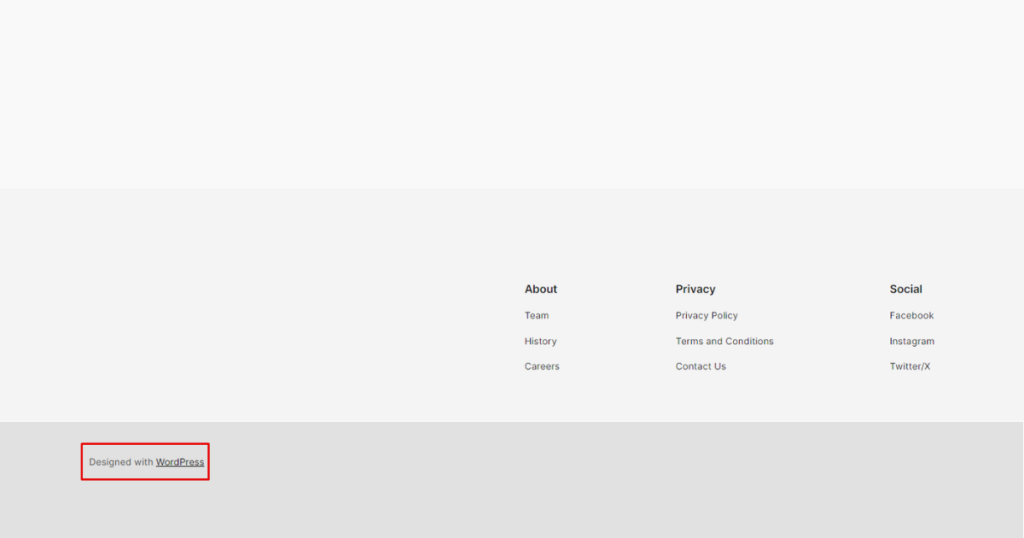
However, you won’t always find this credit in the footer of every website, even though they are made with WordPress. Why? Some website owners remove this default WordPress credit and insert their own credits in the footer section.
2. Add ‘/Wp-Admin’ or ‘/Admin’ at the End of the Homepage URL
The 2nd easy method to follow to figure out if WordPress is powering up a site or not is to include “/wp-admin” or “/admin” to the site’s homepage URL.
Once you insert one of these paths at the end of your chosen website’s homepage URL, it’ll look like this: https://yourdomain.com/admin. After adding a path and hitting enter, you’ll notice a screen like the screenshot below.

Once you see this screen in the screenshot above, you know that the website is built on WordPress. However, we recommend changing the admin login URL to secure your site and protect it from hackers.
3. Check the Image File Path
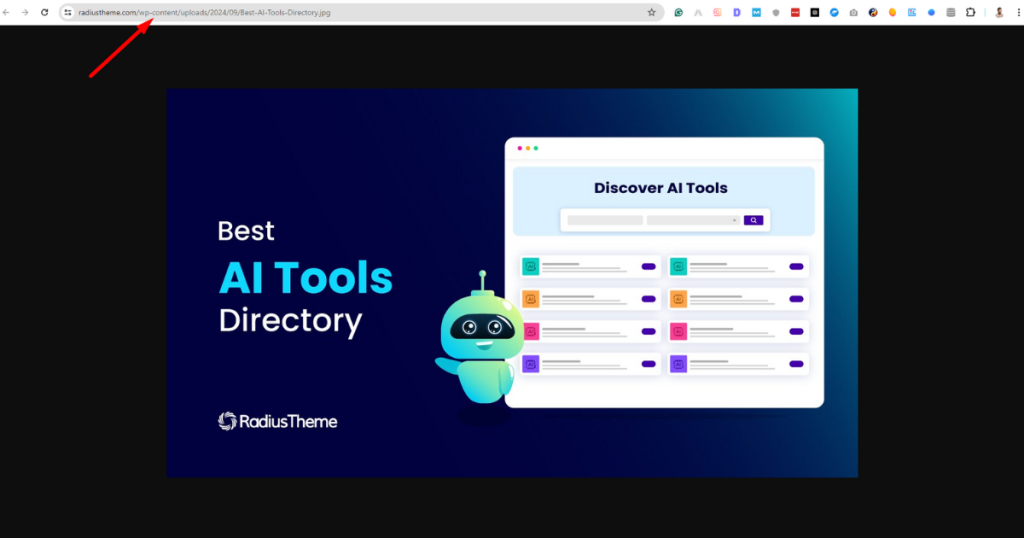
You can identify whether a site has been developed with WordPress by checking the site’s image file path. For your information, WordPress saves uploaded images and media files in the “wp-content” folder.
Therefore, when you visit a website, hover the mouse pointer over an image, right-click on that image, and choose “Open image in a new tab.”

Now, inspect the image’s URL to see if it contains “/wp-content/.” If it does, it strongly indicates that WordPress powers the website.
4. Examine the Source Code of a Web Page
This is a slightly advanced method. But don’t worry, as it gets easy when you follow the steps we are about to discuss.
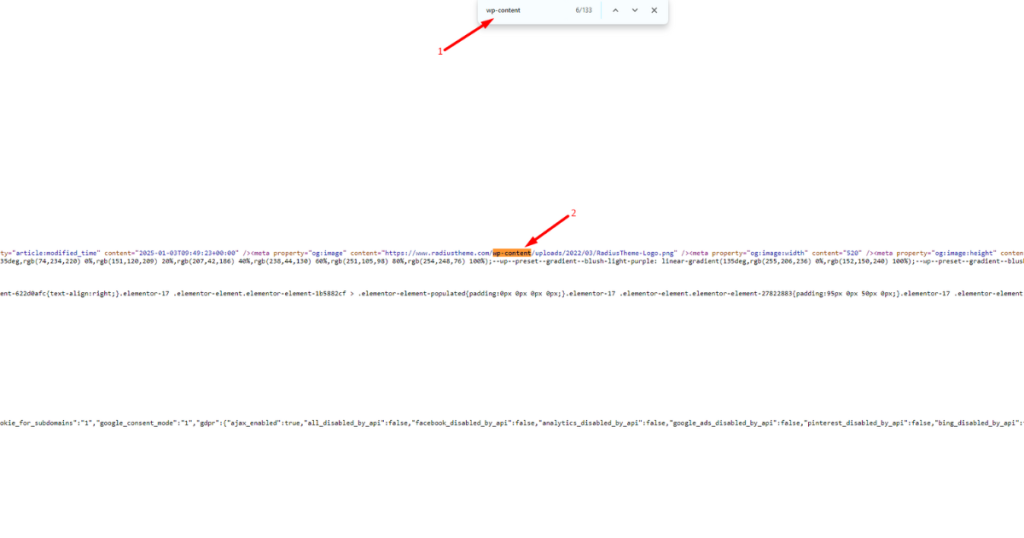
Visit your targeted website, place the mouse cursor somewhere, and simply right-click on the page to choose the “View page source” option.

You’ll then visit a new tab and see the HTML code. Hit “CMD + F” (for Mac users) or “CTRL + F” (for Windows users) and type “wp-content.”
If you find paths such as “wp-content/uploads” or “wp-content/themes,” the website is run on WordPress.
5. Add “/license.txt” at the End of the Homepage URL
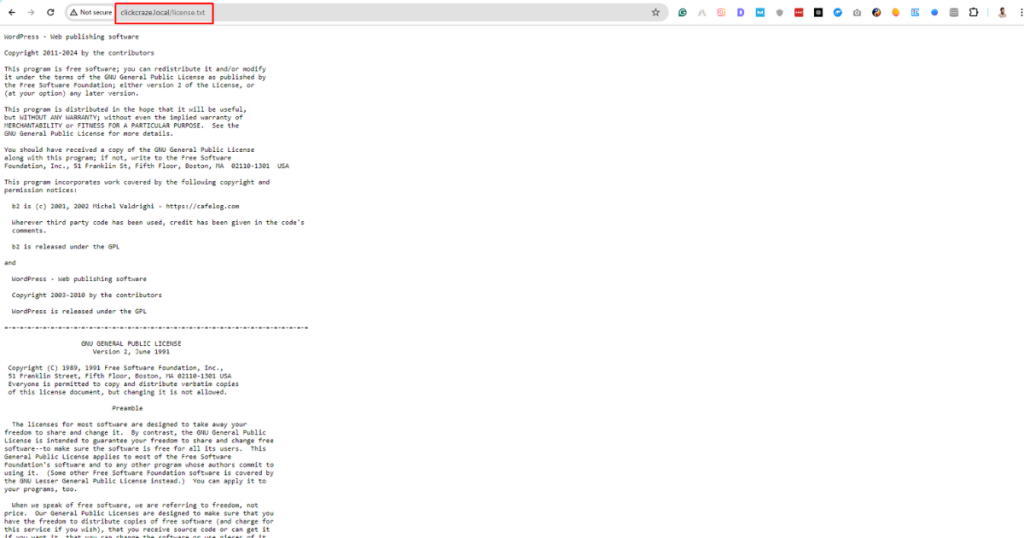
Remember how we added “WP-Admin” at the end of a homepage URL? In the same way, include “/license.txt” at the end of your targeted site’s homepage URL.
Afterward, hit the enter key. If you notice a page displaying WordPress’s terms and conditions, the website is made on WordPress.
6. Put “/readme.html” at the End of the Homepage URL
This is another method you can use to determine whether a website is built on WordPress or not. Just include “/readme.html” at the end of your targeted website’s homepage URL and hit enter. Afterward, you’ll visit a page like the screenshot below.
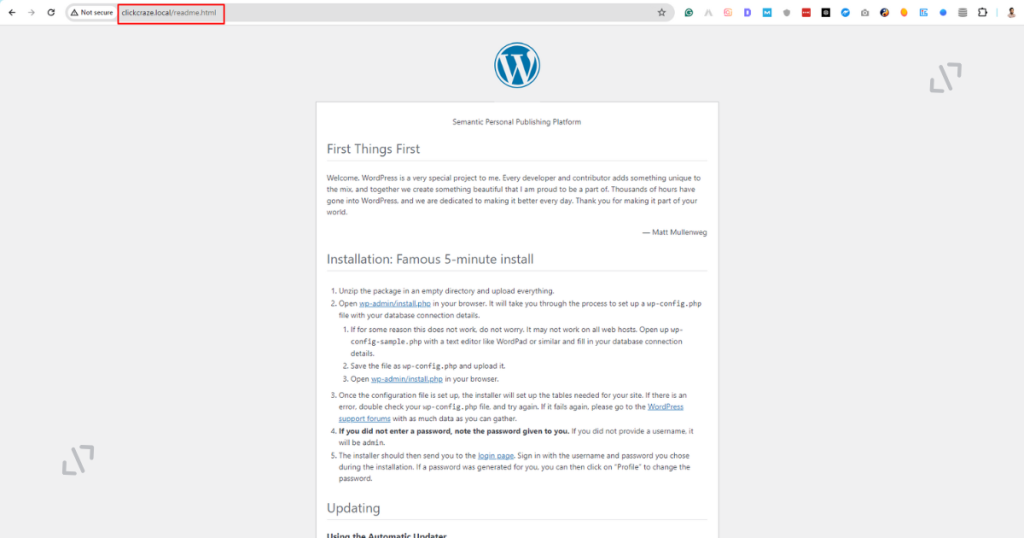
Your targeted website is made on WordPress if you see this page, as shown in the screenshot above. If you don’t see this page and notice a 403 Forbidden error screen instead, know that some website owners block users from accessing this page.
How to Check If a Website Is Made on WordPress with Tools
We’ve seen all the methods for checking if a website is made on WordPress without tools. Let’s now explore other methods requiring you to use a few online tools and browser extensions to instantly find out if WordPress powers up a site.
I. BuiltWith
BuiltWith is the first online tool we recommend for checking whether a site is made with WordPress. It’s a free website profiler that provides information about the technologies used to develop and operate websites.
Here’s how to use it. Go to BuiltWith, type your chosen website URL in the search field, and hit the ‘Lookup’ button.
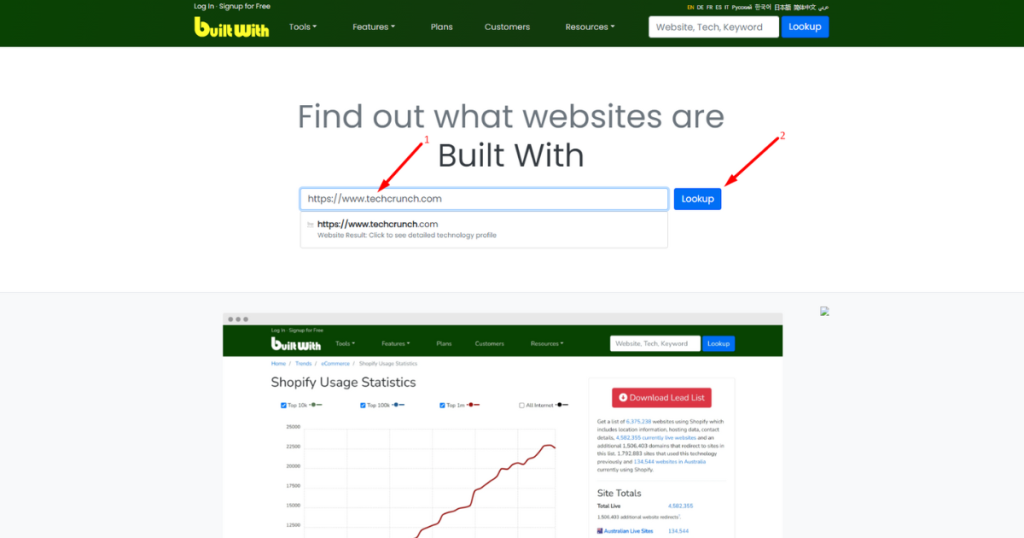
You’ll now see the “Technology Profile” of your preferred site. Scroll down to seek the “Content Management System.” You’ll then notice what CMS this website uses.
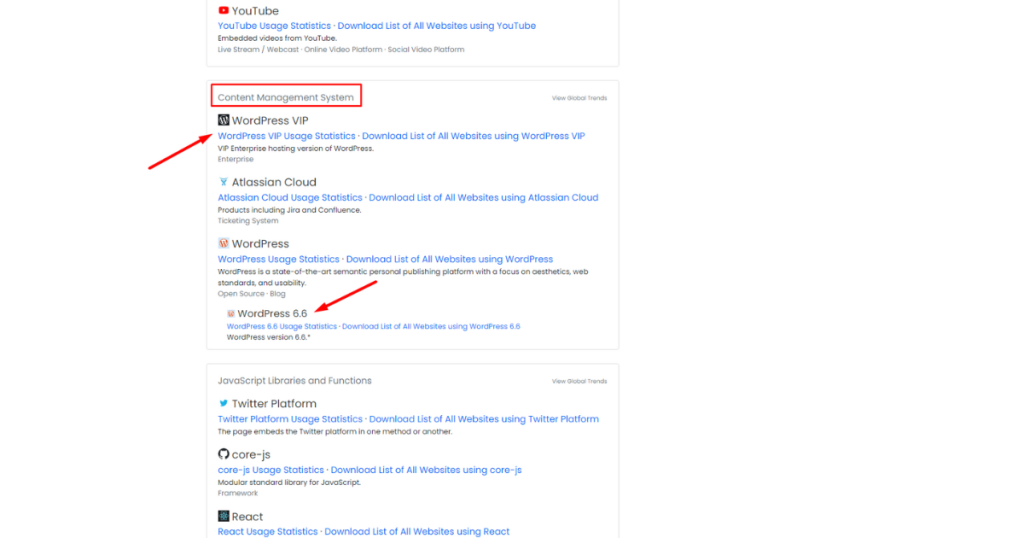
Alongside this, you can also view all the technologies this site utilizes.
II. IsItWP
IsItWP is another great tool that can help you figure out if a website is made on WordPress. It’s also free to use. Hence, head to the website, place your preferred URL in the search field and click the “ANALYZE WEBSITE” button.
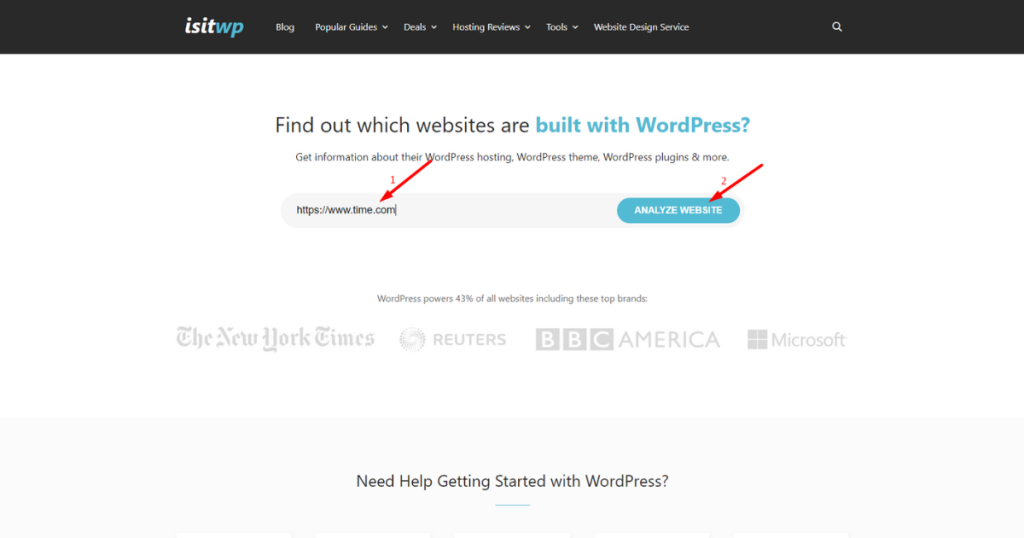
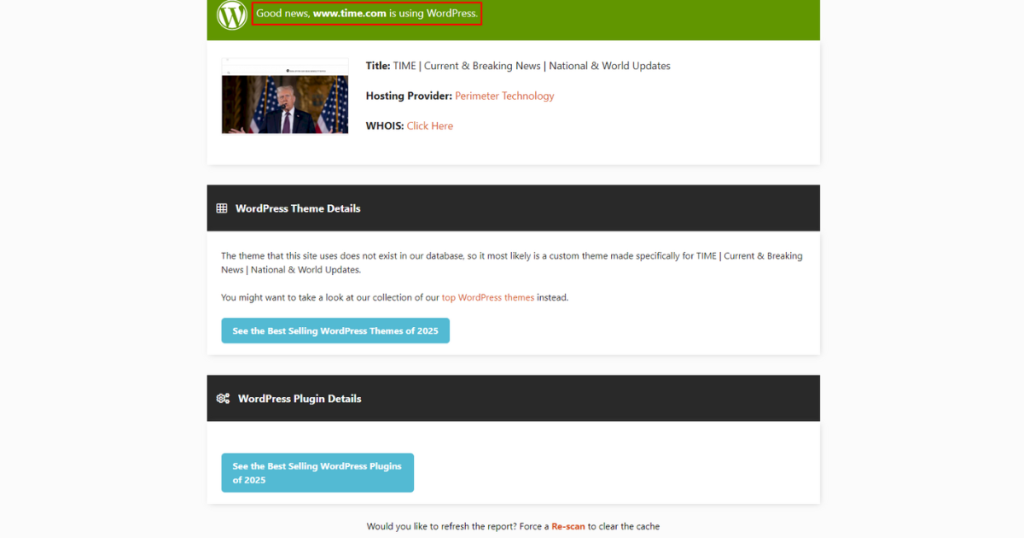
Wait a while; this tool will provide a direct answer in a sentence.
III. What CMS
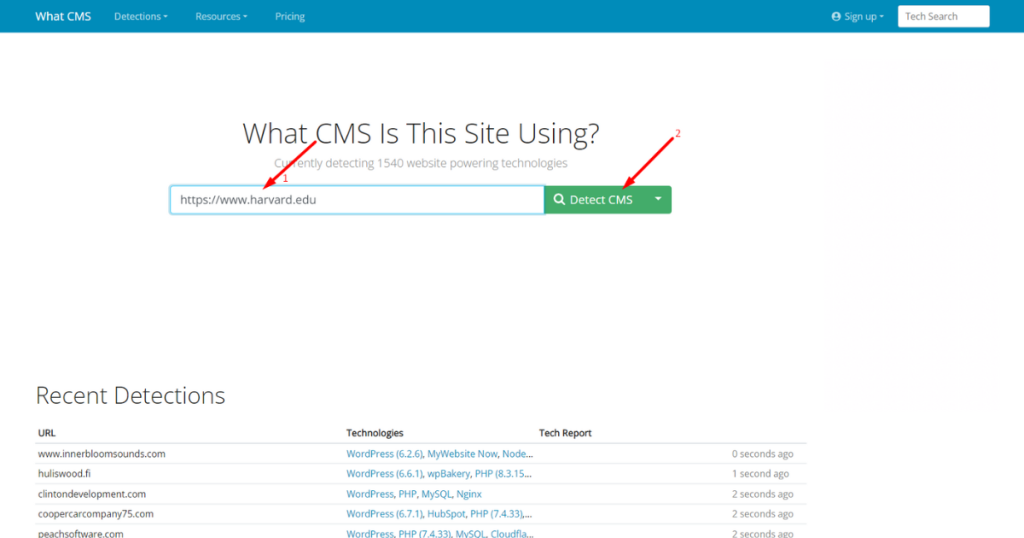
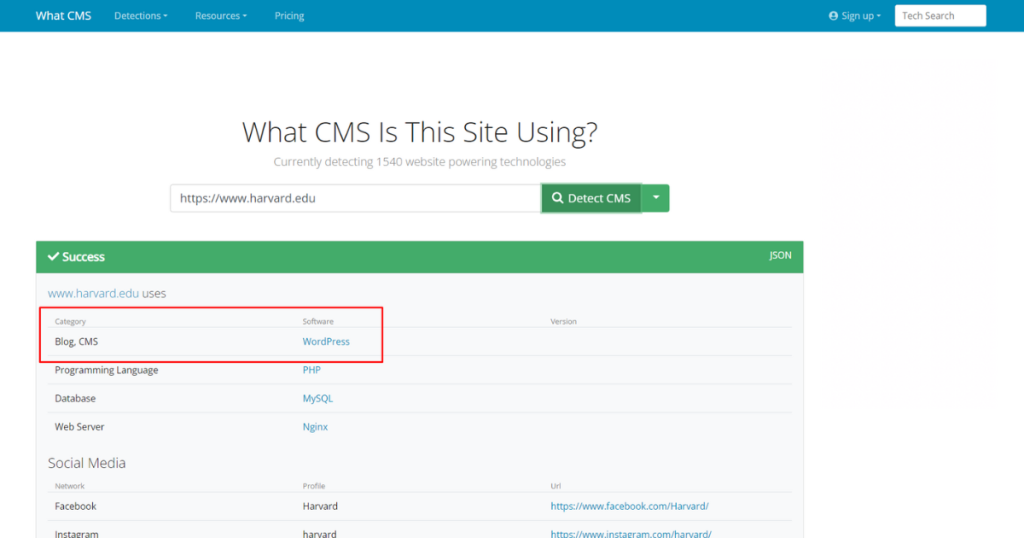
This online tool lets you know which CMS a site is made upon. All you need to do is type in your targeted site’s URL in the search field and hit the “ Detect CMS” button.
If the site is developed with WordPress, the result will appear as shown in the screenshot below.
IV. CMS Detect
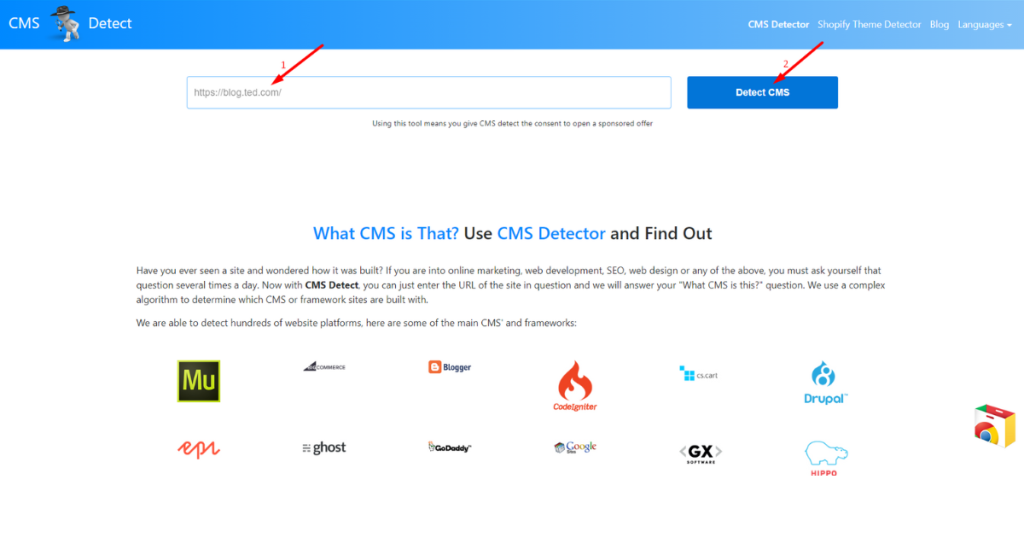
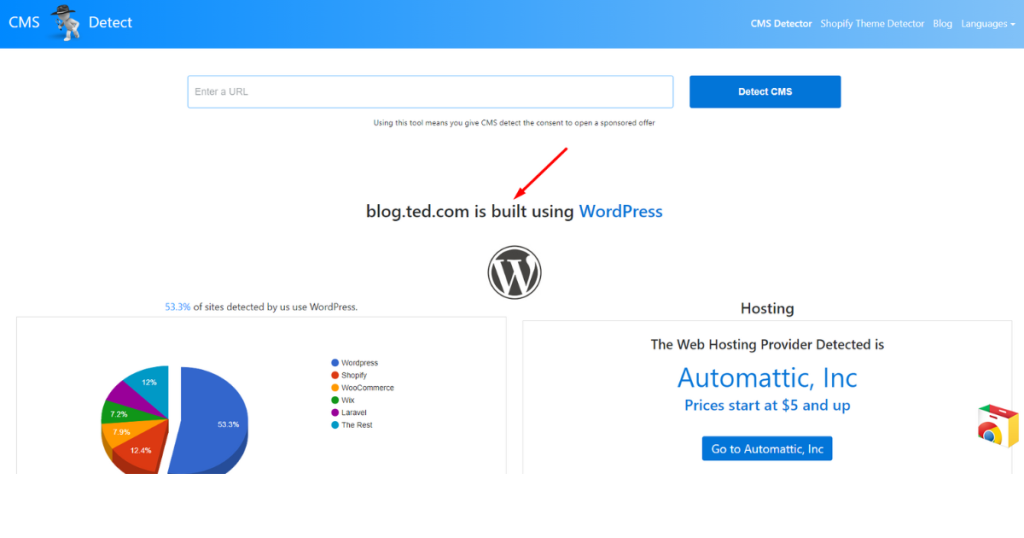
CMS Detect is similar to What CMS. You just need to input your desired site’s URL in the search field and click the “ Detect CMS” button.
It will then show you a text describing what CMS your preferred site is made upon.
V. Utilize Browser Extensions
Okay, we’ve learned to check if a website is made on WordPress with tools. Now, let’s learn how to detect a website’s CMS using some browser extensions.
1. Library Sniffer (Chrome)
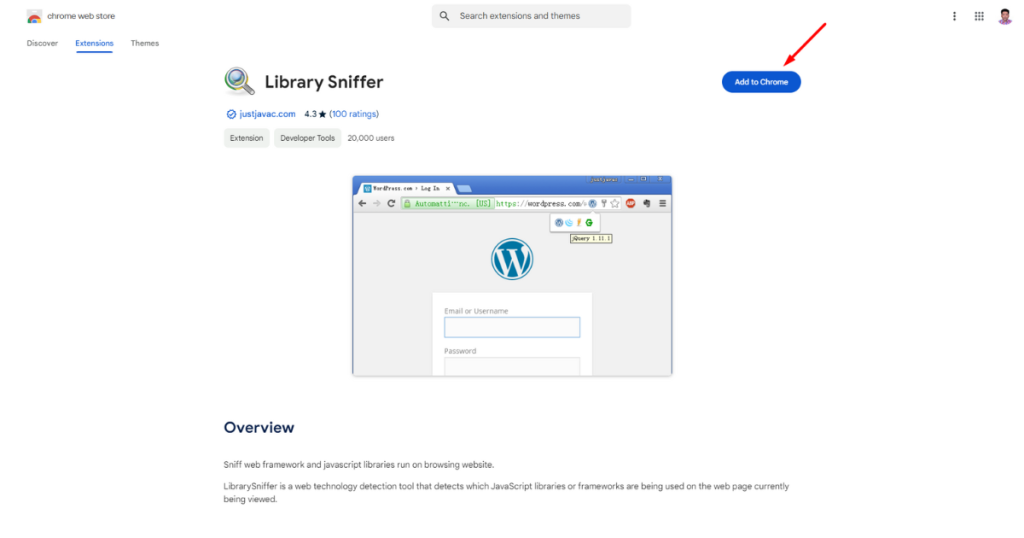
Regarding the browser extension, our first pick is the Library Sniffer. You can use this extension on Google Chrome (FYI, only available on Google Chrome).
Once you add it to your Chrome browser, visit your chosen website and click the extension icon to see your preferred website’s technologies.

2. BuiltWith Technology Profiler (Chrome and Firefox)
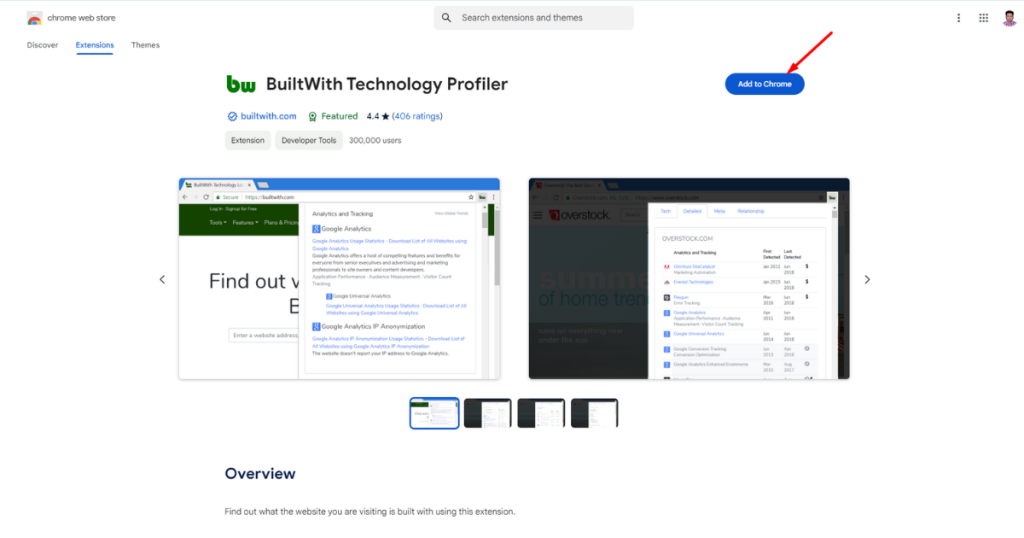
We’ve already shown you how to use the BuiltWith web version. Now, we’ll discuss its extension and add-on for Chrome and Firefox. However, we’ll skip the installation process.
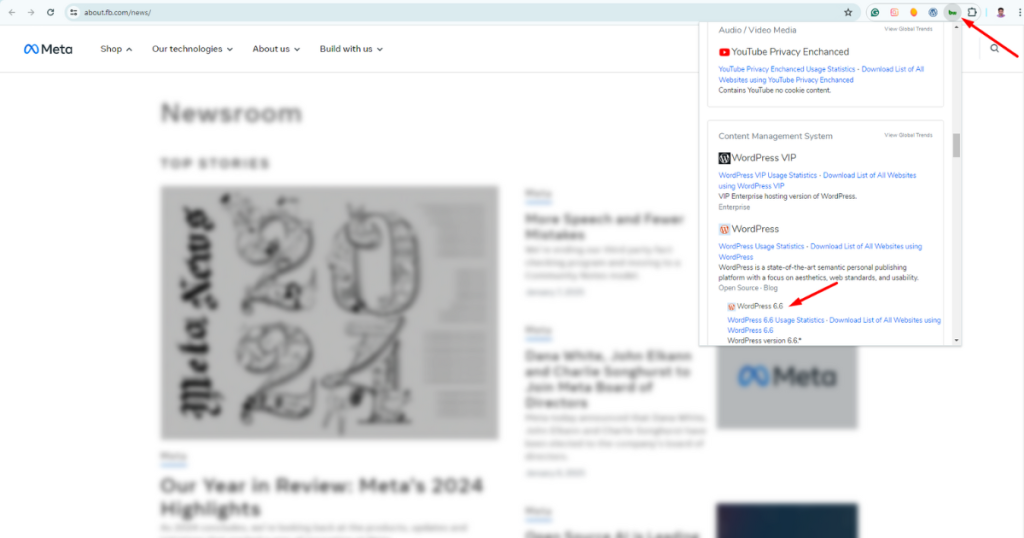
Once you add this extension/add-on to your favorite browser (Chrome or Firefox), visit a website, click on the extension/add-on’s icon, and scroll down to the Content Management System section to see which CMS powers up the website.
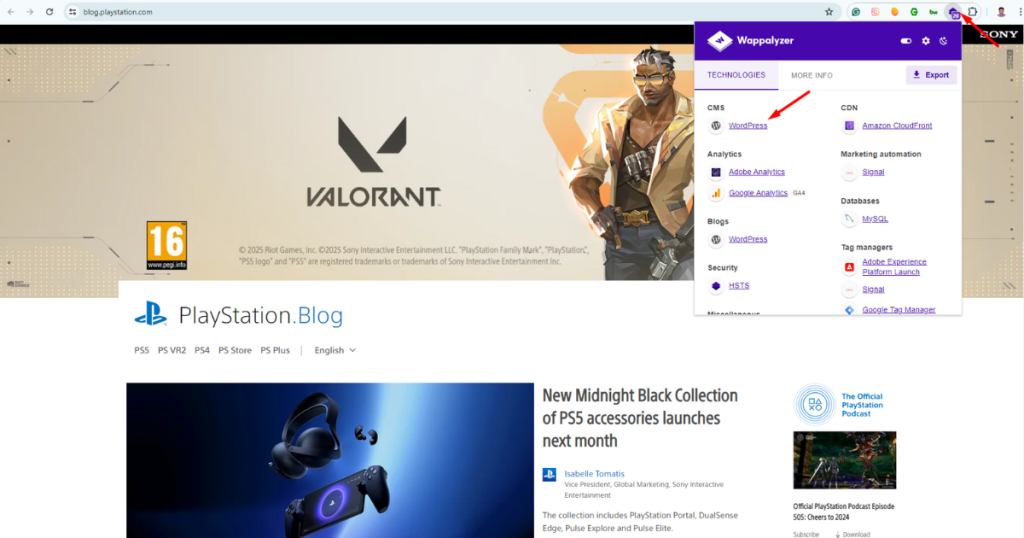
3. Wappalyzer – Technology Profiler (Chrome and Firefox)
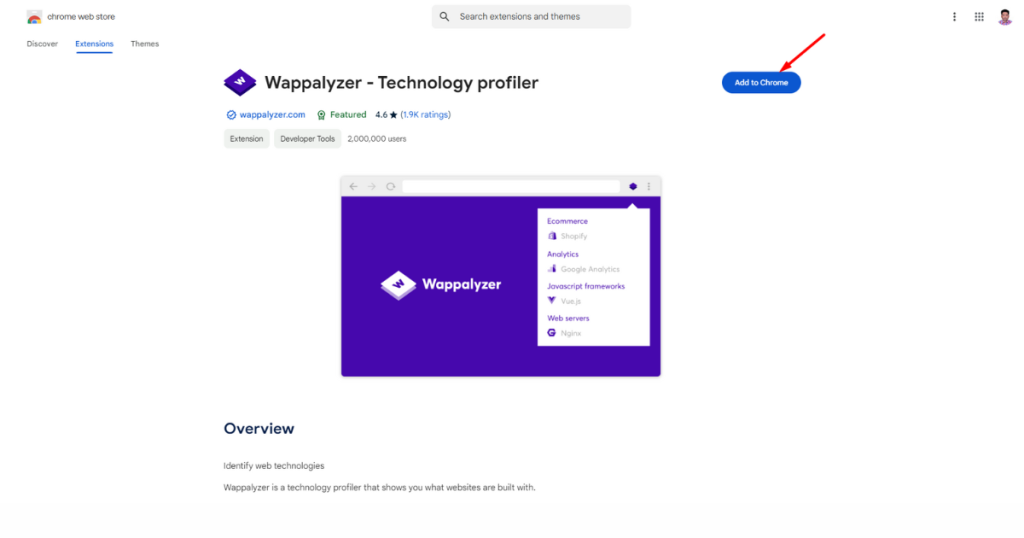
Our last recommendation for this article is Wappalyzer, a browser extension/add-on for Chrome and Firefox.
Once you add it to your selected browser, visit your preferred website and hit the extension/add-on icon. It will display the site’s CMS and other technologies in use.
Bottom Line
In this article, we’ve shown you how to check if a website is made on WordPress. We have shared several methods in this post and listed them after testing them all.
Therefore, you can follow one or all these without hesitation to figure out your chosen site’s CMS. We wish you Good luck on your journey of analyzing websites.
You might be interested to read another intersecting post about How to See Old Versions of Websites