
On This Page
Your best buyer is already on your product page. They trusted you enough to click. That is the cheapest sale you will ever make, and most Shopify stores waste it.
Adding upsell products in Shopify is the fastest way to raise average order value without spending more on ads. This guide shows the Shopify default upsell method first, then a faster way to sell upsell products using a bundle app.
You will learn where to place offers, what to avoid, and how to know if your Shopify upsell is actually working.
What Is an Upsell?
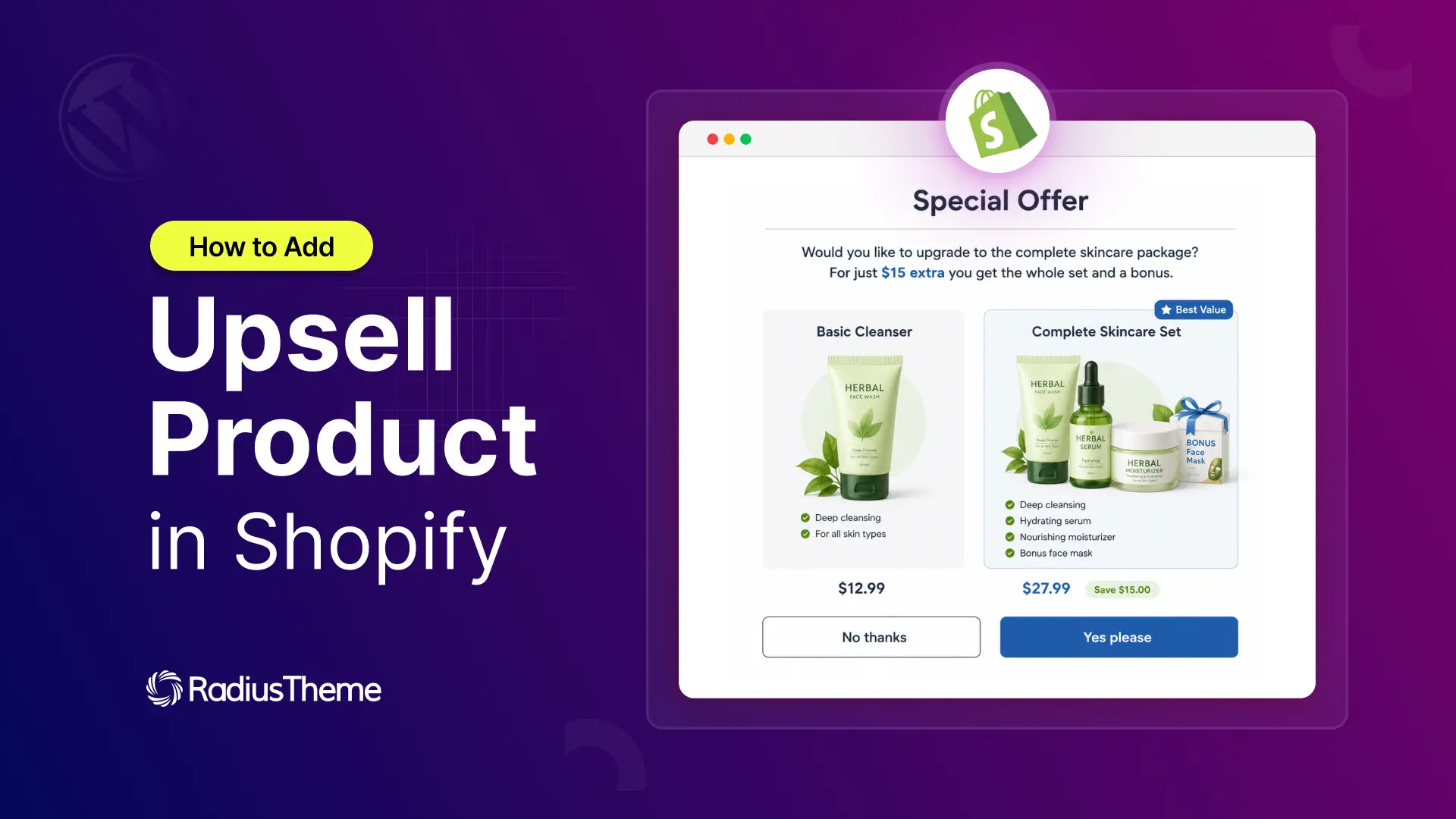
An upsell is an offer that gets a shopper to spend more on an order they were already going to place. You show them a bigger size, a better version, an extra item, or a deal that gives them more value for a little more money.
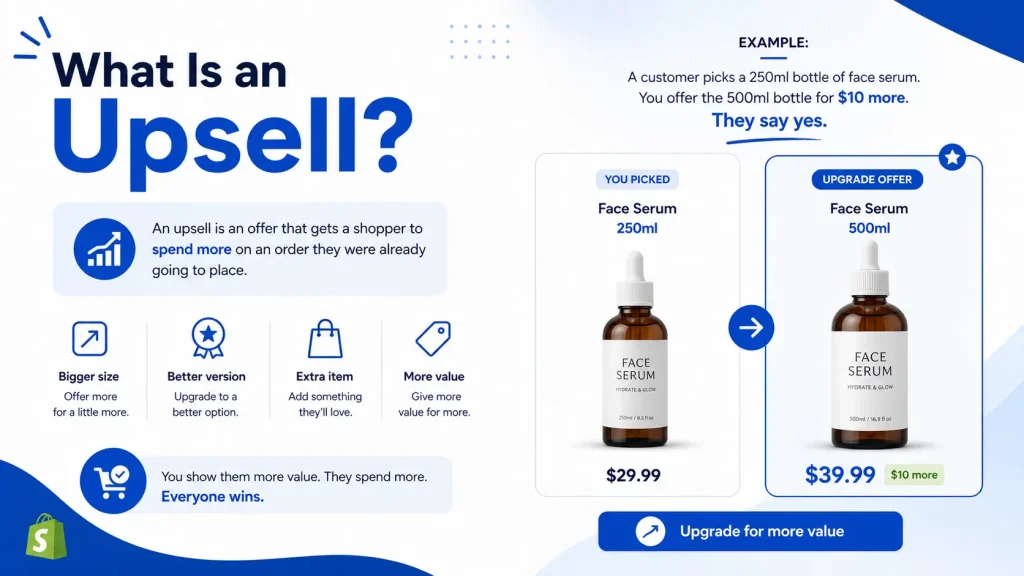
It is not a new sale. It is the same sale, made larger.
Say a customer picks a 250ml bottle of face serum. You offer the 500ml bottle for $10 more. They say yes. You just earned $10 with no extra ad spend, no new visitor, and no extra shipping label.
That is why upselling works so well in Shopify stores. Getting a stranger to buy is hard. Getting a buyer to add one more thing is easy.
Three things make an upsell convert:
- Relevance. It has to make sense with what they are already buying.
- Timing. Show it while they are deciding, not after they leave.
- A small ask. The upsell should feel like a bonus, not a second decision.
Good upsells help the shopper. A camera buyer needs a memory card. Reminding them is a service, not a sales trick. That is the mindset that keeps your store trusted and your average order value climbing.
Upsell vs Cross-Sell: Know the Difference First
Many merchants mix these up, then wonder why their offer flops.
| Term | What it means | Example |
| Upsell | A better or bigger version of the same product | 250ml serum to 500ml serum |
| Cross-sell | A different product that pairs with it | Camera to memory card |
Shoppers do not care about the label. They care about value. So this guide covers all four, because in real stores they overlap.
Where Upsell Products Should Appear in Shopify
Placement matters as much as the offer. There are four spots.
| Placement | Shopper mindset | Best offer type |
| Product page | Still deciding | Add-ons, “pairs well with”, bundles |
| Cart or cart drawer | Ready to pay | Volume discount, free shipping nudge |
| Checkout | Committed | Small, cheap add-on only |
| Thank you page | Already paid, guard is down | One-click upgrade or refill |
Most stores only use one. Stores that grow AOV use at least two.
Method 1: The Shopify Default Upsell Method (Free, No App Fee)
Shopify has a built-in way to do this. It costs nothing and takes ten minutes.
Step 1. Install the free Shopify Search & Discovery app. Open Recommendations, click Add recommendation, pick a main product, then choose the products to show with it.
Step 2. Go to Online Store > Themes > Customize. Open the Products template. In the Product information section, click Add block and pick Complementary products. Place it near the Add to Cart button and save.
Step 3 (optional). Use the free Shopify Bundles app to sell a fixed kit or mix-and-match set as one product.
Two things to watch. The upsell product must be Active, in stock, and priced above $0, or Shopify hides it. And the Complementary products block only exists in Dawn and other Shopify 2.0 themes.
What the Default Method Cannot Do
- No BOGO or Buy X Get Y offers
- No volume or quantity discounts
- No automatic discount on the upsell item
- No scheduling for sales and holidays
- No analytics showing revenue per offer
It suggests. It does not sell. The shopper still has to click away and add the item themselves. Every extra click loses buyers.
If suggestions are enough, stop here. If you want offers that convert, keep reading.
Method 2: Add Upsell Products with Radius Bundles (Faster, Deal-Based)
Radius Bundles is a Shopify bundle app that turns product suggestions into real deals. Instead of just showing a related item, you show a reason to add it right now.
You do not need code. You do not need a developer. You build the offer in a short wizard and publish.
The Bundle Types You Can Sell
| Bundle type | Use it when |
| BOGO | You want a classic buy one, get one free or half price deal |
| Buy X Get Y | You want full control of both quantities, like buy 2 get 1 |
| Volume discount | You sell consumables people buy in multiples |
| Fixed bundle | You want a set kit sold at one price |
How a BOGO Upsell Works in Radius Bundles
Five steps. You do not need every screenshot to follow it.
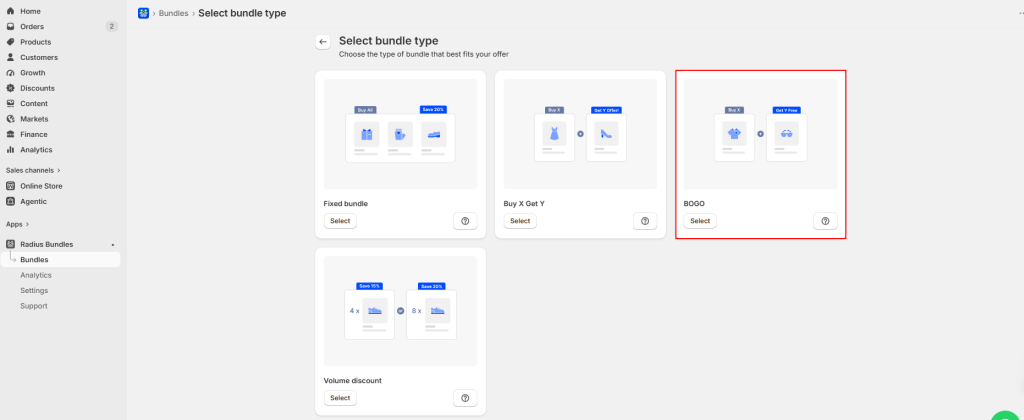
1. Select the bundle type. Go to Bundles > Create bundle and choose BOGO. Give it an internal name so you can find it later. Shoppers never see this name.
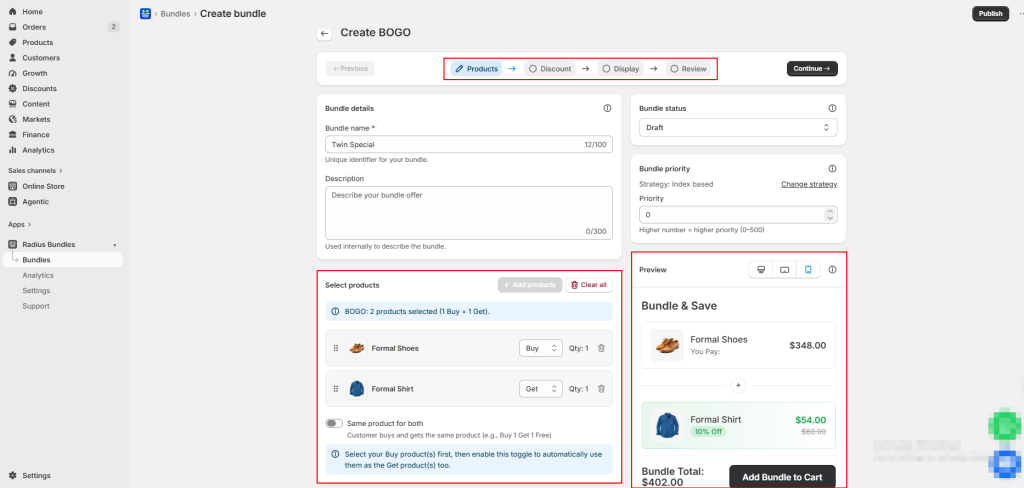
2. Add your products. Add the Buy product, the item they pay full price for. Then add the Get product, the item they receive at a discount. It can be a different product, like socks with shoes, or the same product for a classic buy one get one deal.
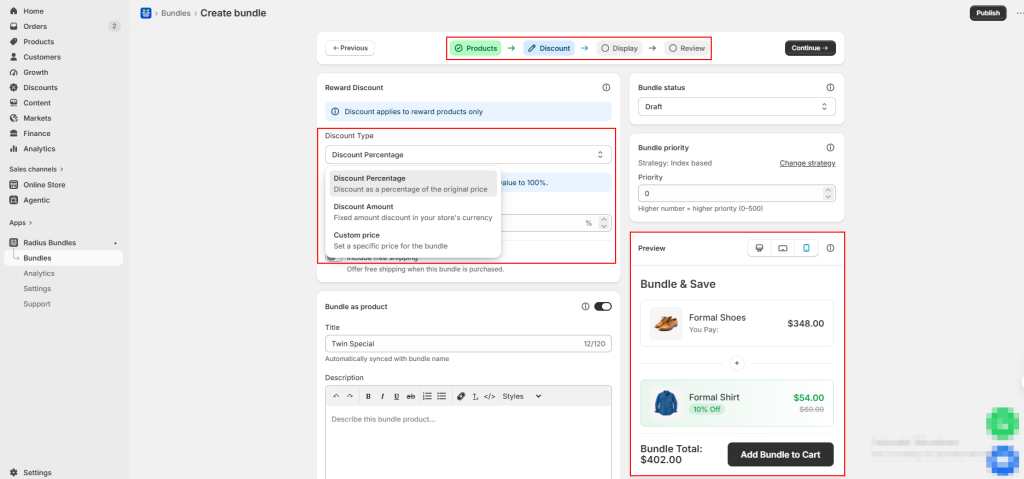
3. Choose the discount. Set how much the Get item drops by. 100% makes it free. 50% makes it half price. You can also take a fixed amount off. Pick the number that still protects your margin.
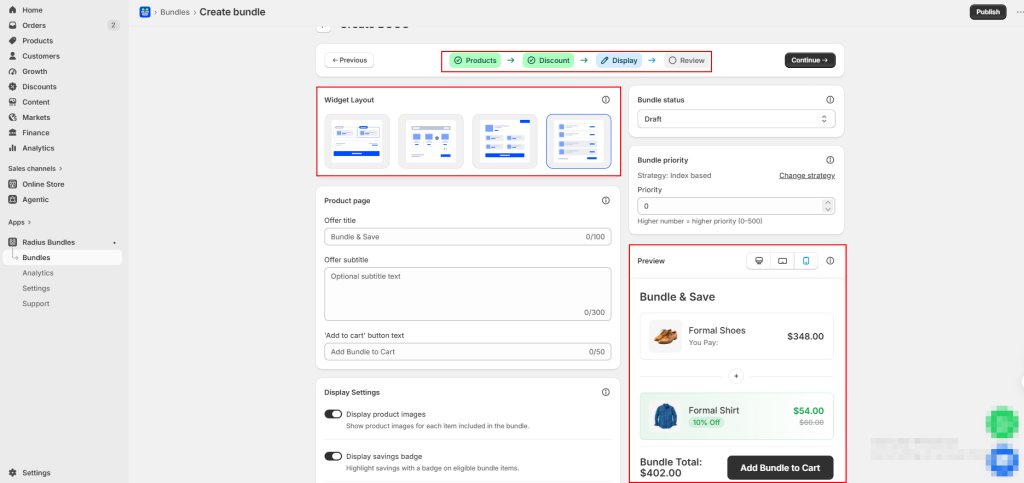
4. Select a layout. Choose a widget style and match it to your theme colors and fonts, so the offer looks native to your store instead of bolted on.
5. Review and publish. Check the preview. Confirm which product is the Buy and which is the Get, because reversing them is the most common setup mistake. Then publish.
The widget now shows on your Buy product’s page with both items, the original price, and the new total. At checkout, the discount only applies when both products are in the cart, so nobody can grab the free item on its own.
The Buy X Get Y Version
BOGO locks the buy quantity at 1. Buy X Get Y lets you set both sides.
Buy 2, get 1 free. Buy a camera, get a memory card at 30% off. Buy 3 skincare items, get a travel bag half price.
You can even have multiple buy products and multiple get products. Buy a tent and a sleeping bag, get a headlamp free.
The app counts complete deals in the cart. If the deal is “buy 2” and the shopper adds 4, the discount applies twice. Partial deals get nothing.
One Feature Worth Knowing: Bundle as Product
Radius Bundles has a Bundle as Product toggle. It creates a real Shopify product for the bundle.
That means your bundle shows up in collections. In store search. In connected sales channels like Google and Meta.
This is a big deal and almost nobody talks about it. A normal upsell widget only works if someone lands on that one product page. A bundle product can be found, browsed, linked, and advertised on its own.
Upsell Offers That Actually Convert (By Store Type)
Stop guessing. Copy these patterns.
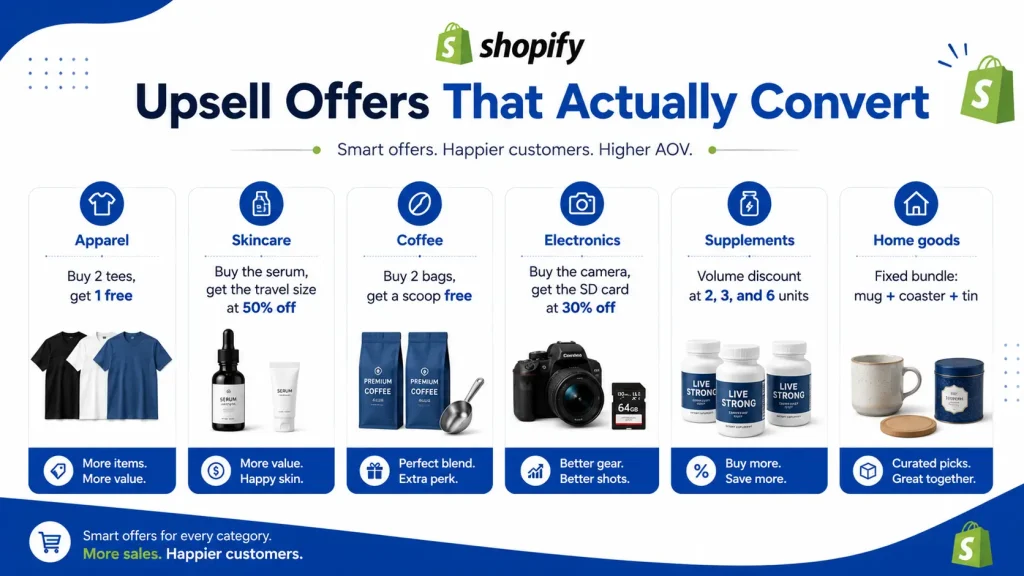
| Store type | Offer that works |
| Apparel | Buy 2 tees, get 1 free |
| Skincare | Buy the serum, get the travel size at 50% off |
| Coffee | Buy 2 bags, get a scoop free |
| Electronics | Buy the camera, get the SD card at 30% off |
| Supplements | Volume discount at 2, 3, and 6 units |
| Home goods | Fixed bundle: mug + coaster + tin |
The rule: the upsell should cost less than half of the main product. Big upsells feel like a second decision. Small ones feel like a bonus.
Mistakes That Kill Shopify Upsells
These come up again and again in merchant forums and Shopify community threads.
1. Offering something random. A phone case with a phone works. A candle with a phone does not. Relevance beats discount every time.
2. Too many offers. Three upsells on one page is noise. One clear offer converts better.
3. Interrupting the buy. A popup that blocks Add to Cart can cost you the whole order. Inline widgets beat popups.
4. Discounting your bestseller. Give away slow stock as the free item. Do not cut margin on the thing that already sells.
5. Slow widgets. Every upsell app adds weight to your page. Check your speed after installing. If your product page slows down, your conversion rate drops and the upsell was not worth it.
6. Forgetting mobile. Most Shopify traffic is mobile. If your bundle widget looks cramped on a phone, it will not sell. Preview it on a phone before you publish.
7. Setting roles wrong. In BOGO deals, if both products are set as Buy, the discount will never fire. Check the review screen before publishing.
8. Never testing. Run one offer for two weeks. Check the numbers. Change one thing. Repeat.
Frequently Asked Questions (FAQ)
Can I add upsell products in Shopify for free?
Yes. The Shopify Search & Discovery app and the Shopify Bundles app are both free. They handle suggestions and simple bundles. They do not handle BOGO or quantity discounts.
Why are my complementary products not showing?
Three usual reasons. The product is out of stock. The product is not Active. Or your theme does not support the Complementary products block. Check all three in that order.
What is the best place to put an upsell?
The product page and the thank you page. Product page grows the cart before payment. Thank you page adds revenue with zero risk of abandonment.
Will an upsell app slow down my store?
It can. Install one app, not four. Check your page speed after setup and remove anything you are not using.
Next Step
You now know how to add upsell products in Shopify two ways. Start with the free Shopify default method and turn on complementary products today. It takes ten minutes.
Then pick one real offer. One BOGO. One buy 2 get 1. Build it, publish it, and watch your AOV for two weeks.
If you want BOGO deals, Buy X Get Y offers, volume discounts, and bundle analytics without touching code, Radius Bundles sets it up in a few clicks. Your traffic is already paid for. The only question is how much each visitor is worth when they leave.