
On This Page
Key Takeaways:
- Online booking reduces no-shows by up to 30% for salons and barbershops.
- WordPress + Radius Booking plugin is a free, powerful setup for small shops.
- You need: a domain, hosting, WordPress, and the Radius Booking plugin.
- Always add services, staff, and working hours before going live.
- Send automated confirmations and reminders to keep clients on track.
- Mobile-friendly booking pages drive more conversions from phone users.
- An online booking system works 24/7 so you never miss a client.
A staggering 94% of clients say they would switch to a new salon if it offered online booking. Over 77% of barbershop appointments are already booked online.
Yet many salons still run on paper diaries and missed calls. Every unanswered phone ring is a lost client.
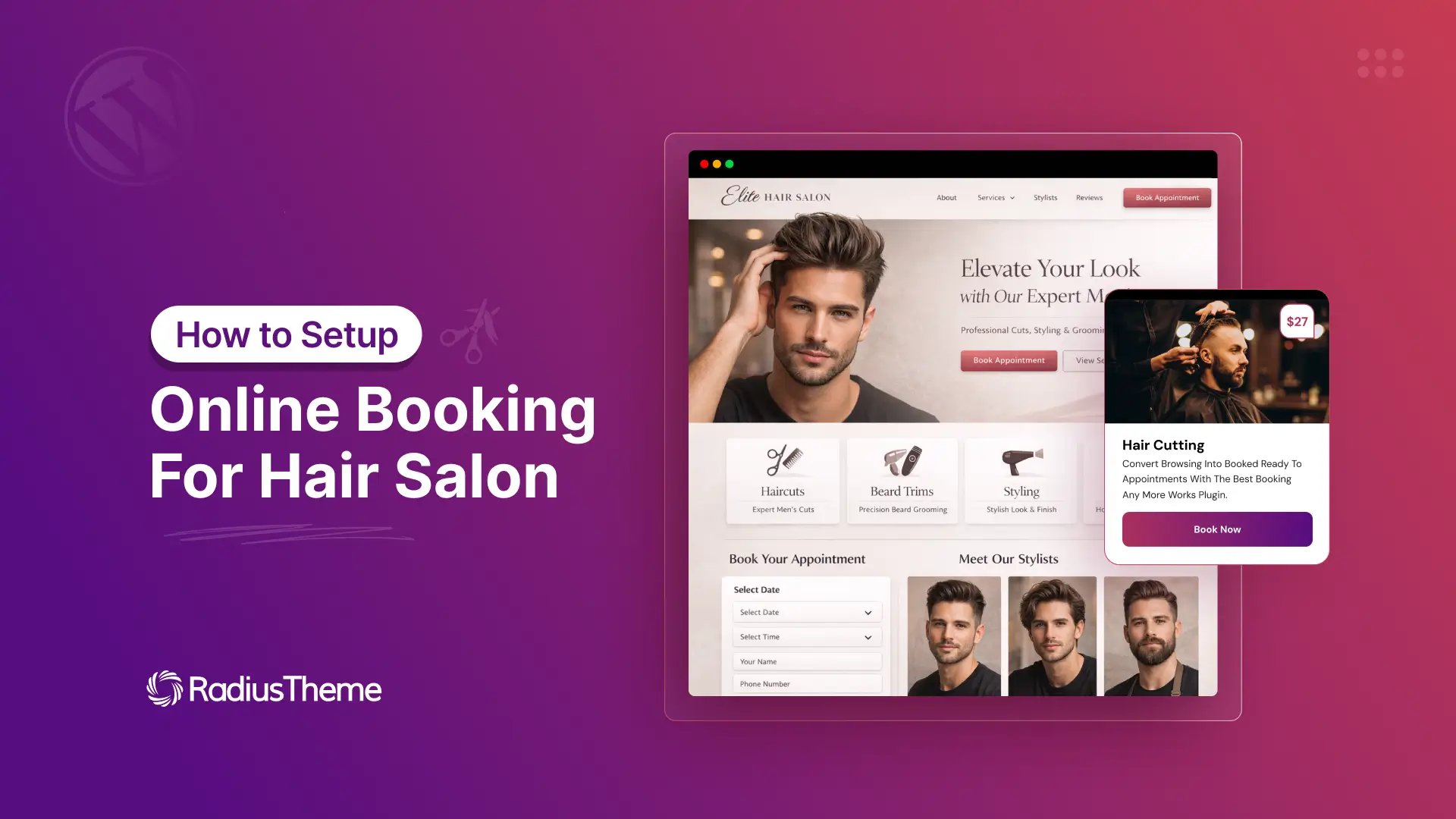
This guide shows you exactly how to set up online booking for your hair salon or barbershop using the free Radius Booking plugin for WordPress.
It is beginner-friendly, costs nothing, and takes less than an hour to set up. By the end, your booking form will work 24/7 so you wake up to confirmed appointments.
Why Your Salon Needs an Online Booking System
Most salons still take bookings by phone. That works, but only during business hours. And only if someone is free to answer.
An online booking system changes that completely. Here is why it matters:
- Clients can book 24 hours a day, 7 days a week.
- You reduce missed calls and missed revenue.
- Automated reminders cut no-shows by up to 30%.
- Staff scheduling becomes much easier.
- You look more professional and trustworthy.
- No more double bookings or scheduling conflicts.
- Your time is freed up to focus on actual clients.
A good barbershop booking system also collects client details. You build a database over time. This will help you with marketing, follow-ups, and loyalty programs.
Online booking saves you time and makes you more money. It is not optional anymore. It is expected.
What You Need Before You Start
Before you install anything, check that you have these four things ready:
| Requirement | Details |
|---|---|
| Domain Name | Something like yoursalonname.com. Easy to remember and professional. |
| Web Hosting | A hosting plan that supports WordPress. SiteGround, Hostinger, and Bluehost are good options. |
| WordPress Installed | Most hosts offer one-click WordPress setup. It takes about 2 minutes. |
| Radius Booking Plugin | Free from the WordPress plugin directory. No credit card needed. |
Already have a WordPress site? Great. Skip ahead to the plugin installation section below.
No site yet? No problem. Setting up WordPress takes less than 30 minutes from scratch.
👉 Good Read: 500+ Salon Business Name Ideas
Introducing Radius Booking: The Free WordPress Booking Plugin
Radius Booking is one of the best free booking plugins for WordPress. It was built specifically for service businesses like salons, clinics, and barbershops.
Here is what the free version includes:
- Staff management with individual schedules
- Service setup with duration and pricing
- Visual booking calendar by day, week, or month
- Automated email confirmations
- PayPal payment support
- Shortcode and Gutenberg block support
- Elementor widget compatibility
- AI-powered booking assistant for conversational scheduling
Clients can type something like: “I need a haircut with David next Saturday afternoon.” The AI reads that and finds the right slot. That is something most free plugins simply do not offer.
The plugin is available directly from the WordPress repository. You do not need to enter any payment details for the free version.
Step-by-Step: How to Set Up Online Booking For Hair Salon with Radius Booking
Follow these steps carefully. Each one builds on the last. Do not skip ahead.
Step 1: Install the Radius Booking Plugin
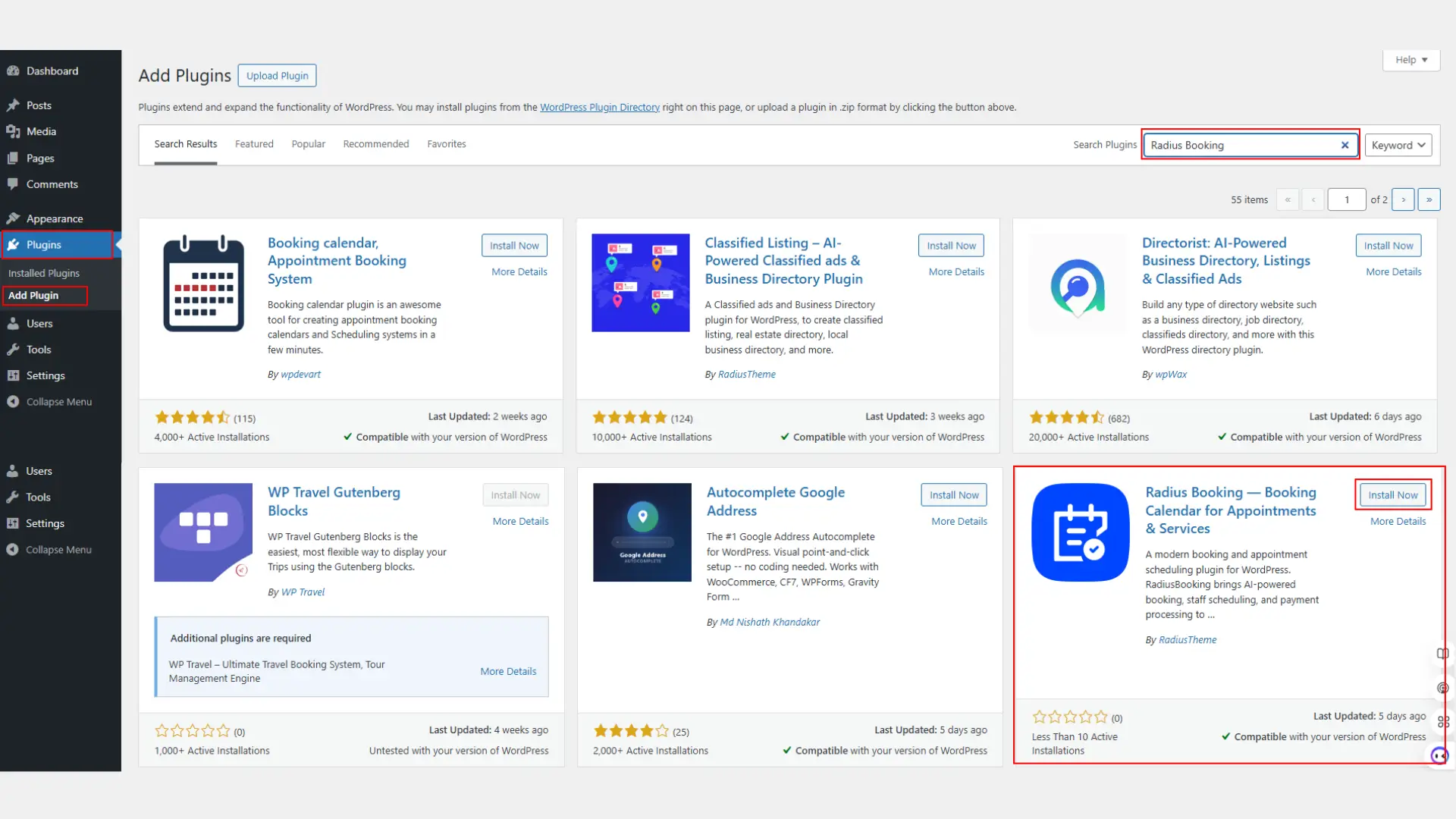
Go to your WordPress dashboard. Click Plugins > Add New. Search for Radius Booking. Click Install Now, then Activate. The plugin will appear in your left sidebar.
Step 2: Set Your Business Hours
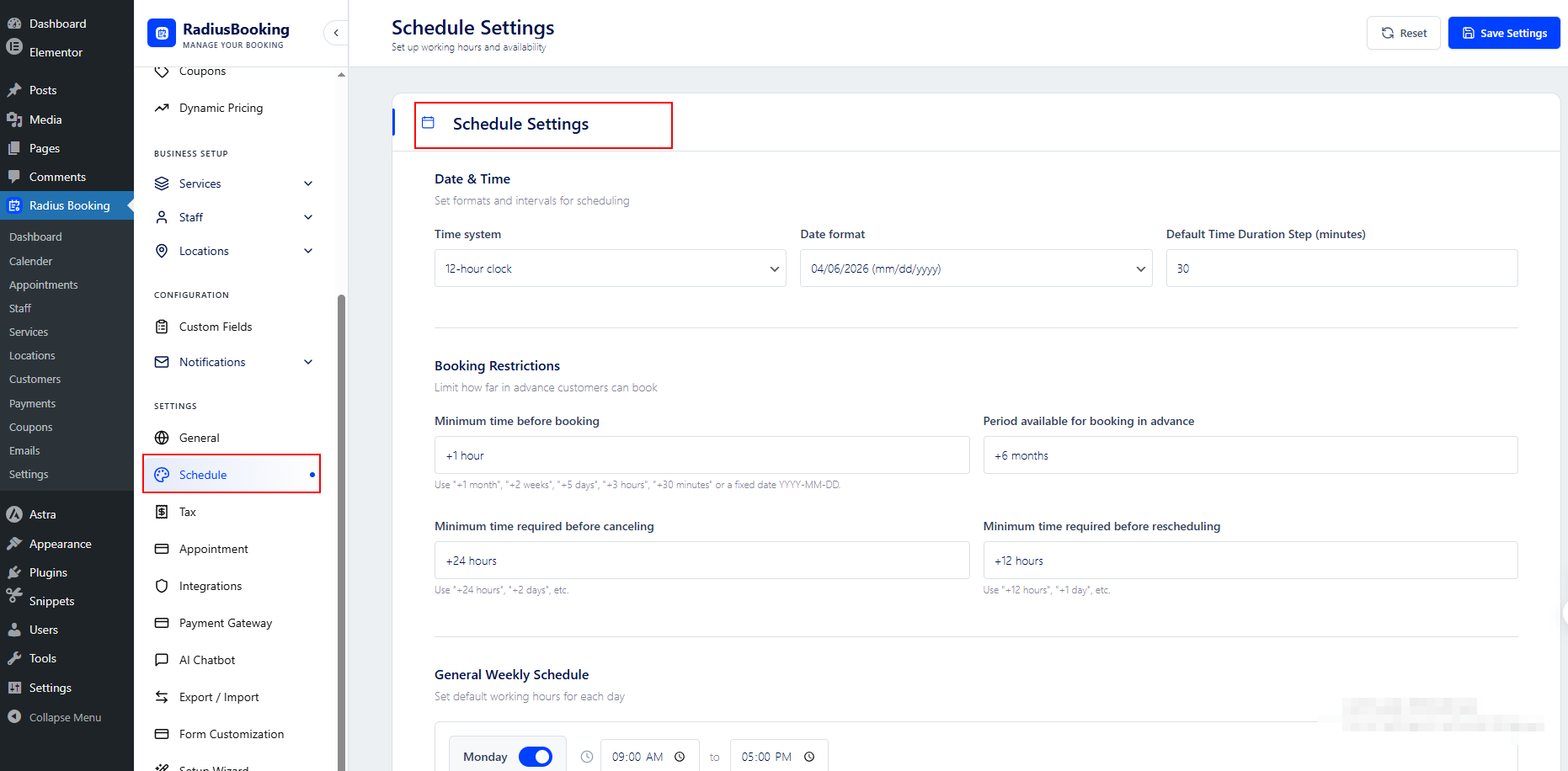
Head to Radius Booking > Settings > Schedule in your dashboard. Find the Date & Time section, Booking Restrictions, and General Weekly Schedule.
Set the days you are open and your opening and closing times. Add any break times if needed. This controls when clients can book.
Step 3: Add Your Services
Locate to Radius Booking > Business Setup > Services > Add Service. Click Add New Service.
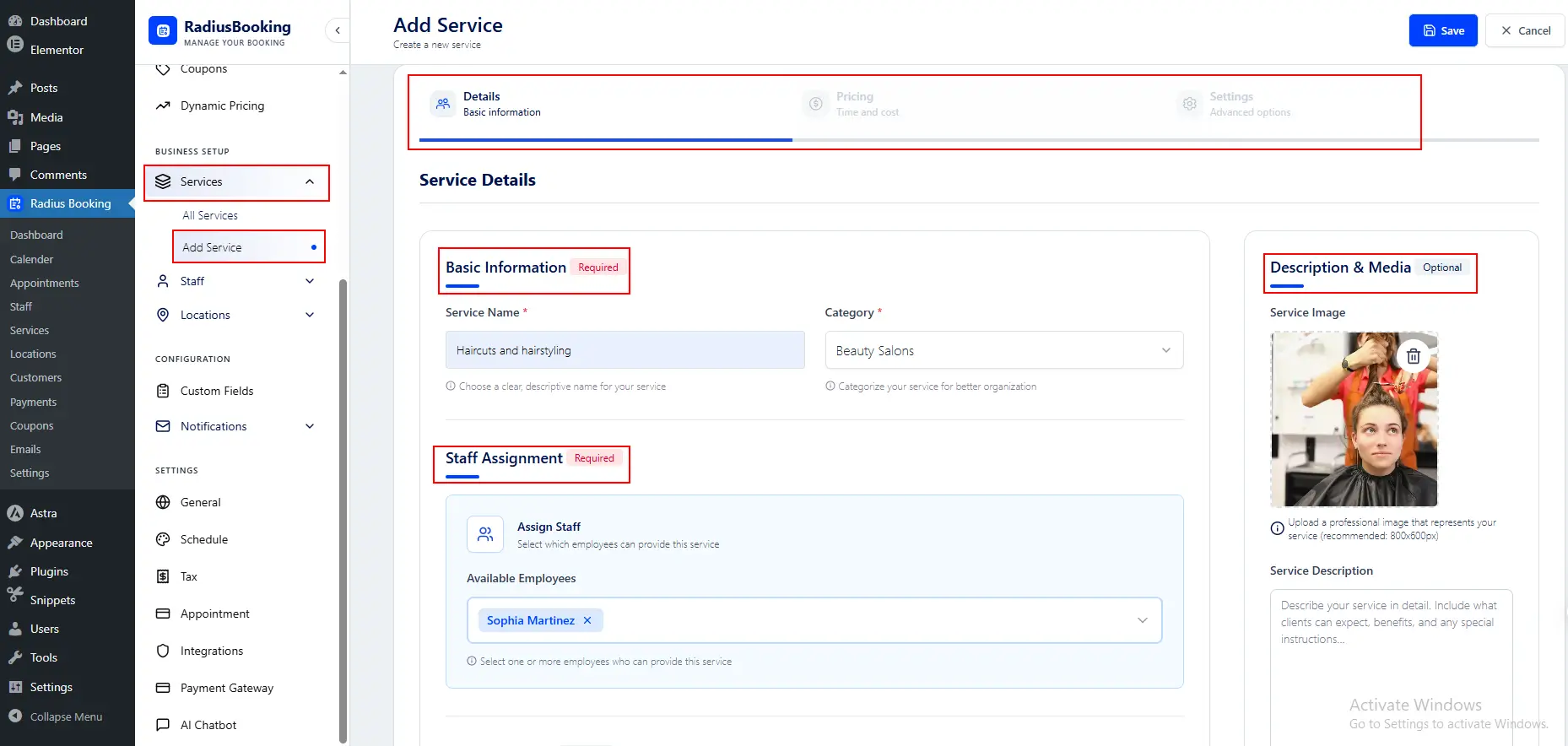
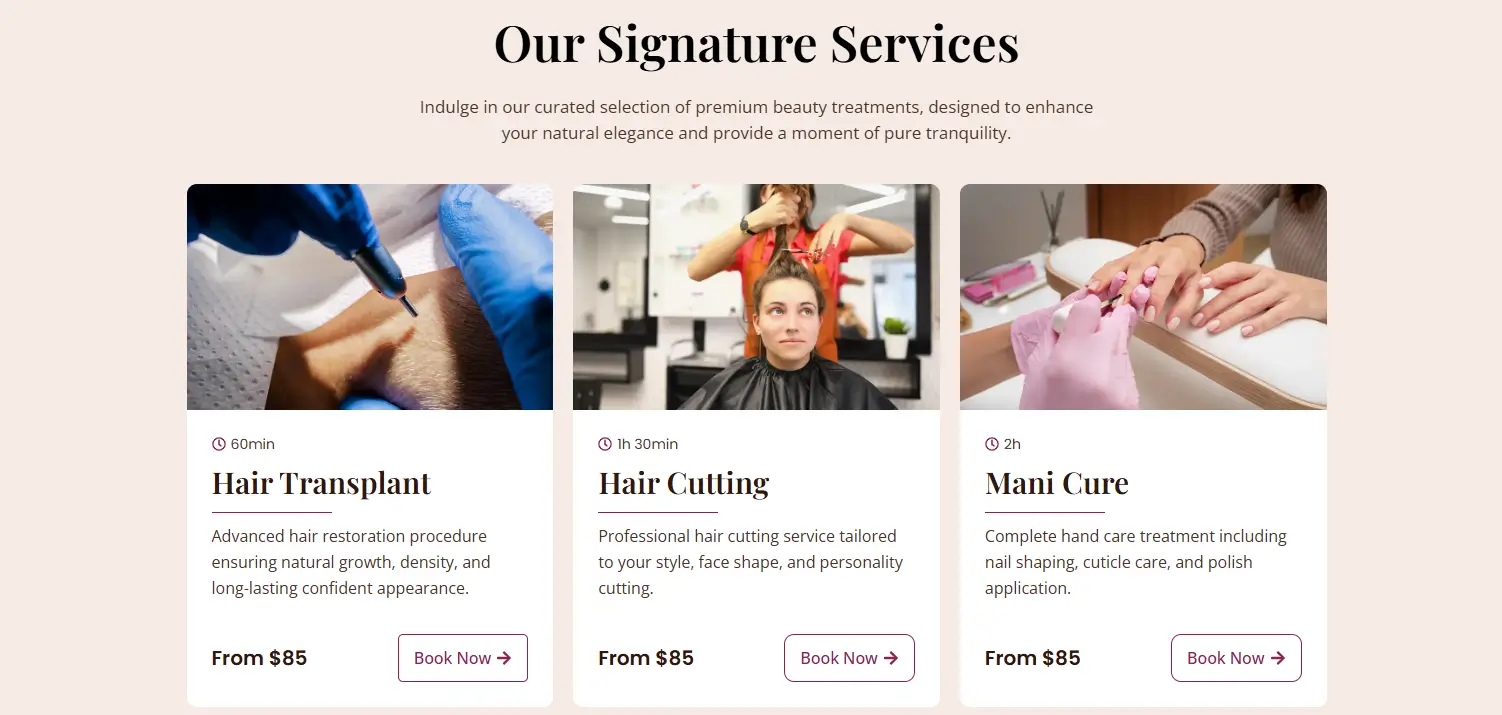
Enter the service name, duration, and price. For example: Haircut (30 min, $25) or Beard Trim (20 min, $15). Repeat for every service you offer.
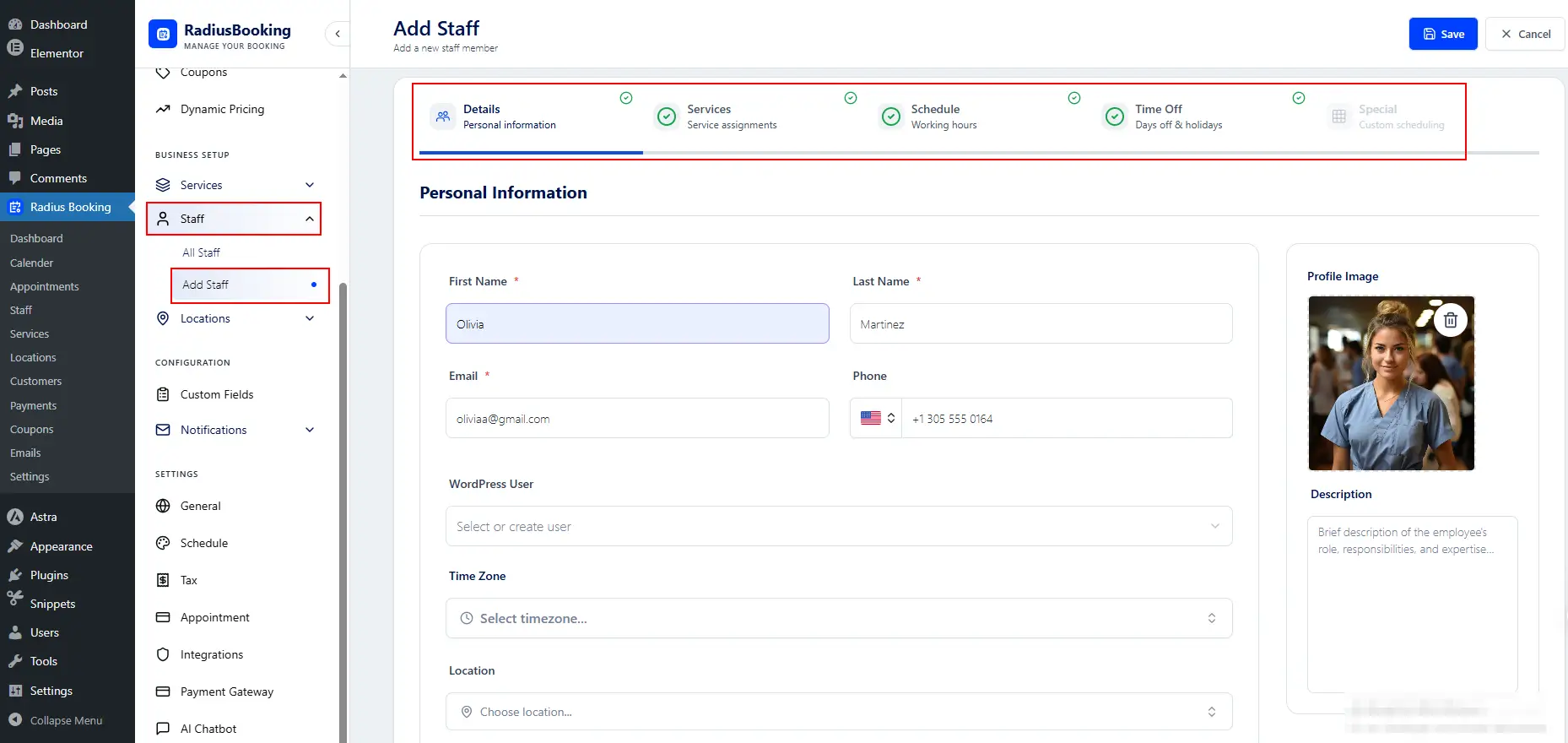
Step 4: Add Your Staff Members
Move to Radius Booking > Business Setup > Staff > Add Staff. Add each stylist or barber by name. Set their individual working hours. Assign them to the services they perform. Clients can then choose their preferred person when booking.
Step 5: Configure Email Notifications
Navigate to Radius Booking > Configuration > Notifications.
Radius Booking can deliver three types of email notifications.
- Booking confirmation to the customer.
- Booking alert to the staff member.
- Booking summary to the admin.
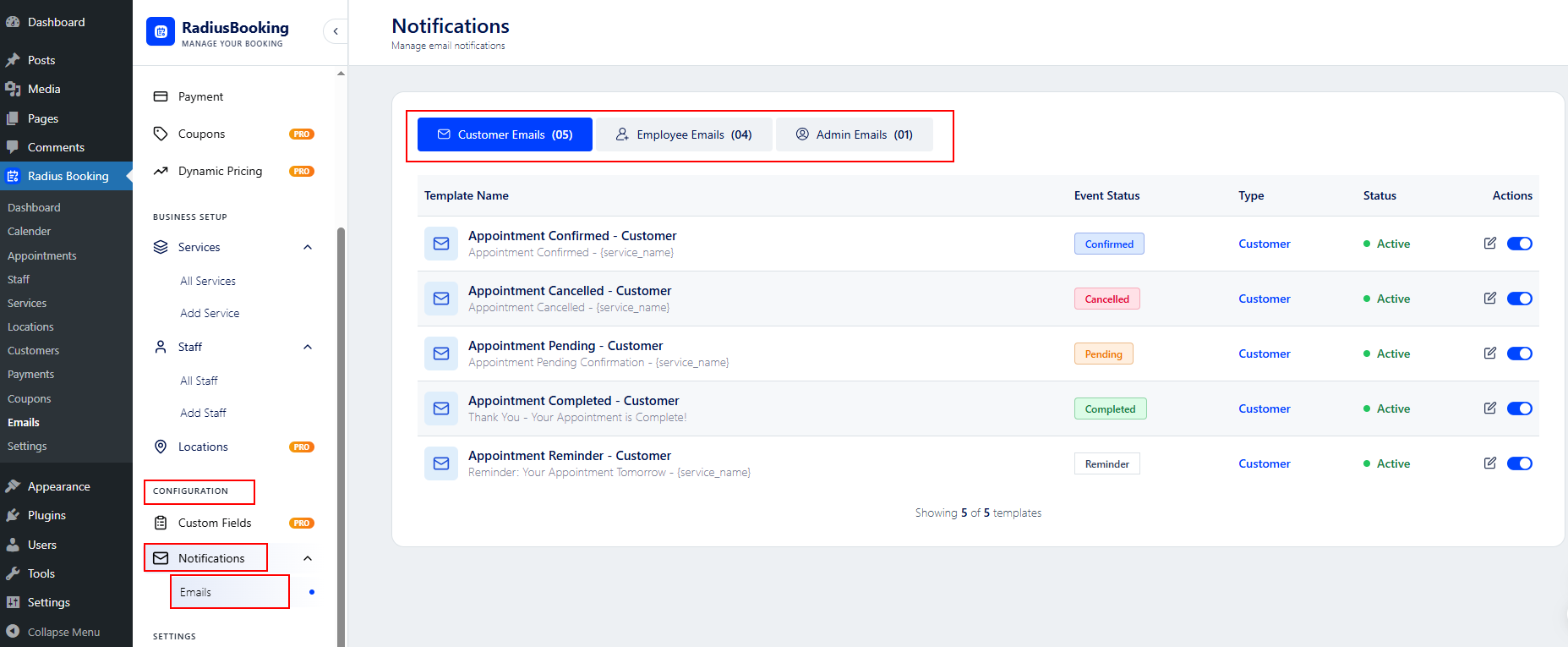
Set up the confirmation email clients receive after booking. Add a reminder email for 24 hours before the appointment. Customize the message to match your brand.
Step 6: Customize & Add Booking Form in Your Website
Locate to Radius Booking > Settings > Form Customization.
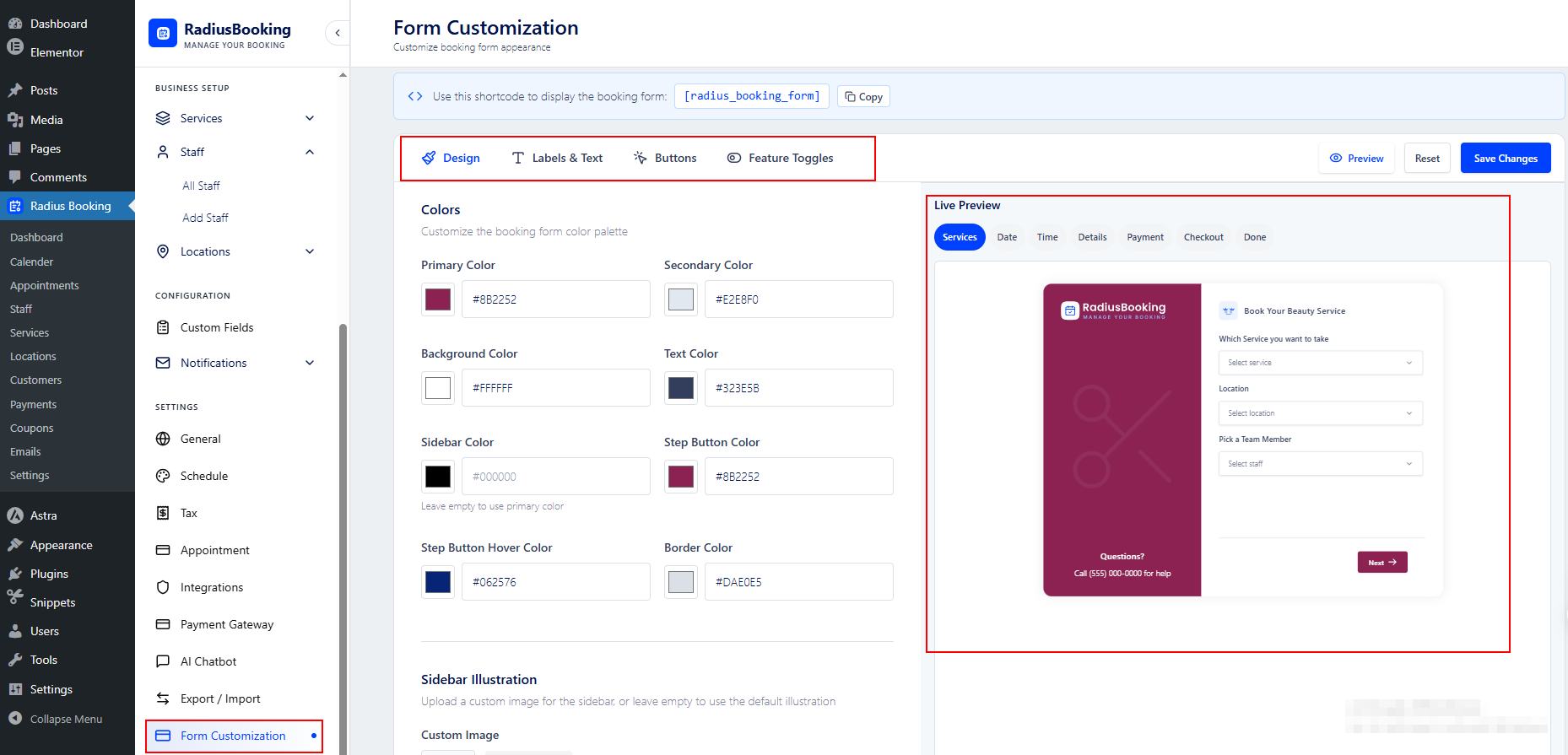
You can personalize the color scheme of the booking form to match your website brand. Adjust button colors, accent colors, and field label styles according to your preferences.
This keeps the booking form looking like it belongs on your site rather than a third-party widget.
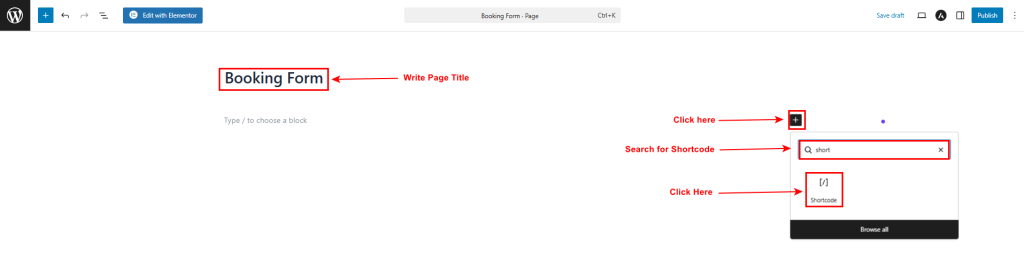
Head to any page in WordPress. Click Edit. Add a new block and search for Radius Booking.
You can also use the shortcode in any page builder.
| [radius_booking_form] |
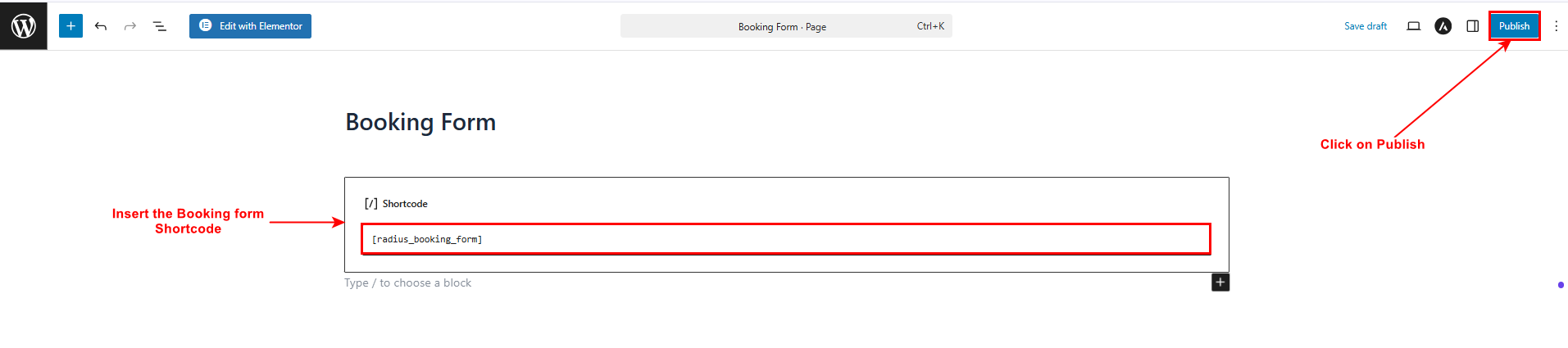
Place the booking form shortcode where you want it. Save and publish the page.
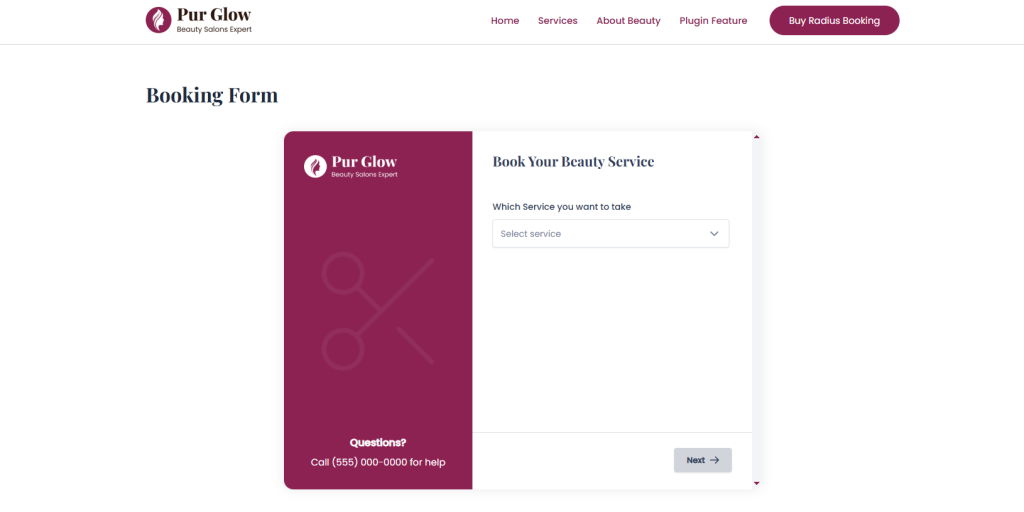
Newly Published Booking Form
Step 7:Test Your Booking System
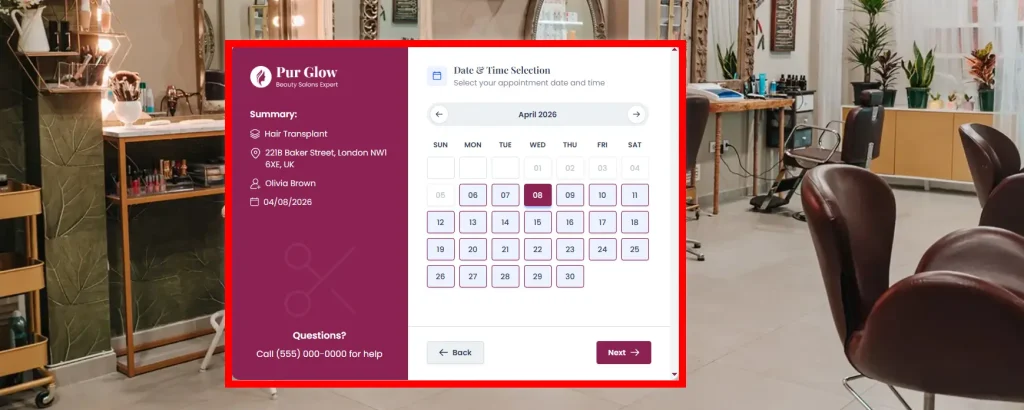
Before going live, do a full test booking yourself. Use a real email address. Check that the confirmation email arrives. Verify the appointment shows in your dashboard. Fix anything that looks off.
Configuring Your Salon Booking Form for Maximum Conversions
Your booking form needs to be simple. Too many steps and clients give up. Here is how to optimize it:
1. Keep the Form Short
Ask for name, email, phone number, and preferred date or time. That is enough. Do not ask for address or other details that are not necessary for an appointment.
2. Use Clear Service Names
Avoid salon jargon. Say “Women’s Haircut” not “Cut and Style.” Say “Men’s Fade” not just “Fade.” Clients should understand exactly what they are booking without needing to call you.
3. Show Prices
Displaying prices upfront builds trust. Clients do not like surprises at the register. Radius Booking lets you show or hide prices per service.
4. Allow Staff Selection
Many clients have a favourite stylist. Let them choose. This reduces no-shows because people are more likely to show up for their specific person.
5. Add a Confirmation Page
After booking, redirect clients to a thank-you page. Tell them what to expect next. This reduces anxiety and builds confidence in your booking process.
👉 Good Read: 15 Tips to Get More Bookings from Your WordPress Website
Making Your Booking Page SEO Friendly
A booking page that no one finds is useless. You need to optimize it so people can discover you through Google.
1. Use Local SEO Keywords
Include phrases like “hair salon booking in [your city]” and “barber appointment [your city]” on your booking page. Google matches these to local searches.
2. Add Your Business Name and Address
Put your full business name, address, and phone number on your booking page. This signals to Google that you are a local business. It helps you rank in map results too.
3. Write a Short Page Description
Add one or two paragraphs above your booking form. Explain who you are, what services you offer, and why clients should choose you. Use your primary keywords naturally.
4. Optimize Your Page Title and Meta Description
Your page title could be: “Book a Haircut Appointment Online | [Salon Name] in [City].” Your meta description should mention your key services and location.
5. Get Listed on Google Business Profile
Create or claim your Google Business Profile. Add your booking link there. When people search for barbershops or hair salons near them, your listing will show a direct “Book Now” button.
How to Promote Your Online Booking System
Setting up your booking system is just the first step. You also need to drive clients to use it. Here are the best ways to do that:
1. Add the Link to Your Instagram Bio
Most salon clients find businesses on Instagram. Add your booking link right in your bio. Use a link-in-bio tool to combine your booking link with other important links.
2. Share on Facebook
Post about your new online booking every week for the first month. Show clients how easy it is. Use a short video or a simple graphic to explain the process.
3. Add a Booking Button to Your Email Signature
Every email you send is a chance to get a booking. Add a small “Book Online” button or link to your email signature. It takes two minutes and works passively.
4. Print It on Your Business Cards and Receipts
Add your booking link to all printed materials. A simple QR code works great here. Clients can scan it while still in the chair.
5. Ask Existing Clients to Try It
Text or email your regulars and ask them to use the new booking system. Give a small incentive if needed, like 10% off their next visit when they book online.
Free vs Pro: When Should You Upgrade Radius Booking?
The free version of Radius Booking is excellent for most small salons and barbershops. But as you grow, you might need more.
| Feature | Free | Pro |
| Staff Management | Yes | Yes |
| Service Setup | Yes | Yes |
| Email Notifications | Yes | Yes |
| PayPal Payments | Yes | Yes |
| Stripe Payments | No | Yes |
| SMS Reminders | No | Yes |
| Recurring Appointments | No | Yes |
| Advanced Analytics | No | Yes |
| Multi-location Support | No | Yes |
Start with the free version. Test it with real clients. If you find yourself needing SMS, Stripe, or recurring appointments, then consider upgrading.
Common Mistakes to Avoid on Your Online Salon Booking Form
Many salon owners set up online booking but make simple mistakes. Here are the ones to watch out for:
- Not testing the system before going live. Always test with a real booking first.
- Forgetting to set your closing dates. If you close for holidays, block those dates in the plugin settings.
- Using a slow web host. If your booking page loads slowly, clients will leave. Choose a quality host.
- Not updating your services list. If you add a new service, add it to the plugin too.
- Ignoring mobile users. Check your booking form on the phone. It must work perfectly on small screens.
- Skipping the confirmation email setup. Clients expect an immediate confirmation. Set this up on day one.
Final Thoughts
Setting up online booking for your hair salon or barbershop is one of the best things you can do for your business. It saves you time. It saves your clients time. And it makes you look professional.
The Radius Booking plugin makes this setup simple and free. You can have a working booking form live on your website in under an hour.
Start with the free version. Get comfortable with it. Let your clients discover how easy it is to book. Then decide if you need the extra features later.
The hardest part is just getting started. Once your system is live, it works for you around the clock. Even while you sleep.
Freequently Asking Question
Is the Radius Booking plugin really free for salons and barbershops?
Yes, the Radius Booking plugin is completely free from the WordPress plugin directory with no credit card required. The free version includes staff management, service setup with duration and pricing, a visual booking calendar, automated email confirmations, PayPal payment support, and an AI-powered booking assistant. A Pro version is available for advanced features like Stripe payments, SMS reminders, recurring appointments, advanced analytics, and multi-location support.
How long does it take to set up online booking for a hair salon using Radius Booking?
You can have a working online booking form live on your website in under an hour. If you already have a WordPress site, the setup is even faster. The process involves installing the plugin, setting your business hours, adding your services and staff, configuring email notifications, customizing the booking form, and testing the system before going live.
How does online booking reduce no-shows for salons and barbershops?
Online booking systems can reduce no-shows by up to 30% through automated email reminders sent to clients before their appointment, such as 24 hours in advance. Allowing clients to choose their preferred stylist also helps, as people are more likely to show up for their specific person. Confirmation emails sent immediately after booking further reinforce the appointment in the client’s mind.
What do I need before setting up online booking on my salon website?
Before setting up online booking, you need four things: a domain name (such as yoursalonname.com), a web hosting plan that supports WordPress (such as SiteGround, Hostinger, or Bluehost), WordPress installed on your hosting account (most hosts offer one-click setup), and the free Radius Booking plugin from the WordPress plugin directory.
How can I promote my salon’s new online booking system to clients?
There are several effective ways to promote your online booking system. Add the booking link to your Instagram bio, share posts about it on Facebook every week during the first month, include a booking button in your email signature, print the booking link or a QR code on your business cards and receipts, and personally text or email existing clients to encourage them to try it, offering a small incentive like 10% off their next visit when they book online.