On This Page
- What Is a WordPress Booking Form?
- Importance of a Professional Booking Form on Your WordPress Site
- Why Use Radius Booking for WordPress?
- Before You Start: What You Need
- How to Create a Booking Form in WordPress Using Free Radius Booking Plugin
- Step 1: Install Radius Booking Plugin
- Step 2: Run the Setup Wizard
- Step 3: Add Your Services
- Step 4: Add Staff Members
- Step 5: Set Up Email Notifications
- Step 6: Customize the Booking Form Appearance
- Step 7: Add the Booking Form to a Page
- Real-Life Ways Businesses Use WordPress Booking Forms
- Common WordPress Booking Form Mistakes That Cost You Customers
- Tips to Get More Bookings from Your Form
- Final Thoughts
- Freequently Asking Question
70% of consumers prefer booking appointments online rather than calling.
Still taking bookings over the phone? That is losing you customers every day. People want to book at midnight, on a Sunday, from their phone. If your site does not let them do that, they go elsewhere.
The good news: adding a booking form to WordPress takes less than 30 minutes. No developer needed. No code. Just the right free plugin.
This guide walks you through everything using the Radius Booking plugin. It is free. It is built for beginners. And it works for salons, clinics, tutors, consultants, and more.
Let us get started.
What Is a WordPress Booking Form?
A WordPress booking form lets visitors pick a service, choose a date and time, and confirm their appointment. It all happens on your website without any back-and-forth emails or phone calls.
A good booking form should be simple. It should show real-time availability. And it should send automatic confirmation emails to both the customer and your team.
Businesses that use online booking forms report fewer no-shows and more completed appointments. That is because customers receive reminders automatically.
If you run a service-based business, a booking form is not optional. It is essential.
Importance of a Professional Booking Form on Your WordPress Site
Most service businesses lose customers before the first conversation even starts. Here is exactly why a professional booking form fixes that.
You lose bookings after hours
34% of all online appointments are booked outside business hours. When a potential customer decides they need your service at 10pm, they will book with whoever has an online form ready.
It builds instant trust
Customers judge your professionalism before they ever speak to you. A professional booking form with your brand colours, real services, and live availability creates confidence that a phone number alone cannot.
It stops double bookings
Manual scheduling through calls and messages leads to calendar clashes. A booking form shows real-time availability and blocks slots the moment they are taken. Your team never has to apologise for double-booking a customer again.
No-shows drop significantly
Automatic confirmation emails and reminders are sent the moment a booking is made. Customers who receive reminders are far less likely to forget or ghost.
It saves hours every week
The average service business saves more than 8 hours per week once online booking is in place. That time goes back into serving customers, marketing the business, or simply leaving work on time.
It grows your revenue
Businesses that switch to online booking see an average revenue increase of 27%. Removing friction from the booking process means more visitors complete the action instead of abandoning it.
Why Use Radius Booking for WordPress?
There are many booking plugins for WordPress. So why choose Radius Booking?
Radius Booking is built by RadiusTheme, a well-known WordPress plugin developer. The free version is generous. It gives you real tools to run a booking system, not just a teaser to push you toward a paid plan.
What the Free Version Includes
- Unlimited services and categories.
- Staff management with individual schedules.
- Appointment calendar view.
- Customer records and history.
- Email notifications for admin, staff, and customers.
- Google Calendar integration.
- Google Meet link generation.
- PayPal payment integration.
- Shortcode, Gutenberg block, and Elementor widget support.
- Mobile-friendly and responsive design.
That is a strong set of features for a free plugin. Competitors often lock basic tools like staff scheduling or email notifications behind a paywall.
Radius Booking works for salons, medical offices, coaching businesses, home services, tutoring centers, and more. You can read more about choosing the right WordPress plugin in the Radius Booking plugin page.
Before You Start: What You Need
Before installing the plugin, make sure you have the following ready.
- A working WordPress website (self-hosted on WordPress.org).
- Admin access to your WordPress dashboard.
- PHP 7.4 or higher on your server.
- A list of your services, pricing, and working hours.
How to Create a Booking Form in WordPress Using Free Radius Booking Plugin
Follow these steps carefully. Each step builds on the last. By the end, you will have a live booking form on your website.
Step 1: Install Radius Booking Plugin
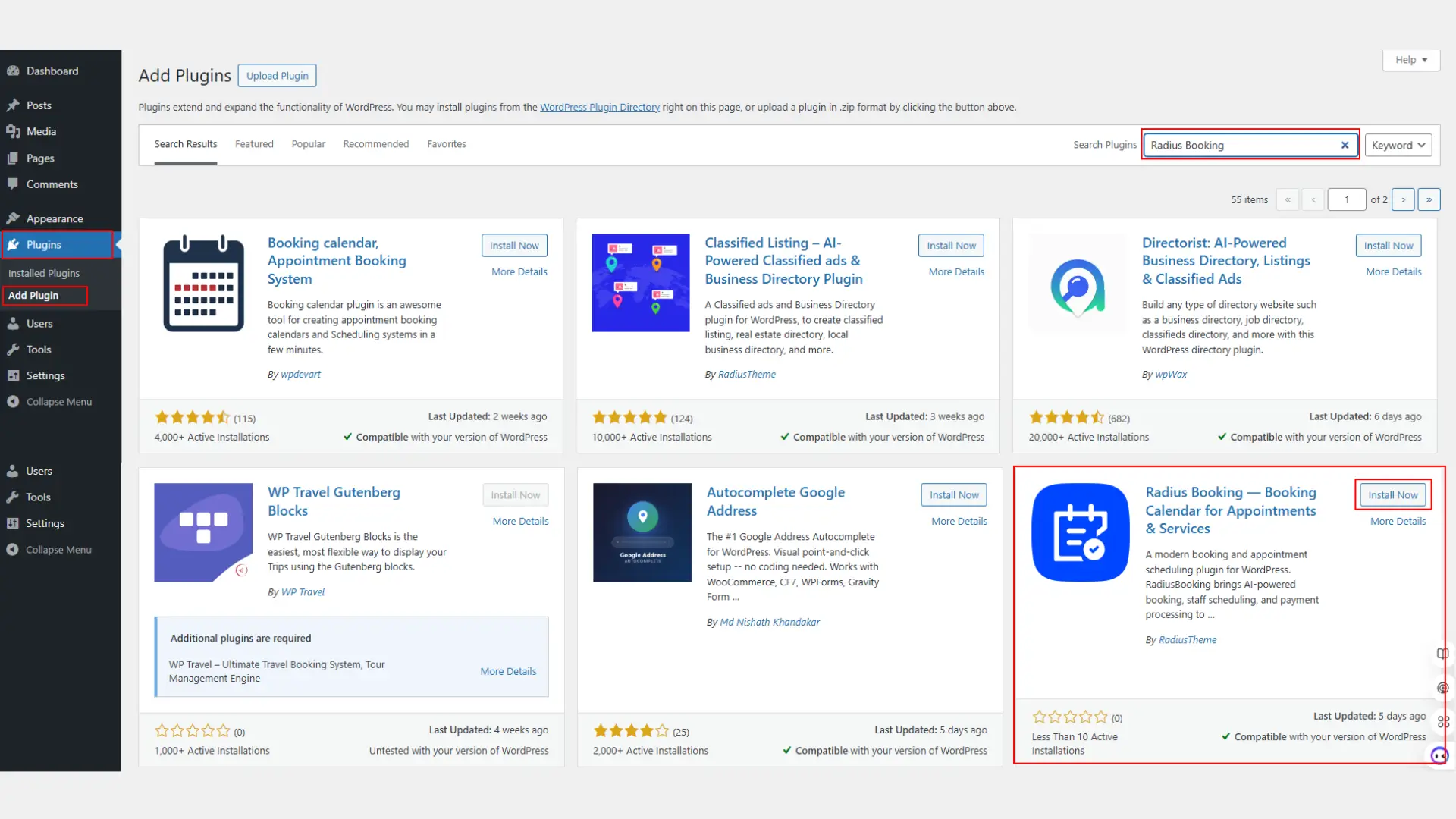
Log in to your WordPress dashboard.
- Go to Plugins and click Add New Plugin.
- In the search bar, type Radius Booking. You will see the plugin by RadiusTheme in the results.
- Click Install Now. Wait for the installation to finish. Then click Activate.
The plugin will now appear in your left sidebar menu as Radius Booking.
Step 2: Run the Setup Wizard
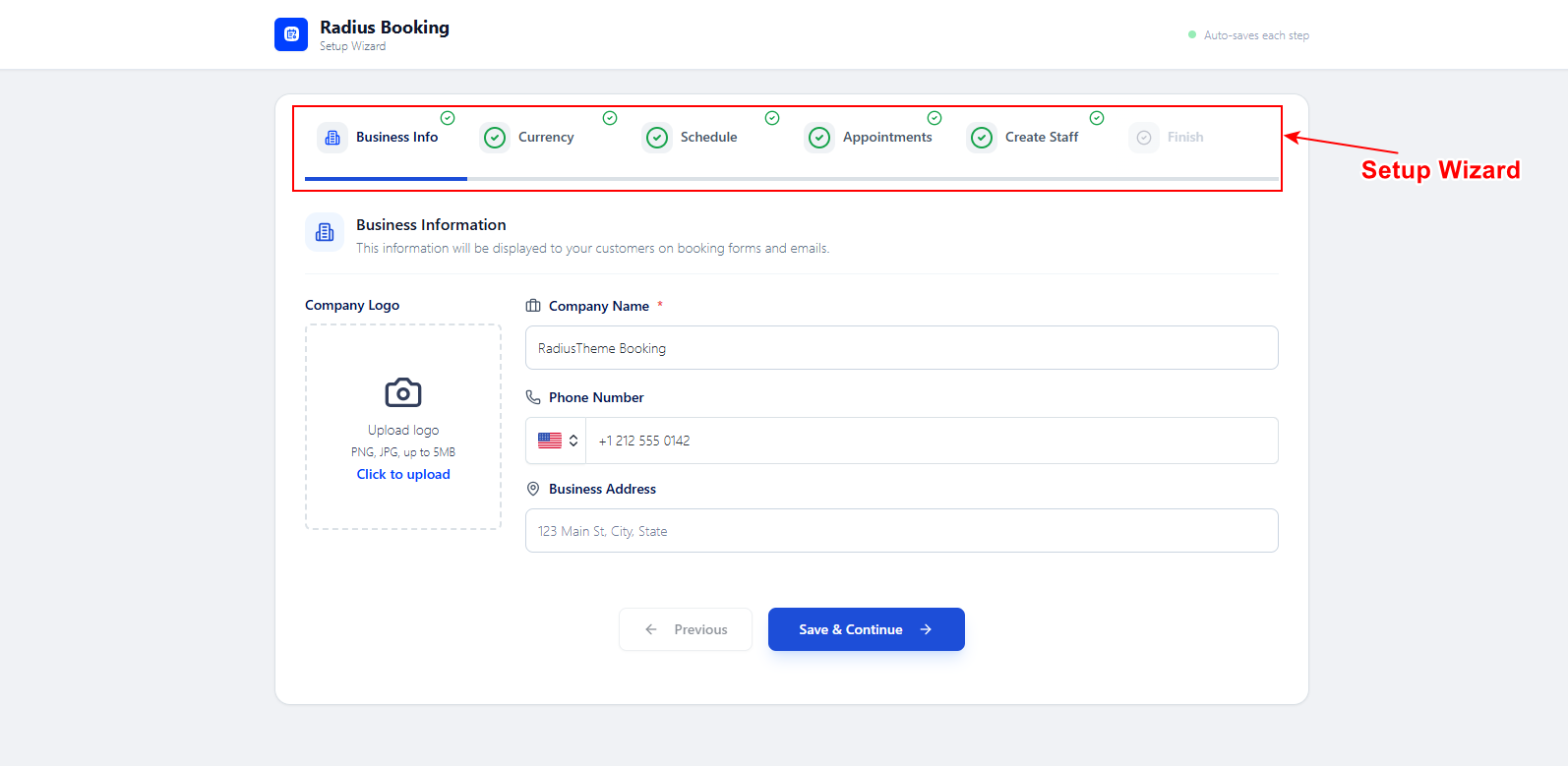
After activation, Radius Booking will launch a setup wizard. This wizard walks you through the basic configuration.
You will be asked to enter your business name, time zone, and currency. Fill in each field carefully. These settings affect how appointments are scheduled and displayed.
If you skip the wizard, you can always find these options under Radius Booking > Settings > General Settings in your dashboard.
Click Save and Continue after each step.
Step 3: Add Your Services
Go to Radius Booking > Services. Click Add New Service.
For each service, you need to fill in the following details.
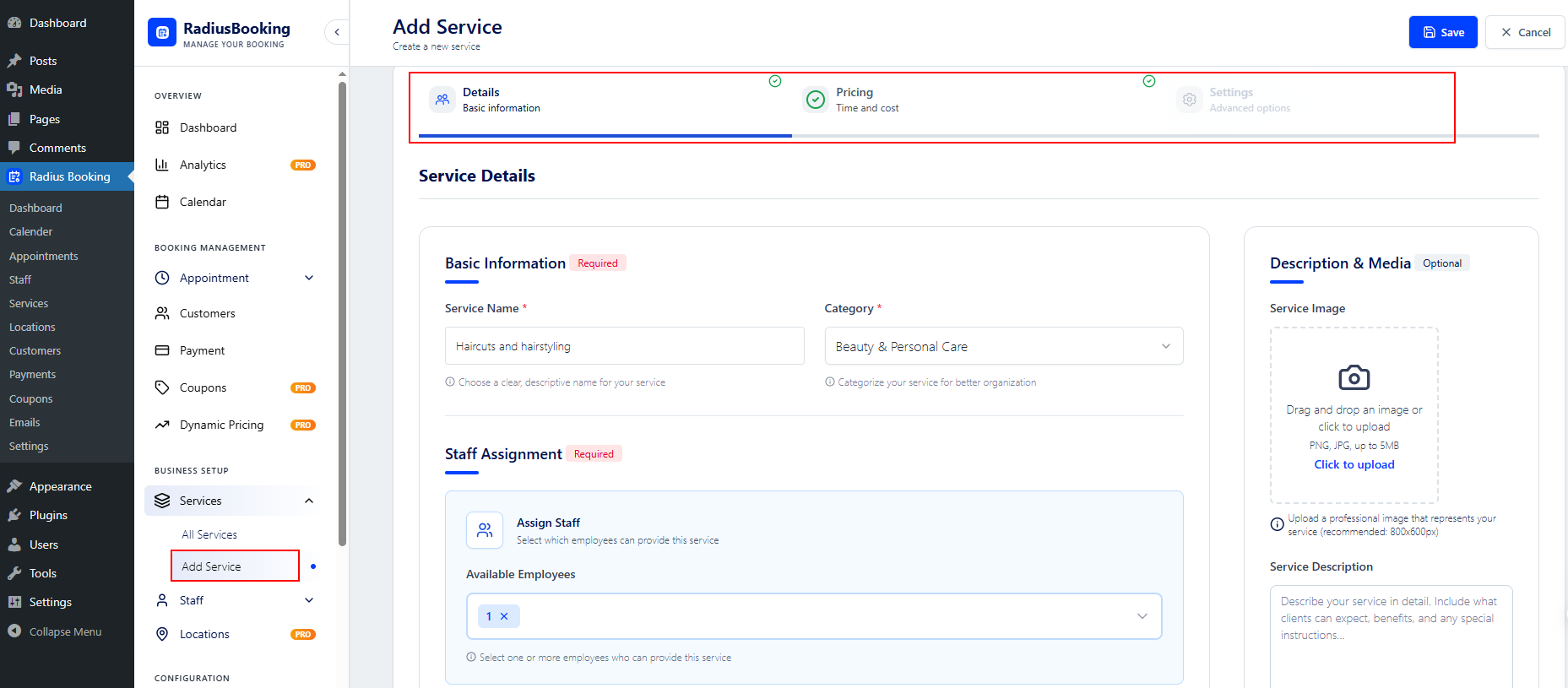
- Service name (for example, Haircut, Consultation, or Home Cleaning)
- Duration in minutes
- Price (fixed amount)
- Buffer time after the appointment (gives staff time to prepare for the next customer)
- Description and category
You can create as many services as you need. There is no limit in the free version.
Click Save for each service.
Step 4: Add Staff Members
Move to Radius Booking > Staff. Click Add New Staff.
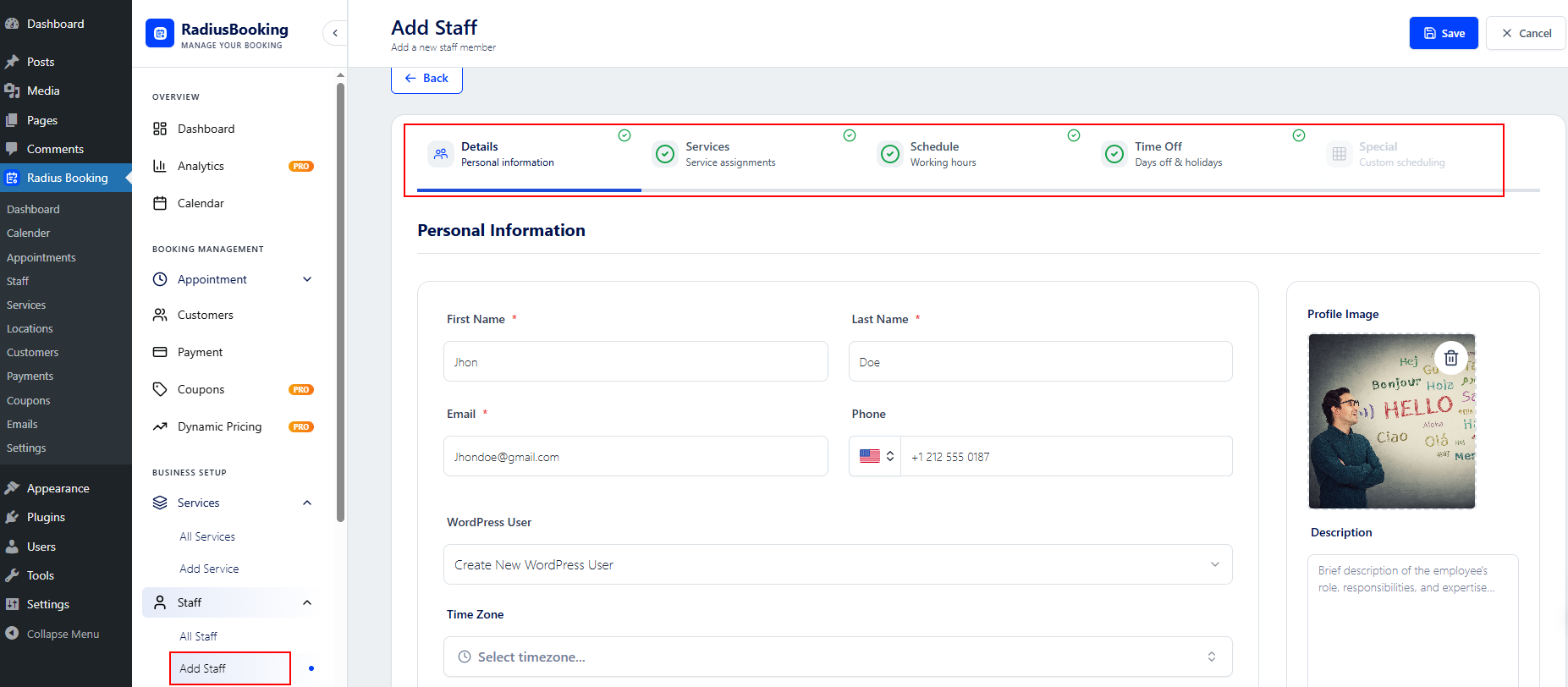
Enter the staff member name and contact details. Then assign which services this person offers.
You can also set individual working hours for each staff member. This overrides the general business schedule for that person.
Add days off or vacation periods under the staff member settings. Radius Booking will hide those slots from customers automatically.
Each staff member gets their own dashboard login. They can view their calendar and upcoming appointments without accessing the full admin panel.
If you run a solo operation, add yourself as the only staff member.
Step 5: Set Up Email Notifications
Locate to Radius Booking > Configuration > Notifications.
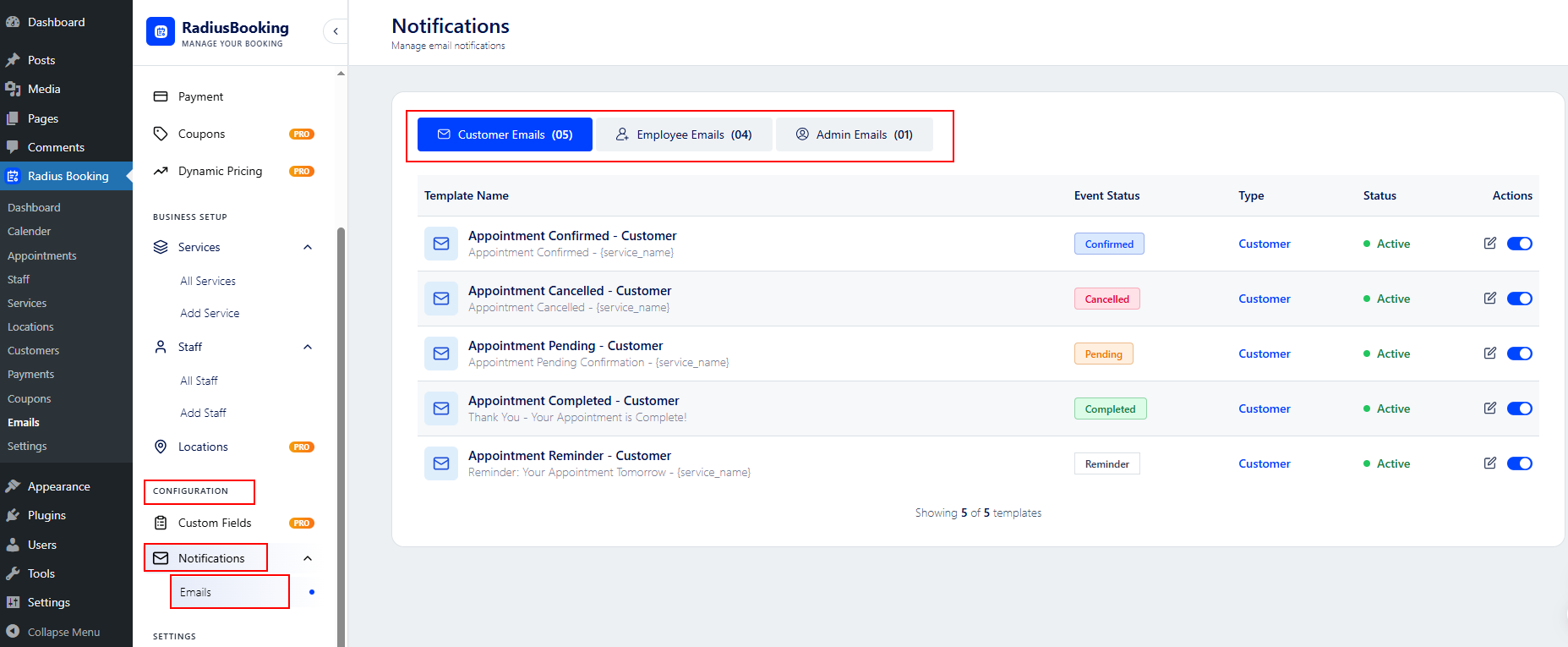
Radius Booking sends three types of email notifications.
- Booking confirmation to the customer
- Booking alert to the staff member
- Booking summary to the admin
You can customize the email subject line and body for each type. Use the available placeholder tags to insert dynamic details like customer name, service, and appointment time.
Make sure your sender email is set correctly. A professional sender address builds trust with customers.
Step 6: Customize the Booking Form Appearance
Head to Radius Booking > Settings > Form Customization.

You can change the color scheme of the booking form to match your website brand. Adjust button colors, accent colors, and field label styles.
This keeps the booking form looking like it belongs on your site rather than a third-party widget.
Step 7: Add the Booking Form to a Page
This is the final step. You need to display the booking form on a page where visitors can find it.
Radius Booking gives you three ways to do this.
Using a Shortcode
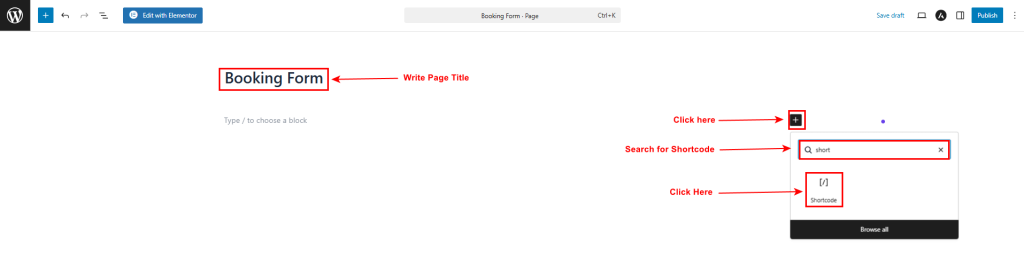
Go to Pages > Add New. Open the page editor. Booking Form Shortcode
| [radius_booking_form] |
Add a Shortcode block or a Classic Text block.

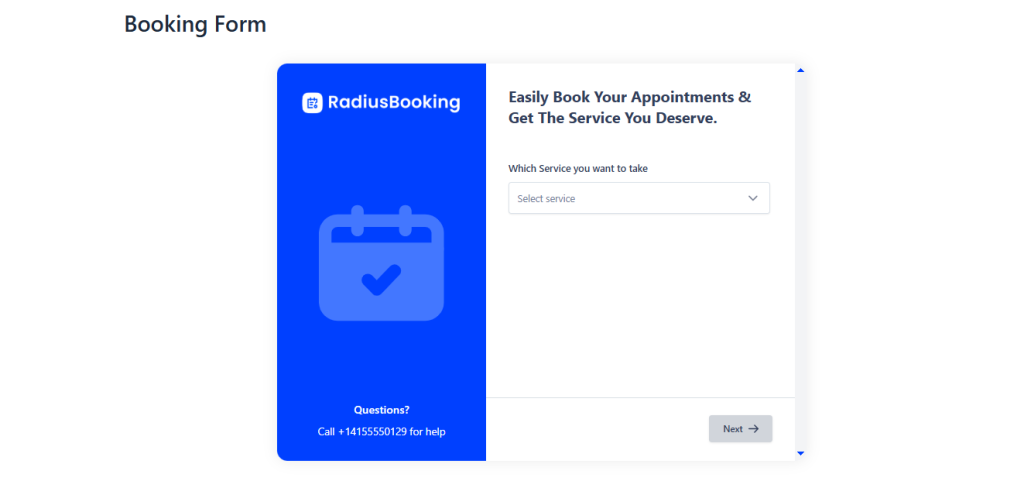
Click Publish to make the booking form live on your site.
Newly Published Booking Form
Real-Life Ways Businesses Use WordPress Booking Forms
Hair and beauty salons:
Clients pick their preferred stylist, choose a service, and lock in a time slot without calling. The salon gets fewer interruptions during busy hours and no missed bookings.
👉 Good Read: How to Set Up Online Booking for a Hair Salon
Private tutors and coaches:
Weekly lesson slots fill automatically. Students receive reminders before each session, which cuts no-shows and keeps the schedule running smoothly.
Physiotherapy and medical clinics:
Patients submit their details at booking time. Staff arrive prepared for each appointment, which saves time and improves the patient experience.
Home cleaning and repair services:
Homeowners request same-day or next-day visits directly from their phone. The business captures the lead instantly instead of losing it to a competitor.
Yoga and fitness studios:
Class capacity, waitlists, and recurring weekly bookings are managed from one dashboard. No spreadsheets, no manual confirmations, no confusion.
Consultants and freelancers:
A simple “book a free call” page turns website visitors into paying clients. The form qualifies the lead before the first conversation even starts.
Common WordPress Booking Form Mistakes That Cost You Customers
Asking for too much information upfront. Long forms kill conversions. Stick to name, email, and phone number. Collect extra details after the booking is confirmed.
Not testing the form on mobile. Over 80% of customers book from a smartphone. If your form is hard to use on a small screen, most visitors will leave without booking.
Skipping email notifications. Customers expect an instant confirmation the moment they submit. Without it, they assume something went wrong and may book elsewhere.
Leaving your calendar unsynced. Connect Google Calendar from day one. An unsynced calendar leads to double bookings, which damages trust and wastes everyone’s time.
Using vague service names. Write exactly what the customer gets. Include the duration and price. Ambiguity creates hesitation, and hesitation kills bookings.
Hiding the form deep in your site. Put the booking link in your main navigation, your homepage hero, and your contact page. If customers cannot find it in two clicks, most will not look further.
Tips to Get More Bookings from Your Form
Creating the form is step one. Getting people to use it is step two.
- Add the booking form link to your main navigation menu. Make it easy to find.
- Include a Book Now button on your homepage hero section.
- Add the booking link to your Google Business profile. Customers searching on Google can book directly.
- Share the booking link in your email signature.
- Post the booking link on your social media profiles.
- Keep the form short. Only ask for information you actually need.
👉 Good Read: 15 Tips to Get More Bookings from Your Website
Final Thoughts
Creating a booking form in WordPress does not have to be complicated. With Radius Booking, you can set up a complete appointment system in under 30 minutes.
You get services, staff management, email notifications, Google Calendar sync, and a customer dashboard. All for free.
Once your booking form is live, customers can book anytime. Your phone will ring less. Your schedule will fill up more. And you can focus on delivering great service instead of managing calls.
Start with Step 1 right now. Install the plugin and follow this guide. Your booking form could be live today.
Have questions about setting up your form? Leave a comment below or visit the official Radius Booking documentation for detailed guides on every feature.
Freequently Asking Question
What is a WordPress booking form?
A WordPress booking form lets visitors pick a service, choose a date and time, and confirm their appointment directly on your website without any back-and-forth emails or phone calls. A good booking form shows real-time availability and sends automatic confirmation emails to both the customer and your team.
Is Radius Booking plugin free to use?
Yes, the free version of Radius Booking is generous and includes unlimited services and categories, staff management with individual schedules, appointment calendar view, customer records and history, email notifications, Google Calendar integration, Google Meet link generation, PayPal payment integration, and support for shortcodes, Gutenberg blocks, and Elementor widgets.
How long does it take to set up a booking form in WordPress using Radius Booking?
Adding a booking form to WordPress using the Radius Booking plugin takes less than 30 minutes. The plugin includes a setup wizard that walks you through basic configuration including your business name, time zone, and currency. No developer or coding skills are required.
How do I add the Radius Booking form to a WordPress page?
Radius Booking gives you three ways to display the booking form on a page: using a shortcode, a Gutenberg block, or an Elementor widget. To use the shortcode method, go to Pages > Add New, add a Shortcode block or Classic Text block, and insert the shortcode [radius_booking_form], then click Publish to make the form live.
What are the most common mistakes to avoid when creating a WordPress booking form?
The most common mistakes include asking for too much information upfront (stick to name, email, and phone number), not testing the form on mobile devices (over 80% of customers book from a smartphone), skipping email notifications, leaving your calendar unsynced with Google Calendar, using vague service names without duration or price, and hiding the booking form deep in your website instead of placing it in the main navigation and homepage.