On This Page
Food pickup and delivery are no longer nice-to-have options but a necessity for every restaurant. You know how competitive the food business is.
To stay ahead of competitors, you must consistently deliver the best-quality food and services, which will keep customers ordering from you.
However, the problem arises when you don’t know how to enable pickup and delivery options for your restaurant website.
Don’t worry! We’re here to help you with this comprehensive guide. Make sure to read to the end.
Why Should You Offer Pickup and Delivery Options?
Running a successful restaurant today isn’t just about serving delicious food. It’s also about making it easy for customers to enjoy meals regardless of their locations. By offering pickup and delivery services, you give diners the flexibility they crave.
Meet Modern Dining Habits: Today, many customers prefer the convenience of eating at home or grabbing food on the go. Pickup and delivery services provide them with such facilities.
Expand Your Customer Base: By offering a delivery option, you can reach people who may never dine in at your restaurant. Ultimately, you get new customers for your food business.
Increase Sales and Revenue: By offering customers the convenience of receiving food from their preferred location, you satisfy their needs and create a positive impression.
Thus, they may return to your restaurant website and place orders again. Eventually, you become their go-to online restaurant for ordering food.
This way, you gain trust, make them loyal fans, and increase your overall sales.
Stay Competitive: With food pickup and delivery options, your restaurant gains a competitive edge. You attract and retain more customers than others with dine-in only.
These are the primary benefits you get by offering food delivery and pickup services at your restaurant. Now, let’s discuss how to enable pickup and delivery options on your restaurant website.
Related Read: Why an online food ordering system is crucial for your restaurant?
How to Enable Pickup & Delivery Options for Your Restaurant
There are many ways to enable the pickup and delivery options on your restaurant website. However, we’ll show you the easiest method in this tutorial. Remember that this method applies only to websites built on WordPress. Let’s get rolling.
Step 1: Install the Food Menu Plugin by RadiusTheme
First, you need to install the pro version of the Food Menu plugin by RadiusTheme. It’s a complete restaurant management solution. From enabling online ordering, pickup, and delivery services to creating visual table reservations, this plugin does it all.
Although this plugin comes in both free and pro versions, you need to use the pro version to enable premium features like online ordering, delivery and pickup options, tipping, special menu, etc.
Note: To utilize online ordering, pickup, and delivery options with this plugin, your restaurant website must have WooCommerce preinstalled, and you must upload food items as WooCommerce products.
If you need help creating a restaurant food menu, check out our guide on how to create a food menu in WordPress.
Once you’ve received a zip file of the pro version of the Food Menu WordPress plugin via email, or you’ve downloaded it directly from the official site, follow the steps below to install and activate it.
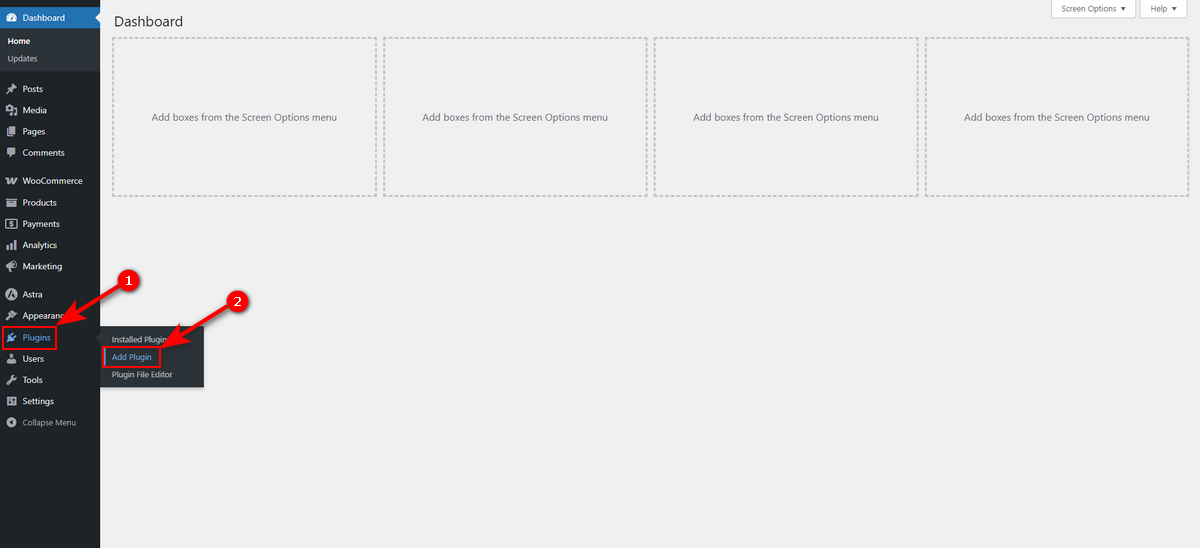
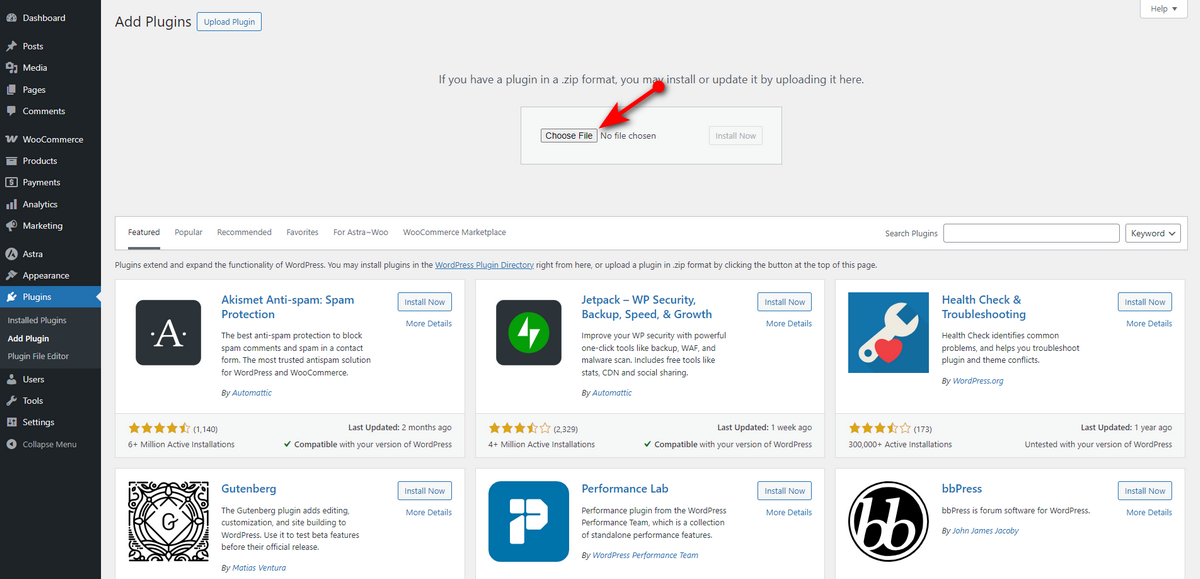
- Visit Plugins >> Add Plugin from your WordPress Admin Panel.
- Then, press Upload Plugin button.
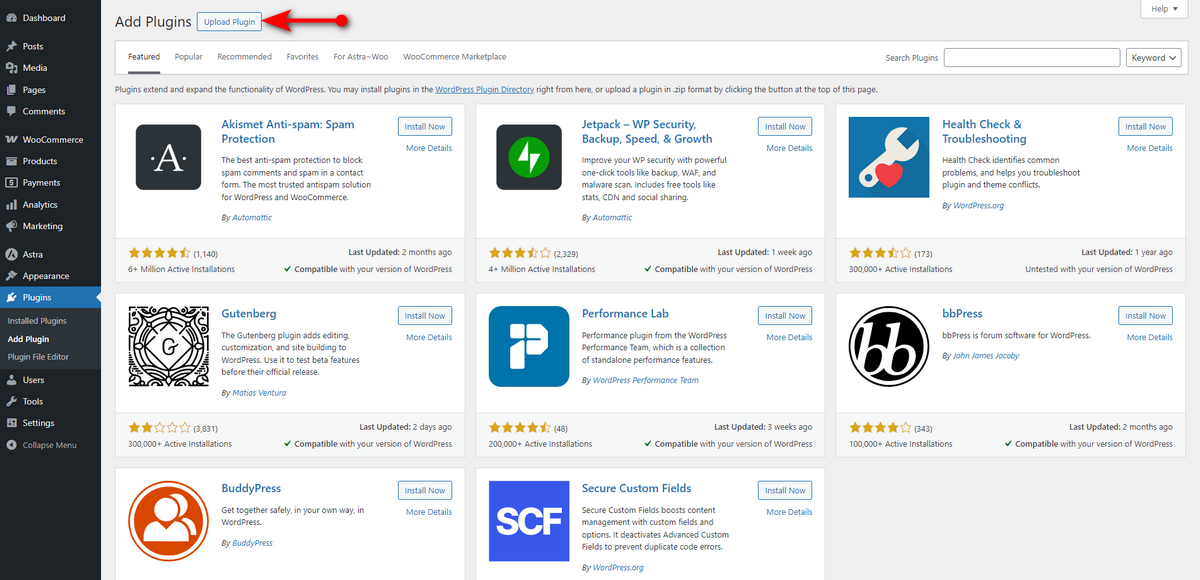
- Now, click the Choose File button and upload the zip file of the Food Menu Pro version.
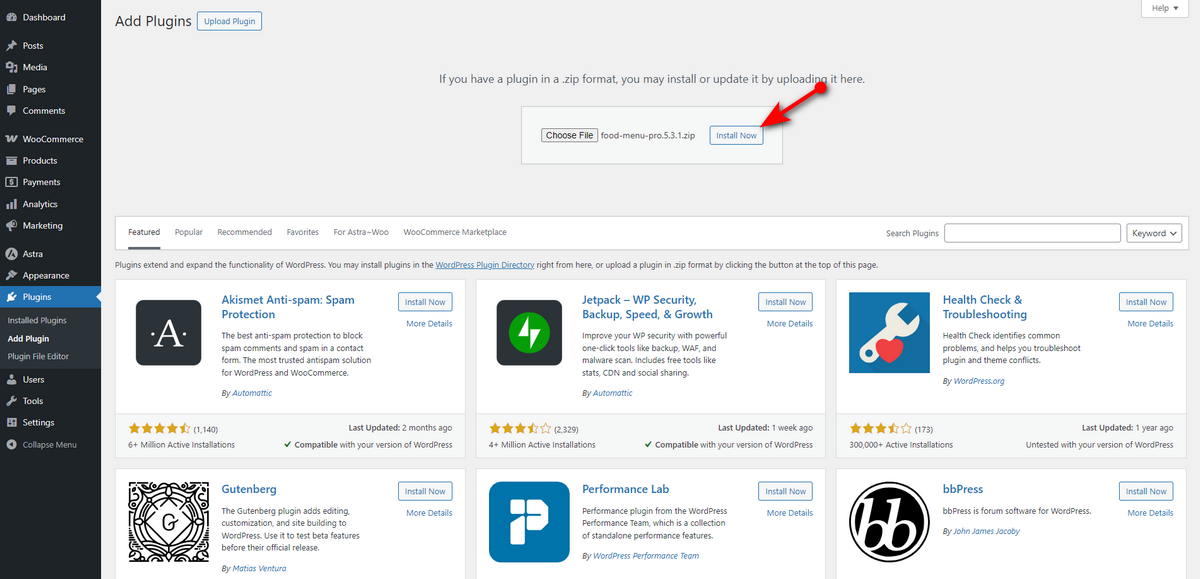
- At this time, click Install Now button and be patient as the plugin gets installed on your restaurant website.
- Lastly, hit Activate Plugin button.
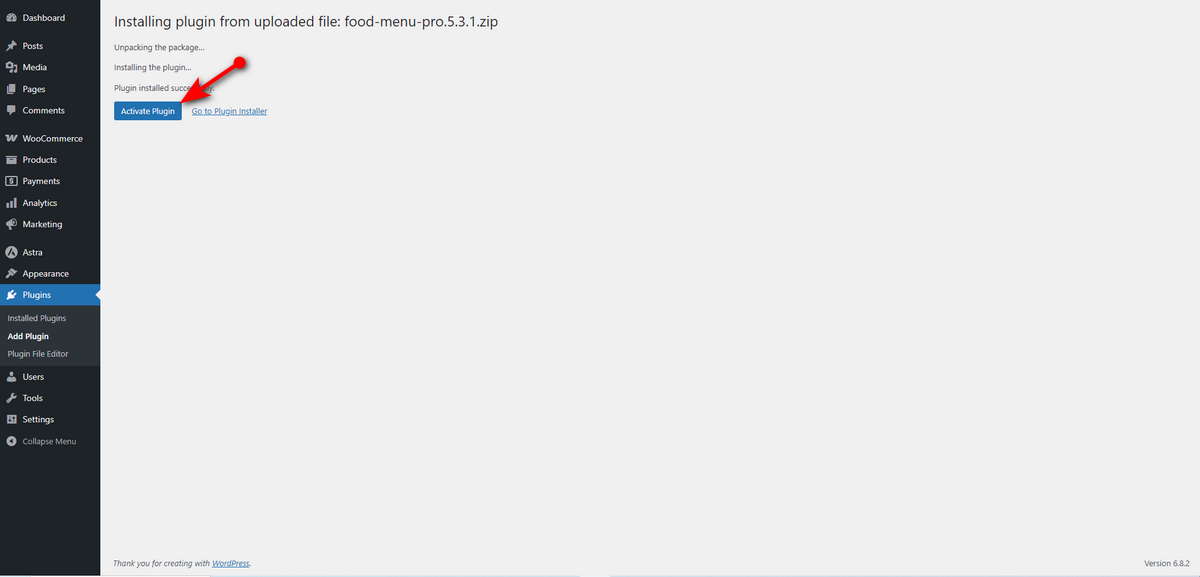
You’ve installed and activated the pro version of the Food Menu plugin. You’ll now see a notification asking you to install the free version of this plugin. So, install it from the WordPress plugin repository. Otherwise, you can’t use the pro version of this plugin.
Step 2: Enable the Pickup Option with Food Menu
First, you need to work on some settings and consider a few things before you enable the pickup option with the Food Menu plugin. You need to make sure the plugin gets posts from either the general post type or the WooCommerce product.
If you want users to order food online, you need to upload your food items as WooCommerce products. Of course, your online restaurant must have WooCommerce pre-installed.
After making sure all the prerequisites above are met, head to Food Menu >> Settings from your WordPress Admin Panel.
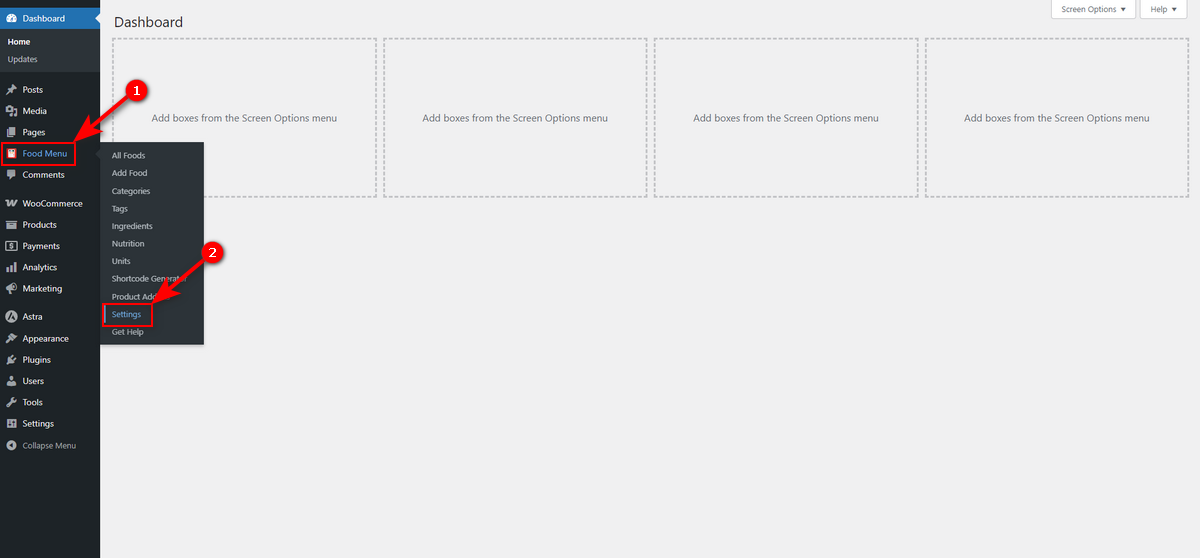
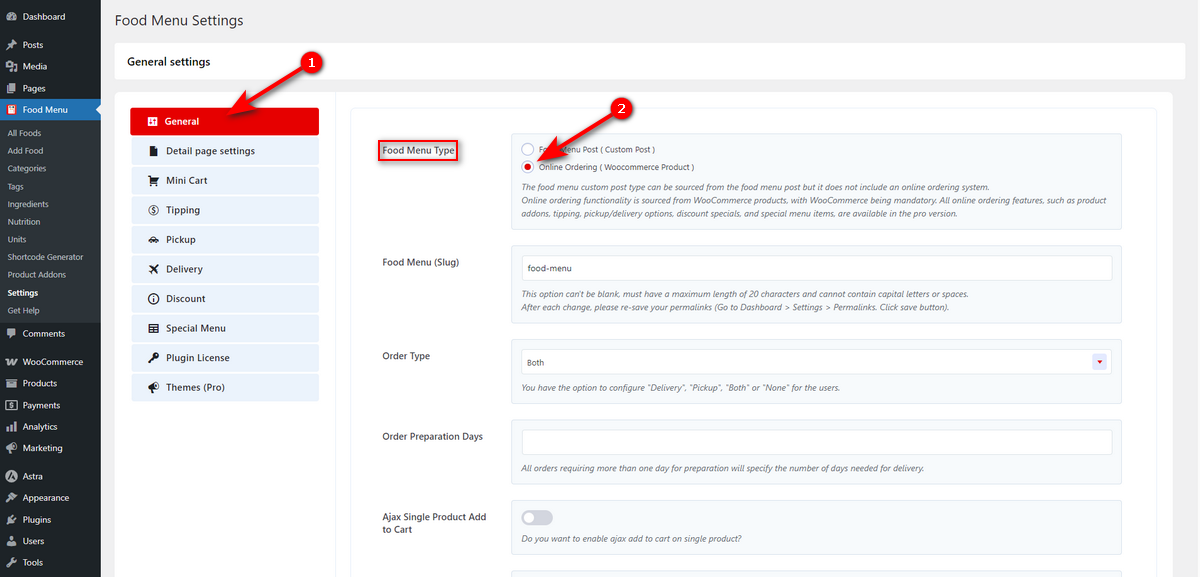
You’ll then see settings of Food Menu plugin. On the General tab, click Online Ordering ( Woocommerce Product ) radio button under the Food Menu Type. Then, scroll down and hit Save Changes button.
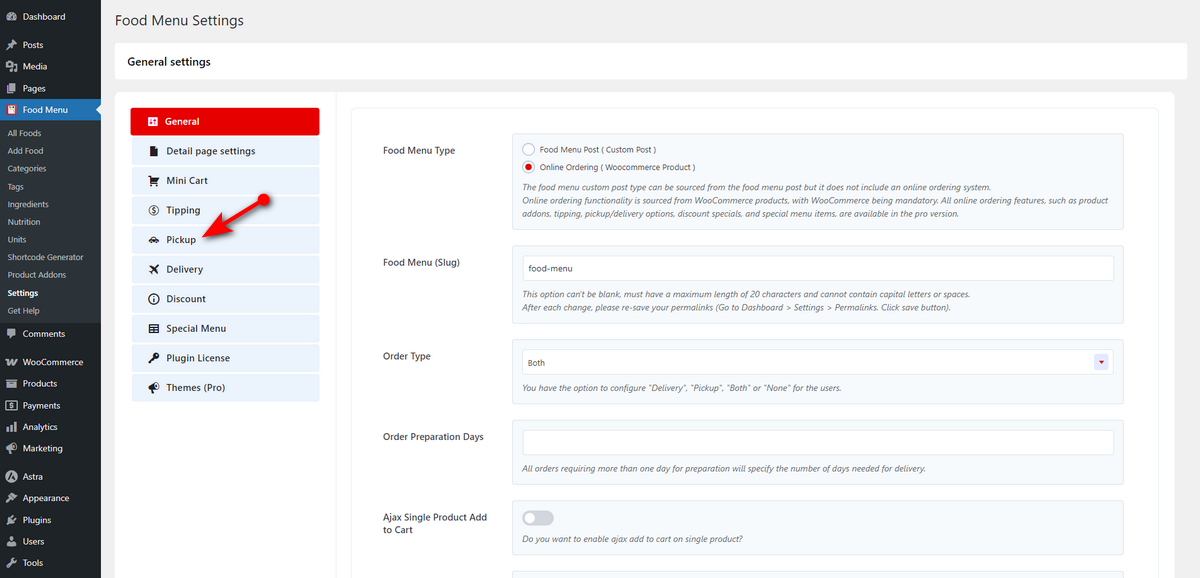
Afterward, click Pickup tab on the Food Menu settings.
Now, turn on Enable Pickup? switch, Enable Pickup Time? switch, and write down your Pickup Message.

Scroll down, set up your weekly schedule and weekend, and then hit the Save Changes button.

That’s how you enable the pickup option on your online restaurant website.
Step 3: Turn on the Delivery Option with Food Menu Plugin
You’ll see a similar interface and follow the same steps to enable the delivery option on your online restaurant website. Let’s begin.
Click on Delivery tab and turn on Enable Delivery? and Enable Delivery Time? switches. Then, write down your food delivery message in the Delivery Message field.

In the same way, scroll down and add your delivery schedule and weekend as you did during setting up the Pickup option.

That’s it. You’ve successfully enabled the delivery option. If you now visit your checkout page, you’ll see both pickup and delivery options at the top of the checkout form.

Note that if you don’t see these options on the checkout page, ensure you’re using the WooCommerce classic checkout.
Pickup and Delivery Tips for Restaurant Owners
Many restaurants offer pickup and delivery, but only a few understand and implement best practices for these services.
We want you to join a small group of professional restaurant owners and discover the strategies they use to build brand loyalty. Here you go.
Create Designated Pickup and Delivery Space
You need to select a separate space for delivery preparation and packaging. Doing this will help you minimize interaction between employees.
You know there will be an inundation of pickup and delivery orders. Hence, you need to ensure you have sufficient accommodation areas to facilitate smooth pickup and delivery operations.
Assign One Employee in Charge of Delivery
You need to prepare your staff to handle situations when delivery and pickup orders spike. You can designate a separate employee to handle orders. Allow that employee to check orders before handing them to couriers, and ensure delivery to customers.
Pick the Correct Packaging
Picking the proper packaging is essential as it plays a crucial role in keeping food hot and fresh. Hence, cautiously choose the packaging. Ensure it’s made from safe-to-use materials and has the proper ventilation.
Tips: Pair your food packaging with creative restaurant menu ideas to enhance customer satisfaction.
Treat Your Couriers and Delivery Riders Well
Without couriers and delivery riders, food delivery would be impossible. They are the final touchpoint between your restaurant’s kitchen and your customer.
Their experience can directly impact your restaurant’s reputation. Thus, maintain a positive and efficient environment for them. Try to keep orders ready on time.
You can offer basic amenities. For instance, provide them with a designated spot for couriers to wait for their orders. Keep your main entrance or dining area uncluttered and make the pickup process smoother.
Summing Up
That’s all the information regarding how to enable pickup and delivery options for your restaurant. We shared a simple guide that anyone with a little technical know-how can follow.
We believe you’ll find this article informative, as it’ll benefit you by enabling pick and delivery services on your WordPress-built restaurant website.
So, you may bookmark this article for future reading and share it with someone who needs it. We wish you the best of luck with your restaurant business journey.