
On This Page
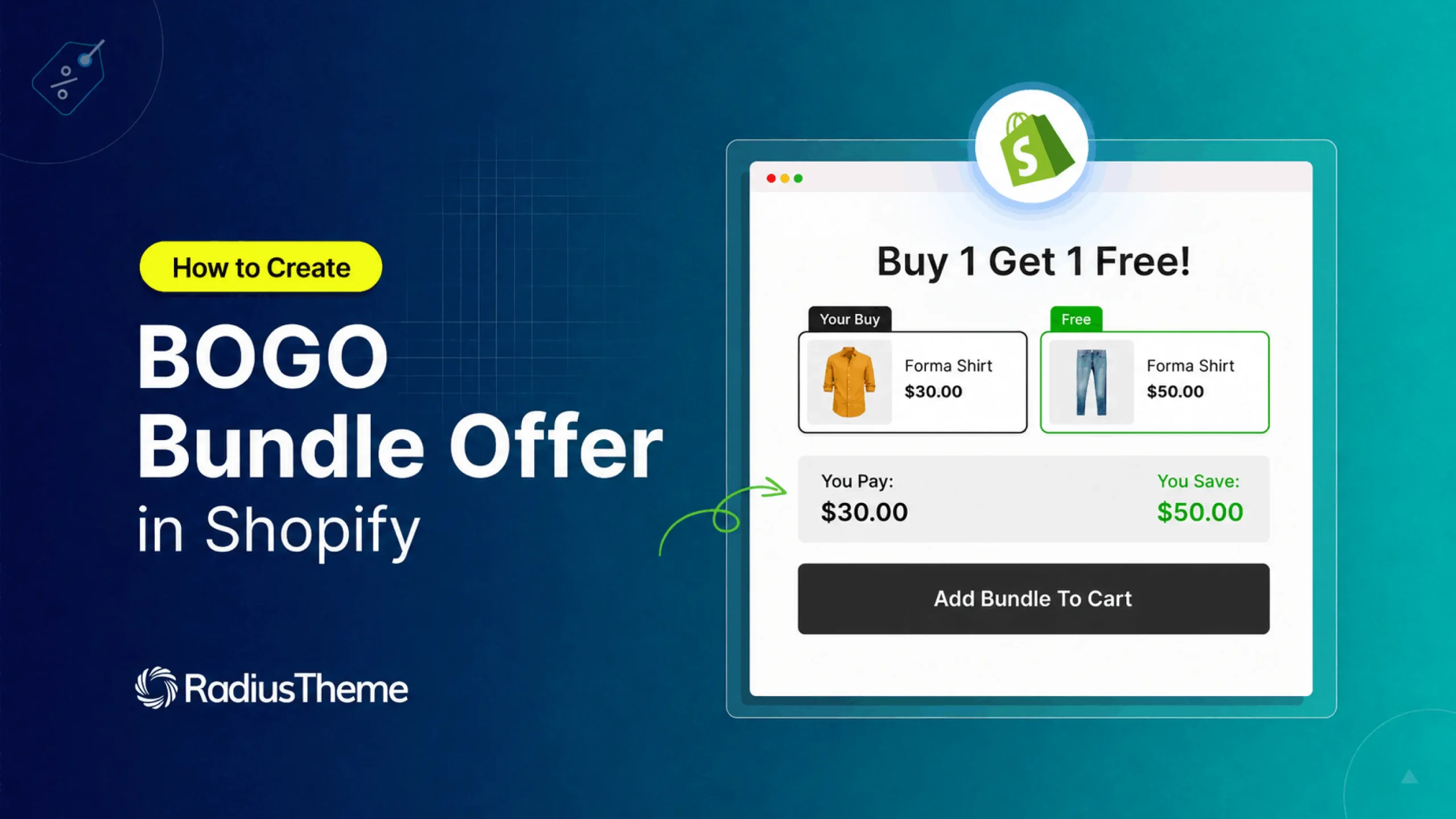
The word “free” makes shoppers stop and click. That is why a BOGO bundle offer on Shopify is one of the fastest ways to sell more items per order. BOGO means “Buy One, Get One.” A shopper buys one product and gets a second one free or at a lower price.
This guide shows you how to create a BOGO bundle offer on Shopify. You will also learn the common mistakes to skip and the questions most merchants ask.
What Is a BOGO Bundle Offer?
A BOGO bundle groups two products into one deal. The shopper buys the first item at full price. They get the second item free or cheaper.
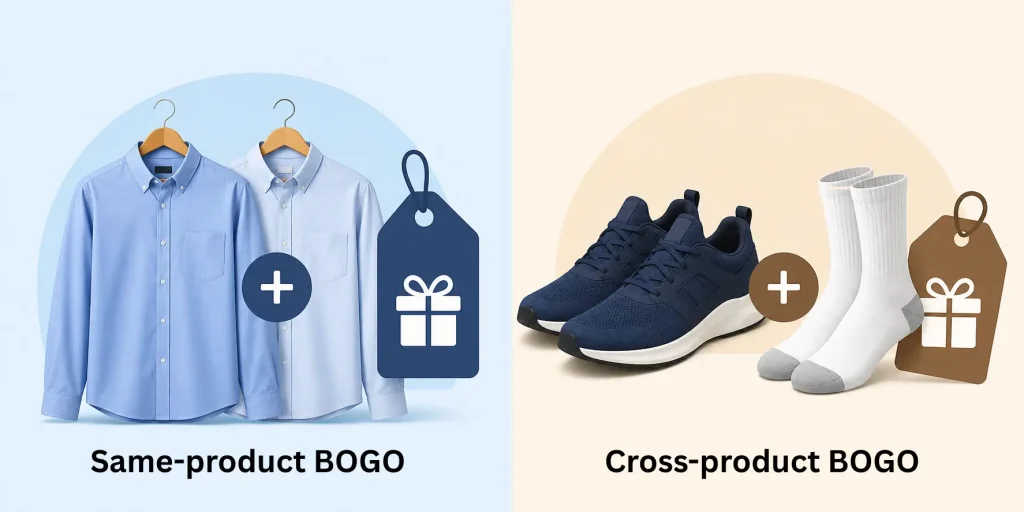
There are two main styles:
- Same-product BOGO: Buy one shirt, get a second shirt free.
- Cross-product BOGO: Buy shoes, get socks free.
Both work well. Same-product deals are great for clearing stock. Cross-product deals help you cross-sell items that go together.
Common Types of BOGO Deals
Not every BOGO looks the same. Pick the format that fits your goal and your margins.
- Buy 1 Get 1 Free: The classic. Best for moving slow stock fast.
- Buy 1 Get 1 Half Off: Softer on your profit. Still feels like a win.
- Buy 2 Get 1 Free: Pushes bigger carts and lifts your average order value.
- Buy X Get a Free Gift: Buy a main item, get a small bonus product free.
Method 1: Create a BOGO Offer With Shopify’s Built-In Tool
Shopify has a native discount type called Buy X Get Y. This is where BOGO lives. You do not need an app to start. Here is the short version of the steps.
- From your Shopify admin, go to Discounts.
- Click Create discount, then choose Buy X Get Y.
- Pick Automatic discount (applies on its own) or Discount code (customer types a code).
- Under Customer buys, set what they must buy. This is your “X” product or collection.
- Under Customer gets, set the reward. This is your “Y” product. Set it to free or a percent off.
- Add start and end dates if you want a time limit.
- Click Save and test it in a real cart.
That is the whole flow. It works, and it is free.
The Catch With the Native Shopify BOGO Method
The built-in tool has real limits you should know before you launch.
- The gift does not auto-add. The shopper must add both items to the cart themselves. If they only add the “buy” item, no discount shows.
- The deal stays hidden. The offer often does not show on the product page. Many shoppers only see it at checkout, when they may have already decided.
- Same-product BOGO is hard at scale. You often have to pair each product by hand. That gets slow with a big catalog.
- Only one automatic Buy X Get Y runs at a time. You also hit a cap on automatic discounts.
For one or two simple deals, the native tool is fine. For visible, hands-off BOGO offers, an app does more.
Method 2: Create a BOGO Bundle With the Radius Bundles App
The Radius Bundles app fixes the gaps above. It is a free Shopify app with a lot of features. It shows the BOGO deal right on the product page. It handles same-product and cross-product BOGO. And it adds the right items to the cart for you.
You do not need to learn a hard setup. Here is the simple idea behind it.
Step 1: Add Products and Assign Roles
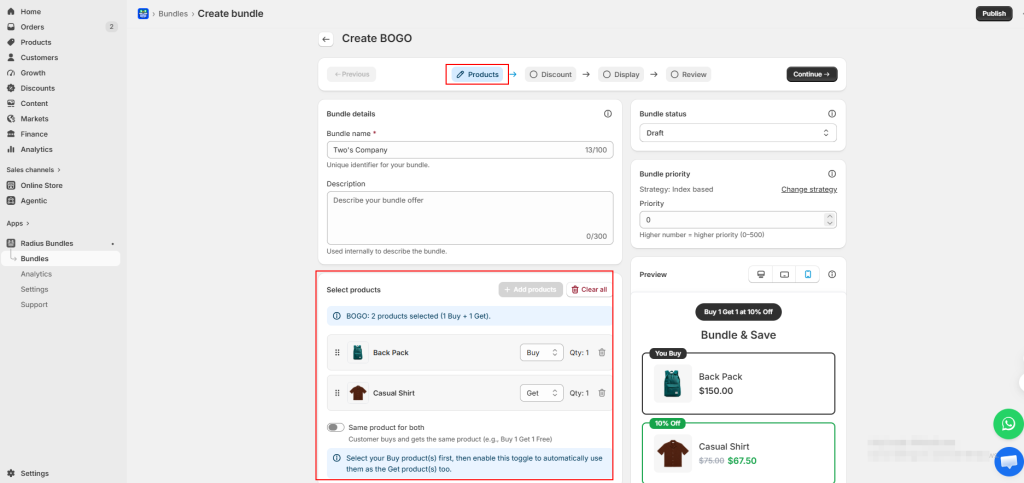
Go to Bundles → Create bundle and pick BOGO. Click Add products. Set your first item to the Buy role. Add your second item and set it to the Get role. For a same-product deal, turn on the Same product toggle and add the item just once.
Step 2: Set the Discount
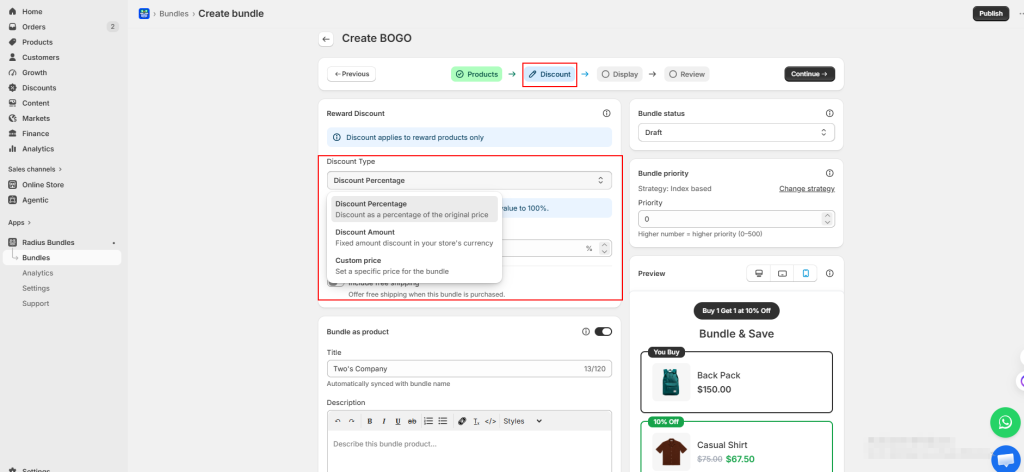
The discount applies to the Get product. Pick your reward:
- Percentage: 100% off makes it free. 50% off halves the price.
- Fixed Amount: A flat dollar amount off the get product.
- No Discount: Handy for testing the layout before you set a price.
Step 3: Choose the Look
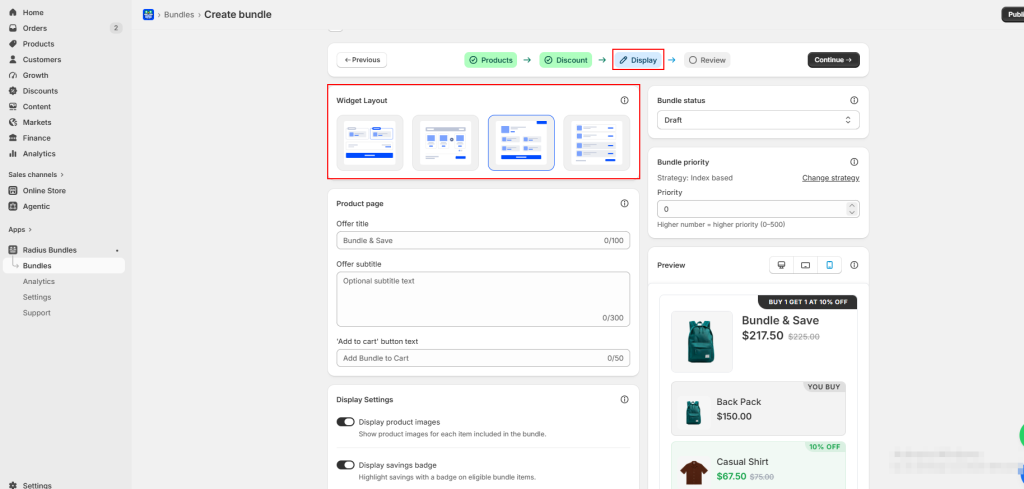
Pick how the deal shows on your product page. The free plan offers two layouts. Classic Card uses a two-column design that splits the Buy and Get sections. Compact Grid shows tiles with role badges.
Step 4: Review and Publish
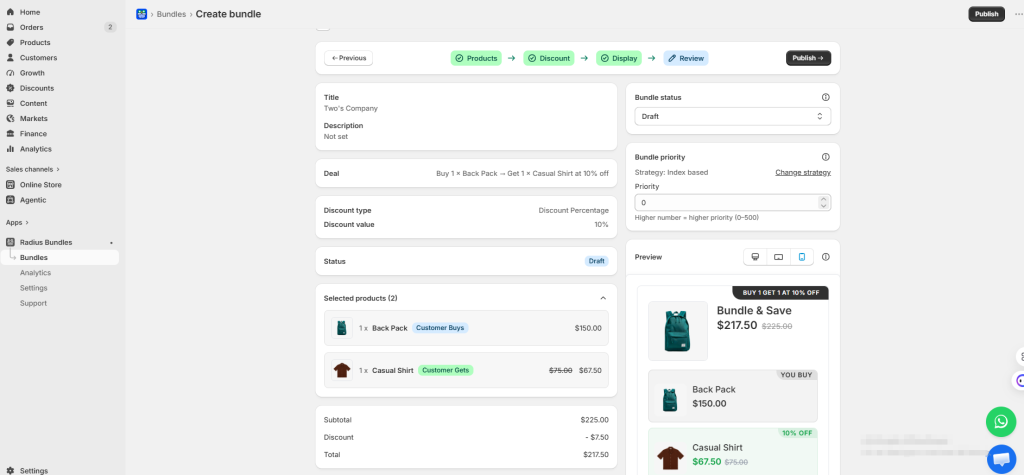
Check the summary to make sure the deal looks right. Then hit Publish.
👉 Good Read: 10 Best Shopify Bundle Apps to Increase AOV
Native Shopify vs Radius Bundles App
| Feature | Shopify Native | Radius Bundles App |
| Cost | Free | Free |
| Shows on product page | No | Yes |
| Auto-adds the gift | No | Yes |
| Same-product BOGO | Manual | One toggle |
| Custom widget design | No | Yes |
| Best for | One simple deal | Visible, scalable deals |
Common BOGO Mistakes to Avoid
Small setup errors can break your deal or hurt your profit. Watch for these.
- Wrong product roles. If both items are set as “buy,” the discount will not apply. Double-check which item is the free one.
- Thin margins. Do not run “get one free” on low-margin products. Add a small buffer to your base price first.
- No page messaging. If shoppers never see the deal, they will not use it. Show it on the product page or add a banner.
- No test order. Always add both items to a cart and confirm the discount before you go live.
- Bad product pairs. Match items that go together. A coffee grinder pairs with coffee beans, not a random gadget.
Tips to Make Your BOGO Offer Convert
A few smart choices can lift your results with the same traffic.
- Show the dollar saved. “Save $15” often beats “50% off” in a shopper’s mind.
- Design for mobile. Most Shopify traffic is on phones. Test the offer on a real phone first.
- Add urgency. A short end date or a “limited stock” note pushes faster decisions.
- Track profit, not just orders. A busy BOGO sale can still lose money if margins are too thin.
Final Thoughts
A BOGO bundle offer on Shopify is a simple way to sell more, clear stock, and give shoppers a deal they feel good about. Start with the built-in Buy X Get Y tool if you want a quick, free test. Move to the Radius Bundles app when you want the offer to show on the product page and add the free item for you.
Pick one product, set your deal, and run a small test this week. Watch your average order value, then scale the winners.