• Classified Listing Docs
    • Classified Listing Plugin
    • Classified Listing All Addons
    • Classified Listing Mobile App
    • Classima Mobile APP
    • Listygo Mobile App
    • Homlisti Mobile App
  • Woocommerce Plugins Docs
    • ShopBuilder Elementor Addon
    • Woo Variation Swatches
    • Woo Variation Gallery
    • Zilly Mobile App
  • General Plugins Docs
    • The Post Grid
    • Testimonial Slider
    • Team Members
    • Food Menu
    • Review & Schema
    • Portfolio
    • Business Review
  • Our Plugins
    • The Post Grid
    • Classified Listing
    • ShopBuilder
    • Food Menu
    • Team
    • Portfolio
    • Testimonial Slider
    • Review & Schema
    • See All Plugins
  • Get Pro
×
  • Classified Listing Docs
    • Classified Listing Plugin
    • Classified Listing All Addons
    • Classified Listing Mobile App
    • Classima Mobile APP
    • Listygo Mobile App
    • Homlisti Mobile App
  • Woocommerce Plugins Docs
    • ShopBuilder Elementor Addon
    • Woo Variation Swatches
    • Woo Variation Gallery
    • Zilly Mobile App
  • General Plugins Docs
    • The Post Grid
    • Testimonial Slider
    • Team Members
    • Food Menu
    • Review & Schema
    • Portfolio
    • Business Review
  • Our Plugins
    • The Post Grid
    • Classified Listing
    • ShopBuilder
    • Food Menu
    • Team
    • Portfolio
    • Testimonial Slider
    • Review & Schema
    • See All Plugins

Getting Started

2
  • System Requirements
  • Installations

Plugin Settings

2
  • General Settings
  • Detail Page Settings

Special Features

10
  • POS Printing PRO
  • QR Table Ordering PRO
  • Food Location
  • Timed Products Pro PRO
  • Custom Order Statuses PRO
  • Order Timeline PRO
  • Order Bumps PRO
  • WhatsApp Order Notifications PRO
  • Product Addons PRO
  • Special Menu Pop-up

Front End Dashboard (Pro)

7
  • General PRO
  • Order Management PRO
  • Inventory PRO
  • Front-End Dashboard – Inventory PRO
  • Kitchen Monitor PRO
  • Create Custom Role PRO
  • Front End Reports PRO

ShortCode Generator

7
  • Layout
  • Filtering
  • Fields Selection
  • Styling
  • Category Filter Layout PRO
  • Carousel Slider Layout PRO
  • Woocommerce Layout PRO

Reservation

6
  • Reservation PRO
  • Normal Form Reservation
  • Build Table Layout PRO
  • Manage Reservation PRO
  • Reservation Front-end PRO
  • Cancel Reservation PRO

Online Ordering (WooCommerce)

7
  • Food Menu Online Ordering PRO
  • Mini Cart
  • Tipping
  • Pickup & Delivery PRO
  • Custom Checkout PRO
  • Checkout Extra Fields PRO
  • Discount

Add-Food-Menu (Post Type)

6
  • Add/ Edit Ingredients PRO
  • Add/ Edit Nutrition PRO
  • Add/ Edit Tags PRO
  • Add/ Edit Food Item
  • Add/ Edit Units PRO
  • Add / Edit Category

How to use

3
  • Using Shortcode
  • Using Elementor Addon
  • Using Gutenberg Addon

Tutorial Video

5
  • Simple Food Menu
  • Online Ordering
  • Table Reservation
  • Product Addon
  • Popup Food Menu
  • Home
  • Docs
  • Getting Started
  • Installations
View Categories

Installations

2 min read

Free Version #

1) To install the free version, navigate to the WordPress admin end menu Plugins => Add New.  

2) Now, in the plugin search box, type “TLP Food Menu.” 
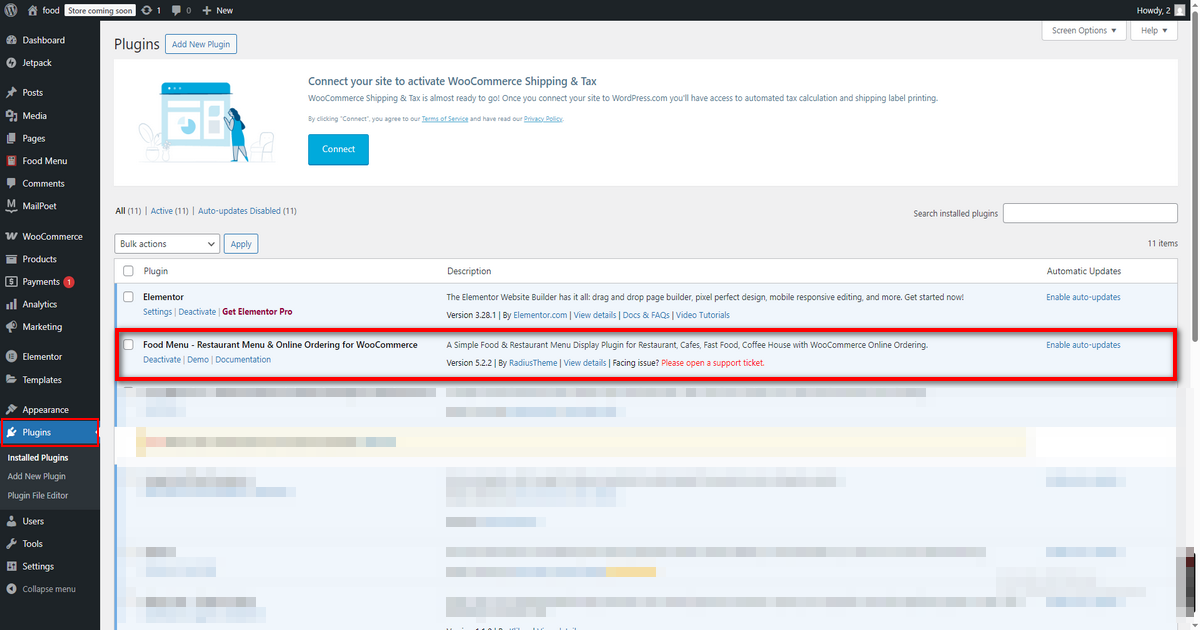
3) Find the “Food Menu – Restaurant Menu & Online Ordering for WooCommerce” like the image below. Click on the “Install Now” button to install the free version of the plugin.

After Activation of the “Food Menu” plugin it will appear in the WordPress admin menu like the image below.
Install Pro Version #

The Pro version of the “Food Menu Pro” plugin is a zip file. After purchasing the Pro version, you will get a download link in your purchase receipt email.

From this mail, you can acquire the plugin files. If not, you can log in to RadiusTheme. Then go to Purchase History and get it from the top right, the last menu item. See below

After the download, you’ll find the files in the zip folder on your computer. You then need to install the food-menu-pro.zip. Once you download the zip file. Please follow the following steps to install the “Food Menu – Restaurant Menu & Online Ordering for WooCommerce” PRO version.

Note: Need the active free version to function pro version. Without the free version, Pro version 5.1.3 will not activate.

1) Go to your WordPress website Dashboard. Navigate to Plugins > Add New.

2) Now, check the options on the top right beside “Add Plugins” for the “Upload Plugins” option. Click on this.

3) Once you click the “Upload Plugin” button, you will get the plugin upload option from your computer. Now select the “food-menu-pro.zip” file from your computer and click on the “Install Now” button.

After installing and activating the Pro version, you will get the plugin on your website.

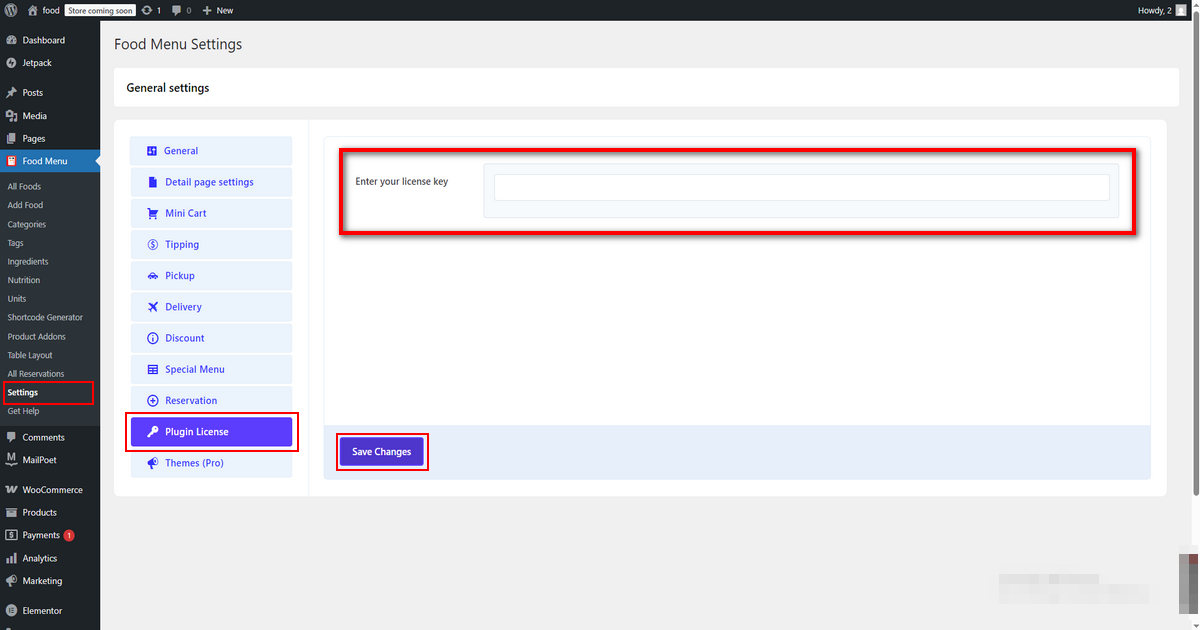
After activating the plugin, you need to activate the plugin again using the license key you get in your “Purchase email” or go to login RadiusTheme.com then go to purchase history and click on the “License Key“
What are your Feelings

Share This Article :

  • Facebook
  • X
  • LinkedIn
  • Pinterest
Still stuck? How can we help?

How can we help?

Updated on May 6, 2025
System RequirementsSystem Requirements
Table of Contents
  • Free Version
  • Install Pro Version
Copyright© 2026 RadiusDocs by RadiusTheme