
Edit / Manage Reservations #
To manage reservations, navigate to Food Menu → All Reservations from your WordPress admin dashboard.
This page displays all table reservations and lets you filter, edit, and manage them.
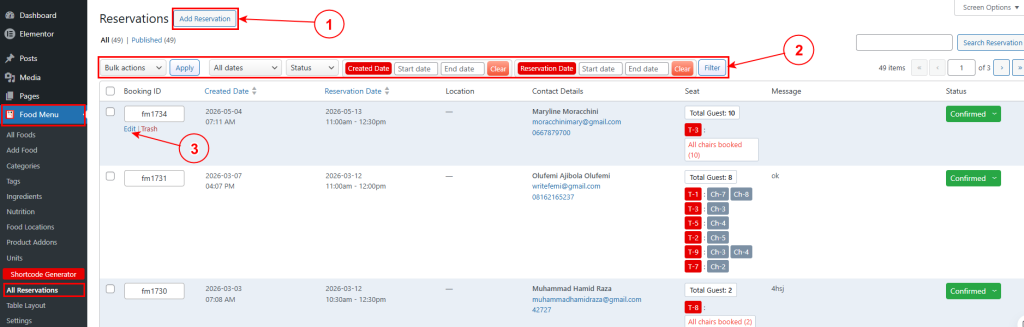
1. Add Reservation – Click to manually create a new reservation on behalf of a customer.
2. Filter Options – Use bulk actions, date filters, status filters, and the search box to find specific reservations.
3. Edit or Delete – Click Edit to modify a reservation or Trash to delete it from the booking list.
4. Reservation Details – View booking ID, created date, reservation date, location, contact details, seats booked, customer messages, and current status. Change the status using the dropdown in the Status column.
Add / Edit Reservation Data #
To add a new reservation, click Add Reservation from the Food Menu → All Reservations page. To edit an existing reservation, click Edit next to any reservation in the list.
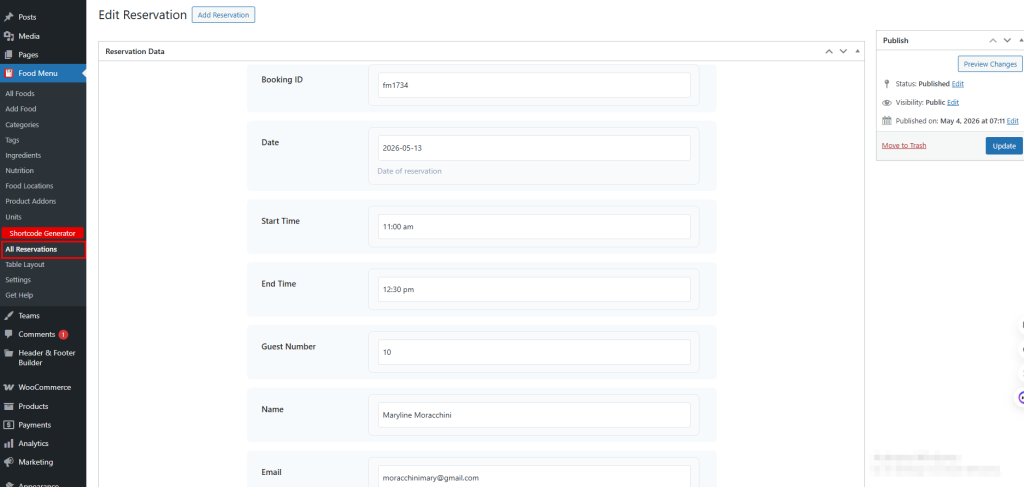
Here you can manage the Booking ID, Date, Start Time, End Time, Guest Number, Booking Person’s Name, Email Address, Phone Number, Message, and Reservation Status.
After editing all the settings, you can click on the ‘Update’ button.


