• Classified Listing Docs
    • Classified Listing Plugin
    • Classified Listing All Addons
    • Classified Listing Mobile App
    • Classima Mobile APP
    • Listygo Mobile App
    • Homlisti Mobile App
  • Woocommerce Plugins Docs
    • ShopBuilder Elementor Addon
    • Woo Variation Swatches
    • Woo Variation Gallery
    • Zilly Mobile App
  • General Plugins Docs
    • The Post Grid
    • Testimonial Slider
    • Team Members
    • Food Menu
    • Review & Schema
    • Portfolio
    • Business Review
  • Our Plugins
    • The Post Grid
    • Classified Listing
    • ShopBuilder
    • Food Menu
    • Team
    • Portfolio
    • Testimonial Slider
    • Review & Schema
    • See All Plugins
  • Get Pro
×
  • Classified Listing Docs
    • Classified Listing Plugin
    • Classified Listing All Addons
    • Classified Listing Mobile App
    • Classima Mobile APP
    • Listygo Mobile App
    • Homlisti Mobile App
  • Woocommerce Plugins Docs
    • ShopBuilder Elementor Addon
    • Woo Variation Swatches
    • Woo Variation Gallery
    • Zilly Mobile App
  • General Plugins Docs
    • The Post Grid
    • Testimonial Slider
    • Team Members
    • Food Menu
    • Review & Schema
    • Portfolio
    • Business Review
  • Our Plugins
    • The Post Grid
    • Classified Listing
    • ShopBuilder
    • Food Menu
    • Team
    • Portfolio
    • Testimonial Slider
    • Review & Schema
    • See All Plugins

Getting Started

2
  • System Requirements
  • Installations

Plugin Settings

2
  • General Settings
  • Detail Page Settings

Special Features

10
  • POS Printing PRO
  • QR Table Ordering PRO
  • Food Location
  • Timed Products Pro PRO
  • Custom Order Statuses PRO
  • Order Timeline PRO
  • Order Bumps PRO
  • WhatsApp Order Notifications PRO
  • Product Addons PRO
  • Special Menu Pop-up

Front End Dashboard (Pro)

7
  • General PRO
  • Order Management PRO
  • Inventory PRO
  • Front-End Dashboard – Inventory PRO
  • Kitchen Monitor PRO
  • Create Custom Role PRO
  • Front End Reports PRO

ShortCode Generator

7
  • Layout
  • Filtering
  • Fields Selection
  • Styling
  • Category Filter Layout PRO
  • Carousel Slider Layout PRO
  • Woocommerce Layout PRO

Reservation

6
  • Reservation PRO
  • Normal Form Reservation
  • Build Table Layout PRO
  • Manage Reservation PRO
  • Reservation Front-end PRO
  • Cancel Reservation PRO

Online Ordering (WooCommerce)

7
  • Food Menu Online Ordering PRO
  • Mini Cart
  • Tipping
  • Pickup & Delivery PRO
  • Custom Checkout PRO
  • Checkout Extra Fields PRO
  • Discount

Add-Food-Menu (Post Type)

6
  • Add/ Edit Ingredients PRO
  • Add/ Edit Nutrition PRO
  • Add/ Edit Tags PRO
  • Add/ Edit Food Item
  • Add/ Edit Units PRO
  • Add / Edit Category

How to use

3
  • Using Shortcode
  • Using Elementor Addon
  • Using Gutenberg Addon

Tutorial Video

5
  • Simple Food Menu
  • Online Ordering
  • Table Reservation
  • Product Addon
  • Popup Food Menu
  • Home
  • Docs
  • ShortCode Generator
  • Layout
View Categories

Layout

1 min read

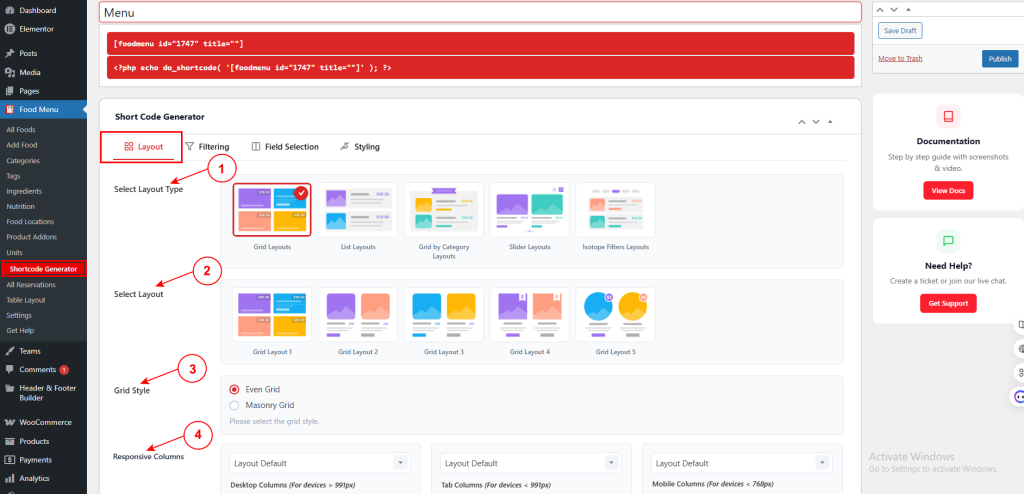
To create a food menu shortcode, navigate to Food Menu → Shortcode Generator from your WordPress admin dashboard.

The Shortcode Generator lets you build custom menu layouts with filtering, styling, and display options. The generated shortcode can be placed on any page to display your food menu.

1. Select Layout Type #

Choose from five layout categories:

  • Grid Layouts – Show items in grid format.
  • List Layouts – Display items in list format.
  • Grid by Category Layouts – Organize items by category in grid.
  • Slider Layouts – Arrange items in a carousel slider.
  • Isotope Filters Layouts – Grid with category filtering buttons.
2. Select Layout #

Choose a specific layout design from the selected type (e.g., Grid Layout 1, Grid Layout 2, etc.). Each layout has a unique visual structure.

3. Grid Style #

Select the grid arrangement:

  • Even Grid – Items arranged in equal-height rows.
  • Masonry Grid – Items arranged in Pinterest-style masonry layout.

4. Responsive Columns #

Configure how many columns display at different screen sizes:

  • Desktop Columns – For devices > 991px (e.g., Layout Default)
  • Tab Columns – For devices < 991px
  • Mobile Columns – For devices < 768px

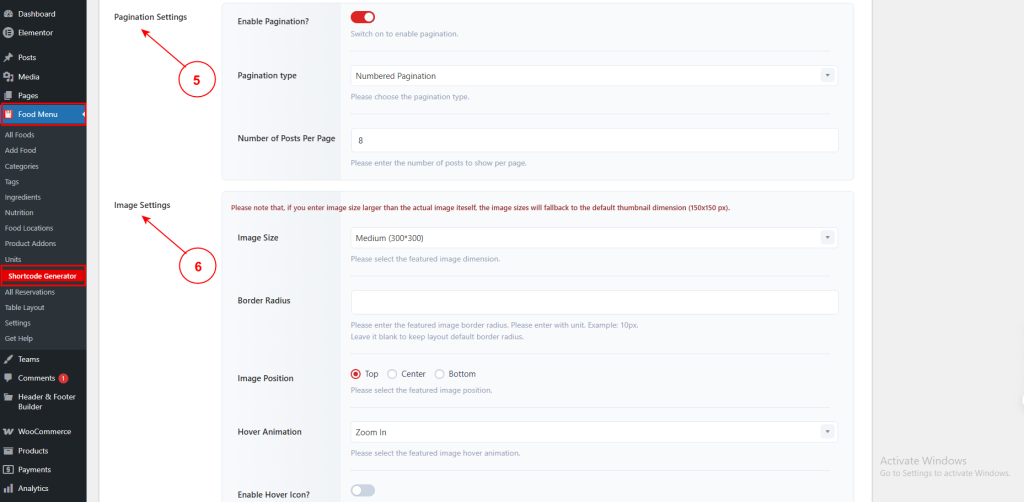
5. Pagination Settings #

  • Enable Pagination? – Toggle on to split items across multiple pages.
  • Pagination type – Choose pagination style (e.g., Numbered Pagination, Load More Button, etc.).
  • Number of Posts Per Page – Set how many items display per page (e.g., 8).

6. Image Settings #

Image Size – Select featured image dimensions (e.g., Medium (300*300)). Images larger than the selected size will fallback to 150x150px.

Border Radius – Enter the image border radius with unit (e.g., 10px). Leave blank for default.

Image Position – Choose where the image appears:

  • Top
  • Center
  • Bottom

Hover Animation – Select image hover effect (e.g., Zoom In, Zoom Out, etc.).

Enable Hover Icon? – Toggle on to display an icon overlay on image hover.

Default Preview Image – Please upload or choose the default preview image. This image will show if there is no featured image available.
7. Excerpt Settings #

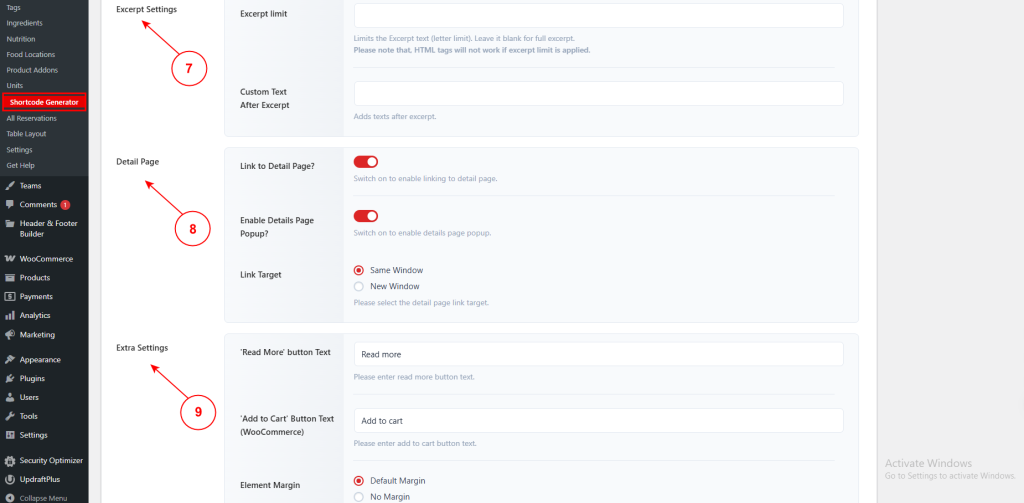
Excerpt limit – Set the maximum number of words for item excerpts. Leave blank for full excerpt. Note: HTML tags will not work if excerpt limit is applied.

Custom Text After Excerpt – Add custom text to display after the excerpt.

8. Detail Page #

Link to Detail Page? – Toggle on to link menu items to their detail pages.

Enable Details Page Popup? – Toggle on to open item details in a popup modal instead of navigating to a new page.

Link Target – Choose link behavior:

  • Same Window – Open detail page in the same browser window.
  • New Window – Open detail page in a new tab.

9. Extra Settings #

‘Read More‘ button Text – Customize the read more button label (e.g., Read more).

‘Add to Cart’ Button Text (WooCommerce) – Personalize the add to cart button label (e.g., Add to cart).

Element Margin – Choose margin spacing:

  • Default Margin – Standard spacing between items.
  • No Margin – No spacing between items.

What are your Feelings

Share This Article :

  • Facebook
  • X
  • LinkedIn
  • Pinterest
Still stuck? How can we help?

How can we help?

Updated on May 10, 2026
Woocommerce Layout <span class="pro">PRO</span>Filtering
Table of Contents
  • 1. Select Layout Type
  • 2. Select Layout
  • 3. Grid Style
  • 4. Responsive Columns
  • 5. Pagination Settings
  • 6. Image Settings
  • 7. Excerpt Settings
  • 8. Detail Page
  • 9. Extra Settings
Copyright© 2026 RadiusDocs by RadiusTheme