• Classified Listing Docs
    • Classified Listing Plugin
    • Classified Listing All Addons
    • Classified Listing Mobile App
    • Classima Mobile APP
    • Listygo Mobile App
    • Homlisti Mobile App
  • Woocommerce Plugins Docs
    • ShopBuilder Elementor Addon
    • Woo Variation Swatches
    • Woo Variation Gallery
    • Zilly Mobile App
  • General Plugins Docs
    • The Post Grid
    • Testimonial Slider
    • Team Members
    • Food Menu
    • Review & Schema
    • Portfolio
    • Business Review
  • Our Plugins
    • The Post Grid
    • Classified Listing
    • ShopBuilder
    • Food Menu
    • Team
    • Portfolio
    • Testimonial Slider
    • Review & Schema
    • See All Plugins
  • Get Pro
×
  • Classified Listing Docs
    • Classified Listing Plugin
    • Classified Listing All Addons
    • Classified Listing Mobile App
    • Classima Mobile APP
    • Listygo Mobile App
    • Homlisti Mobile App
  • Woocommerce Plugins Docs
    • ShopBuilder Elementor Addon
    • Woo Variation Swatches
    • Woo Variation Gallery
    • Zilly Mobile App
  • General Plugins Docs
    • The Post Grid
    • Testimonial Slider
    • Team Members
    • Food Menu
    • Review & Schema
    • Portfolio
    • Business Review
  • Our Plugins
    • The Post Grid
    • Classified Listing
    • ShopBuilder
    • Food Menu
    • Team
    • Portfolio
    • Testimonial Slider
    • Review & Schema
    • See All Plugins

Getting Started

2
  • System Requirements
  • Installations

Plugin Settings

2
  • General Settings
  • Detail Page Settings

Special Features

10
  • POS Printing PRO
  • QR Table Ordering PRO
  • Food Location
  • Timed Products Pro PRO
  • Custom Order Statuses PRO
  • Order Timeline PRO
  • Order Bumps PRO
  • WhatsApp Order Notifications PRO
  • Product Addons PRO
  • Special Menu Pop-up

Front End Dashboard (Pro)

7
  • General PRO
  • Order Management PRO
  • Inventory PRO
  • Front-End Dashboard – Inventory PRO
  • Kitchen Monitor PRO
  • Create Custom Role PRO
  • Front End Reports PRO

ShortCode Generator

7
  • Layout
  • Filtering
  • Fields Selection
  • Styling
  • Category Filter Layout PRO
  • Carousel Slider Layout PRO
  • Woocommerce Layout PRO

Reservation

6
  • Reservation PRO
  • Normal Form Reservation
  • Build Table Layout PRO
  • Manage Reservation PRO
  • Reservation Front-end PRO
  • Cancel Reservation PRO

Online Ordering (WooCommerce)

7
  • Food Menu Online Ordering PRO
  • Mini Cart
  • Tipping
  • Pickup & Delivery PRO
  • Custom Checkout PRO
  • Checkout Extra Fields PRO
  • Discount

Add-Food-Menu (Post Type)

6
  • Add/ Edit Ingredients PRO
  • Add/ Edit Nutrition PRO
  • Add/ Edit Tags PRO
  • Add/ Edit Food Item
  • Add/ Edit Units PRO
  • Add / Edit Category

How to use

3
  • Using Shortcode
  • Using Elementor Addon
  • Using Gutenberg Addon

Tutorial Video

5
  • Simple Food Menu
  • Online Ordering
  • Table Reservation
  • Product Addon
  • Popup Food Menu
  • Home
  • Docs
  • Online Ordering (WooCommerce)
  • Custom Checkout PRO
View Categories

Custom Checkout PRO

2 min read

To configure Custom Checkout, navigate to Food Menu → Settings → Checkout Settings → Custom Checkout from your WordPress admin dashboard.

This page lets you replace the default WooCommerce checkout with a restaurant-focused design, and control which sections and form fields are visible.
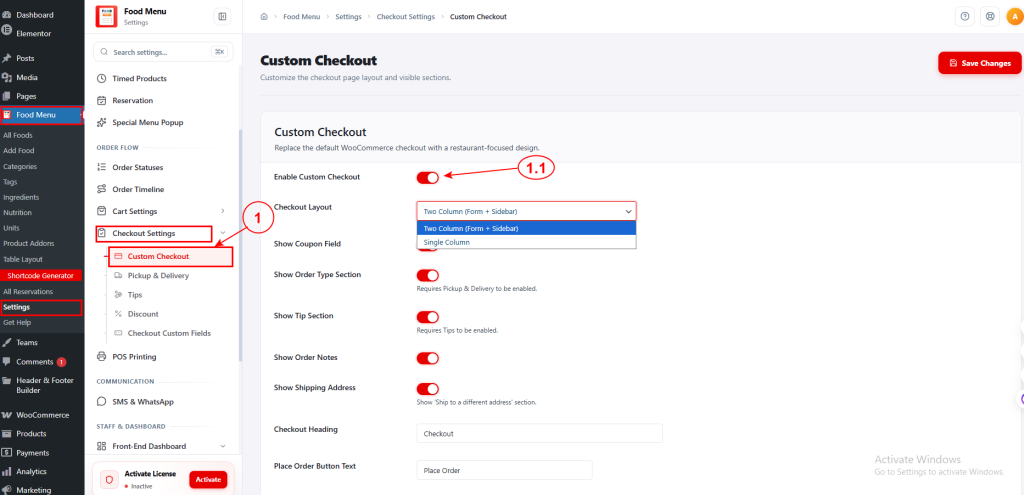
1.1 Custom Checkout #

Enable Custom Checkout: Toggle this on to activate the custom restaurant-style checkout page.

  • Checkout Layout: Choose the page layout from the dropdown:

Two Column (Form + Sidebar) – Displays the checkout form alongside an order summary sidebar.

Single Column – Displays the checkout in a single full-width column.

  • Show Coupon Field: Activate this to display a coupon code input on the checkout page.
  • Show Order Type Section: Switch on to show the order type selector (e.g., pickup or delivery) on the checkout page. Requires Pickup & Delivery to be enabled.
  • Show Tip Section: Turn on to display a tipping option on the checkout page. Requires Tips to be enabled.
  • Show Order Notes: Enable this to let customers add special instructions or notes to their order.
  • Show Shipping Address: Toggle this on to display a “Ship to a different address” section on the checkout page.
  • Checkout Heading: Customize the main heading text shown on the checkout page (e.g., Checkout).
  • Place Order Button Text: Personalize the label of the final order submission button (e.g., Place Order).

1.2 Checkout Form Fields #

This section controls the billing and shipping address fields displayed on the checkout form. Each field has three configurable options:
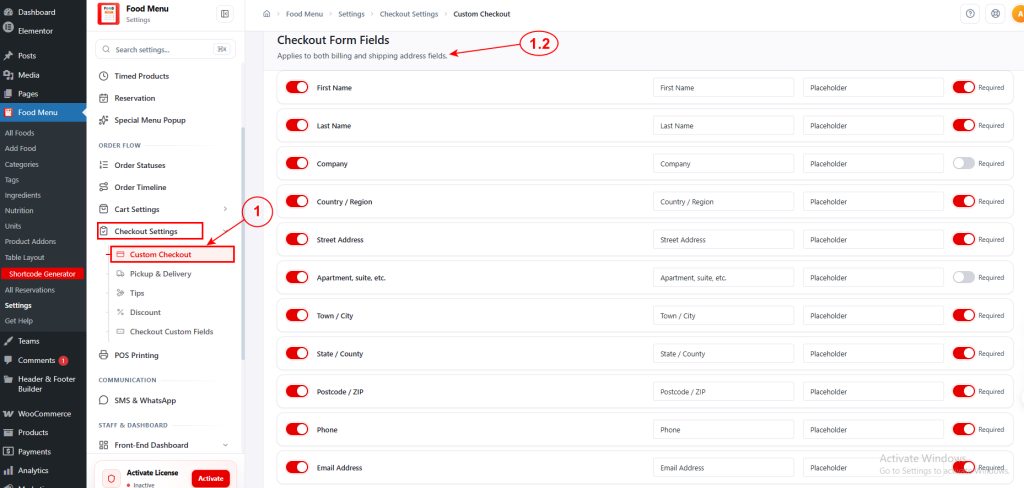
  • Visibility toggle (left) – Turn a field on or off to show or hide it on the checkout form.
  • Label (middle) – Customize the field label and placeholder text shown to customers.
  • Required toggle (right) – Mark a field as mandatory so customers must fill it in before placing an order.

The available fields are: First Name, Last Name, Company, Country / Region, Street Address, Apartment/suite/etc., Town / City, State / County, Postcode / ZIP, Phone, and Email Address.

After configuring all settings, click the Save Changes button to apply your changes.

How to Enable Custom Checkout in The Food Menu Plugin #

What are your Feelings

Share This Article :

  • Facebook
  • X
  • LinkedIn
  • Pinterest
Still stuck? How can we help?

How can we help?

Updated on July 12, 2026
Pickup & Delivery <span class="pro">PRO</span>Checkout Extra Fields <span class="pro">PRO</span>
Table of Contents
  • 1.1 Custom Checkout
  • 1.2 Checkout Form Fields
  • How to Enable Custom Checkout in The Food Menu Plugin
Copyright© 2026 RadiusDocs by RadiusTheme