
To configure Pickup & Delivery, navigate to Food Menu → Settings → Checkout Settings → Pickup & Delivery from your WordPress admin dashboard.
This page lets you configure pickup and delivery options and scheduling. It is organized into three sections: shared Pickup and Delivery Settings at the top, followed by two tabs — Pickup and Delivery.
2.1 Pickup & Delivery Settings #
These settings apply globally to both pickup and delivery orders.
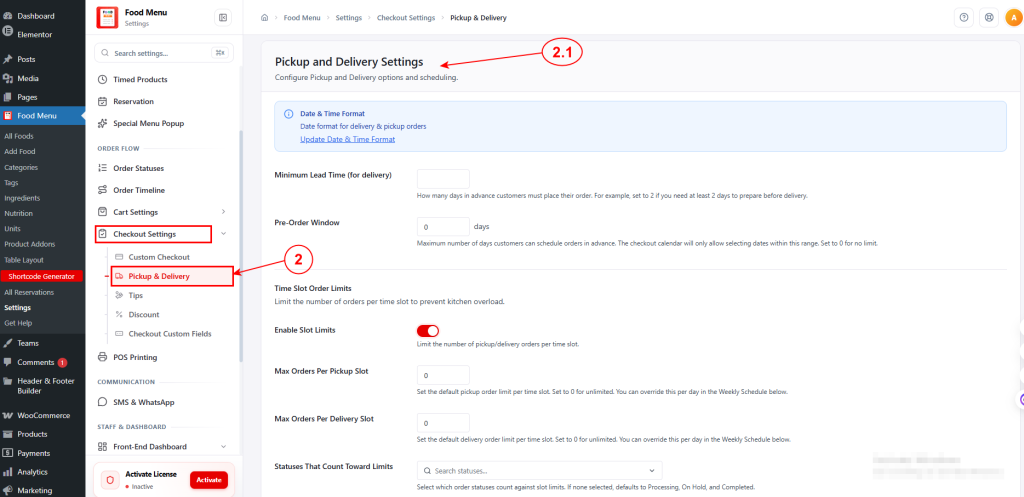
- Date & Time Format: Displays the current date format used for delivery and pickup orders. Click Update Date & Time Format to change it.
- Minimum Lead Time (for delivery): Set how many days in advance customers must place their order. For example, set to 2 if you need at least 2 days to prepare before delivery.
- Pre-Order Window: Set the maximum number of days customers can schedule orders in advance (e.g., 0 days). The checkout calendar will only allow selecting dates within this range. Set to 0 for no limit.
Time Slot Order Limits
Control the number of orders accepted per time slot to prevent kitchen overload.
- Enable Slot Limits: Toggle this on to limit the number of pickup/delivery orders per time slot.
- Max Orders Per Pickup Slot: Determine the default pickup order limit per time slot. Set to 0 for unlimited. This can be overridden per day in the Weekly Schedule below.
- Max Orders Per Delivery Slot: Set the default delivery order limit per time slot. Set to 0 for unlimited. This can also be overridden per day in the Weekly Schedule.
- Statuses That Count Toward Limits: Select which order statuses count against slot limits. If none is selected, defaults to Processing, On Hold, and Completed.
2.2 Pickup Settings #
Configure pickup-specific options and scheduling.
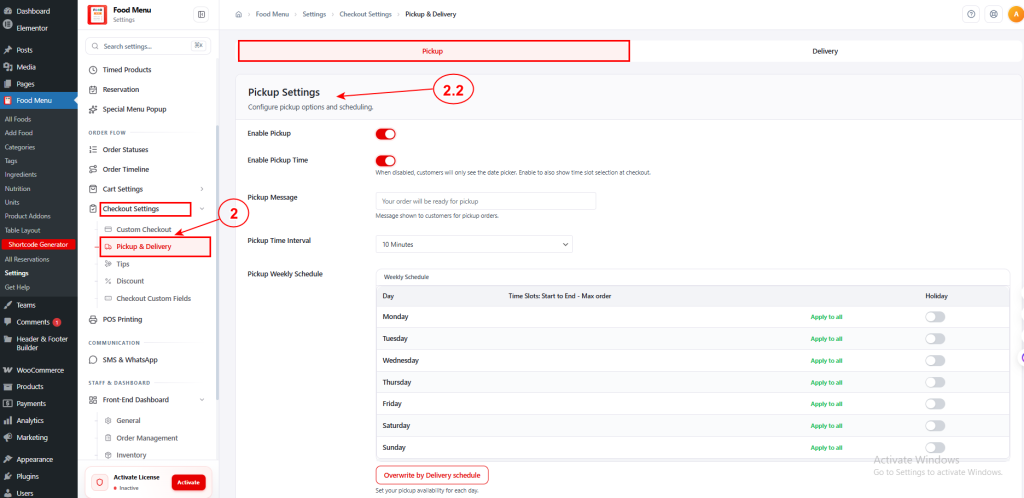
Enable Pickup: Toggle this on to allow customers to choose pickup as an order type.
Enable Pickup Time: Activate this to show time slot selection at checkout in addition to the date picker. When disabled, customers will only see the date picker.
Pickup Message: Customize the message shown to customers for pickup orders (e.g., Your order will be ready for pickup).
Pickup Time Interval: Select the time slot interval for pickup scheduling from the dropdown (e.g., 10 Minutes).
Pickup Weekly Schedule: Configure your pickup availability for each day of the week. The schedule table includes:
- Day – Each day from Monday to Sunday.
- Time Slots: Start to End – Max order – Define available time windows and optional per-slot order limits for each day. Click Apply to all to copy a day’s settings to every other day.
- Holiday – Switch on to mark a specific day as a holiday, disabling pickup for that day.
You can also click Overwrite by Delivery schedule to quickly copy the delivery schedule to pickup.
Pickup Front End on Checkout Page #
When Pickup & Delivery features are enabled in Food Menu → Settings → Checkout Settings → Pickup & Delivery, customers can select their preferred order fulfillment method on the checkout page.
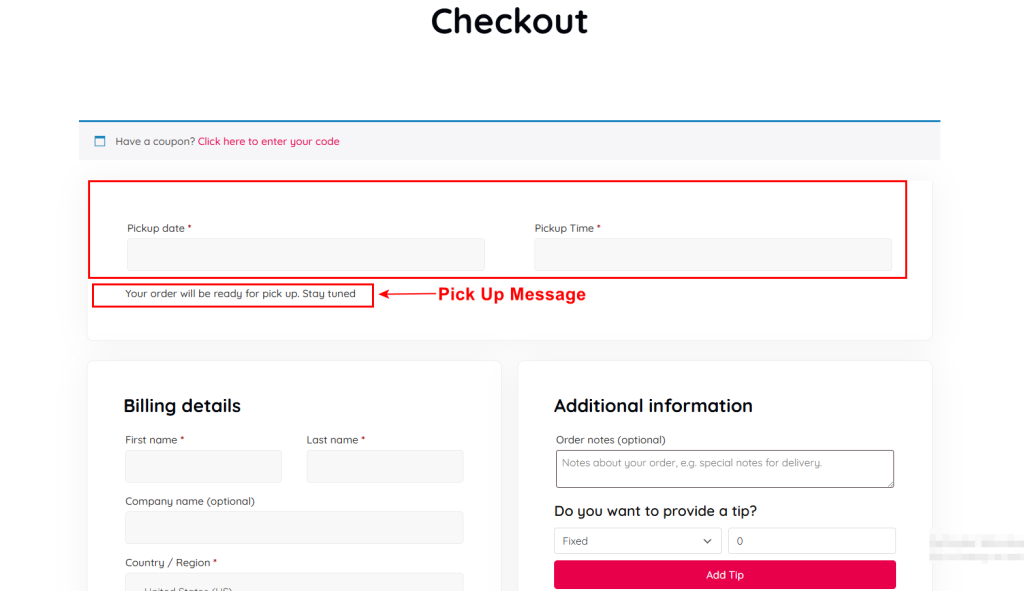
When pickup is enabled, customers see:
- Pickup date – Select the date they want to pick up their order from the date picker.
- Pickup Time – Choose their preferred pickup time from available time slots.
- Pick Up Message – A customizable message appears below the fields (e.g., “Your order will be ready for pick up. Stay tuned”).
This message is configured in Settings → Checkout Settings → Pickup & Delivery → Pickup Tab → Pickup Message.
Delivery Front End on Checkout Page #
When Pickup & Delivery features are enabled in Food Menu → Settings → Checkout Settings → Pickup & Delivery, customers can select their preferred order fulfillment method on the checkout page.
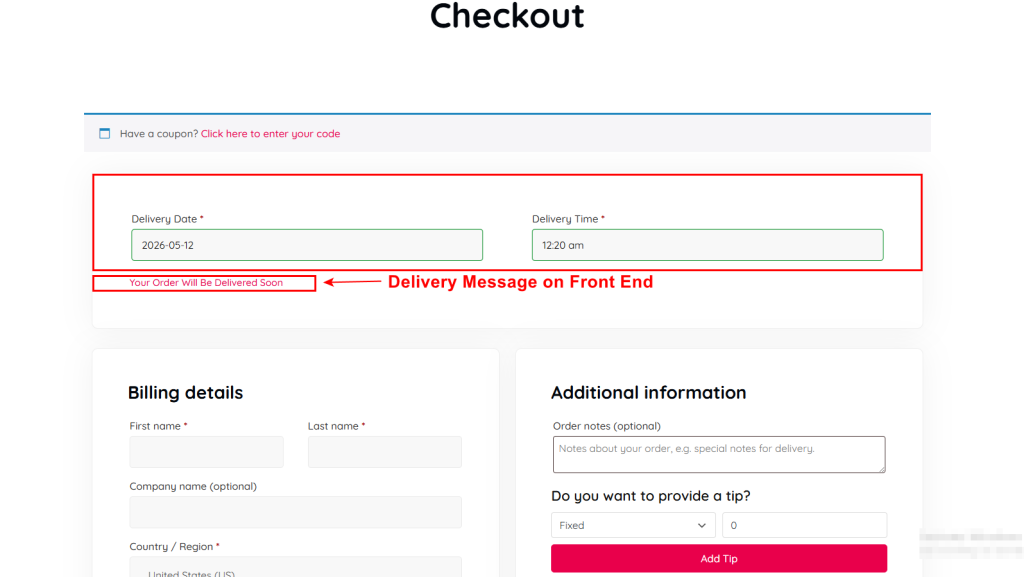
When delivery is enabled, customers see:
- Delivery Date – Select the date they want their order delivered.
- Delivery Time – Choose their preferred delivery time from available time slots.
- Delivery Message – A customizable message appears below the fields (e.g., “Your Order Will Be Delivered Soon”).
This message is configured in Settings → Checkout Settings → Pickup & Delivery → Delivery Tab → Delivery Message.


