
To configure Tips, navigate to Food Menu → Settings → Checkout Settings → Tips from your WordPress admin dashboard.
This page lets you enable and configure tip/gratuity options for your customers.
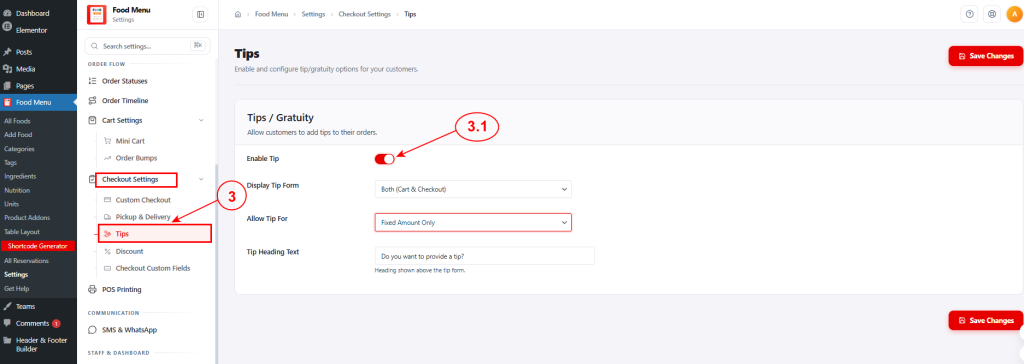
- Enable Tip: Activate this to allow customers to add tips to their orders.
- Display Tip Form: Choose where the tip form appears from the dropdown. For example, Both (Cart & Checkout) displays it on both the cart and checkout pages.
- Allow Tip For: Select the tip input method. Fixed Amount Only lets customers choose from predefined tip amounts. Other options include percentage-based or both.
- Tip Heading Text: Customize the heading shown above the tip form (e.g., Do you want to provide a tip?).
After configuring, click the Save Changes button to apply your changes.
Tipping Front End View #
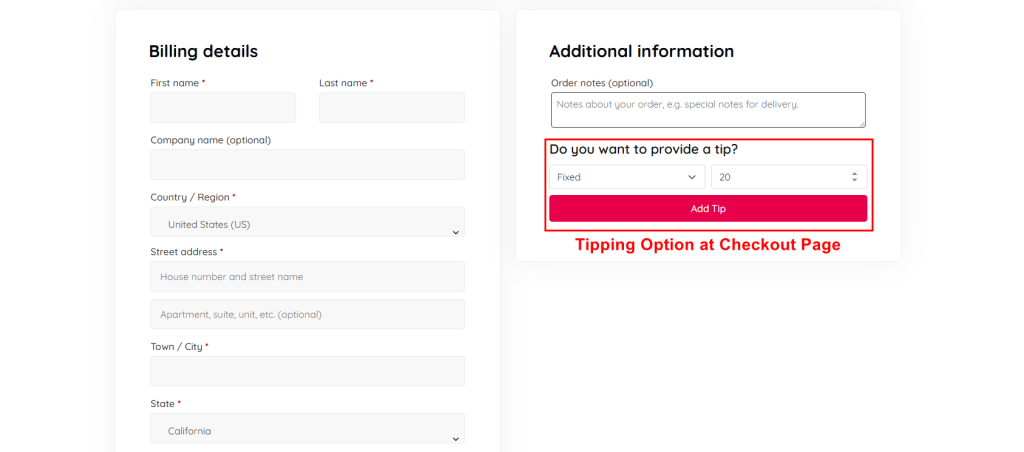
When the tipping feature is enabled in Food Menu → Settings → Checkout Settings → Tips, a tip selection appears on the checkout page.
How It Works #
The tip section displays in the Additional information area of the checkout page with the heading “Do you want to provide a tip?”
Customers can:
- Choose tip type – Select from the dropdown (e.g., Fixed amount, Percentage, or other configured options)
- Enter tip amount – Enter the tip value in the number field (e.g., 20)
- Add Tip – Click the button to add the tip to their order total
The tip amount is automatically added to the order total before payment, and staff can view the tip in the order details in the admin dashboard.
This feature helps food service businesses collect tips directly through online orders, making it convenient for customers to show appreciation for service.


