
You only need to follow the usual process to install the Testimonial Slider plugin, just like any other plugin. You can follow the following steps:
Install Free Version #
The free version of “Testimonial Slider” is available in the “WordPress.org plugin directory”. You can install it from your WordPress dashboard. Follow the following steps:
- Go to your “WordPress Dashboard”.
- Navigate to Plugins > Add New, then type “Testimonial Slider by RadiusTheme” in the plugin search box
- Find “Testimonial Slider” from the list and click on the “Install Now” button

After Successfully Installing the “Testimonial Slider” plugin, you need to activate the plugin.
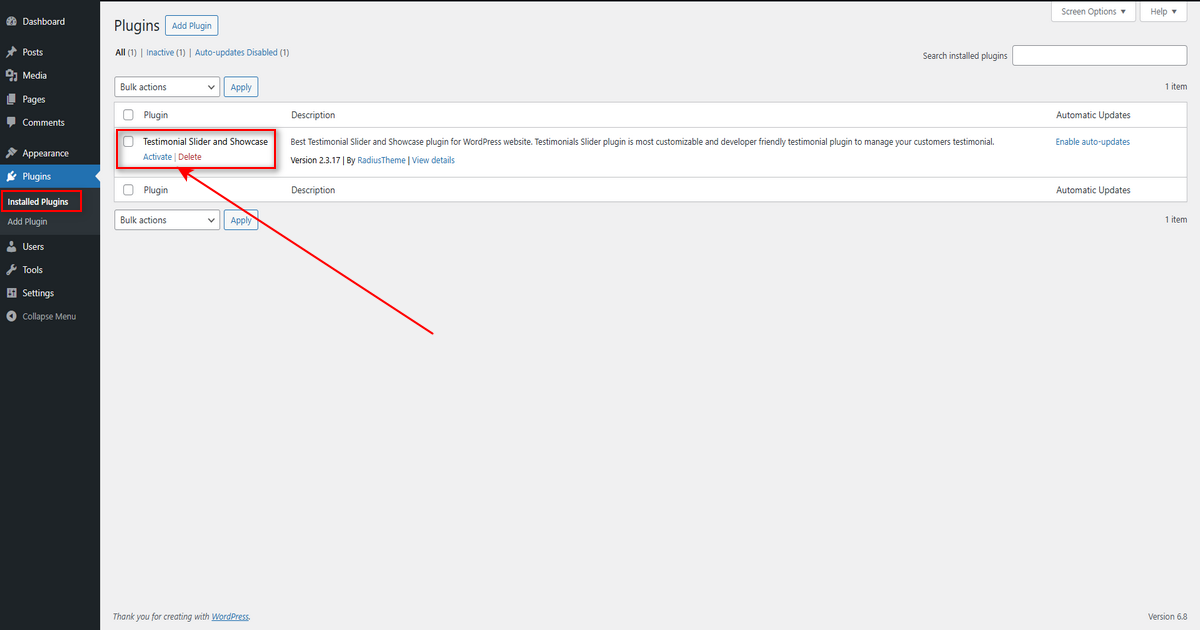
After activating the plugin, you will get the WordPress Admin Menu like the following:

Installing the Pro Version #
The Pro version of the “Testimonial Slider” plugin is a zip file. After purchasing the Pro version, you will get a download link in your purchase receipt email with which you can acquire the plugin files. If not, you can log in to RadiusTheme, then go to Purchase History. See below

After the download, you’ll find the files in the zip folder on your computer. You then need to install the “testimonial-slider-and-showcase-pro.zip.” Once you download the zip file. Please follow the following steps to install the “Testimonial Slider Pro” version.
Note: Install & activate “Testimonial Slider FREE” version to work PRO version from Version 2.0.0
- Go to your WordPress website Dashboard
- Navigate to Plugins > Add New
- Now, check the options on the top right beside “Add Plugins” for the “Upload Plugins” option. Click on this.

4. Once you click the “Upload Plugin” button, you will get the plugin upload option from your computer. Now select the “testimonial-slider-showcase-pro.zip” file from your computer and click on the “Install Now” button.

After installing and activating the Pro version, you will get the plugin on your website.
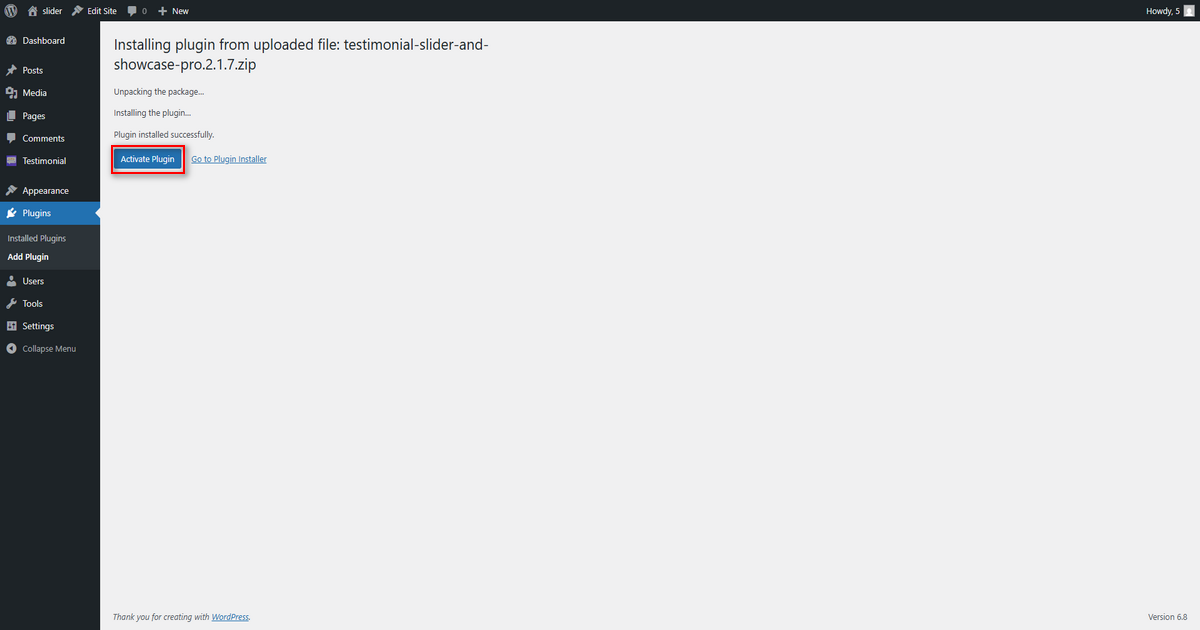
“Testimonial Slider Pro” on the installed plugin page.

After activating the plugin, you need to activate the plugin again using the license key. You will get the license key in your “Purchase Email” or go to login RadiusTheme.com, then go to purchase history and click on the “License Key“.
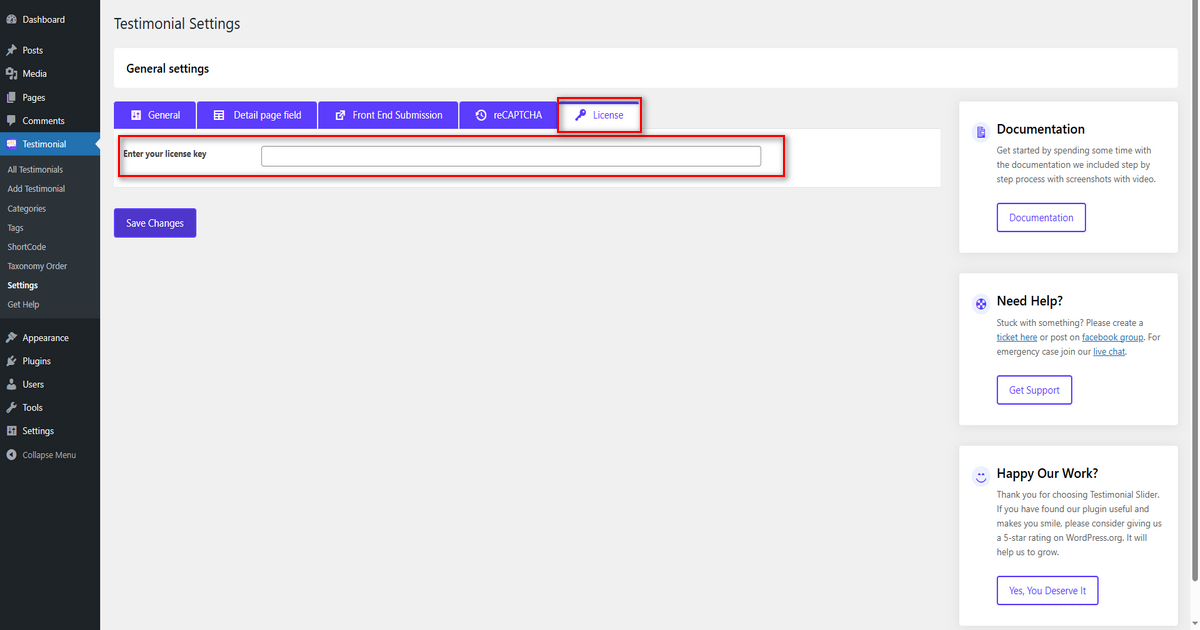
To get the Pro features and new updates, you need to activate the license key.


