
• Classified Listing Docs
    • Classified Listing Plugin
    • Classified Listing All Addons
    • Classified Listing Mobile App
    • Classima Mobile APP
    • Listygo Mobile App
    • Homlisti Mobile App
  • Woocommerce Plugins Docs
    • ShopBuilder Elementor Addon
    • Woo Variation Swatches
    • Woo Variation Gallery
    • Zilly Mobile App
  • General Plugins Docs
    • The Post Grid
    • Testimonial Slider
    • Team Members
    • Food Menu
    • Review & Schema
    • Portfolio
    • Business Review
  • Our Plugins
    • The Post Grid
    • Classified Listing
    • ShopBuilder
    • Food Menu
    • Team
    • Portfolio
    • Testimonial Slider
    • Review & Schema
    • See All Plugins
  • Get Pro
×
  • Classified Listing Docs
    • Classified Listing Plugin
    • Classified Listing All Addons
    • Classified Listing Mobile App
    • Classima Mobile APP
    • Listygo Mobile App
    • Homlisti Mobile App
  • Woocommerce Plugins Docs
    • ShopBuilder Elementor Addon
    • Woo Variation Swatches
    • Woo Variation Gallery
    • Zilly Mobile App
  • General Plugins Docs
    • The Post Grid
    • Testimonial Slider
    • Team Members
    • Food Menu
    • Review & Schema
    • Portfolio
    • Business Review
  • Our Plugins
    • The Post Grid
    • Classified Listing
    • ShopBuilder
    • Food Menu
    • Team
    • Portfolio
    • Testimonial Slider
    • Review & Schema
    • See All Plugins

Getting Started

3
  • System Requirements
  • Installation
  • How to Use (Video)

Main Settings

5
  • General Settings
  • Detail Page Fields Control
  • Front End Forms Fields [Pro]
  • Re-Captcha Settings [Pro]
  • Active License Key

Features

4
  • Add / Edit Categories
  • Add / Edit Testimonials
  • Add / Edit Tags
  • Taxonomy Ordering 

Shortcode Generator

4
  • Layout
  • Filtering
  • Field Selection
  • Styling

Create Different Layouts

3
  • Create Grid Layout
  • Create Slider Layout
  • Create Isotope Filter Layout

Elementor Addons

3
  • Grid Layout
  • Slider Layout
  • Isotope Filter Layout

How to Use Shortcode

1
  • How to Use Direct Shortcode
  • Home
  • Docs
  • Shortcode Generator
  • Styling
View Categories

Styling

< 1 min read

0:00 / 0:50
  • View as Markdown Open this page as plain Markdown (opens in a new tab)
  • Open in ChatGPT Ask questions about this page (opens in a new tab)
  • Open in Claude Ask questions about this page (opens in a new tab)
  • Open in Google AI Studio Ask questions about this page (Google account required) (opens in a new tab)

The fourth step of the shortcode generator is Styling. Navigate WordPress admin menu Testimonial => Shortcode Generator => Styling

4.1 Parent Class: You can enter a specific parent class for the shortcode.

4.2 Color Schema: You can set the Primary color, Container background, and Item background color.

4.3 Button Color: Set the button background & text color.

4.4 Padding [Pro]: This padding will activate from item to item. Unit will be pixel, No need to give any unit. 

Only integer values will be valid. , e.g, 20 (without postfix like px, em, %, etc). It will be displayed by %. Leave it blank for the default.
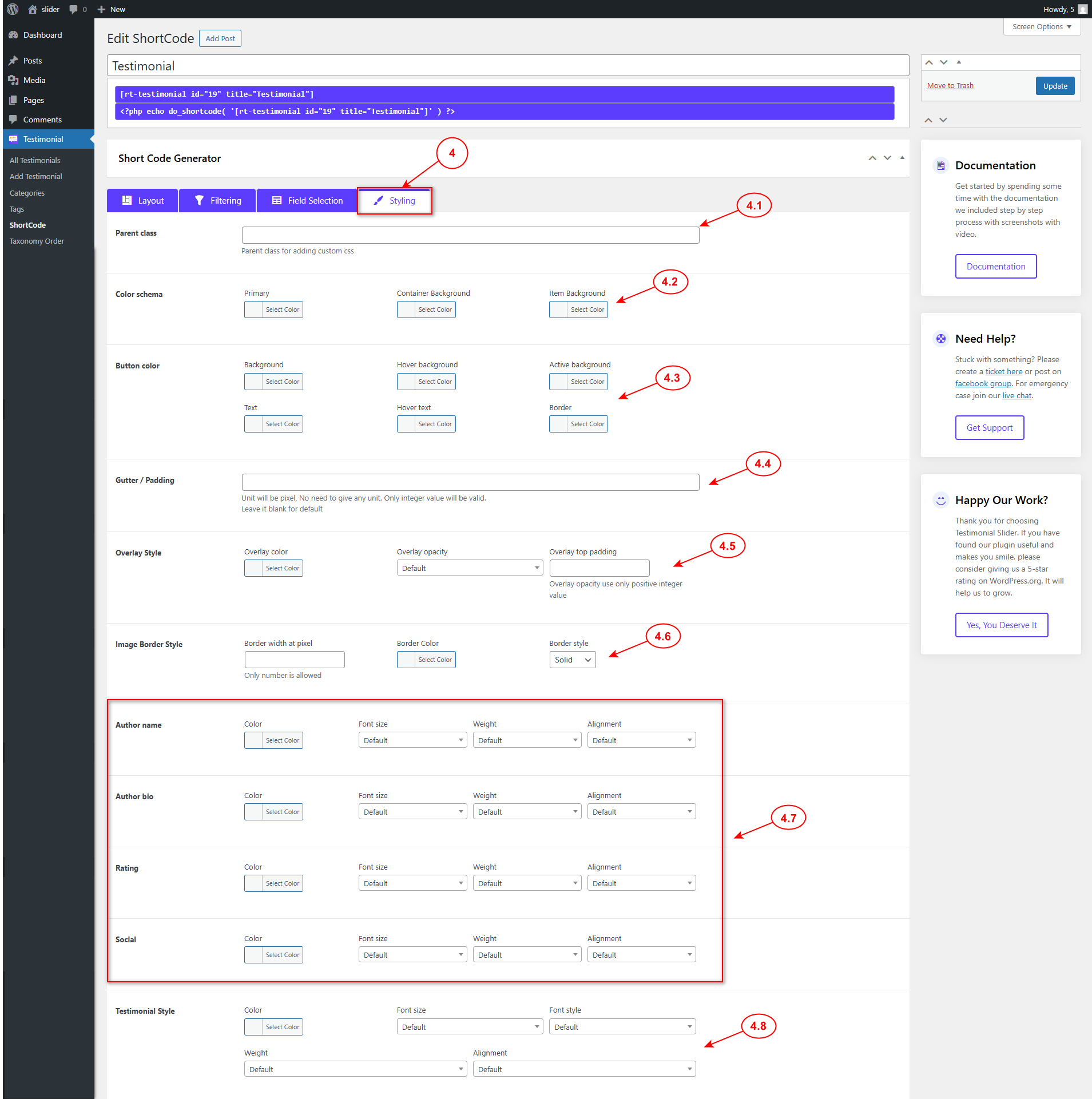
4.5 Overlay Style: Set overlay color, opacity & padding.

4.6 Image Border Style: [PRO] Modify border px, color, and style.

4.7 Other fields’ color: You can customize the author bio, name, rating, and social link fields’ color, font size, weight, etc.4.8 Testimonial Style: Set color, Font size, font style, weight, & Alignment.

What are your Feelings

Share This Article :

  • Facebook
  • X
  • LinkedIn
  • Pinterest
Still stuck? How can we help?

How can we help?

Updated on April 18, 2025
Field SelectionLayout
Copyright© 2026 RadiusDocs by RadiusTheme