
• Classified Listing Docs
    • Classified Listing Plugin
    • Classified Listing All Addons
    • Classified Listing Mobile App
    • Classima Mobile APP
    • Listygo Mobile App
    • Homlisti Mobile App
  • Woocommerce Plugins Docs
    • ShopBuilder Elementor Addon
    • Woo Variation Swatches
    • Woo Variation Gallery
    • Zilly Mobile App
  • General Plugins Docs
    • The Post Grid
    • Testimonial Slider
    • Team Members
    • Food Menu
    • Review & Schema
    • Portfolio
    • Business Review
  • Our Plugins
    • The Post Grid
    • Classified Listing
    • ShopBuilder
    • Food Menu
    • Team
    • Portfolio
    • Testimonial Slider
    • Review & Schema
    • See All Plugins
  • Buy Now
×
  • Classified Listing Docs
    • Classified Listing Plugin
    • Classified Listing All Addons
    • Classified Listing Mobile App
    • Classima Mobile APP
    • Listygo Mobile App
    • Homlisti Mobile App
  • Woocommerce Plugins Docs
    • ShopBuilder Elementor Addon
    • Woo Variation Swatches
    • Woo Variation Gallery
    • Zilly Mobile App
  • General Plugins Docs
    • The Post Grid
    • Testimonial Slider
    • Team Members
    • Food Menu
    • Review & Schema
    • Portfolio
    • Business Review
  • Our Plugins
    • The Post Grid
    • Classified Listing
    • ShopBuilder
    • Food Menu
    • Team
    • Portfolio
    • Testimonial Slider
    • Review & Schema
    • See All Plugins

Getting Started

2
  • Required Plugin & Themes
  • Purchase the APP

App Installation Preparation

3
  • Required Software and Tools
  • Installation
  • Running the app in device

App Configuration

16
  • Firebase configuration for OTP/SMS Login
  • App Configuration
  • Configuring App.json file
  • Configuring package.json file
  • Configuring Colors
  • Configuring Assets (Icon, Logo, Splash etc.) and other things (App Name)
  • Configuring backend related information & In App Paginatio
  • Map & Location related settings
  • Changing all app static texts
  • App Translation / Changing App Language
  • Admob (Google Ads) Settings
  • Push Notification
  • Firebase configuration for Phone verification Plugin
  • Firebase Remote Config For Force Update Setup Guide
  • Seller Verification Configuration for App
  • Misc. Configuration

Social Login

2
  • Google Login
  • Facebook Login

Building the Project for Production

4
  • Building the Project for Production
  • General Process
  • iOS Version
  • Android Version

Must read before submission

3
  • Must perform this before app submission
  • Play store data safety configuration
  • App Build Services (Start from $100)

FAQs

3
  • NPM error (Invalid version)
  • Common Issue
  • Htaccess file
  • Home
  • Docs
  • App Configuration
  • Configuring backend related information & In App Paginatio
View Categories

Configuring backend related information & In App Paginatio

< 1 min read

0:00 / 0:48
  • View as Markdown Open this page as plain Markdown (opens in a new tab)
  • Open in ChatGPT Ask questions about this page (opens in a new tab)
  • Open in Claude Ask questions about this page (opens in a new tab)
  • Open in Google AI Studio Ask questions about this page (Google account required) (opens in a new tab)

To configuring backend related information follow the following steps #

  1. Navigate to api folder and open the client.js file.
  2. Replace the values of the domain and apiKey property.
    – Go to your website admin dashboard.
    – Navigate to Classified Listing> Settings > Tools
    – Now Under “App Management” section, Activate the “Allow Rest API” Toggle button.
    – Now click the “Generate Rest API key” Option. This will generate an API key.
    – Finally must click the “Save Change” button.
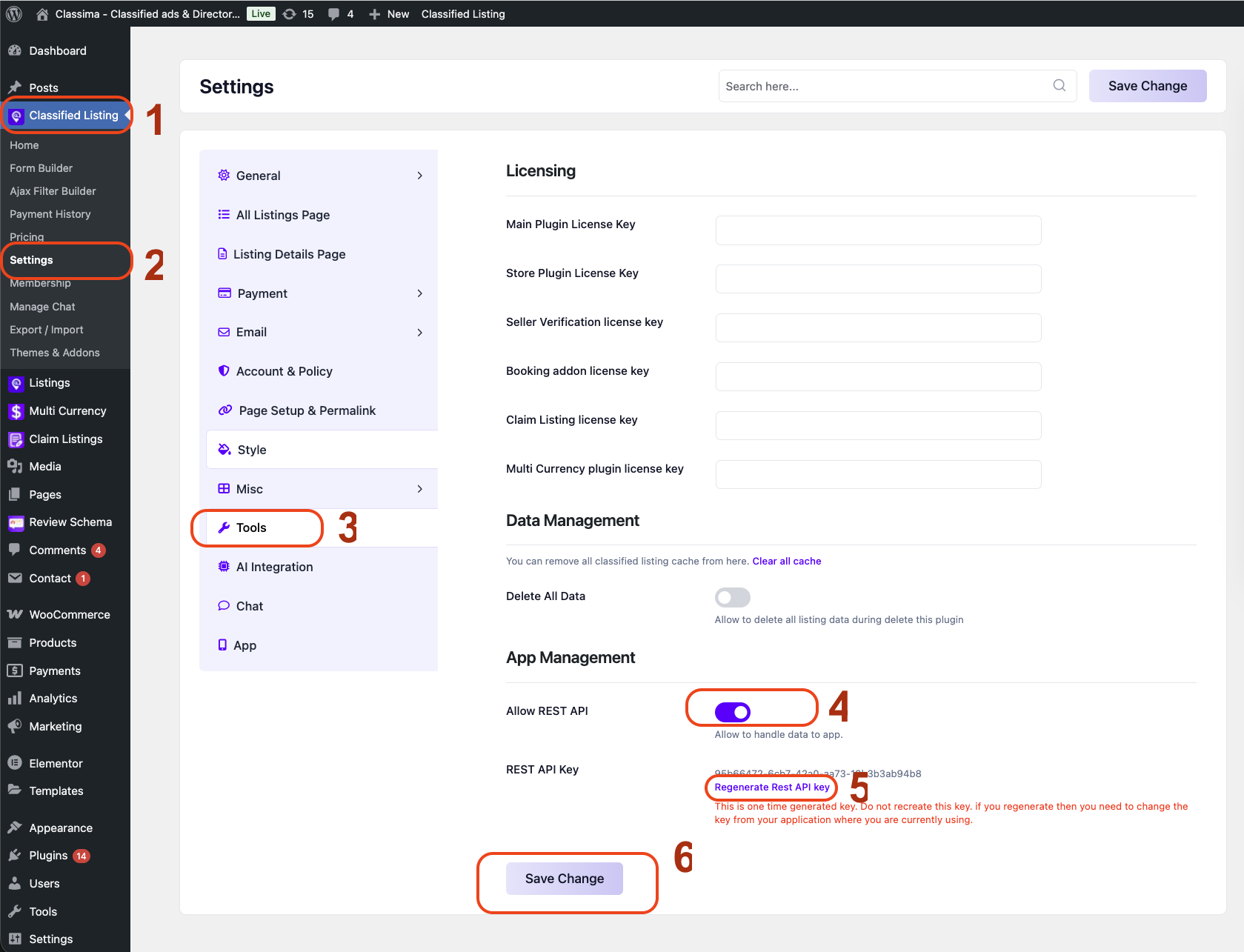
  3. You can also change the api request timeout. By default, it is set to 30 seconds.

Do not edit any other information in this file.

Configuring In App Pagination #

  1. Navigate to app > pagination > paginationData.js file.
  2. Here you’ll get all the pagination data for this app. Only edit the per_page property if needed. per_page property defines item per page while scrolling through a list of items.
What are your Feelings

Share This Article :

  • Facebook
  • X
  • LinkedIn
  • Pinterest
Still stuck? How can we help?

How can we help?

Updated on November 19, 2025
Configuring Assets (Icon, Logo, Splash etc.) and other things (App Name)Map & Location related settings
Table of Contents
  • To configuring backend related information follow the following steps
  • Configuring In App Pagination
Copyright© 2026 RadiusDocs by RadiusTheme