It is recommended that you configure this only after successfully publishing the app in google play store and/or in apple app store once.
Step 1: Access Firebase Console #
- Go to Firebase Console
- Select your project (or create one if you haven’t)
Step 2: Creating Firebase App #
- In your new project console, click Add Firebase to your Android app and follow the setup steps. Make sure that the Android package name you enter is the same as the value of
android.packagein your app.json. And similarly add iOS project for ios App.
(Android only) Go to your Firebase project’s settings, scroll down to “Your apps” and select your Android app. UnderSHA certificate fingerprints, clickAdd fingerprint, and addGoogle Certificate Fingerprint.
You’ll getGoogle Certificate Fingerprintby following steps:
(You need to build your app once before these steps to generate credentials)
– runeas credentials
– Select Android
– Select profile (production)
– You’ll get all the credentials in the console. From here copy the “SHA1 Fingerprint“. This SHA1 Fingerprint isGoogle Certificate Fingerprint.
*** If you haven’t already runeas build -p androidfor this project, you’ll need to do that first before getting the Google Certificate Fingerprint.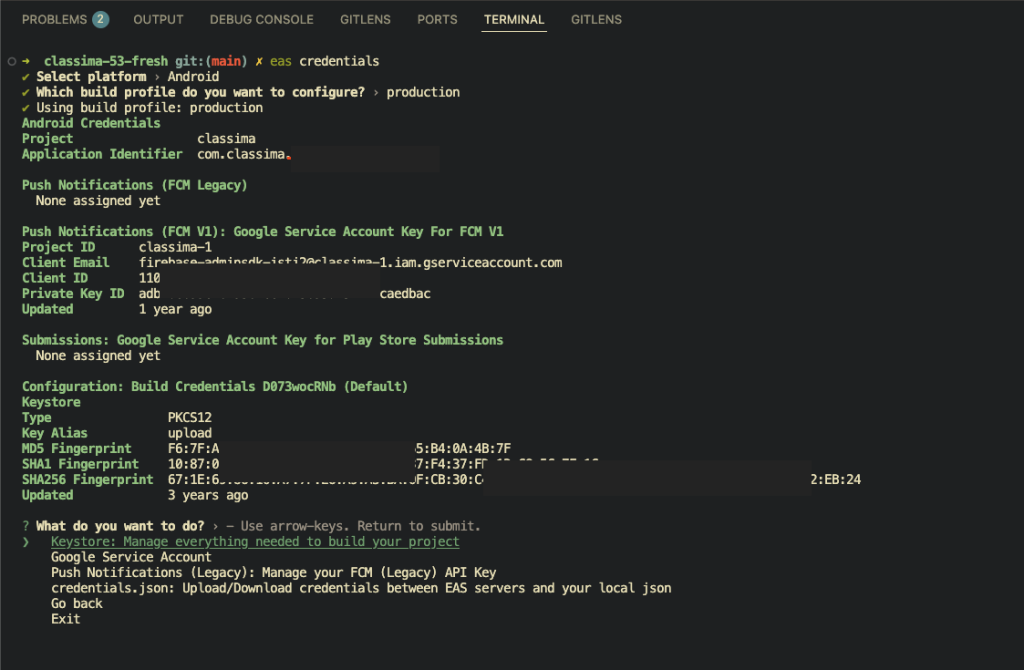
Download thegoogle-services.jsonfor android andGoogleservice-info.plistfile for iOS and place it in your app’s root directory.


In your app.json, add anandroid.googleServicesFilefield with the relative path to thegoogle-services.jsonfile you just downloaded. If you placed it in the root directory, this will probably look like . Similarly do for iOS. see below code.
Now you need to log in to your play console account and select your published app. On the next page from left sidebar, select “Test and Release” > “App Integrity”. Scroll down to “Play app signing” and click “Settings”. Copy the “SHA-1 certificate fingerprint” under “App signing key certificate”.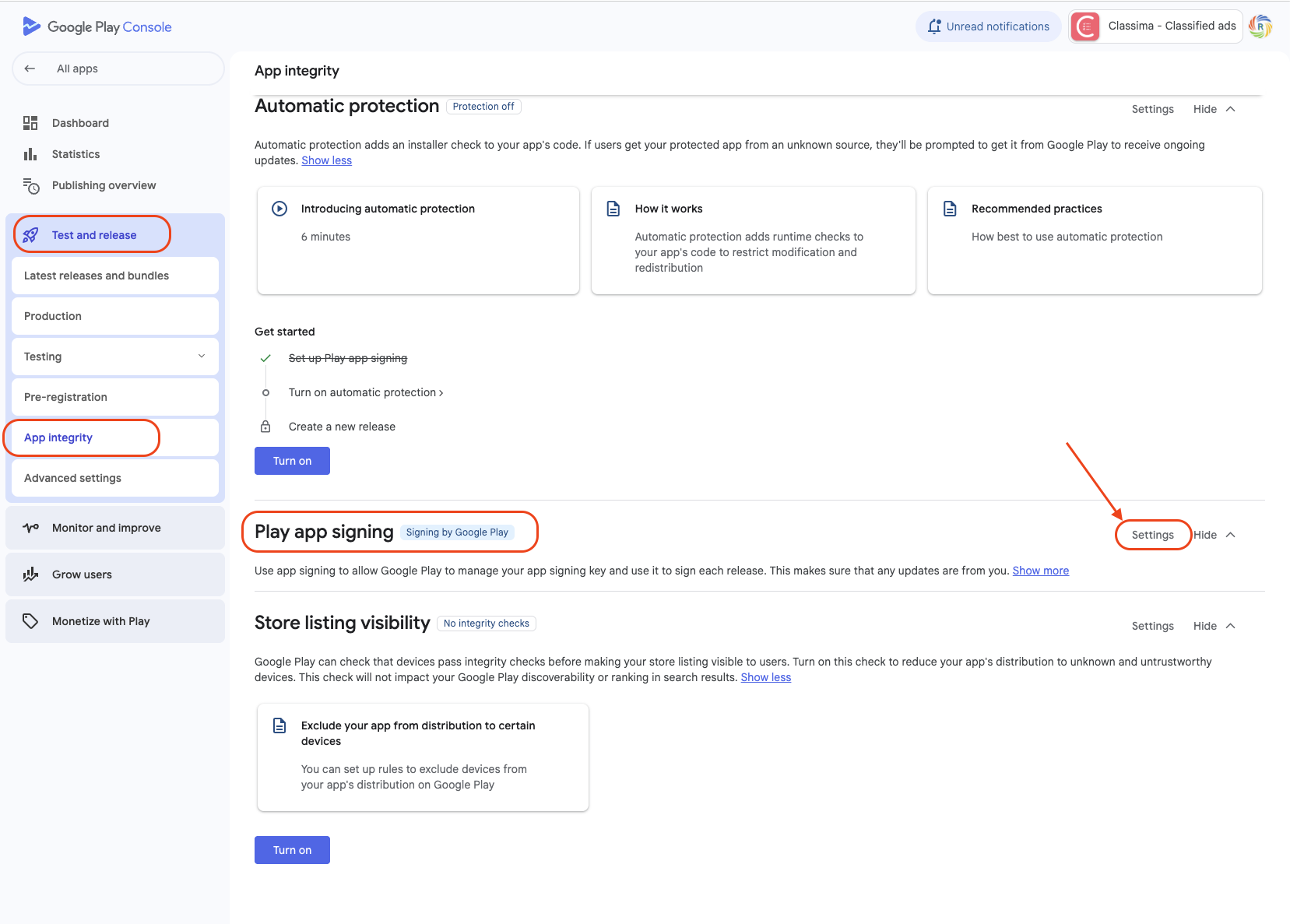
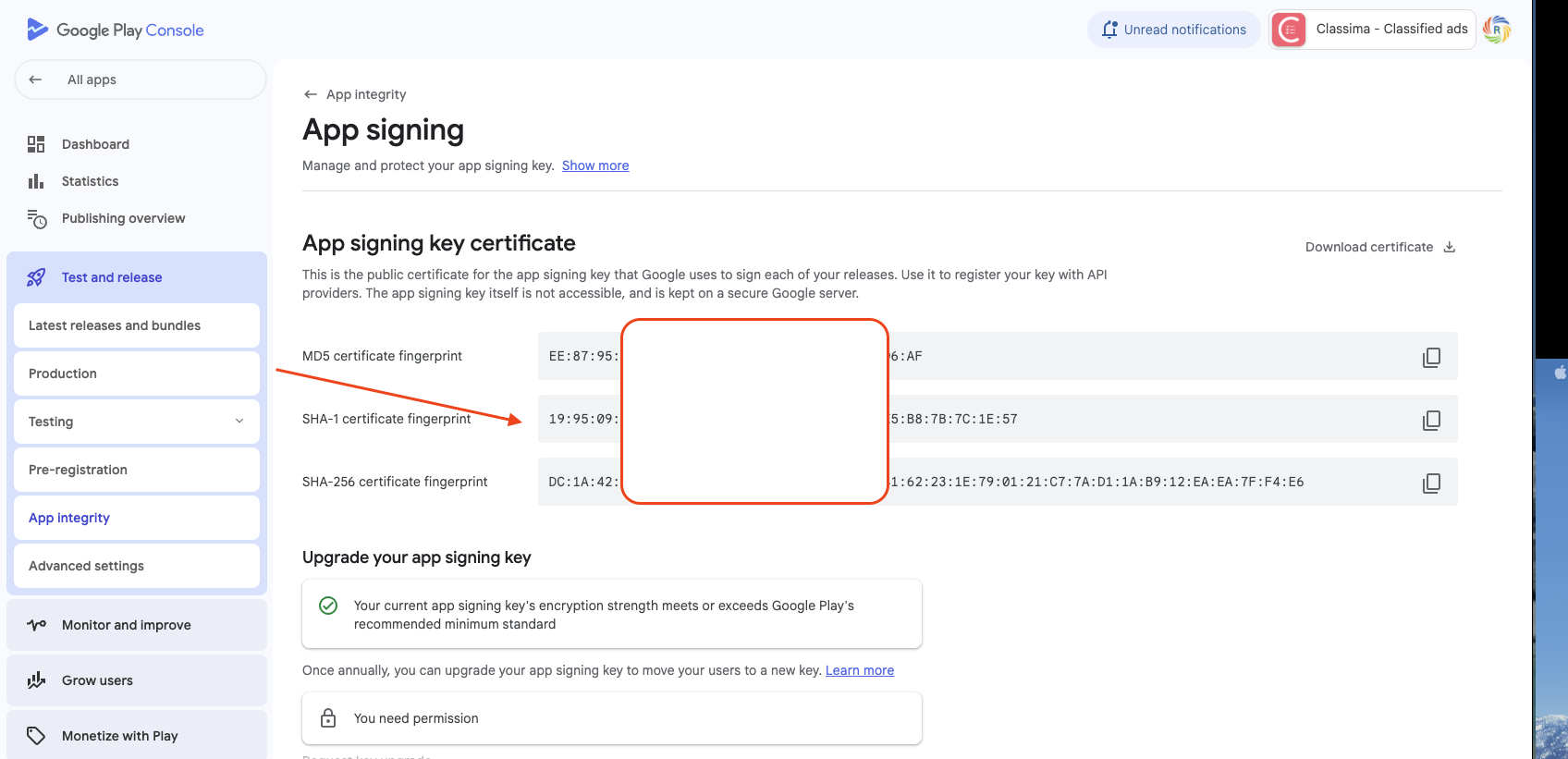
Go to your firebase project, open the android app you created in step 2. Now add the “SHA-1 certificate fingerprint” to your project.
Similarly Copy the “SHA-256 certificate fingerprint” And add it to firebase project.
If you miss this step, push notifications might not work in apps downloaded from play store.
Step 3: Navigate to Remote Config #
- In the firebase console left sidebar, scroll down to “Run” section
- Click on “Remote Config”
Step 4: Add Parameters #
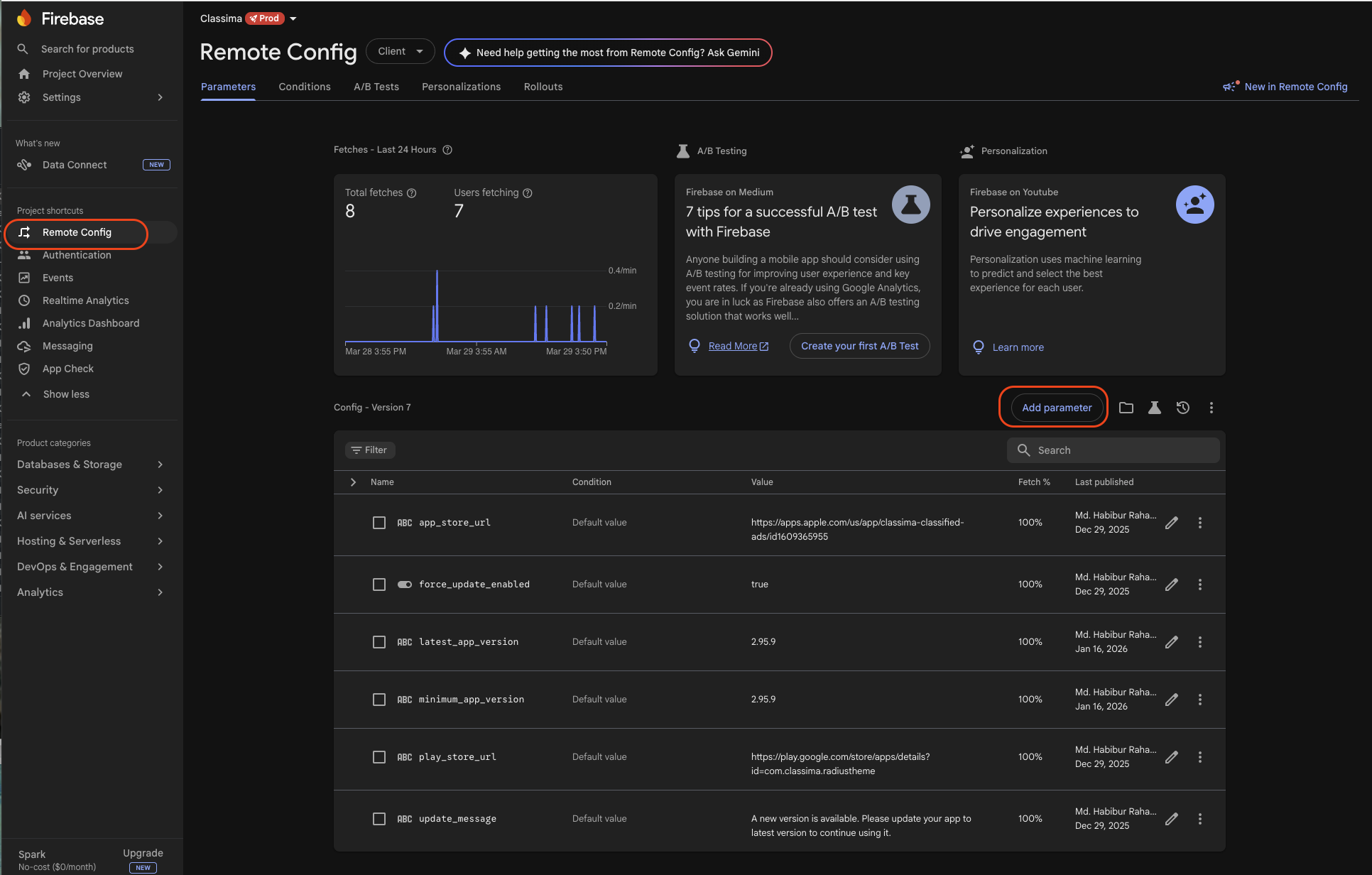
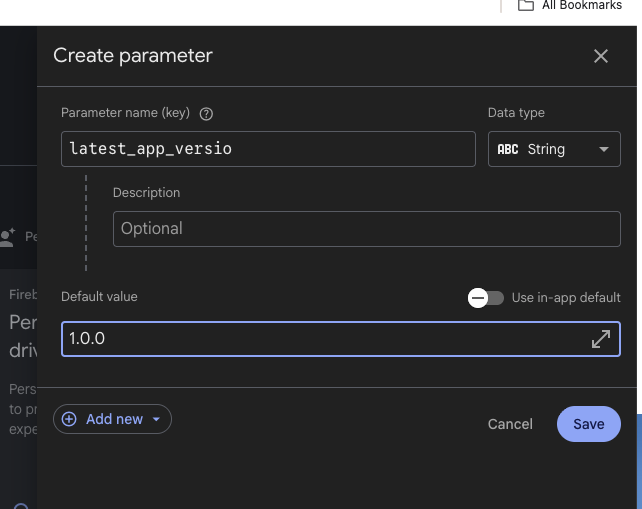
Click “Add parameter” button and add each of these:
Parameter 1: minimum_app_version
- Parameter name:
minimum_app_version - Data type: String
- Default value:
1.0.0 - Click “Save”
Parameter 2: latest_app_version
- Parameter name:
latest_app_version - Data type: String
- Default value:
1.0.0 - Click “Save”
Parameter 3: force_update_enabled
- Parameter name:
force_update_enabled - Data type: Boolean
- Default value:
false(Keep false if force update is not necessary. Otherwise put it astrue) - Click “Save”
Parameter 4: update_message
- Parameter name:
update_message - Data type: String
- Default value:
A new version is available with exciting features and improvements. Please update to continue. - Click “Save”
Parameter 5: app_store_url
- Parameter name:
app_store_url - Data type: String
- Default value:
https://apps.apple.com/app/idYOUR_APP_ID - Click “Save”
Parameter 6: play_store_url
- Parameter name:
play_store_url - Data type: String
- Default value:
https://play.google.com/store/apps/details?id=com.yourcompany.yourapp - Click “Save”
Step 5: Publish Changes #
⚠️ Important! After adding all parameters, you must click the “Publish changes” button at the top right corner. Without publishing, your app won’t see the new values.
Step 6: When You Release a New Version #
When you submit version 1.2.0 to the stores and want to force users to update:
- Go back to Remote Config
- Click on
minimum_app_version - Change value from
1.0.0to1.2.0 - Update
latest_app_versionto1.2.0 - Set
force_update_enabledtotrue - Click “Publish changes”
Finding Your Store URLs #
App Store (iOS):
- Go to App Store Connect
- Select your app → App Information
- Copy the “Apple ID” number
- URL format:
https://apps.apple.com/app/id123456789
Play Store (Android):
URL format: https://play.google.com/store/apps/details?id=com.yourcompany.yourapp
Configuring The Source Code #
- Run the following command in terminal :
npx expo install @react-native-firebase/app@25.1.0 @react-native-firebase/remote-config@25.1.0 - Now open app.json file and put this line under plugin section
"@react-native-firebase/app",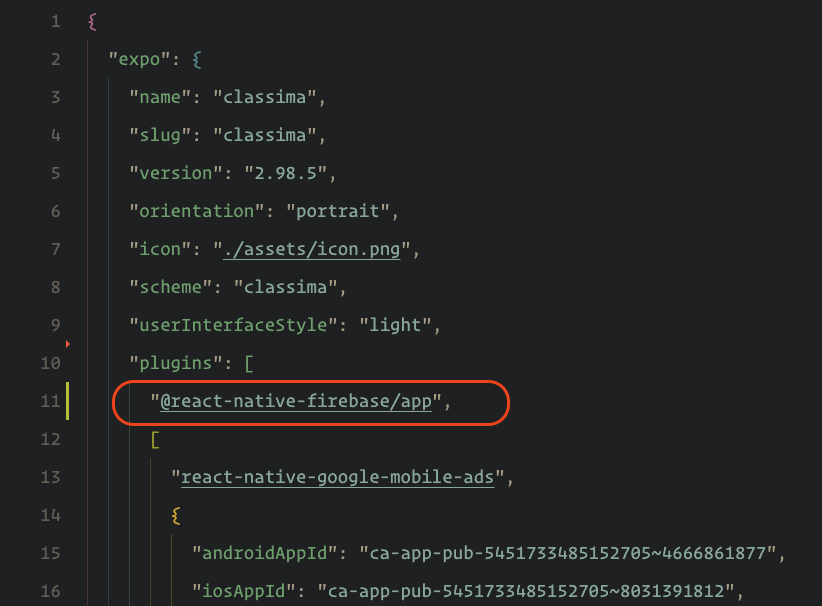
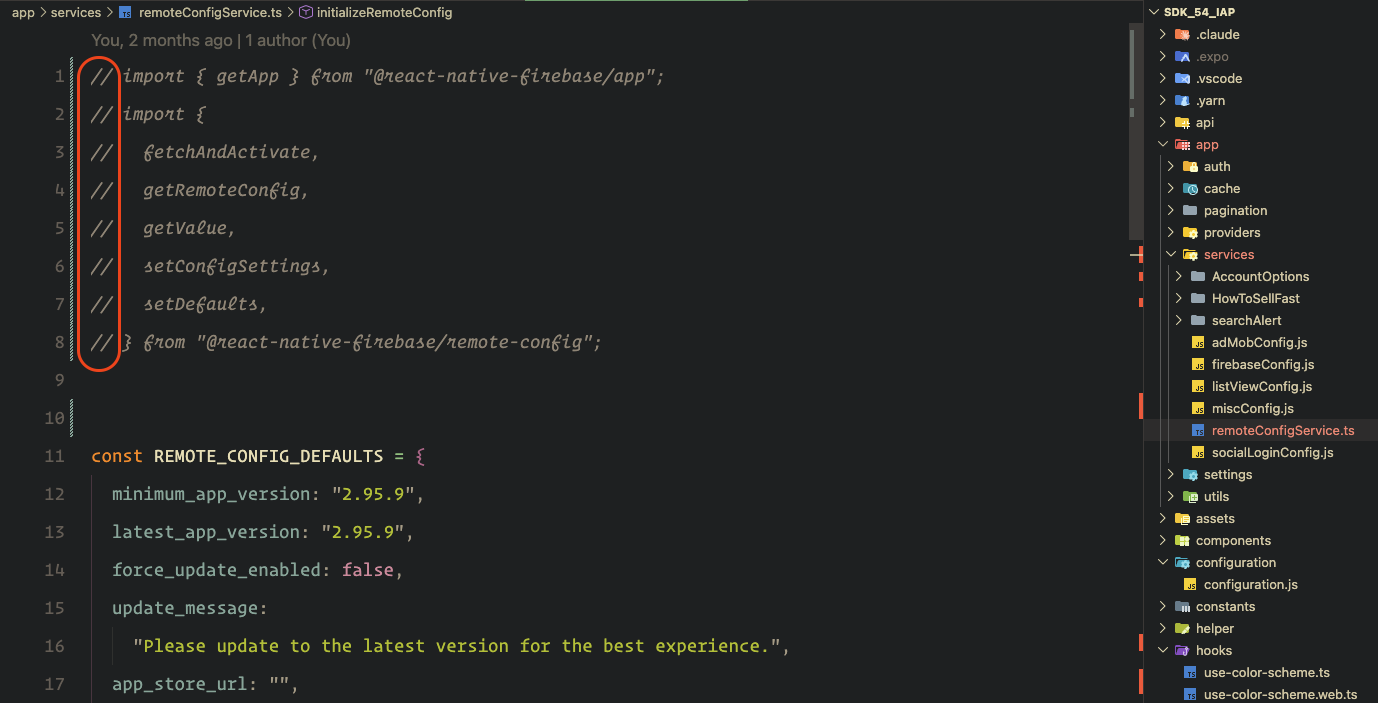
- Now open app > services/remoteConfigService.ts file and remove ‘//’ from lines marked in below image.
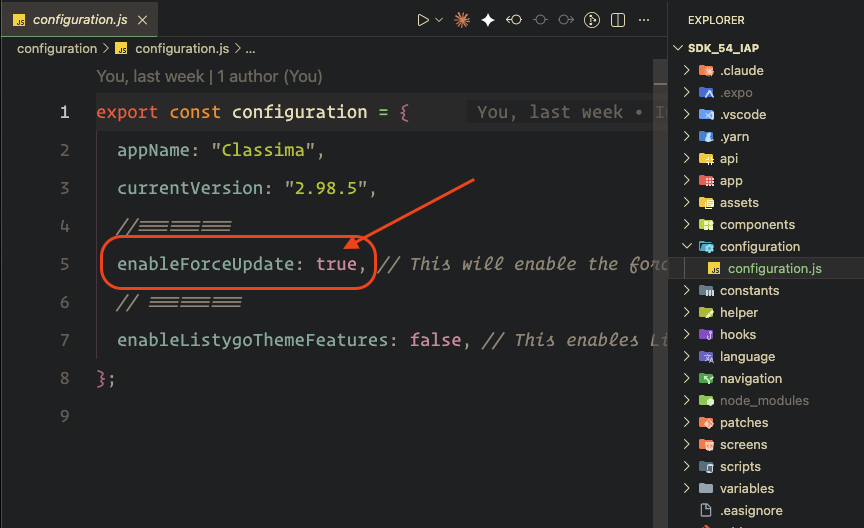
- Now open configuration > configuration.js file and put the value for “enableForceUpdate” to
true