• Classified Listing Docs
    • Classified Listing Plugin
    • Classified Listing All Addons
    • Classified Listing Mobile App
    • Classima Mobile APP
    • Listygo Mobile App
    • Homlisti Mobile App
  • Woocommerce Plugins Docs
    • ShopBuilder Elementor Addon
    • Woo Variation Swatches
    • Woo Variation Gallery
    • Zilly Mobile App
  • General Plugins Docs
    • The Post Grid
    • Testimonial Slider
    • Team Members
    • Food Menu
    • Review & Schema
    • Portfolio
    • Business Review
  • Our Plugins
    • The Post Grid
    • Classified Listing
    • ShopBuilder
    • Food Menu
    • Team
    • Portfolio
    • Testimonial Slider
    • Review & Schema
    • See All Plugins
  • Get Pro
×
  • Classified Listing Docs
    • Classified Listing Plugin
    • Classified Listing All Addons
    • Classified Listing Mobile App
    • Classima Mobile APP
    • Listygo Mobile App
    • Homlisti Mobile App
  • Woocommerce Plugins Docs
    • ShopBuilder Elementor Addon
    • Woo Variation Swatches
    • Woo Variation Gallery
    • Zilly Mobile App
  • General Plugins Docs
    • The Post Grid
    • Testimonial Slider
    • Team Members
    • Food Menu
    • Review & Schema
    • Portfolio
    • Business Review
  • Our Plugins
    • The Post Grid
    • Classified Listing
    • ShopBuilder
    • Food Menu
    • Team
    • Portfolio
    • Testimonial Slider
    • Review & Schema
    • See All Plugins

Getting Started

3
  • System Requirements
  • Installation
  • How to Use (Video)

Plugin Settings

9
  • Active License
  • Common Settings
  • Pop Up Field Selection (PRO)
  • Social Share (PRO)
  • Custom Script
  • AI Integration
  • My Account
  • Event Settings
  • Other Settings

Shortcode Generator

6
  • Style
  • Fields Selection
  • Settings
  • Layout Settings
  • Query Build
  • Front-end Filter

Use Shortcode in Page

4
  • Use Shortcode in Page
  • Use Direct Shortcode
  • Use Elementor Addon
  • Use Gutenberg Addon

Create Different Layouts

6
  • Create List Layout
  • Create Grid Layout
  • Create Grid Filter Layout
  • Create Carousel Slider Layout [PRO]
  • Create WooCommmerce Layout [PRO]
  • Create Easy Digital Downloads Layout [PRO]

Elementor Addons

11
  • Elementor Settings
  • Overview
  • Archive / Single Page Builder
  • Create Front-end Filter
  • Create Slider Layout [PRO]
  • Create List Layout
  • Create Grid Hover layout
  • Create Grid Layout
  • Style Tab
  • Settings Tab
  • Content Tab

Gutenberg Blocks

9
  • Import Layouts and Sections
  • Create Slider Layout [PRO]
  • Create List Layout
  • Create Grid Hover layout
  • Create Grid Layout
  • Style Tab
  • Settings Tab
  • Content Tab
  • Overview

Divi Modules

10
  • Divi Video Tutorial
  • Overview
  • Build Page With Divi
  • Create Grid Layout
  • Create Grid Hover Layout
  • Create List Layout
  • Create Slider Layout
  • Front End Filter Settings
  • Content Tab
  • Design Tab

Features

6
  • Event Integration with The Post Grid [PRO]
  • Front End Submission [PRO]
  • Chat GPT Integration [PRO]
  • Set Archive Layout [PRO]
  • Custom Post Type (CPT) [PRO]
  • Taxonomy Ordering [PRO]

How to Use

5
  • How to Display a Specific Category Page Using Post Grid
  • How to use ACF Plugin?
  • How to Improve Performance?
  • How to Renew a License
  • How to Use Video?

Frequently Asked Questions

4
  • How to make a Custom Read More link?
  • Image Scroll down on Hover
  • How to remove the Import button from gutenberg editor
  • How to Override Layout
  • Home
  • Docs
  • Plugin Settings
  • Common Settings
View Categories

Common Settings

2 min read

0:00 / 1:43
  • View as Markdown Open this page as plain Markdown (opens in a new tab)
  • Open in ChatGPT Ask questions about this page (opens in a new tab)
  • Open in Claude Ask questions about this page (opens in a new tab)
  • Open in Google AI Studio Ask questions about this page (Google account required) (opens in a new tab)

To perform plugin settings, navigate to PostGrid > Settings from the dashboard. You’ll first view the Common Settings tab. This Common Settings will help improve the loading time.
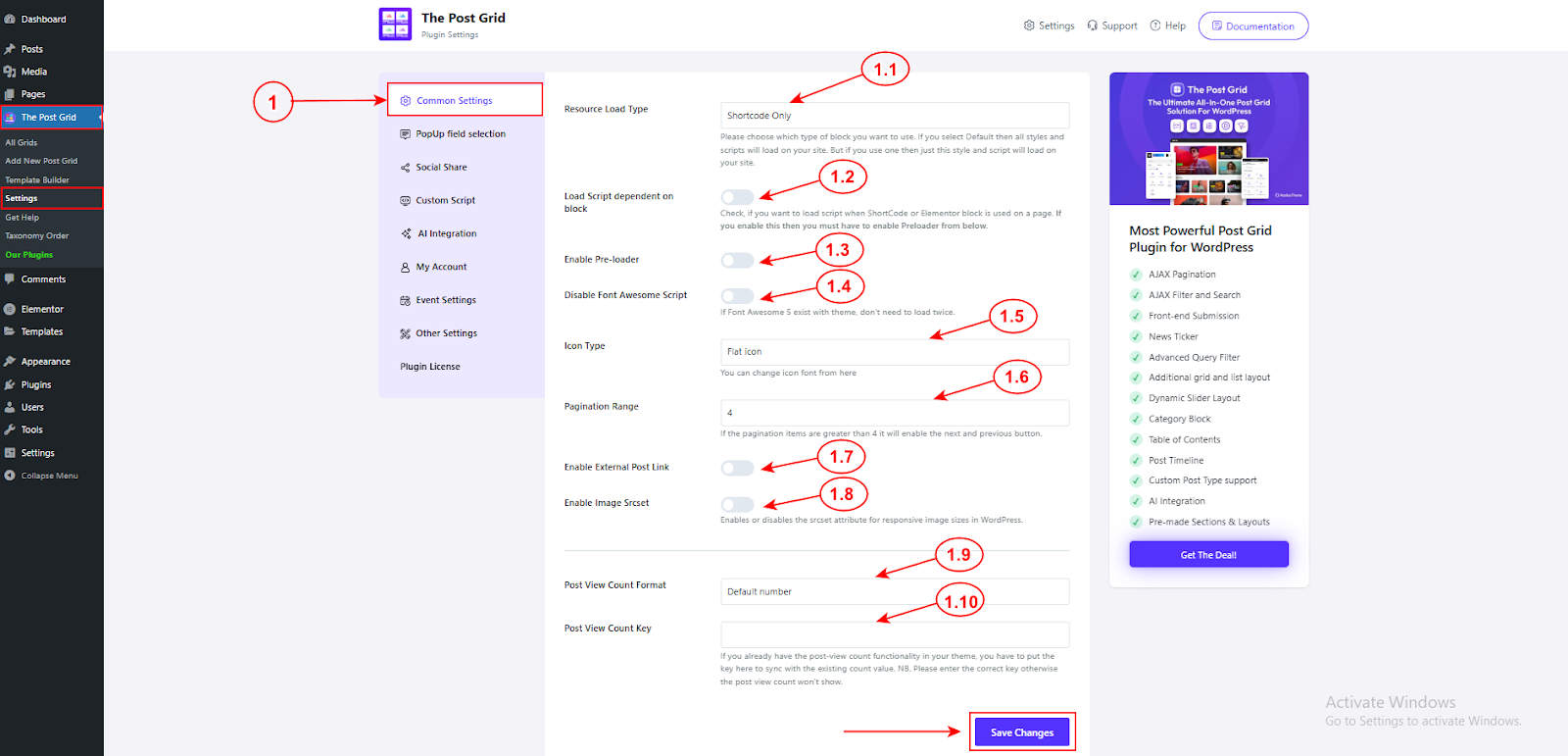
1.1) Resource Load Time: Select how you want to use the plugin like only shortcode, Divi Builder, Elementor or Gutenberg or default shortcode, Elementor / Gutenberg. If you select Default then all styles and scripts will load on your site. But if you use one then just the chosen style and script will load on your site.

1.2) Load Script Dependent on Block: Activate this option, if you want to load script when a ShortCode or Elementor block is used on a page. If you enable this then you must have to enable Preloader.

1.3) Enable Pre-Loader: Switch on the toggle button to enable the pre-loader.

1.4) Disable Font Awesome Script: If you already have font awesome 5 included in your theme then you can disable it through this toggle button.

1.5) Icon Type: Select which type of icon you want to use. You can choose from Flat Icon or Fontawesome icon.

1.6) Pagination Range: Determine the pagination range. If the pagination items are greater than 4 it will enable the next and previous button.

1.7) Enable External Post Link: Switch on this option to activate External Post Link.

1.8) Enable Image Srcset: Enables or disables the srcset attribute for responsive image sizes in WordPress.

1.9) Post View Count Format: You can determine post view count format. Choose from Default, Global Shorten, or Indian Shorten. 

1.10) Post View Count Key: Insert the post view count key. If you already have the post-view count functionality in your theme, you have to put the key here to sync with the existing count value. 

Please note that, you need to enter the correct key otherwise the post view count won’t show.
Click on the ‘Save Changes’ button to update all the settings.

What are your Feelings

Share This Article :

  • Facebook
  • X
  • LinkedIn
  • Pinterest
Still stuck? How can we help?

How can we help?

Updated on November 25, 2025
Active LicensePop Up Field Selection (PRO)
Copyright© 2026 RadiusDocs by RadiusTheme