
Settings Overview #
To configure event support, go to:
Dashboard → The Post Grid → Settings → Event Settings
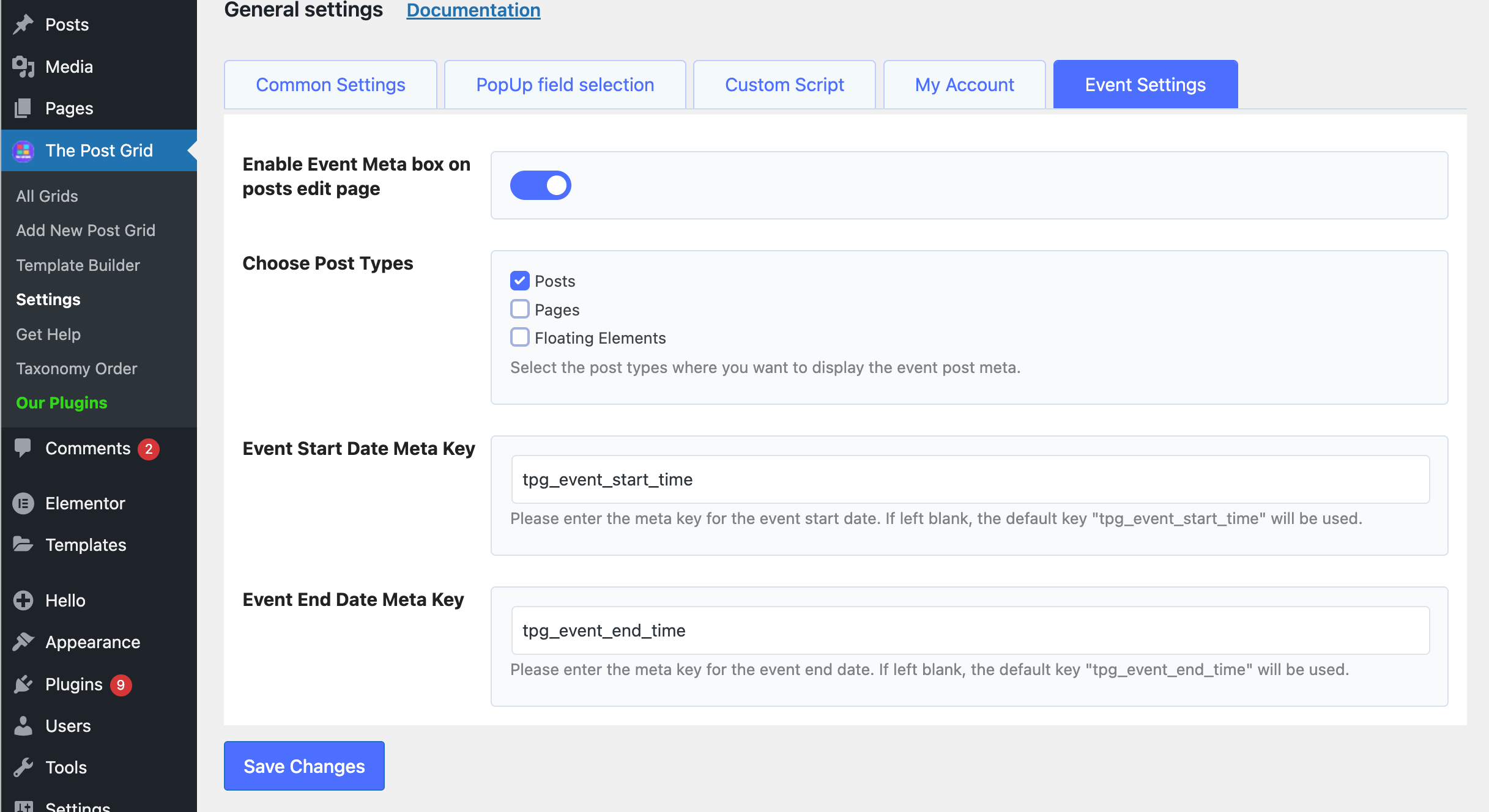
Below are the available options and what they do: #
Enable Event Meta Box on the Post Edit Page:
Turn this ON if you want to display the Event Meta Box when editing posts.
This allows you to manually add event details (location, start, and end times) while creating or editing posts.
If you already have event posts set up with event metadata, you can skip enabling this option.
Choose Post Types: #
Select which post types should display the event meta box.
You can choose multiple post types — for example, post, event, or any custom post type where you want event information to appear.
Event Start Date Meta Key & Event End Date Meta Key: #
If you already use another event plugin or have custom meta keys for event dates, you can sync them here.
By default, The Post Grid saves event date data using these meta keys:
- Start Date: tpg_event_start_time
- End Date: tpg_event_end_time
If your existing events use different meta keys, simply update these fields to match your current setup.
The Post Grid will then automatically recognize and display your existing events based on those keys.
How It Works #
Once configured, you can create a Post Grid for events using the Elementor or Gutenberg block.
Events will automatically display according to their start and end dates — allowing you to showcase upcoming or past events dynamically.
Elementor & Gutenberg Event Integration #
Step 1: Configure the Grid #
- Open your Elementor widget or Gutenberg block for The Post Grid.
- From the Post Grid Panel, choose your preferred layout.
- In the Query Builder, select your desired Post Type.
- Under Query Builder → Quick Query, choose Event Query to enable event-based filtering.
Note: Once the Event Query option is enabled, all other query settings in the panel will be ignored.
The grid will automatically fetch posts based on their event start date and display the next upcoming event.
Past events will not appear in the grid.
Step 2: Display the Event Date #
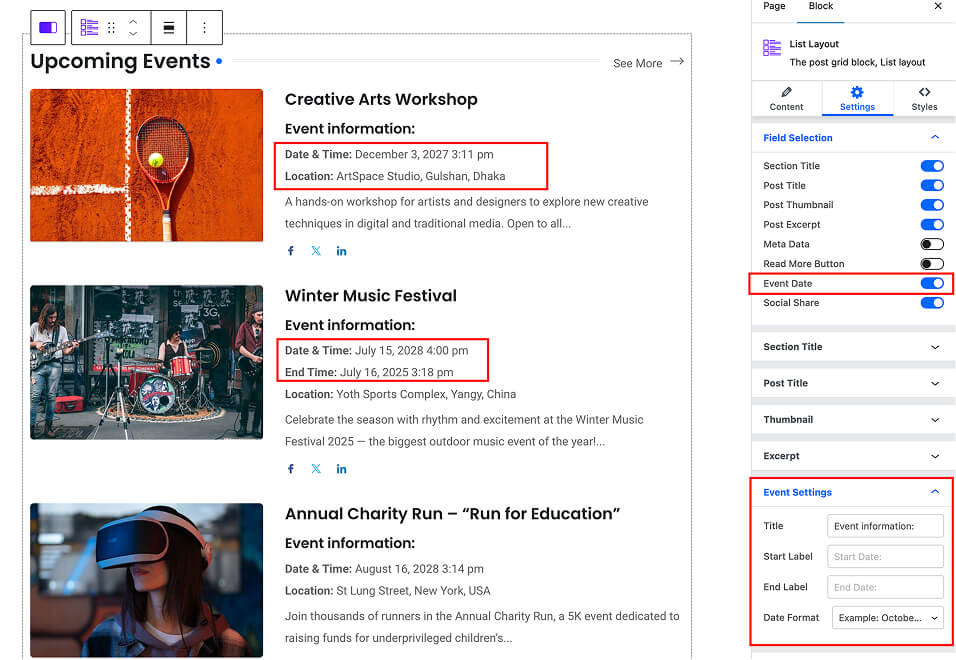
After configuring the query, your events will appear in the grid — but the event date will not be visible by default.
To show it:
- Go to the Settings Tab and enable Event Date.
- A new Event Settings section will appear at the bottom of the Settings Tab, allowing you to configure additional event options.
- You’ll also find an Event Style section in the Style Tab, where you can customize the appearance of the event date and location on the front end.
Adjust these settings to match your site’s design and ensure your event information is displayed beautifully and consistently.
Example: https://www.radiustheme.com/demo/plugins/the-post-grid-gutenberg/events/


