
The fourth step of the shortcode generator is Styling. Navigate WordPress admin menu Team => Shortcode Generator => Styling
4.1 Parent Class: You can enter a specific parent class for the shortcode.
4.2 Primary color: Set the primary color.
4.3 Name: Set Color, hover color, font size, weight & alignment.
4.4 Padding [Pro]: This padding will activate from item to item. Unit will be pixel, No need to give any unit.
Only integer values will be valid. , e.g : 20 (without postfix like px, em, % etc). it will be displayed by %. Leave it blank for default.
4.5 Overlay rgba bg [Pro]: You can customize the overlay color and its opacity.
4.6 Popup Background Color [Pro]: Personalize the popup background color.
4.7 Popup Text Color: Customize the popup text color.
4.8 Overlay Top Padding [Pro]: If a layout has content on hover of the image, you can set top padding of that content.
4.9 Designation: Set Color, hover color, font size, weight & alignment.
4.10 Short background [Pro]: Fix Color, hover color, font size, weight & alignment.
4.11 Other field’s color: You can customize email, web url, location, telephone, mobile, fax, skills, social link fields color, font size, weight and etc.
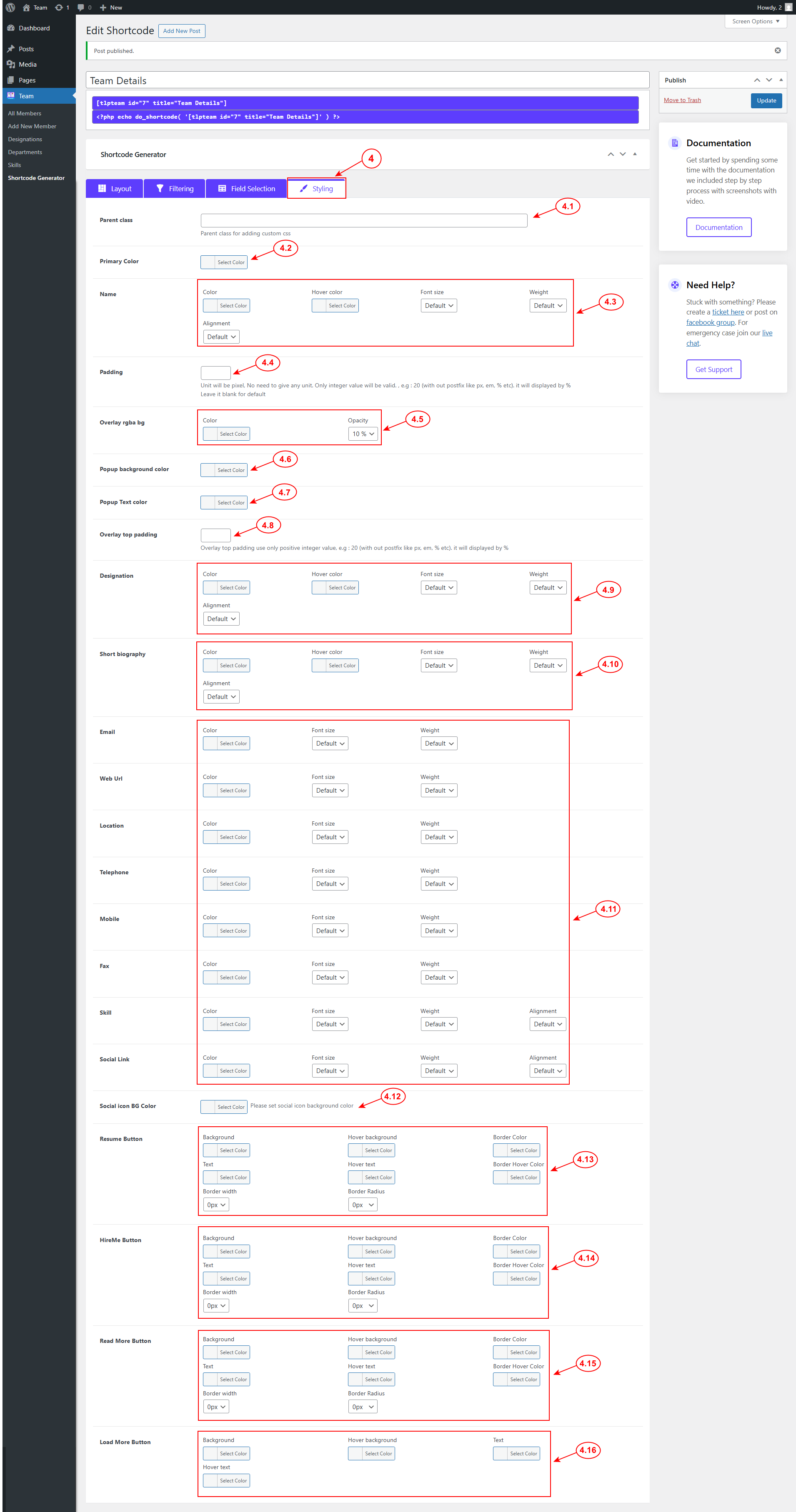
4.12 Social Icon BG Color: Edit the social icons background color.
4.13 Resume Button [Pro]: Customize resume button’s background, hover background, border color, text, hover text, border hover color, border width and radius.
4.14 Hire Me Button [Pro]: You can customize the hire me button’s background, hover background, border color, text, hover text, border hover color, border width and radius according to your choice.
4.15 Read More Button [Pro]: Choose the read more button’s background, hover background, border color, text, hover text, border hover color, border width and radius.
4.16 Load More Button [Pro]: Set the load more button’s background, hover background, border color, text, hover text, border hover color, border width and radius.


