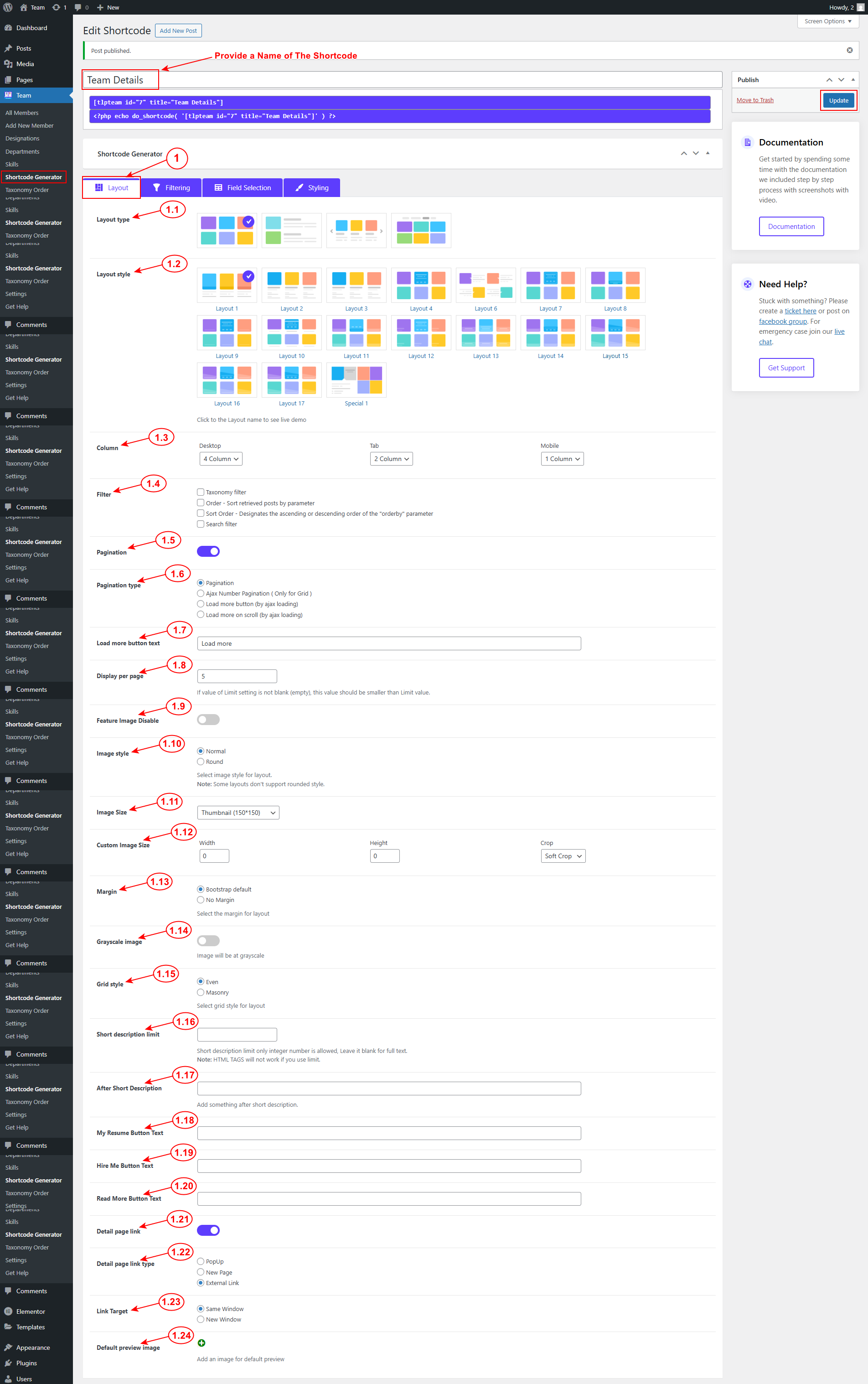
The first step of the shortcode generator is Layout selection. Navigate WordPress admin menu Team => Shortcode Generator
1.1 Layout Type: First, select the layout type as per image grid, list, slider, and filter.
1.2 Layout Style: Now select the layout style. You can click on the layout name to see the live demo.
1.3 Column: You can customize columns for desktop, tab, and mobile according to your preference.
1.4 Filter [Pro]: If you want to enable the grid filter, then enable the Taxonomy filter from here.
1.5 Pagination: Enable or disable pagination.
1.6 Pagination Type: Select the pagination type, normal number pagination by default.
Note: AJAX number pagination, AJAX load more pagination, or AJAX load on scroll are PRO features.
1.7 Load More Button Text [Pro]: You can add your custom text here for the Load More button.
1.8 Display Per Page: For pagination, you can set how many items will be shown per page.
1.9 Disable Feature Image: If you don’t want to show the profile image then enable it.
1.10 Image Style: You can select a Normal ie square image or a Rounded image.
Note: All layouts do not support rounded images.
1.11 Image Size: Select Predefined image size or set custom image size.
1.12 Custom Image Size: Personalize custom image size according to your choice.
1.13 Margin [Pro]: You can set Bootstrap default 30 px margin or no margin.
1.14 Grayscale Image [Pro]: If you want the profile image default to be grayscale then enable it. On hover it will show the original colored image.
1.15 Grid Style [Pro]: You can set grid-style either Even or Masonry.
1.16 Short Description Limit: Set shortcode limit characters.
Note: if you use limit then HTML tags will not work in the short bio field.
1.17 After Short Description: You can add something after the short description.
1.18 My Resume Button Text: Personalize my resume button text.
1.19 Hire Me Button Text: Enter the hire me button text.
1.20 Read More Button Text: Customize read more button text according to your preference.
1.21 Detail Page Link: If you want you can disable the detail page link.
1.22 Detail page link type: You can set New Page, Popup or External link.
Note: Popup is a Pro feature.
1.23 Link Target [Pro]: Set Link target for new page type.
1.24 Default Preview Image [Pro]: You can set a default preview image for members if no profile image then this image will show.
At the bottom, you will see the Layout Preview of how the layout will look in the front end.