
This documentation is based on the PRO version so additional features are PRO features.
1. Add Grid Layouts Widget #
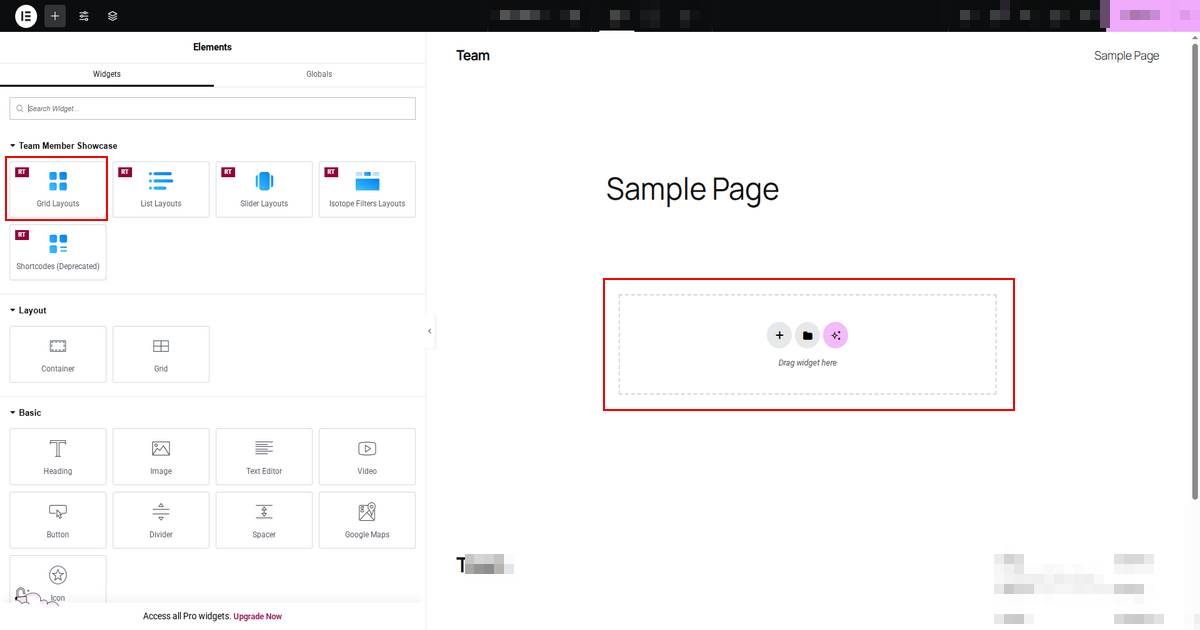
To use this Team Elementor Addon element, find the “Grid Layouts” element from the ‘Elements’ tab (or from the top search field). Simply just Drag & Drop the ‘Grid Layouts’ into the “Drag widget here” or the ‘+’ section.
2. Layout Settings #
Under the ‘Layout’ tab, you will be able to select various layouts and customize the team’s visual looks. Please check below.

2.1: Layouts: From the Layout Settings, you can choose your preferred layout. #
There are 14 predefined beautiful grid layouts.
The first two layouts are available in the Free version, and the rest of the layouts are featured in the Pro version.

2.2 Columns Setting: #
From the Columns Settings, you can control the responsive columns, grid style, and grid content alignment.

Number of Columns: You can define the number of columns to display team members. It is a responsive control, so you can define columns on Desktop, Tablet, or mobile devices.
Grid Style Pro: You can switch between even or masonry grid layouts.
Alignment Pro: You can control the text alignment for the grid content. It is also a responsive control.
2.3 Query #
From the Query Settings, you can edit the query-related parameters that can include, exclude, limit and sort the team posts.
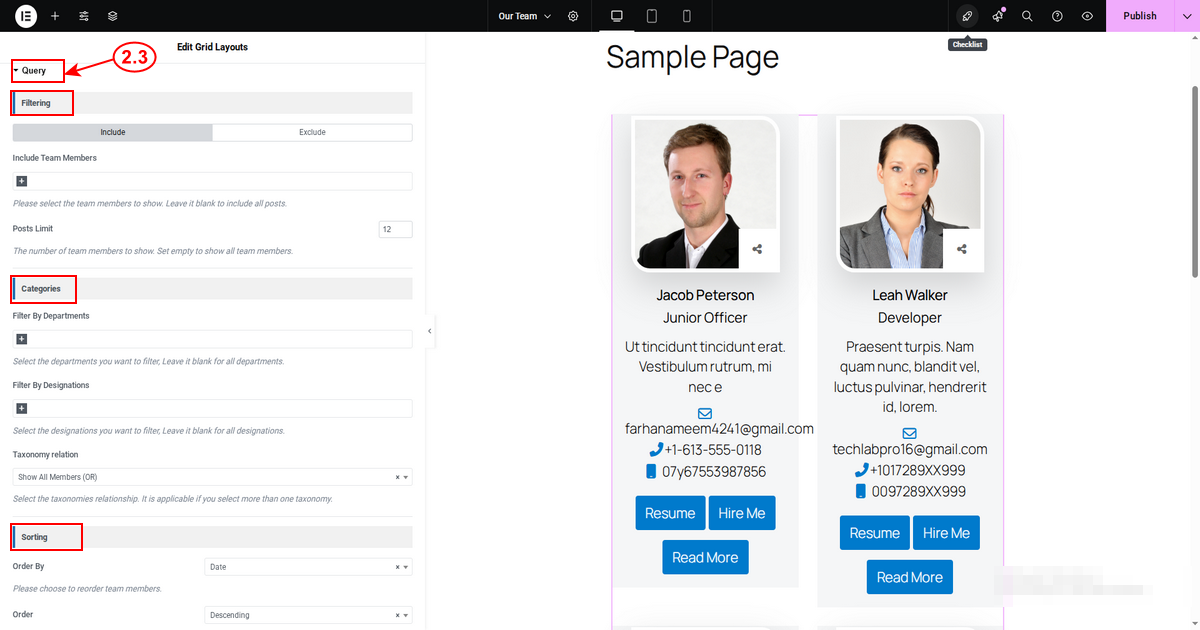
Filtering: In this section, you can include/exclude or limit your team member posts.
Categories: You can also filter the team member posts using Departments & Designations Pro. Also, you can define the taxonomy relations.
Sorting: Use these settings to sort your team posts by Menu Order / Name / ID / Date or Random in Ascending or Descending order.
2.4 Pagination #
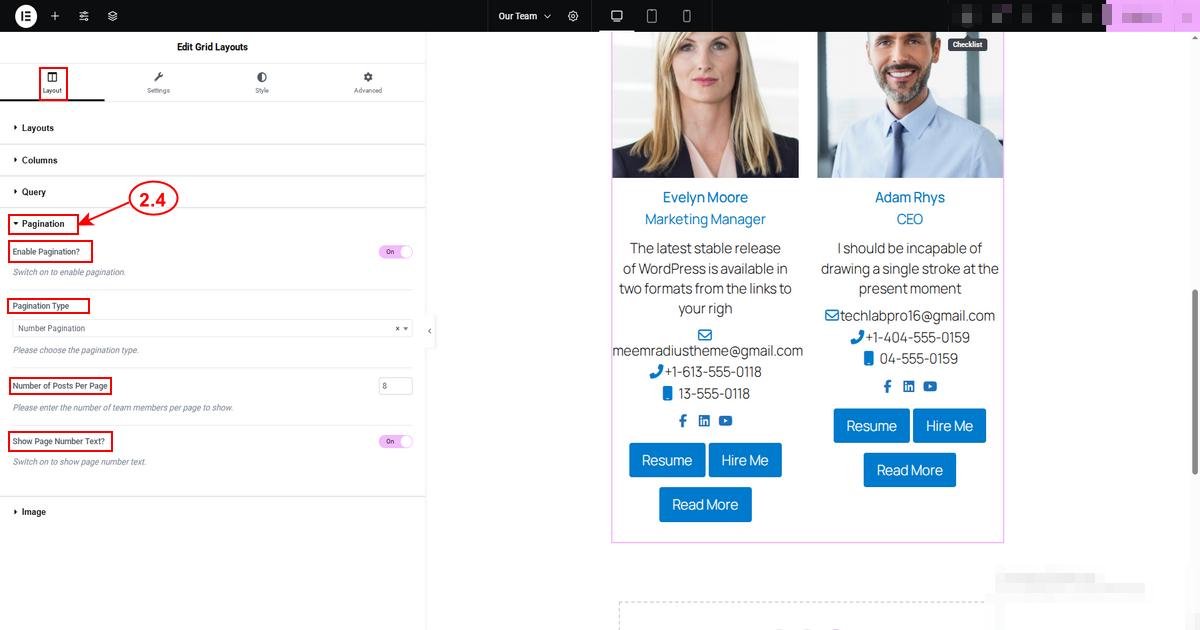
From the Pagination Settings, you can choose whether you need to show the pagination for team member grids. It is helpful if you have lots of team members.
Enable Pagination: You can enable the pagination from here.
Pagination Type: You can choose the type of pagination. There are four types of pagination to choose from:
- Number Pagination Free
- Ajax Number Pagination Pro
- Ajax Load More Button Pro
- Ajax Load More on Scroll Pro
Number of Posts Per Page: You can define the number of team members to display in each page from here.
Show Page Number Text: You can show the page number (Only applicable for ‘Number Pagination’).
Load More Button Text Pro: The button text for the ‘Load More’ button (Only applicable for ‘Ajax Load More’).
2.5 Image #
From the Image Settings, you can customize the image size of the headshot images of the team members.

Display Featured Image: You can enable/disable the featured image from here.
Select Image Size: Change the image size of the team’s images.
Custom Image Size If you want to add your own image size, you can choose the “Custom Image Size” Option. You need to add the custom width and height of the image, as well as the image crop settings.
Please note that, if you enter an image size larger than the actual image itself, the image sizes will fall back to the full image dimension.
Grayscale image Pro: You can enable/disable the grayscale-colored image from here.
Image Hover Animation Pro: Select the image hover animation. There are three options: Zoom In, Zoom Out, and None. Default Preview Image Pro:Customize the default preview image. The default preview image will show if there is no featured image. You can also choose an SVG image here.


