
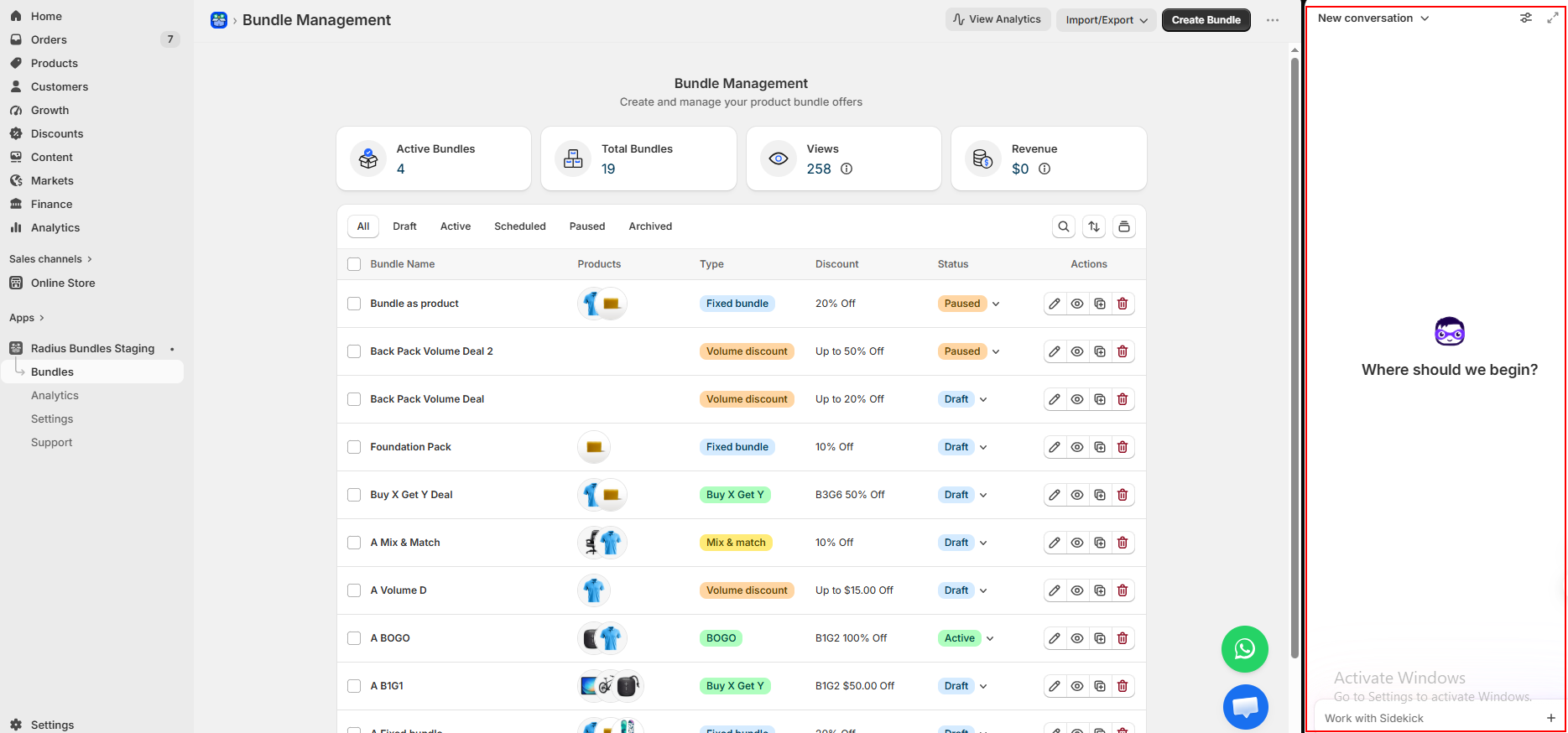
Sidekick is Shopify’s built-in assistant, available in the admin sidebar. With Radius Bundles installed, you can ask it questions about your bundles and get it to open a pre-filled creation page, without leaving wherever you are in the admin.
What you need #
- Radius Bundles installed on your store.
- Sidekick available in your Shopify admin.
Open Sidekick from its icon in the Shopify admin. There is no button inside Radius Bundles to launch it.
What you can ask #
The examples below are starting points. Sidekick decides which capability to use from what you type, so exact phrasing varies.
Check whether your bundles are showing on the storefront #
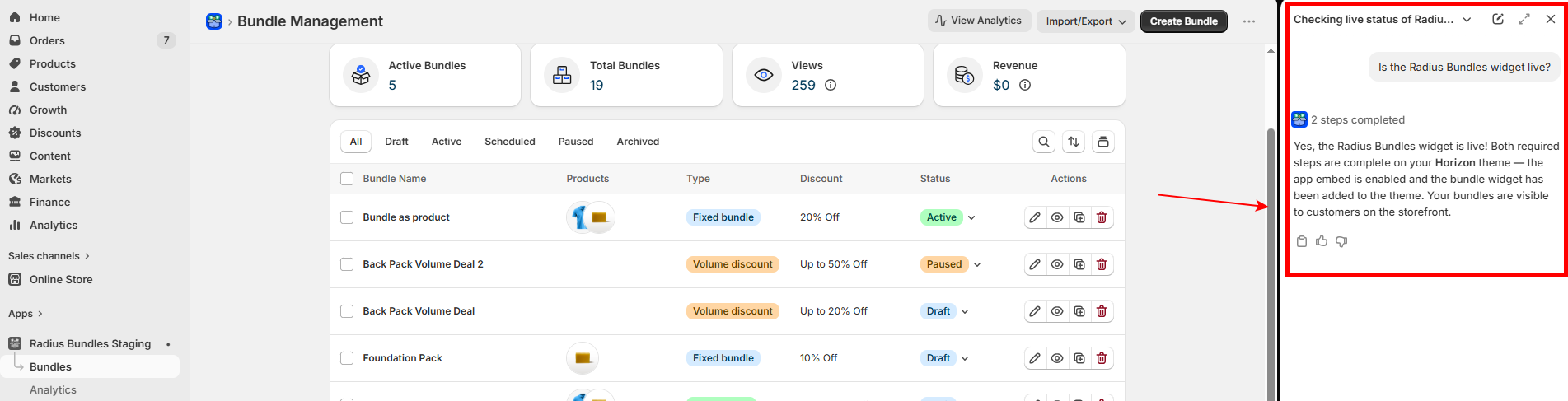
Sidekick can tell you whether the two storefront requirements are in place: the app embed, and the bundle widget added to your theme. It reports them separately, and gives you a direct link into the theme editor for whichever step is incomplete.
Example prompts
- “Why aren’t my bundles showing on my storefront?”
- “Is the Radius Bundles widget live?”
- “Check my bundle setup.”
What comes back
Whether the app embed and widget are both enabled, and a theme editor link for anything that is not. The result is cached for a few minutes; if you have just made a change in the theme editor, tell Sidekick you updated it and it will re-check.
Search your bundles and see how they are performing #
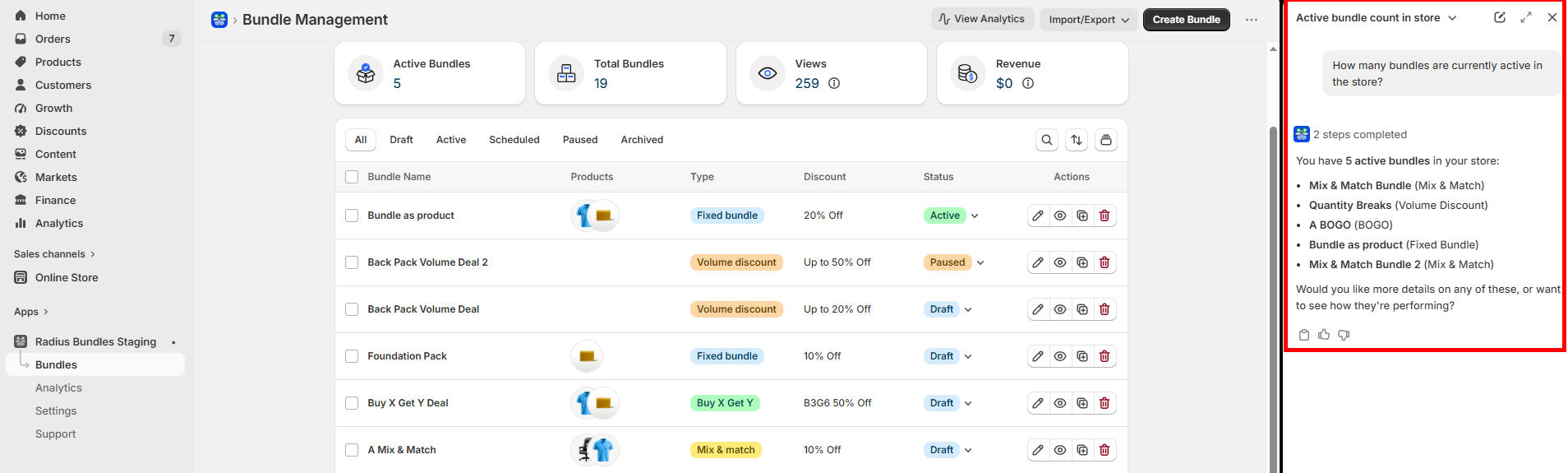
Sidekick can list your bundles with views, add-to-carts, conversions, revenue, conversion rate, and add-to-cart rate. You can filter by name, status, type, or a performance threshold.
Example prompts
- “Which of my bundles are underperforming?”
- “Show me my active Mix & Match bundles.”
- “Which bundles have a conversion rate under 2%?”
- “How did my bundles do over the last 30 days?”
What comes back
Up to 50 bundles at a time, ordered by revenue. The response includes the total count and whether more exist. Time windows: last 7, 30, 90, 180, or 365 days, or lifetime (default). A bundle with no views has no conversion rate. Sidekick says so rather than showing 0%.
Limits
Figures cover the chosen window, not necessarily the current month. A low add-to-cart rate points to the offer (products, discount, presentation); a high add-to-cart rate with low conversions points to checkout (price, shipping, stock). Sidekick surfaces both numbers but cannot change either.
Look up what a specific bundle contains #
Example prompts
- “What products are in my Home Sanctuary Kit?”
- “What discount is on my Summer Skincare bundle?”
- “Does my Starter Set include free shipping?”
What comes back
The bundle’s products and quantities, its discount, whether free shipping is included, and any scheduled start or end dates. If several bundles match the name you typed, Sidekick lists the matching names and asks which one you meant.
Find which bundles contain a product #
Example prompts
- “Which of my bundles have the Bedside Table in them?”
- “Is the SPF Moisturiser in any bundles?”
- “How are the bundles containing my Vitamin C Serum performing?”
What comes back
The bundles that contain that product, with performance figures. If the name matches more than one product, Sidekick asks which you meant. If the product is not in your catalogue at all, it says so. That is a different answer from “no bundles contain it”.
Open a pre-filled bundle creation page #
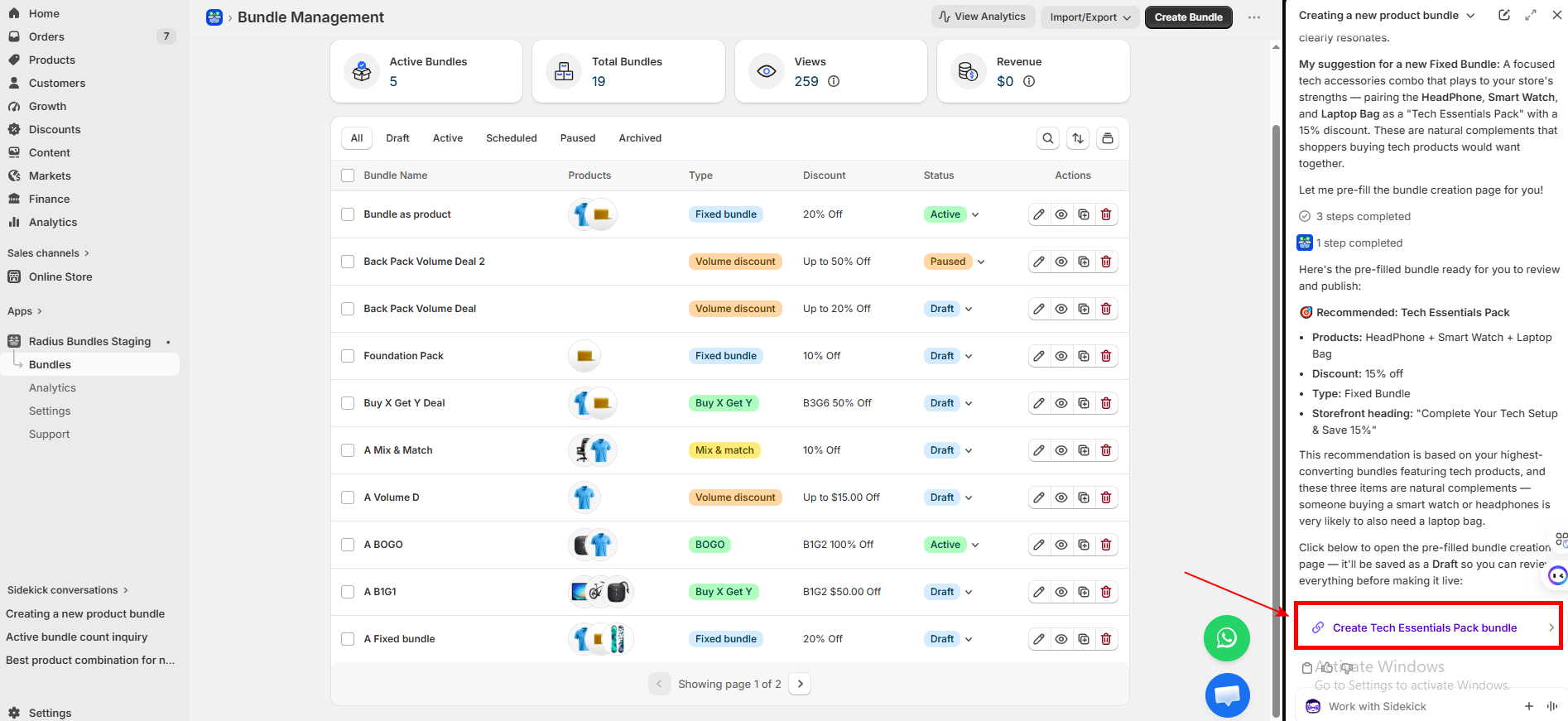
Ask Sidekick to create a bundle and it opens the Radius Bundles creation wizard with the details filled in. Nothing is saved until you review and publish.
Example prompts
- “Create a summer skincare bundle with 15% off.”
- “Build a Buy X Get Y: buy 2, get 1 free.”
- “Set up a volume discount: buy 2 save 10%, buy 3 save 15%.”
- “Create a Mix & Match bundle.”
What comes back
A link that opens the creation wizard. When you arrive, a blue banner at the top reads “Sidekick filled this in” and lists which fields were pre-filled (for example: bundle name, discount, products, storefront heading). Nothing is saved yet. Review every field and click Publish when you are ready.
What gets pre-filled by type
| Bundle type | What Sidekick can fill |
|---|---|
| Fixed Bundle | Name, discount, products, storefront heading |
| Buy X Get Y | Name, discount, products, how many are bought, how many come free, storefront heading |
| BOGO | Name, discount, products, storefront heading |
| Volume Discount | Name, products, quantity tiers (e.g. buy 2 save 10%, buy 3 save 15%), storefront heading |
| Mix & Match | Name, discount, storefront heading (no products; you build the groups) |
For Buy X Get Y, the order matters: the first product Sidekick lists becomes the “buy” product, and the rest become the reward. Check the products step to confirm it matches what you asked for.
Limits
- The bundle is created with Draft status. It is not visible to shoppers until you go to the bundle and set its status to Active.
- Mix & Match links carry no products because that type organises products into groups. You will need to add the groups yourself on step 1 of the wizard.
- Sidekick cannot save, publish, or edit an existing bundle. Every creation request opens the wizard. You complete and submit it.
What Sidekick cannot do #
- Change anything. Sidekick is read-only. Every change requires you to act in the app.
- Report on a custom date range. Time windows roll from today: “last 30 days” means the past 30 days, not a calendar month.
- Create Frequently Bought Together bundles. That type is not currently available.
Common mistakes and troubleshooting #
Sidekick does not seem to know about my bundles. Make sure Radius Bundles is installed on this store, and that you are asking in the admin of that store.
The storefront check says the widget is enabled, but bundles are still not showing. The status is cached for a few minutes. Ask Sidekick to re-check, or wait a moment and ask again. If it still shows as enabled and bundles are not appearing, confirm that the bundle’s status is Active (Draft and Paused bundles do not show on the storefront) and that the widget block has been added to the specific template where you expect it to appear.
Sidekick says a bundle has a 0% conversion rate. A bundle with no views has no rate at all, so 0% means shoppers saw it and nobody bought. Look at its add-to-cart rate to see whether they dropped off at the widget or at checkout.
The Mix & Match page opened with no products. That is expected. Mix & Match products live in groups, and the link cannot carry groups. You add products to the groups yourself on step 1.


