
A bundle as product gives your bundle its own Shopify product page: its own URL, its own images, and a single Add to Cart button. Shoppers add it to their cart and check out like any other product. The items ship together; no separate listing needed.
This is separate from the bundle widget, which still appears on your component products’ pages. The bundle product page is an additional entry point.
When to use it #
- You want the bundle to appear in search results, collections, and sales channels
- The bundle is a distinct offer you want to promote as a product (gift sets, starter kits, seasonal packs)
- You want a shareable, linkable URL for a specific bundle
Which bundle types support it #
Fixed Bundle, Buy X Get Y, and BOGO. Volume Discount and Mix & Match do not support bundle as product.
Turning it on #
The Bundle as product section is on the Discount step (step 2 of 4) of the bundle editor.
- Open the bundle editor. On a new bundle, the Discount step is the second step. On an existing bundle, navigate to that step.
- Turn on
Create product for bundle, the switch at the top right of the Bundle as product section. - Fill in a Title for the Shopify product. It auto-fills from the bundle name on create; edit it independently at any time.
- Optionally add a Description and Media images.
- Continue through the wizard and save. Radius creates the Shopify product when you first save with the toggle on.
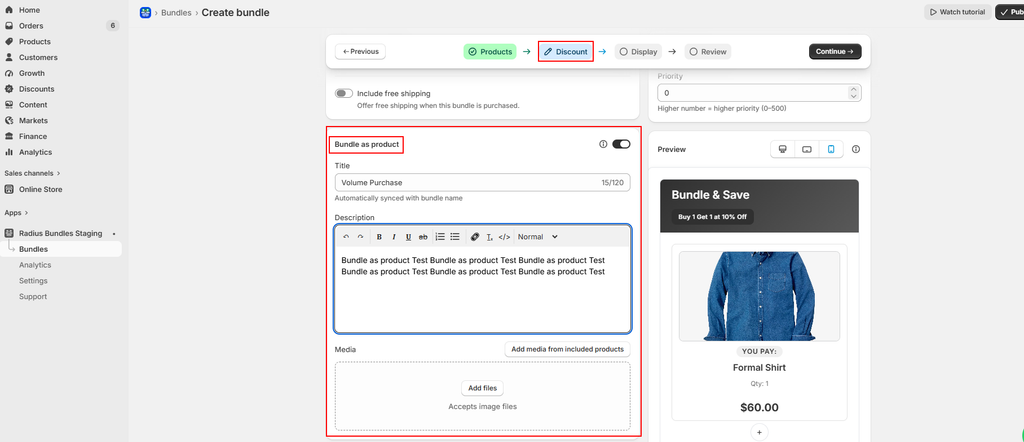
On an existing bundle with a product already created, an Edit Shopify product button opens the Shopify admin product page in a new tab. Fields you can only edit there (product category, tags, GIF/video media) are listed in a tooltip on that button. Title, description, and media images sync back to Shopify automatically every time you save the bundle.
Parent variants #
When all of a bundle’s items are pinned to a single variant (no shopper choice), one Shopify variant is created and represents the whole bundle.
When one or more items offer a variant choice (for example, a shirt where the shopper picks size), Radius creates one Shopify variant per combination. The shopper picks from the theme’s standard variant picker on the product page and the contents list updates to show which items they will receive.
The editor shows a warning if you add more than three choice items (Shopify allows at most three product options) or if the combination count exceeds the platform’s variant limit.
Stock and price #
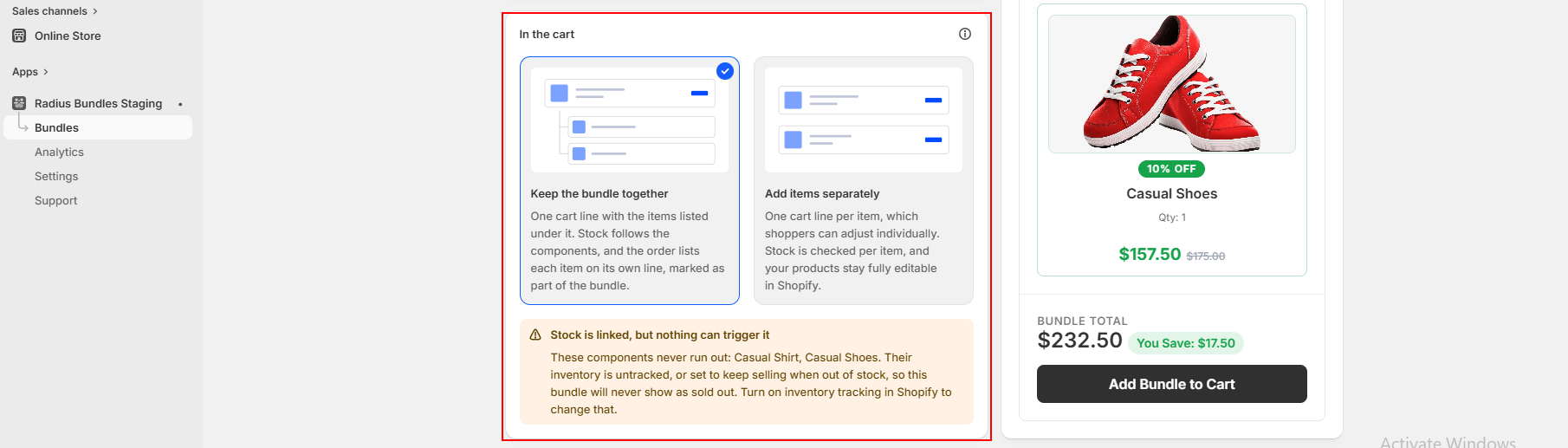
Stock follows the component items. When you choose Keep the bundle together (see below), Radius attaches the components to the bundle product using Shopify’s native bundle API. The parent product goes out of stock automatically when any component does, and Shopify enforces this at checkout.
If a component has inventory tracking turned off in Shopify, or is set to keep selling when out of stock, it can never trigger a stock-out. The editor names any such components in a warning banner. Turn on inventory tracking for those products in Shopify to close the gap.
Price is calculated from the component prices and your bundle discount when you save. If a component’s price changes later, the app recalculates the bundle price automatically once Shopify reports the change. You do not need to re-save the bundle.
In the cart: Grouping Choices #
The In the cart section (just below Bundle as product on the Discount step) controls what happens after a shopper adds the bundle, from this page or from any other entry point (widget, collection, search).
| Option | What the shopper sees | Stock | Shopify admin components |
|---|---|---|---|
Keep the bundle together | One cart line, items listed underneath | Follows components via Shopify’s native bundle API | Shown in Shopify’s Bundled-products card |
Add items separately | One cart line per item, each adjustable | Checked per item independently | Not shown (no native attachment) |
Keep the bundle together is the default. Choose Add items separately when shoppers should be able to change quantities or remove individual items from the cart, or when your products already have complex variant configurations that cannot map to the three-option limit.
Re-save the bundle after switching so the storefront picks up the change.
What shoppers see on the product page #
The standard Shopify theme product page renders: title, images, price, variant picker (if applicable), and the Add to Cart button, all from your theme, with no bundle widget visible.
Radius adds a What’s included contents list directly above the Add to Cart button. It shows each item in the bundle, with product images and prices if those display settings are on. On Buy X Get Y and BOGO bundles, any item the shopper receives free is marked FREE (only when the reward discount is 100%).
If the bundle has variant choices, the contents list updates as the shopper changes the picker to show exactly which products and variants they will receiv
What You See in Shopify Admin #
When Keep the bundle together is on, Shopify’s product admin page shows a Bundled-products card listing all the components. Clicking it deep-links back to the bundle editor in Radius. This does not appear for Add items separately bundles because Shopify only shows it when components are natively attached.
Turning it Off or Deleting the Bundle #
Turning off the toggle on an existing bundle shows a confirmation. Saving with the toggle off permanently deletes the Shopify product from your store. This cannot be undone from within Radius; you would need to recreate it. The bundle itself is unchanged.
Deleting the bundle also deletes the Shopify product. Orders placed before the deletion are not affected.
Common Mistakes #
Expecting the bundle widget to show on the product page. It does not. The widget is hidden on the bundle’s own product page. The What's included list appears in its place. If you want the interactive widget, add the Radius app block to any of the component products’ pages instead.
Untracked inventory not triggering stock-out. If the editor shows a warning about untracked components, the bundle will not go out of stock when those items run out. Enable inventory tracking in Shopify (Products → edit the product → Inventory) to link their stock.
Switching to Add items separately and forgetting to save. The storefront reads the setting from the saved bundle. Changing the toggle without saving has no effect on the storefront.
Editing the Shopify product directly. Title, description, and media images are synced from the bundle editor when you save. Changes you make to those three fields directly in Shopify admin will be overwritten the next time you save the bundle.


