
This page lets you control how your bundles behave across your entire store. You’ll find it under Radius Bundles → Settings → General in your Shopify admin.
Most merchants visit it once during setup and rarely need to return — unless they want to restrict discount stacking or change what happens after a customer adds a bundle.
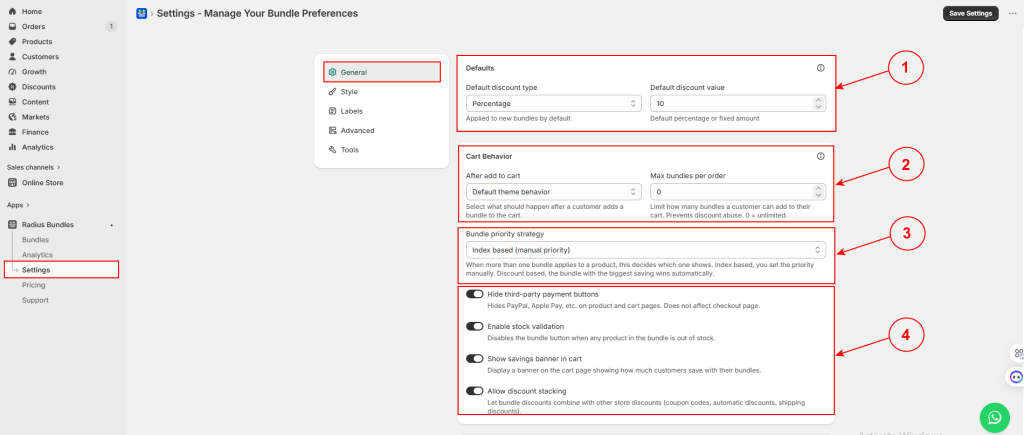
1. Defaults #
These values are pre-filled every time you create a new bundle — saving you time so you don’t have to set the same discount on every offer manually.
Default discount type — Choose between Percentage or Fixed amount. This is the discount format that new bundles start with. You can always change it per bundle later.
Default discount value — Enter the number that goes with your discount type. For example, if you set the type to “Percentage” and the value to 10, every new bundle you create will start with a 10% discount pre-filled.
Tip: If most of your bundles use the same discount (e.g., 15% off), set it here once. You’ll save a few clicks every time you create a new offer.
2. Cart Behavior #
Control what happens when a customer adds a bundle to their cart.
After add to cart — Decide what your store does the moment a customer clicks “Add Bundle to Cart.” Options include:
- Default theme behavior — Whatever your theme normally does (e.g., show a cart drawer, redirect to cart page, show a confirmation).
- Other options may include redirecting to cart or showing a popup, depending on your theme.
Max bundles per order — Set a limit on how many bundles a single customer can add to one order. This prevents discount abuse (e.g., someone adding 50 bundles to exploit a deal).
- Set to 0 for unlimited (no restriction).
- Set to any number (e.g., 3) to cap it at that many bundles per order.
Tip: If you’re running a high-value BOGO or free gift promotion, consider setting a limit (like 2 or 3) to protect your margins.
3. Bundle Priority Strategy #
When a single product appears in more than one active bundle, this setting decides which bundle the customer sees on the product page.
Index based (manual priority) — You control the order yourself. Bundles are ranked by the position (index) you assign to them. The bundle with the higher priority wins.
Discount based (automatic) — The app automatically shows the bundle that gives the customer the biggest saving. No manual sorting needed.
Tip: Use “Index based” if you want to feature a specific promotion (e.g., a seasonal campaign) over your everyday bundles. Use “Discount based” if you always want to show customers the best deal.
4. Store Behavior Toggles #
These are on/off switches that control specific behaviors across your store. Toggle them on (blue) or off (gray) based on your needs.
Hide third-party payment buttons
What it does: Hides express payment buttons like PayPal, Apple Pay, Google Pay, and Shop Pay on product and cart pages when a bundle is active.
Does NOT affect the checkout page — customers can still use these payment methods at checkout.
When to use it: Turn this on if express pay buttons are bypassing your bundle discount logic or causing confusion for customers.
Enable stock validation
What it does: Automatically disables the “Add Bundle” button when any product inside the bundle is out of stock.
When to use it: Turn this on to prevent customers from ordering bundles they can’t actually receive. Keeps your fulfillment clean and avoids refund headaches.
Show savings banner in cart
What it does: Displays a banner on the cart page showing customers how much they’re saving with their bundle (e.g., “You’re saving $12.00 with this bundle!”).
When to use it: Great for reinforcing the value of the deal. Reduces cart abandonment by reminding shoppers they’re getting a good price.
Allow discount stacking
What it does: Lets your bundle discounts combine with other active store discounts — including coupon codes, automatic discounts, and shipping discounts.
When to turn it OFF: If you want bundle pricing to be the only discount applied (preventing customers from double-dipping).
When to turn it ON: If you’re okay with customers using a coupon code on top of a bundle deal (e.g., during a site-wide sale).
Important: Be careful with stacking during big sales events like Black Friday. A 20% bundle discount + a 15% sitewide coupon can eat into your margins fast.
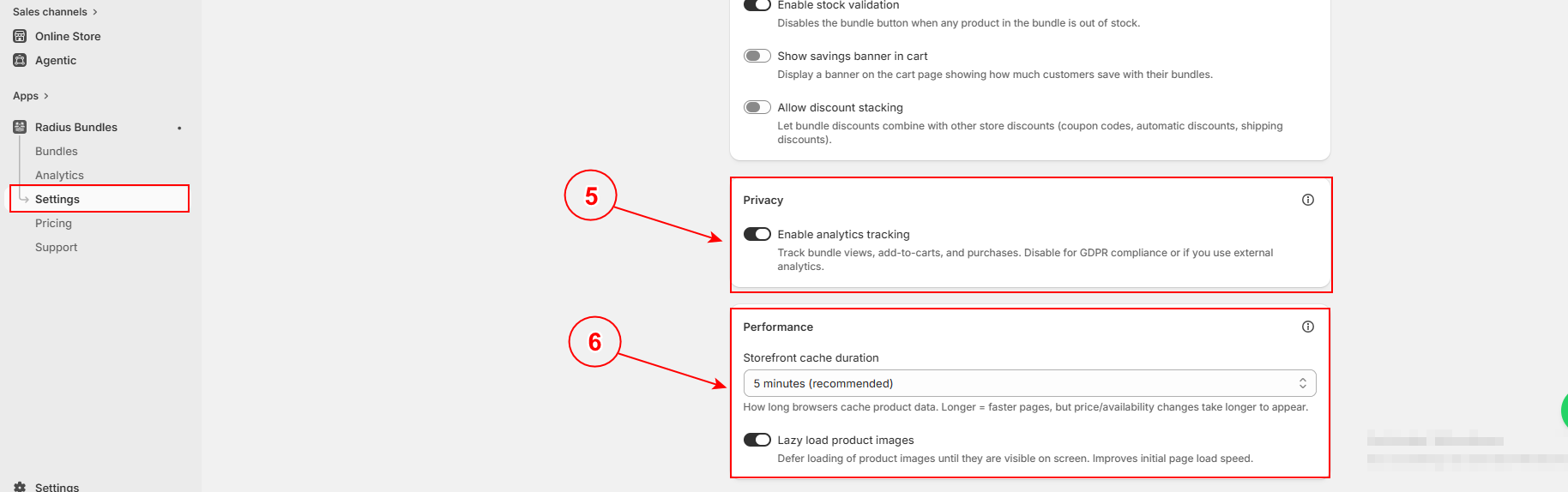
5. Privacy #
Enable analytics tracking
What it does: When turned ON, Radius Bundles tracks bundle views, add-to-carts, and purchases so you can see performance data in the Analytics tab.
When to turn it OFF:
- If you need to comply with GDPR or other privacy regulations and prefer not to collect this data.
- If you already use an external analytics tool (like Google Analytics or Shopify’s built-in reports) and don’t need duplicate tracking.
Tip: We recommend keeping this ON unless you have a specific privacy reason to disable it. The analytics dashboard is one of the most useful tools for understanding which bundles actually drive revenue.
6. Performance #
Fine-tune how fast your bundle widgets load on the storefront.
Storefront cache duration
What it does: Controls how long a customer’s browser stores (caches) your bundle product data before fetching fresh information from Shopify.
Default: 5 minutes (recommended)
Longer cache = faster pages but price or availability changes take longer to appear for returning visitors.
Shorter cache = more up-to-date product info but slightly more load on each page view.
Tip: Stick with the 5-minute default unless you update prices or stock levels very frequently (e.g., flash sales where prices change every few minutes).
Lazy load product images
What it does: Defers loading of product images in bundle widgets until they are actually visible on the customer’s screen (as they scroll down).
Why it matters: Improves your store’s initial page load speed, which directly affects both customer experience and your SEO/Core Web Vitals scores.
Tip: We recommend keeping this ON. It makes your pages load faster with zero downside — images still appear instantly as the customer scrolls to them.
Quick Reference #
| Setting | Recommended Default | Purpose |
| Default discount type | Percentage | Saves time when creating new bundles |
| Default discount value | 10 | Pre-fills your most common discount |
| After add to cart | Default theme behavior | Keeps the shopping experience consistent |
| Max bundles per order | 0 (unlimited) | Set a limit only if discount abuse is a concern |
| Bundle priority strategy | Discount based | Shows the best deal automatically |
| Hide third-party payment | OFF | Only turn on if express pay causes issues |
| Stock validation | ON | Prevents orders for out-of-stock bundles |
| Savings banner in cart | ON | Reinforces value, reduces cart abandonment |
| Discount stacking | OFF | Turn on only during sitewide sales |
| Analytics tracking | ON | Powers your Analytics dashboard |
| Cache duration | 5 minutes | Best balance of speed and freshness |
| Lazy load images | ON | Faster pages, no downside |
When to Change These #
- New store launch: Set your preferred default discount type so every new bundle starts with the right structure.
- BFCM or flash sale: Turn off Allow discount stacking to prevent coupon codes from combining with already-aggressive bundle discounts — or turn it on intentionally if you want them to stack.
- GDPR audit: Disable Enable analytics tracking if your privacy policy doesn’t cover the app’s tracking.
- Slow storefront: If product prices or availability change frequently, reduce Storefront cache duration to 1 minute or none.
- Discount abuse: Set Max bundles per order to 1 or 2 on high-discount promotions.


