
Customize every text label your customers see across your bundle widgets. Useful for matching your brand voice or translating into another language.
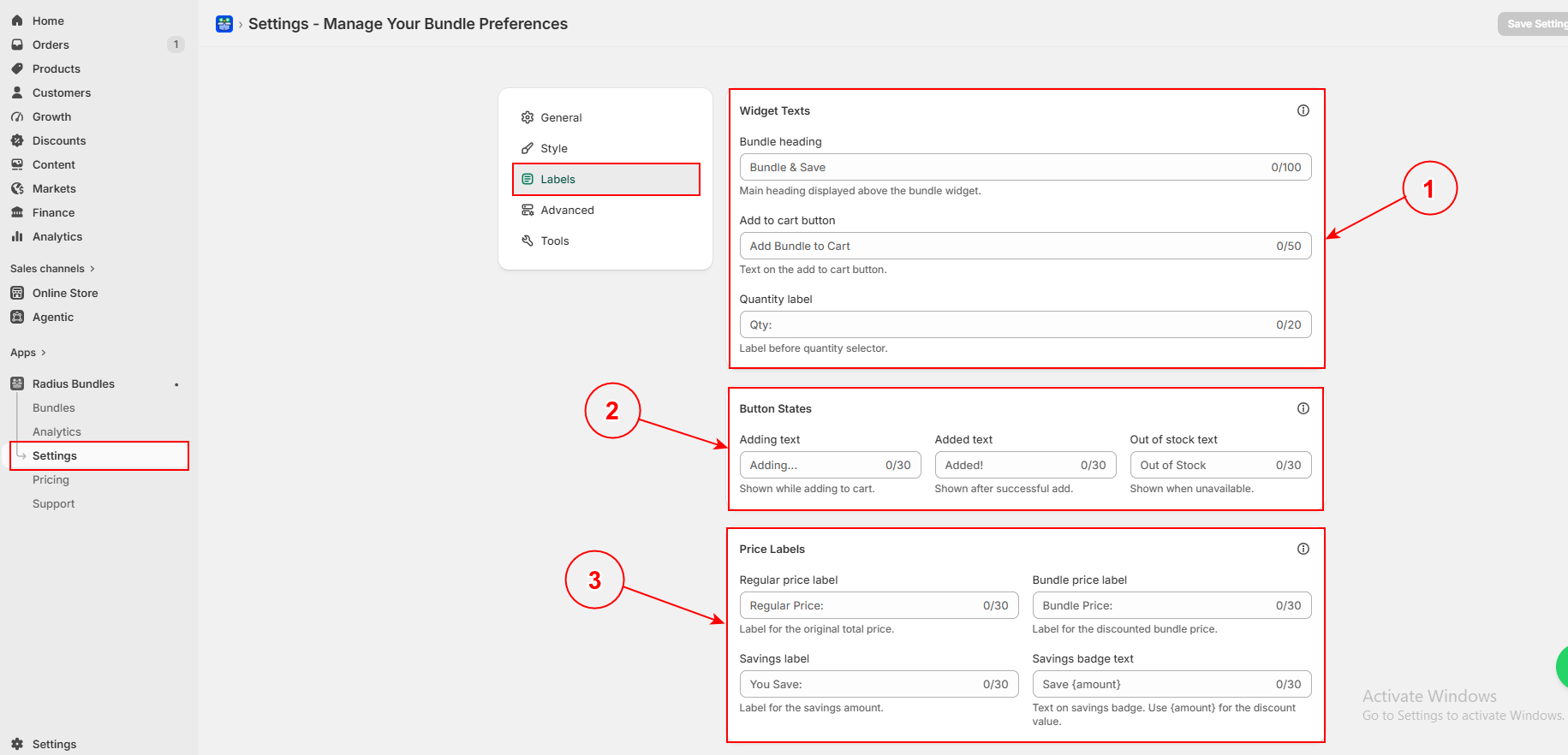
1. Widget Texts #
The main text customers see on every bundle. Set the bundle heading (e.g., “Bundle & Save”), the add to cart button text, and the quantity label shown before the quantity selector.
2. Button States #
Text that appears on the add-to-cart button during different states: “Adding...” while processing, “Added!” after success, and “Out of Stock” when a product is unavailable.
3. Price Labels #
Labels for the pricing breakdown shown below the bundle: Regular Price (original total), Bundle Price (discounted total), Savings label (e.g., “You Save:”), and Savings badge text — use {amount} to dynamically insert the discount value.
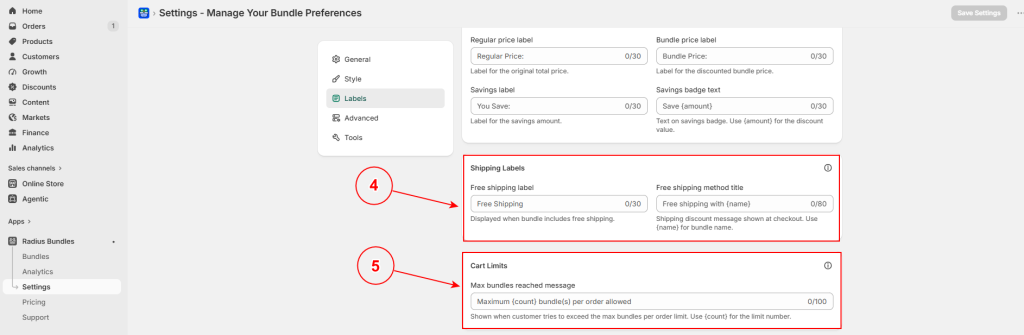
4. Shipping Labels #
Text shown when a bundle includes free shipping. Set the free shipping label displayed inside the widget and the shipping method title shown at checkout — use {name} to insert the bundle name.
5. Cart Limits #
The message customers see when they try to add more bundles than allowed. Use {count} to dynamically insert the maximum number you set in General Settings.
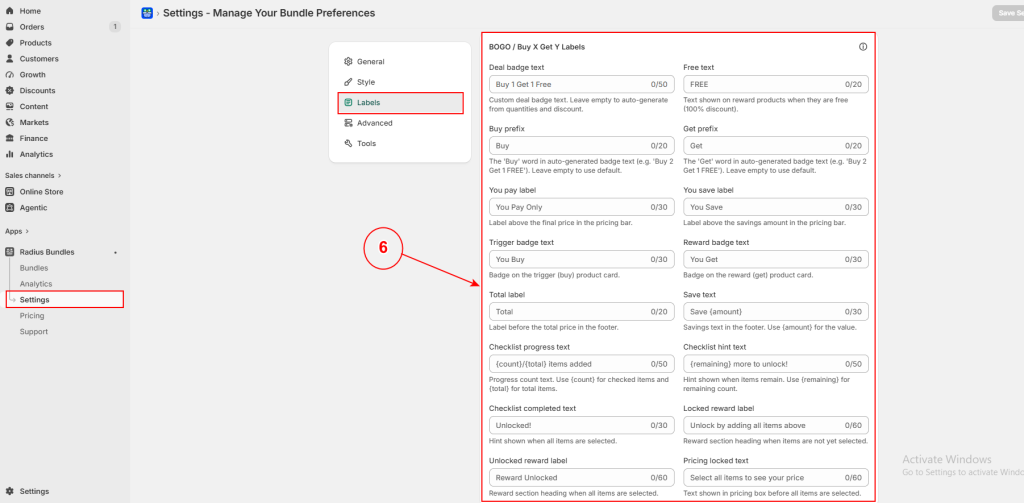
6. BOGO / Buy X Get Y Labels #
All text specific to BOGO and Buy X Get Y offers. Includes the deal badge (e.g., “Buy 1 Get 1 Free”), “FREE” text for 100% discounts, Buy/Get prefixes, trigger and reward badges (“You Buy” / “You Get”), pricing bar labels, and checklist-related text for the Checklist layout — progress counts, hints, locked/unlocked reward messages, and completion text. Use {count}, {total}, {remaining}, and {amount} as dynamic placeholders where noted.
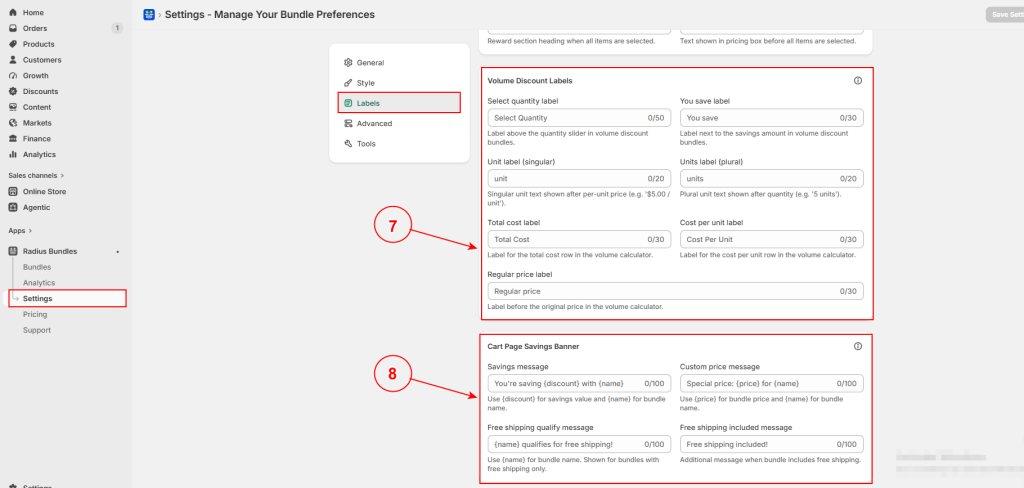
7. Volume Discount Labels #
Text for volume discount widgets. Includes the quantity selector label, savings label, unit labels (singular and plural, e.g., “unit” / “units”), and labels for the calculator layout — total cost, cost per unit, and regular price.
8. Cart Page Savings Banner #
Messages shown on the cart page banner. Set the savings message and custom price message — use {discount}, {price}, and {name} to dynamically insert values. Also set messages for free shipping qualification and free shipping included notifications.
Tip: All labels support dynamic placeholders like {amount}, {name}, {count}. Leave any field empty to use the default English text. If you’re translating your store, update every field to keep the experience consistent.
When to Change These #
- Non-English storefront: Replace every label with your language. The app doesn’t auto-translate — these fields are what gets shown.
- Brand voice: If “Add Bundle to Cart” feels generic, try something product-specific like “Build My Bundle” or “Get the Set”.
- BOGO promotion: Customize the deal badge text and trigger/reward labels to match your campaign copy instead of the generic defaults.
- Volume discounts: Set the unit labels to match your product (e.g., “bottle” / “bottles” instead of “unit” / “units”).


