
Radius Bundles now supports variant selection inside bundles. If your bundle includes products with multiple variants (like size, color, or material), customers can choose their preferred variant directly from the bundle widget — without leaving the product page.
This means you can bundle products like “Pick your size” or “Choose your color” while keeping the entire shopping experience inside the bundle.
When “Let Shoppers Choose One Variant” is OFF #
When this toggle is turned OFF, all selected variants are included in the bundle as separate items. Each variant appears as its own product card in the widget with its own name, image, quantity, and price. Customers get every checked variant — they don’t pick one.
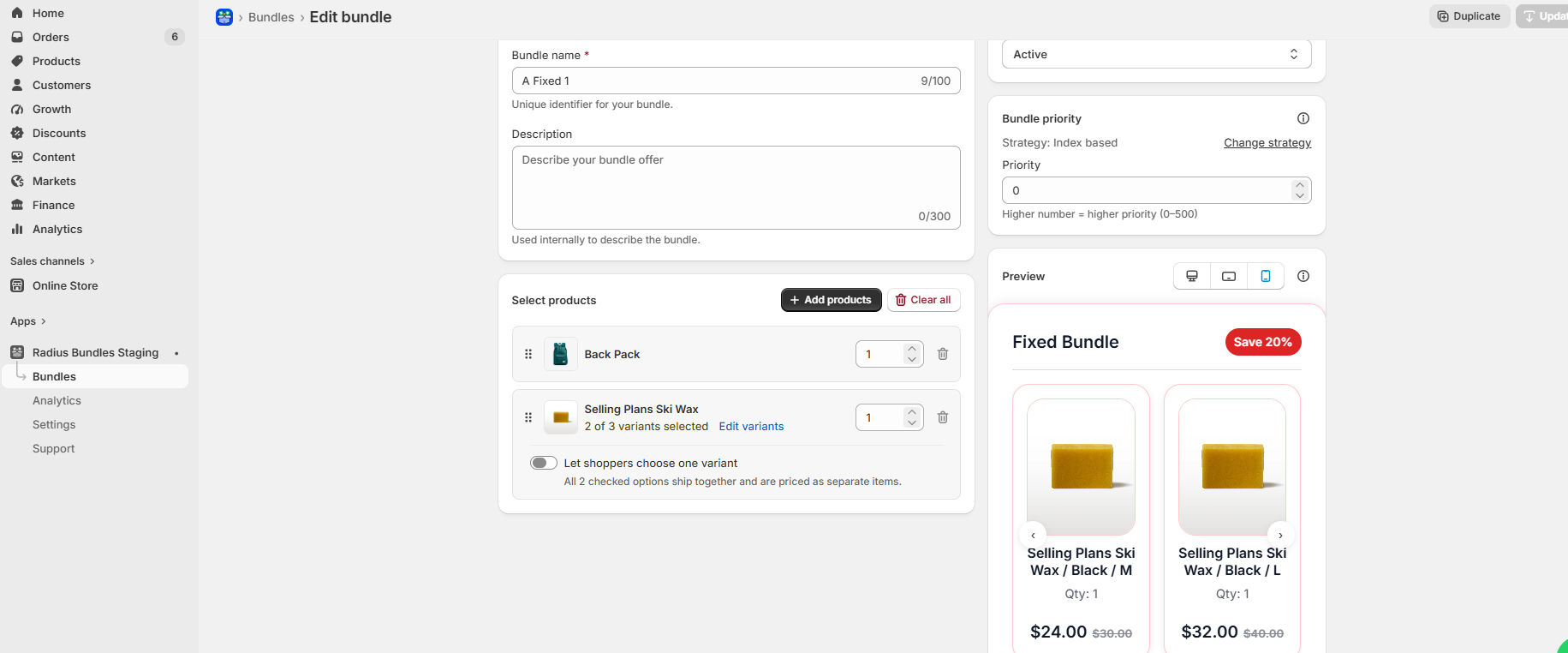
Front End View #
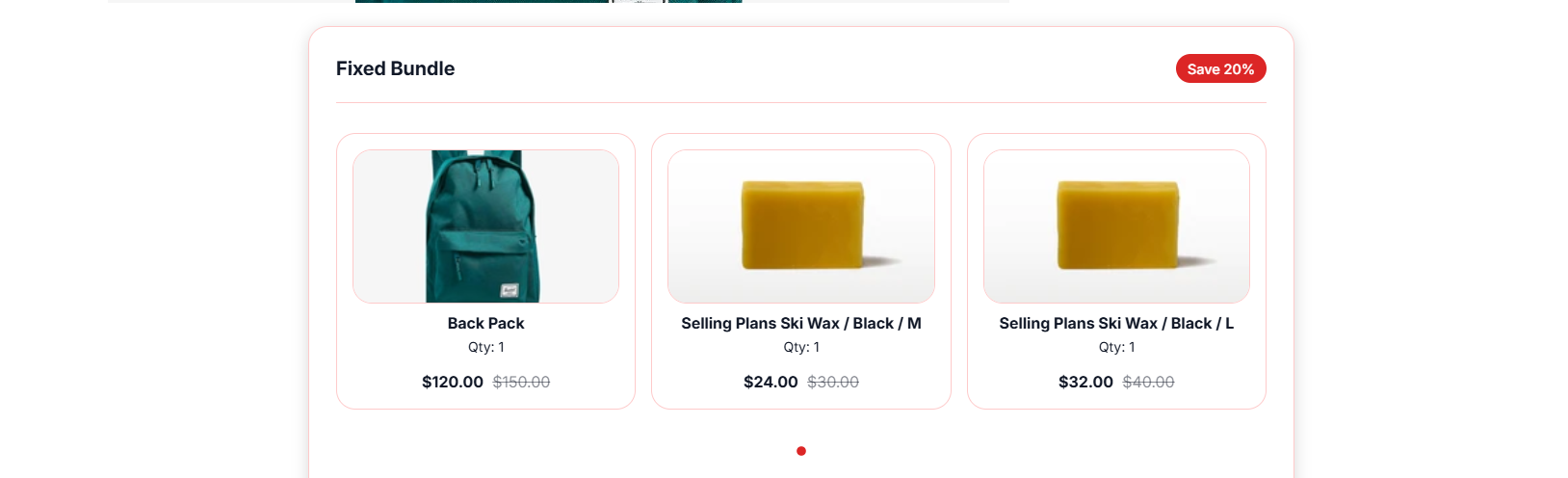
For example, if you select 2 out of 3 variants of a product, both will appear side by side in the bundle. The customer buys both variants together as part of the bundle, not one or the other.
Use this when: You want to sell a multi-variant pack — like a bundle that includes the same product in two sizes (e.g., a Medium + Large combo) or multiple colors together.
Use “Let shoppers choose” instead when: You want customers to pick just one variant — like choosing their preferred size or color before adding the bundle to cart.
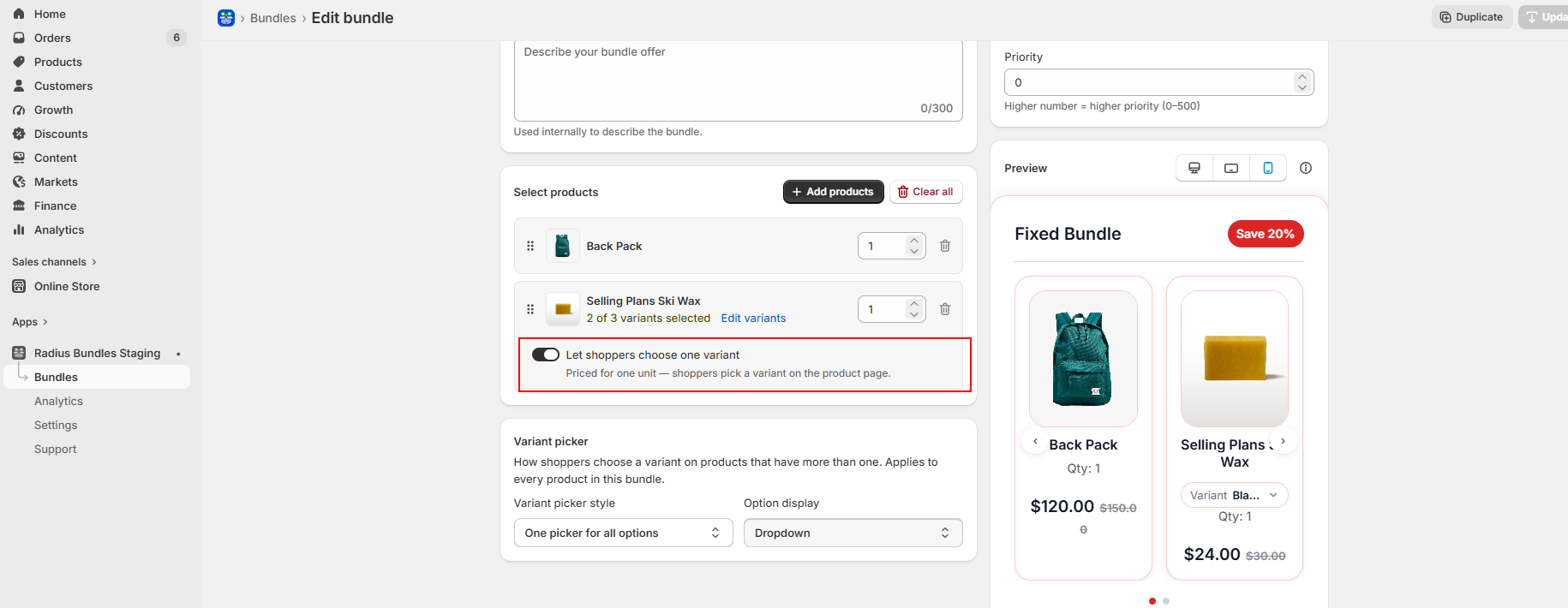
Let Shoppers Choose One Variant #
When you add a product with variants to a bundle, you’ll see a “Let shoppers choose one variant” toggle. Turn it ON to let customers pick their preferred variant on the product page. The bundle is priced for one unit — the shopper simply selects which version they want.
Click “Edit variants” next to any product to choose which specific variants are available in the bundle. For example, if a wax product has 3 variants, you can include only 2 and exclude the rest.
Variant Picker Settings #
The Variant Picker section controls how variant selection appears to customers. It applies to every product in the bundle that has more than one variant.
- Variant picker style – Choose how variant options are presented:
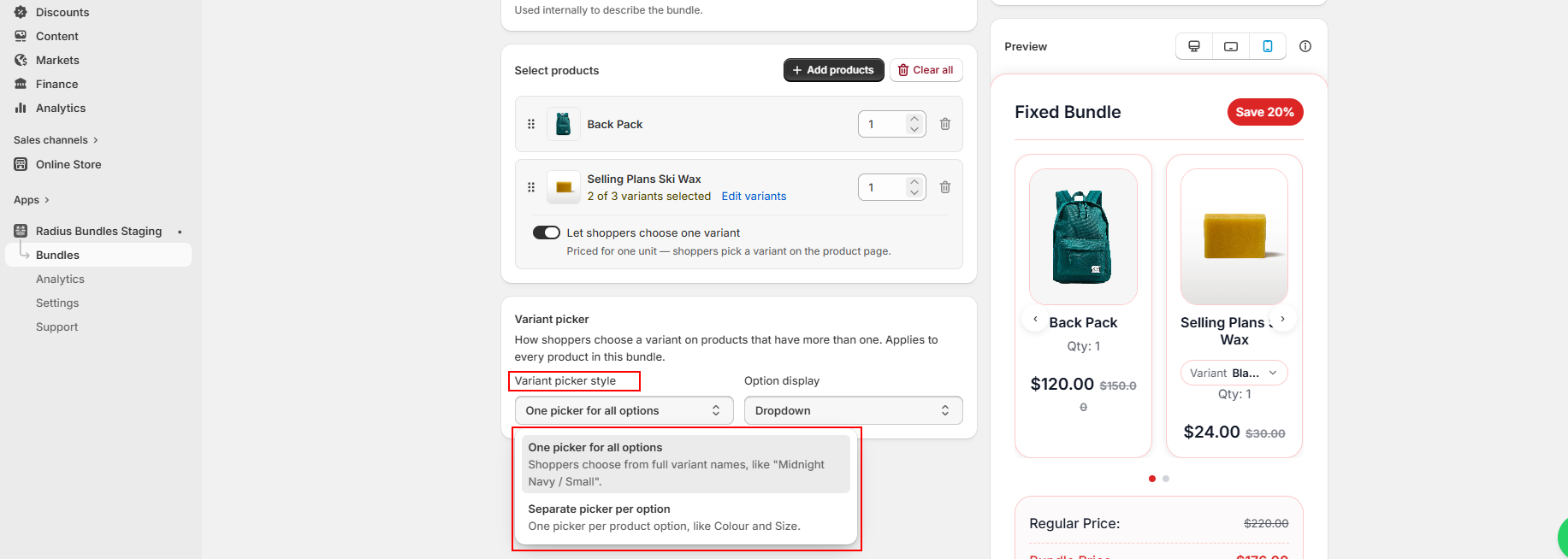
- One picker for all options — Shoppers choose from full combined variant names like “Midnight Navy / Small.” Best when products have few variants, and you want a single, simple selector.
- Separate picker per option — Displays one picker for each product option (e.g., one for Color, one for Size). Best when products have multiple option types, and you want a cleaner, organized selection experience.
When to Use Each Variant Picker Style
One picker for all options — Use this when your products have simple, single-level variants like just a color or just a size. All variant combinations appear as one list (e.g., “Black / M”, “Black / L”, “White / S”). Customers make one selection, and they’re done. Works best for products with fewer than 8–10 total variant combinations. Beyond that, the list gets long and harder to scan.
Example: A candle bundle where one product comes in “Vanilla,” “Lavender,” and “Rose” — three simple options in a single picker.
Separate picker per option — Use this when your products have multiple option types combined together, like Color + Size or Material + Length. Each option gets its own independent picker, so customers choose Color first, then Size — rather than scrolling through every possible combination in one long list. Keeps the selection process organized and intuitive, especially for products with many combinations.
Example: An apparel bundle where a t-shirt comes in 4 colors × 5 sizes = 20 combinations. One picker would show 20 entries. Separate pickers show just 4 color buttons + 5 size buttons — much easier to navigate.
Quick rule: If your variant product has one option type (just color OR just size), use “One picker for all options.” If it has two or more option types (color AND size), use “Separate picker per option.”
2. Option display – Choose the visual format of the picker:
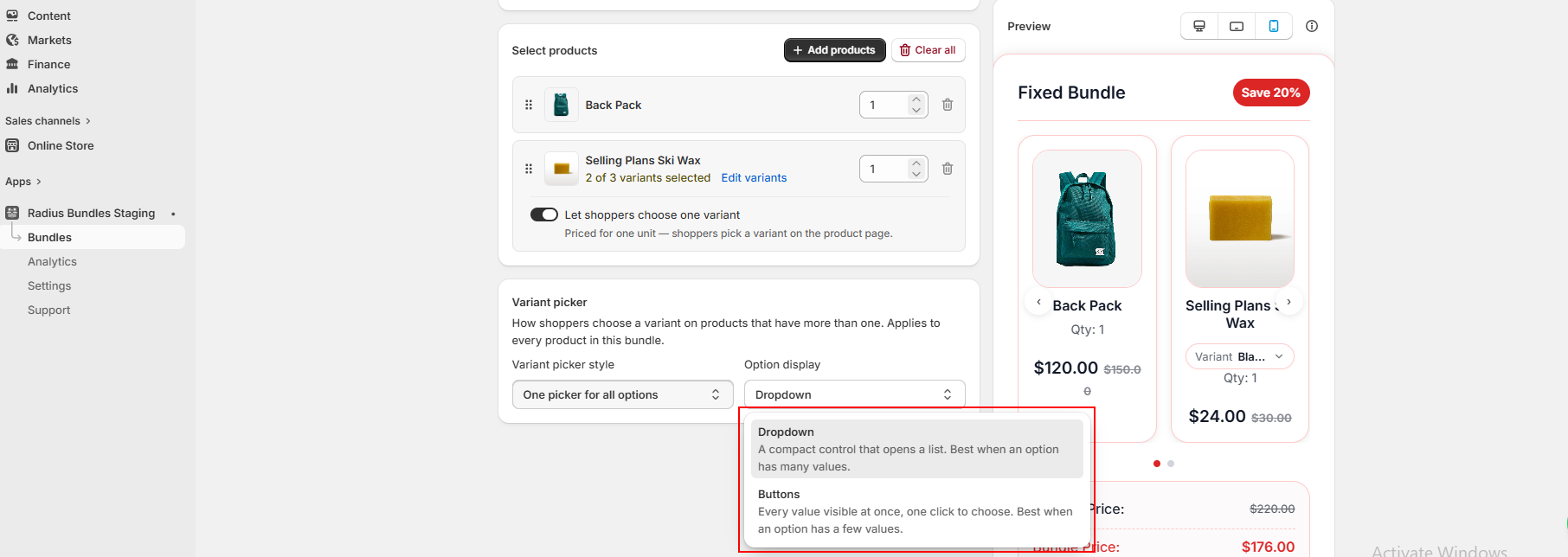
- Dropdown — A compact selector that opens a list when clicked. Best when a product has many variant values (e.g., 10+ sizes).
How It Looks on the Storefront
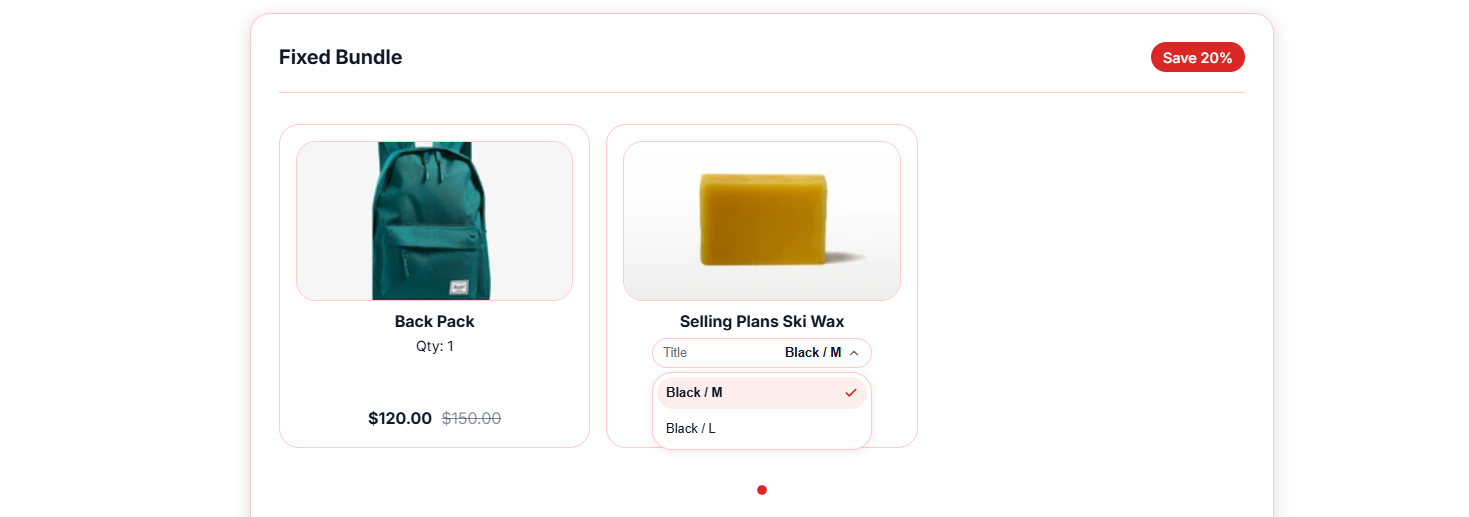
Dropdown display — The variant selector appears as a compact dropdown under the product name. Customers click to open a list, see all available options (e.g., “Black / M” and “Black / L”), and select one. A checkmark indicates the currently selected variant. Best when the product has many variants — keeps the card clean and compact.
- Buttons — All values visible at once, one click to choose. Best when a product has a few values (e.g., S, M, L, XL) and you want faster selection.
How It Looks on the Storefront
All variant options appear as clickable buttons directly on the product card. Customers tap one to select it instantly — no extra click needed. The selected variant gets a highlighted border. Best when the product has just a few variants — faster selection with everything visible at a glance.


