
Export your bundle configuration to a CSV for backup, bulk editing, or moving bundles to another store. Import reads that file (or a file from another bundle app or spreadsheet) and creates bundles from it.
Where to find it #
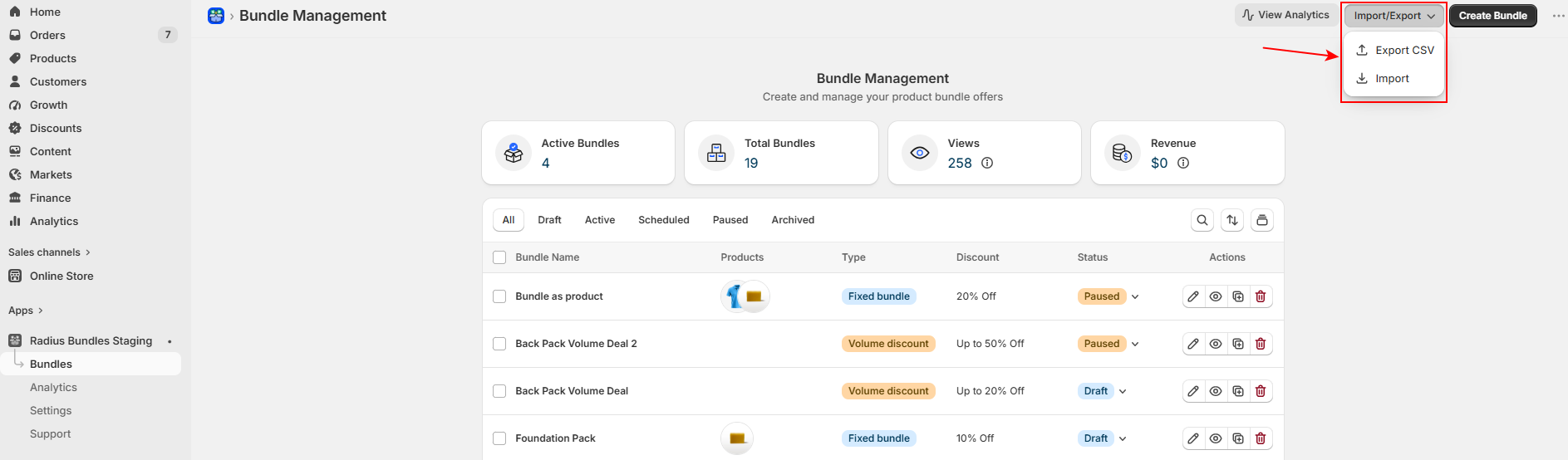
On the Bundles page, click Import/Export in the header. The dropdown shows two options:
Export CSV: download all your bundles as a spreadsheet.Import: open the import wizard.
Exporting #
Clicking Export CSV downloads a file to your computer. It includes every bundle in your store (all statuses: draft, active, paused, archived, scheduled), up to 1,000 bundles. The file is named bundles-{your-store}-{today's date}.csv.
The file does not include analytics data (views, revenue). Those are on the Analytics page.
CSV structure #
One row = one bundle. Products are stored as parallel pipe-separated lists within that row: the third handle, third SKU, and third quantity all belong to the same product. Opening the file in a spreadsheet, each row is one complete bundle.
Column reference #
| Column | What it holds | Accepted values |
|---|---|---|
| Bundle Name | The bundle’s name | Any text |
| Description | Internal description | Any text |
| Bundle Type | The type of bundle | Fixed Bundle, Buy X Get Y, BOGO, Volume Discount, Mix And Match |
| Status | Current status (read-only on import) | Arrives as Draft regardless; see Defaults on import |
| Cart Presentation | How components appear in the cart | Grouped, Separate |
| Priority | Numeric priority for overlapping bundles | Number |
| Priority Type | How the priority is applied | Index Based, Discount Based |
| Discount Type | How the discount is calculated | Percentage, Fixed Amount, Custom Price, No Discount, Quantity Breaks |
| Discount Value | The discount amount or percentage | Number |
| Discount Application | What the discount applies to | Bundle, Products |
| Min Order Value | Minimum cart total before the discount applies | Number |
| Max Discount Amount | Cap on the total discount | Number |
| Free Shipping | Whether the bundle includes free shipping | Yes, No |
| Volume Tiers | Tiered discounts as min:discount pairs, pipe-separated | e.g. 3:10|5:15 |
| Volume Discount Type | Whether Volume Tiers are percentages or amounts | Percentage, Fixed Amount |
| Uses Per Order Limit | Times this discount can apply per order | Number |
| Buy Quantity | Quantity to buy (Buy X Get Y and BOGO) | Number |
| Get Quantity | Quantity to receive free (Buy X Get Y and BOGO) | Number |
| Minimum Items | Minimum items a shopper must select | Number |
| Maximum Items | Maximum items a shopper may select | Number |
| Allow Mix And Match | Whether mix-and-match selection is enabled | Yes, No |
| Mix And Match Price | Fixed price for a mix-and-match set | Number |
| Start Date | Date the bundle becomes active | YYYY-MM-DD |
| End Date | Date the bundle is paused | YYYY-MM-DD |
| Products | Product handles, pipe-separated | e.g. blue-hoodie|red-hoodie |
| Product SKUs | Variant SKUs, pipe-separated | e.g. HOODIE-BL|HOODIE-RD |
| Variant IDs | Shopify variant GIDs, pipe-separated | Useful when re-importing into the same store |
| Product Titles | Product titles (for reference) | Any text |
| Variant Titles | Variant titles; blank for products with no variants | Any text |
| Quantities | Per-product quantities, pipe-separated | e.g. 1|2 |
| Roles | Per-product roles, pipe-separated | Trigger, Reward, Included, Optional, Group Option |
| Product Groups | Group each product belongs to, pipe-separated | Any text |
| Custom Prices | Per-product price override, pipe-separated | Number |
| Required | Whether each product is required, pipe-separated | Yes, No |
| Allow Variant Choice | Whether shoppers choose a variant, pipe-separated | Yes, No |
| Min Quantities | Per-product minimum quantity, pipe-separated | Number |
| Max Quantities | Per-product maximum quantity, pipe-separated | Number |
| Group Names | Mix-and-match group names, pipe-separated | Any text |
| Group Min Selections | Minimum selections per group, pipe-separated | Number |
| Group Max Selections | Maximum selections per group, pipe-separated | Number |
| Group Sources | How each group’s products are sourced, pipe-separated | Products, Collection |
| Group Collections | Collection handle for collection-backed groups, pipe-separated | Any text |
| Bundle Product ID | Shopify product ID of the bundle-as-product | Read-only |
| Bundle Variant ID | Shopify variant ID of the bundle-as-product | Read-only |
| Parent Variants | Bundle-as-product variant configuration | Read-only |
Volume Discount Type matters when your volume tiers use fixed amounts rather than percentages. Without it, a fixed-amount ladder re-imports as a percentage ladder. Files exported from this app always include it.
Importing Step by Step #
Step 1: Choose file #
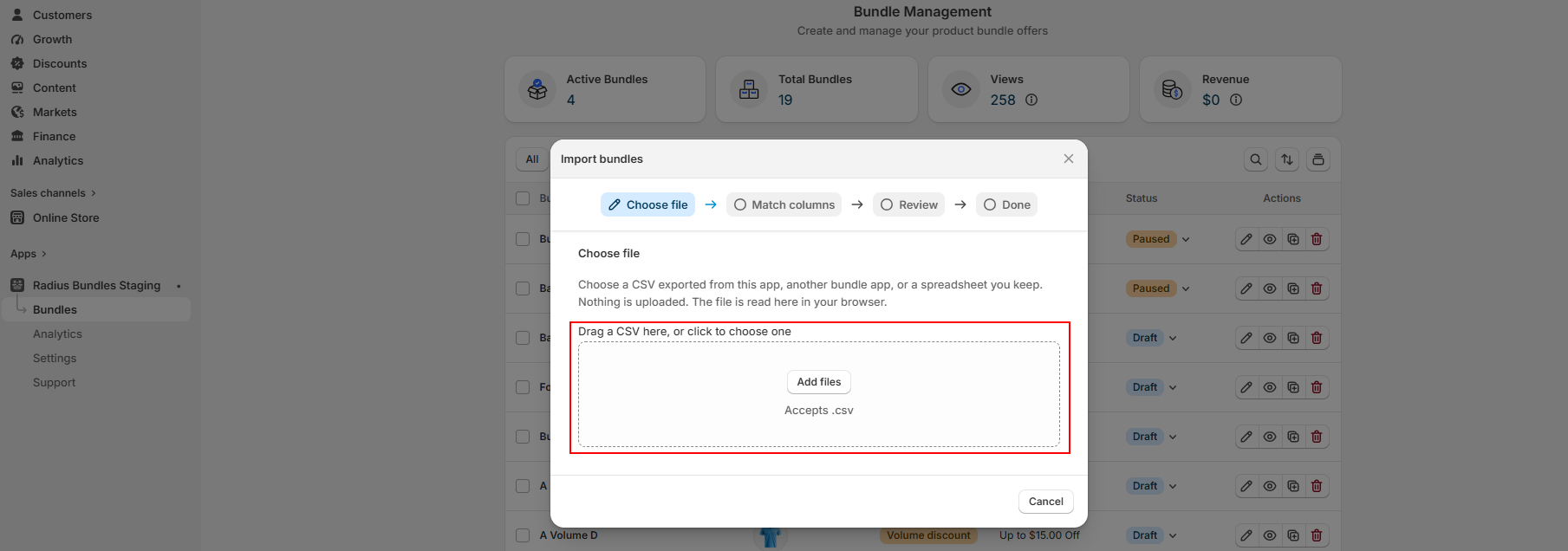
Click Import from the Import/Export menu. Drag your CSV onto the drop zone or click to choose it. Only .csv files are accepted.
Step 2: Match columns #
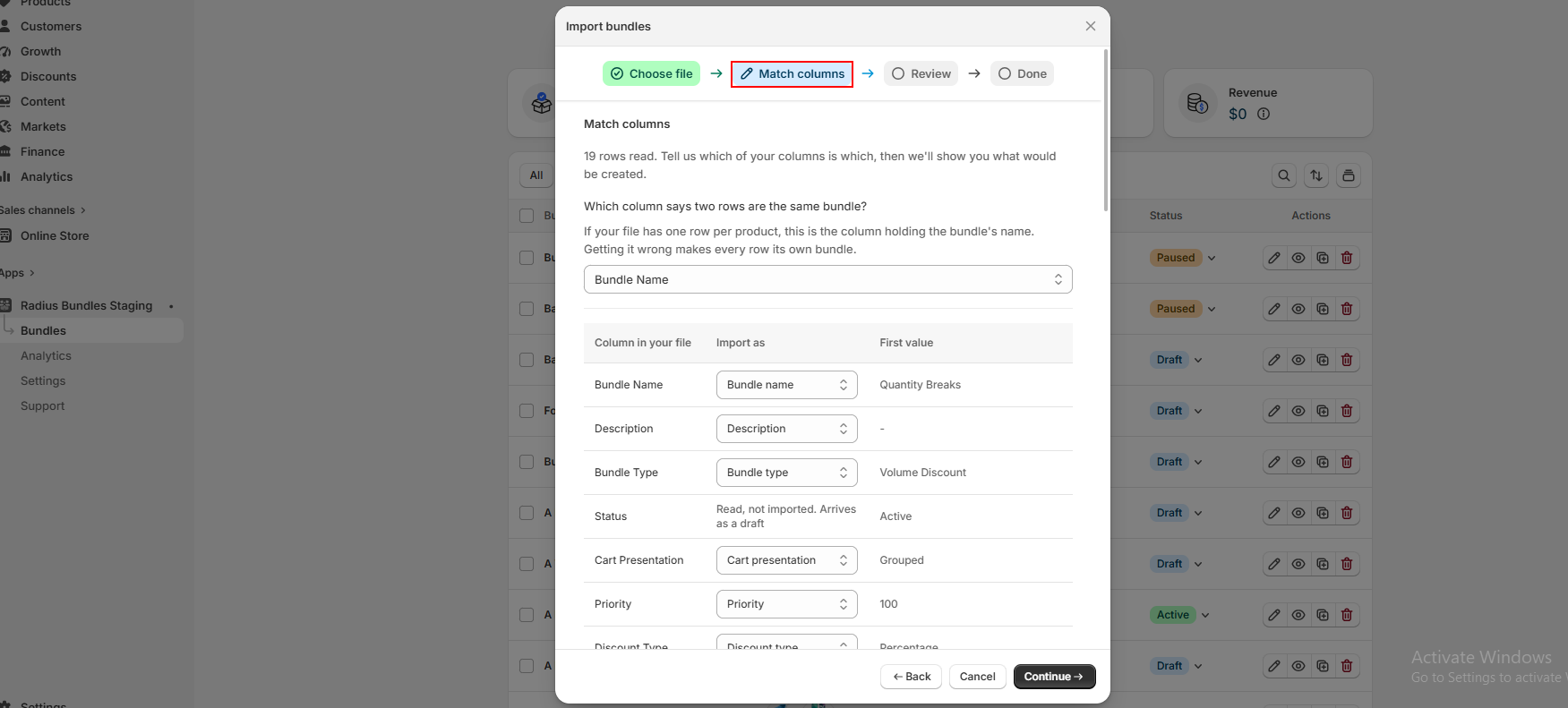
The wizard lists your file’s column headers alongside a suggested destination field and the first value from each column. Check the suggestions:
- Column in your file: the header as it appears in your CSV.
- Import as: the field it will write. Change it with the dropdown, or choose
Ignore this columnto skip it. - First value: a sample from the first row, to tell similar columns apart.
Grouping column. Below the table, the wizard asks: “Which column says two rows are the same bundle?” If your file has one row per product (common in exports from other apps), set this to the column holding the bundle name. Getting it wrong makes every row its own one-product bundle; the Review step makes this visible.
Two fields are required: Bundle name and Bundle type. The wizard will not let you continue until both are mapped.
Click Continue to proceed. The wizard matches your products against this store before showing the review.
Step 3: Review #
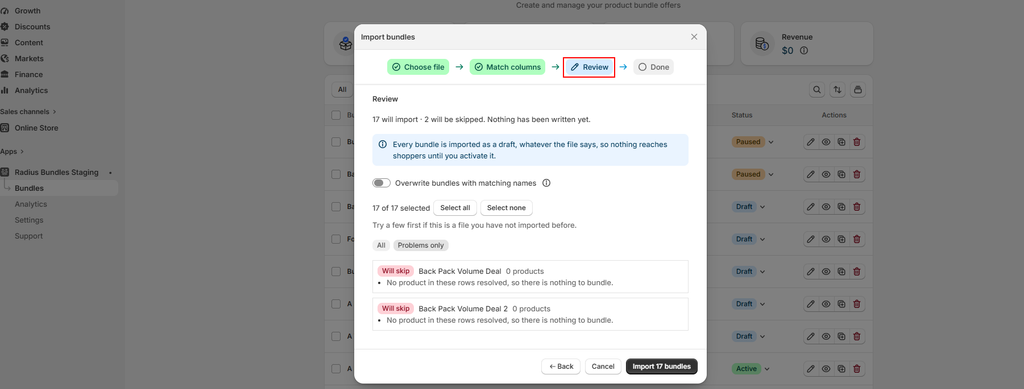
The Review step shows each bundle as it would be created, not the raw rows. For each bundle:
- A Will import or Will skip badge.
- The bundle name and product count.
- A list of problems: a product handle not found, an unrecognised bundle type, product lists of different lengths.
Overwrite bundles with matching names is off by default. When off, a bundle whose name already exists is left unchanged and counted as “left unchanged” on the results screen. When on, its products and discount are replaced by the file’s version. The tooltip reads: “Off: a bundle whose name already exists is left untouched. On: its products and discount are replaced by the file’s.”
Tick and untick individual bundles to choose what runs. Use Select all and Select none, or select a few to try a new file before committing to all of it.
Click Import {n} bundles to proceed. A confirmation appears before anything is written.
Step 4: Done #
The results screen shows counts:
- Created: new bundles added.
- Overwritten: bundles whose products and discount were replaced.
- Left unchanged: bundles skipped because a matching name already existed and the overwrite switch was off.
- Failed: bundles that could not be created, with a per-bundle reason.
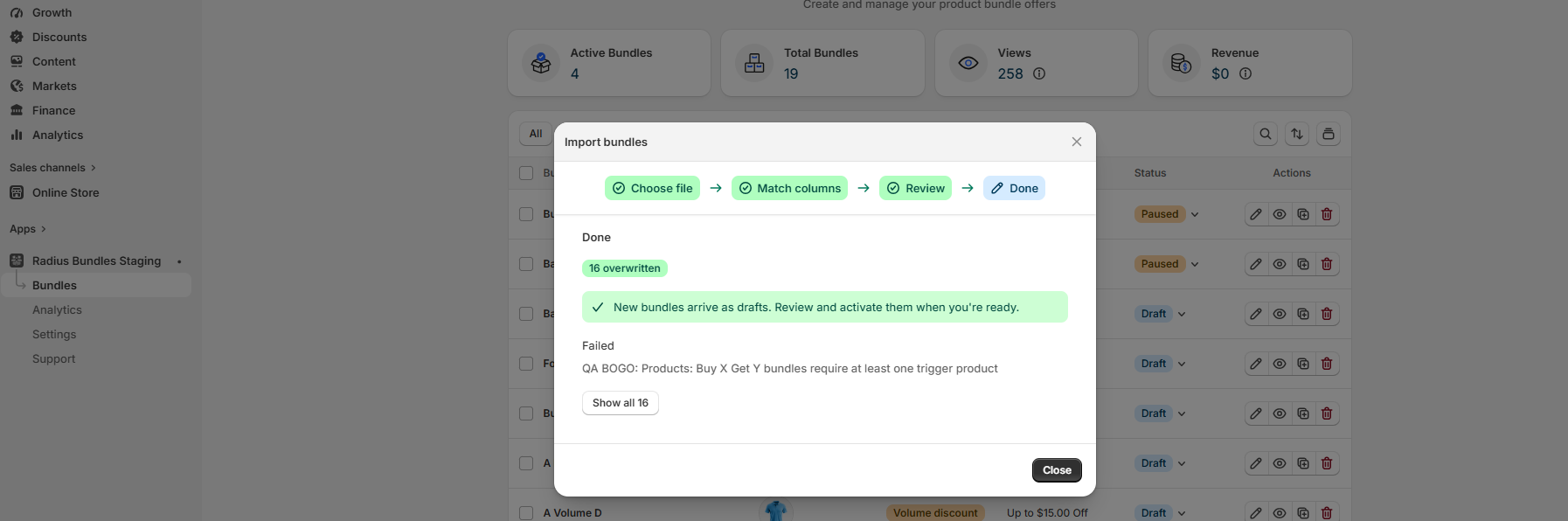
New bundles land as drafts. Find them on the Bundles page and activate the ones you want live.
When a Bundle Name Already Exists #
Without the overwrite switch, an existing bundle is left untouched. With it on, the existing bundle’s products and discount are replaced by the file’s version. Everything else (images, schedule, priority, cart presentation, and whether the bundle is currently live) is kept exactly as it is. A live bundle stays live and shoppers see the new products and discount immediately.
Moving Bundles Between Stores #
Products in the CSV travel by SKU and handle, not by internal ID. For each product the app uses its SKU when the row has one, and its handle otherwise.
- If a SKU or handle matches nothing in the new store, the whole bundle is skipped and the Review step explains which term was not found.
- If a SKU matches more than one variant (Shopify does not require unique SKUs), the bundle is skipped with an “ambiguous” message. Make that SKU unique in Shopify, then import again.
The app does not create products for you. Products must already exist in the destination store.
Defaults on Import #
| What | Default | Why |
|---|---|---|
| Status | Draft | Imported bundles start as drafts so nothing goes live without your review, whatever the file’s Status column says. |
| Layout | The type’s default layout | The same starting layout a brand-new bundle of that type gets. |
| Bundle as Product | Off | A bundle-as-product’s Shopify product ID points at a specific store. Import does not re-create that connection; turn on Create product for bundle in the bundle after importing. |
Limits #
| Limit | Value |
|---|---|
| Bundles exported per file | 1,000 |
| Rows per import file | 5,000 |
The hourly rate limit for creating bundles applies to the whole import as one operation, not per bundle. A 35-bundle import counts as one action.
Errors and Where They Appear #
Match columns step: mapping-level problems (a required column unmapped, two columns mapped to the same field, an unrecognised value in a typed field, a grouping column that makes every row its own bundle). Fix these before continuing.
Review step: per-bundle problems (product not found, unsupported bundle type, product columns of different lengths). Bundles with these problems show as Will skip and are excluded from the import unless the file is corrected and re-uploaded.
Common Mistakes #
Wrong grouping column when the file has one row per product. If ten rows all belong to “Winter Kit” and you leave the grouping column set to a SKU, you get ten one-product bundles. The Review step shows the count. Go back and choose the column that holds the bundle name.
Editing product lists in a spreadsheet and deleting one entry. Products in a row span parallel columns: handles, SKUs, quantities, roles. Deleting one handle without deleting the matching SKU and quantity shifts every product after it onto the wrong values. The Review step flags rows where those lists are different lengths.
Expecting an overwrite to draft a live bundle. Overwriting replaces products and discount but does not change whether the bundle is live. An active bundle stays active and shoppers see the change right away.


