
The Tools tab provides utility actions for syncing and troubleshooting. Visit it when something on the storefront doesn’t match what you’ve configured in the app.
Maintenance and troubleshooting utilities. You’ll rarely need these, but they’re here when you do.
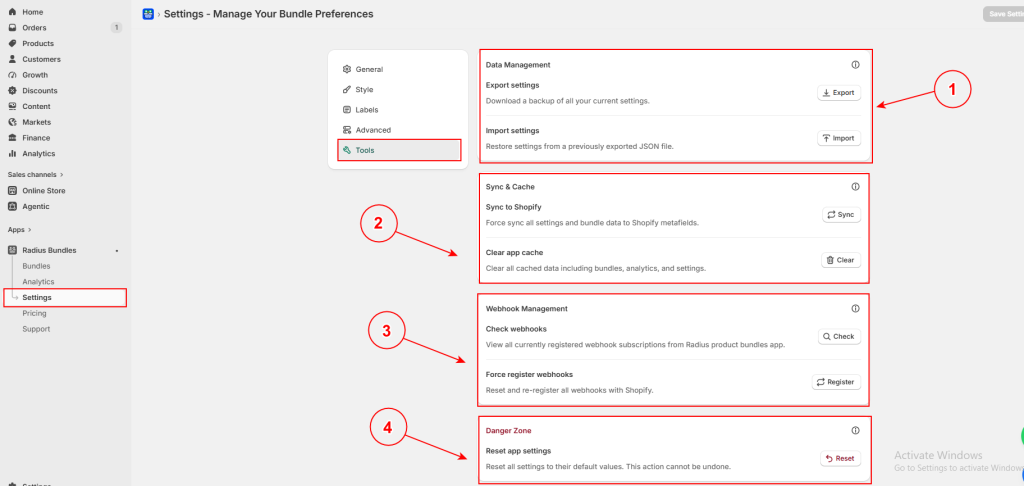
1. Data Management #
- Export settings — Download a backup of all your current settings as a JSON file. Useful before making big changes.
- Import settings — Restore settings from a previously exported JSON file. Great for migrating settings between stores or rolling back changes.
2. Sync & Cache #
- Sync to Shopify — Force-pushes all settings and bundle data to Shopify metafields. Use if your storefront isn’t reflecting recent changes.
- Clear app cache — Clears all cached data including bundles, analytics, and settings. Try this first if anything looks out of sync.
3. Webhook Management #
Check webhooks — View all currently registered webhook subscriptions. Useful for debugging if bundles aren’t updating automatically.
Force register webhooks — Resets and re-registers all webhooks with Shopify. Use if product or order updates aren’t being picked up.
4. Danger Zone #
Reset app settings — Resets everything back to factory defaults. This cannot be undone. Export your settings first if you might want them back.
Tip: Always click Export in Data Management before using any Sync, Webhook, or Reset action — so you have a backup to restore from if needed.
When to Use Tools #
- After activating a scheduled bundle manually: The storefront may lag behind. Run a sync to force it current.
- After bulk-editing bundles: If you changed many bundles at once, sync to make sure all changes are live.
- Discount not applying: Run a sync, then test checkout again before contacting support.
- Widget shows stale products or prices: Run a sync and reload the product page in an incognito window.


